Adding New Applications
New applications require information about company representatives, business details, eligibility, accounting, and group information, also product setup with collateral if needed. Add the information by following the steps below:
Adding Company Representatives
The SME Customer Representative needs to provide information about their role within the company.
-
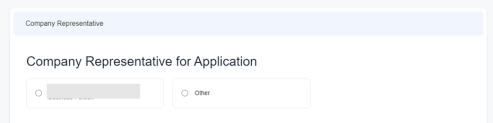
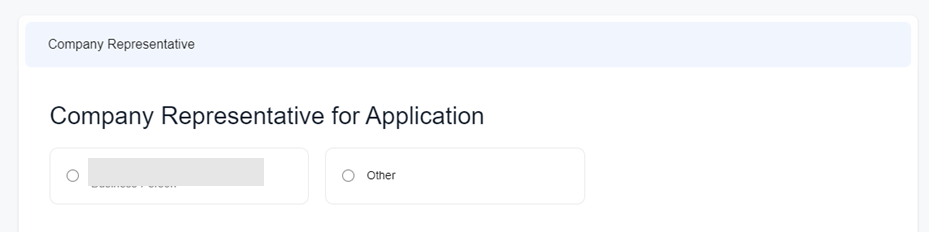
On the Company Representatives screen, select the SME Customer Representative name from a list with all the director roles within the company. The list is brought from the integration with the Companies House Connector, which collects publicly available information about all the company associates.
-
If you didn't find the name of the Customer Representative in the displayed list, select Other.
-
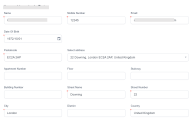
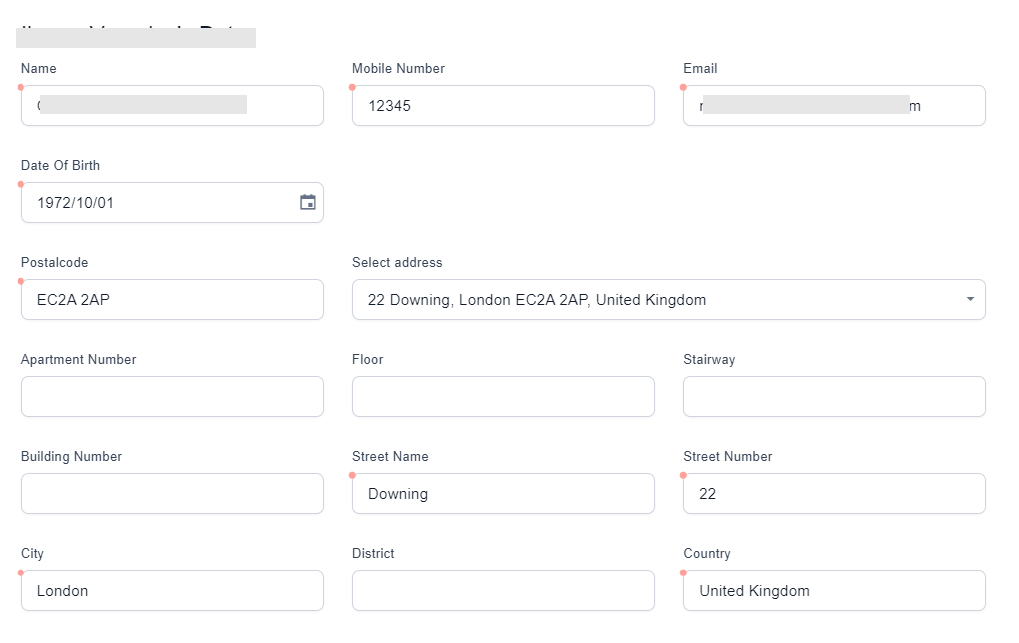
After selecting the Customer Representative, the details displayed about the customer representative are populated with information from the integration with the Companies House Connector. If needed, enter the missing details about the Customer's representative . All the fields are mandatory, except: Apartment number, Floor number, Stairways, Building and District.
-
If the address is not automatically added, you can enter the Postcode, Street Name, Street number, City or Country, and a list with all the corresponding addresses is displayed in the Select Address field due to the integration with Ideal Postcode.
 Obtaining Customer Agreement
-
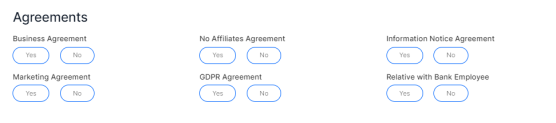
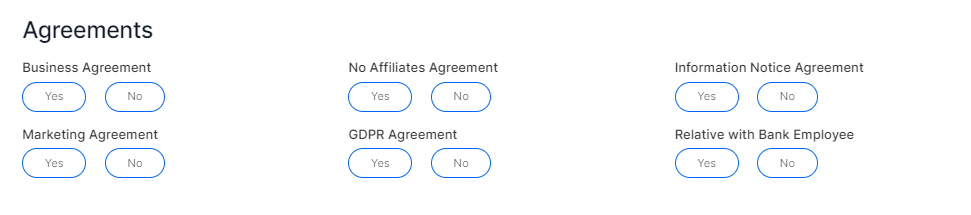
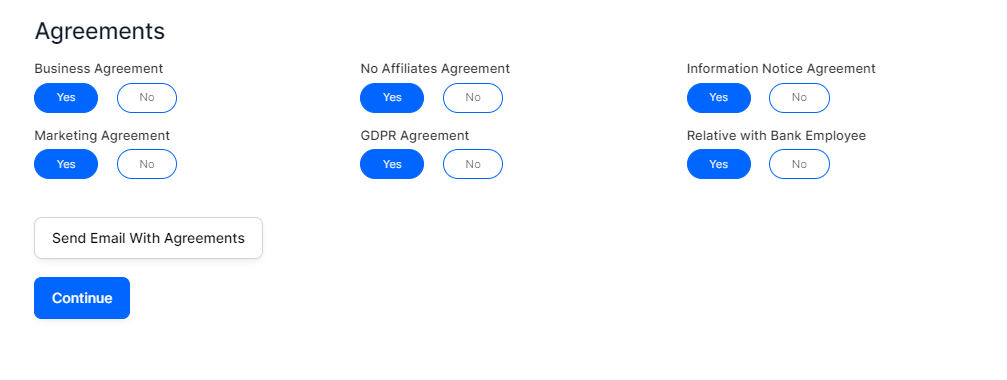
After you entered all the mandatory information about the Customer Representative, ask the Customer Representative if they agree or disagree with the following:
 IMPORTANT!
The application process can only continue if the company representative agrees to the GDPR, Information and Business Agreements.
-
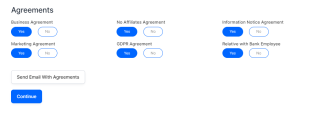
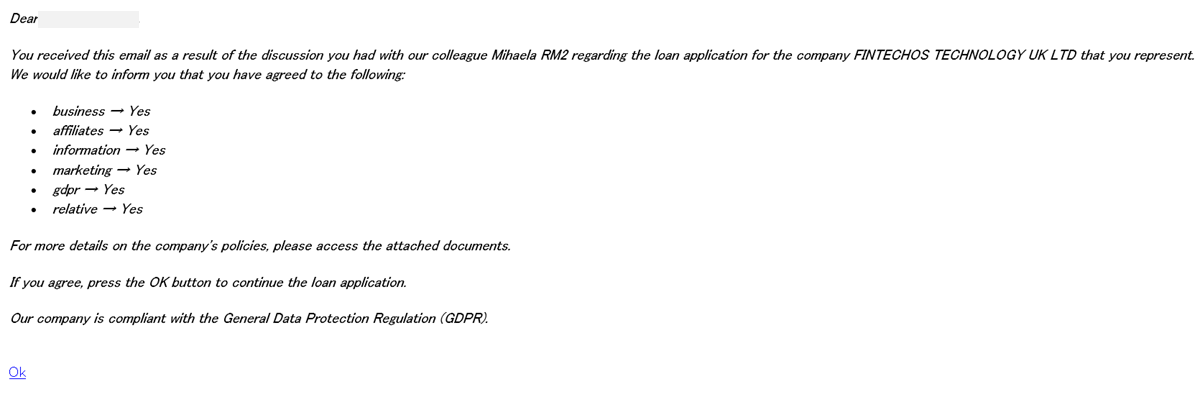
After the agreements were checked, click Send Email with Agreements and an e-mail is sent to the Customer Representative informing about the consent given in the previous step. In the same e-mail, the Customer Representative finds attached the documents with the details about these agreements: GDPR, Marketing, Relative, Information, Affiliates, and Business Agreements.
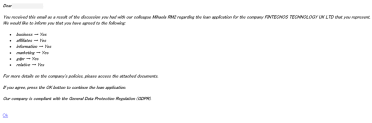
To continue the assisted application, in the e-mail received, the Customer Representative is informed to click OK.
-
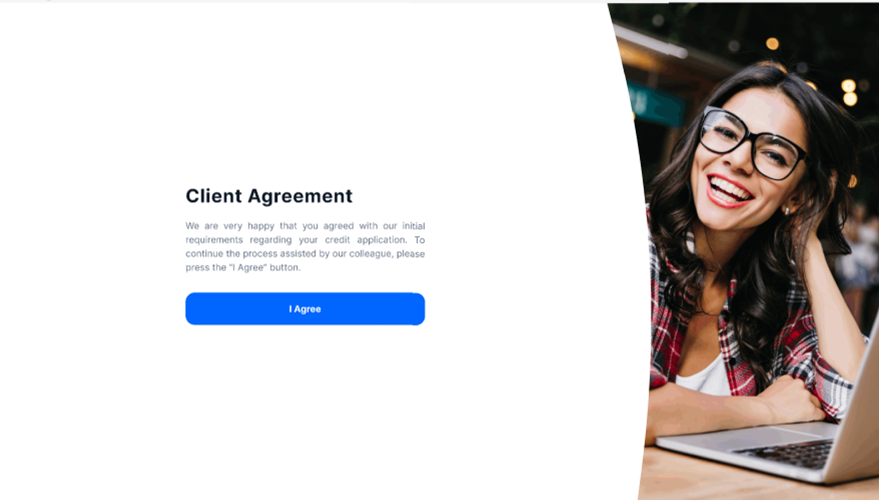
Once the Customer Representative clicks OK, the Confirm Agreements page is displayed, and the Customer Representative has to click I agree in order to continue the application.

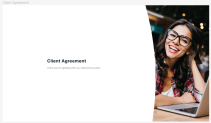
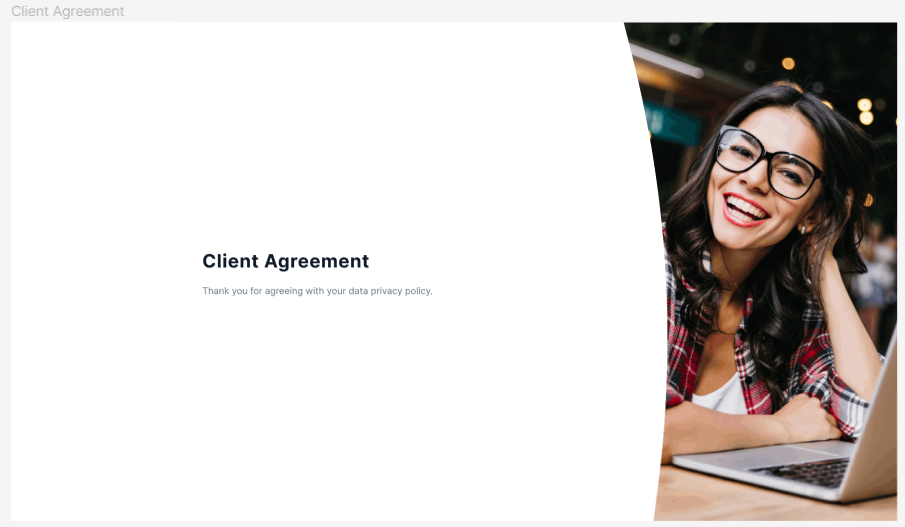
An additional Client Agreements page is displayed with a thank you message.
-
You can proceed with the application only after the Customer Representative has clicked I agree on the Customer Agreement page. To do so, on the Company Representatives for Application, click Continue.
Filling Business Details
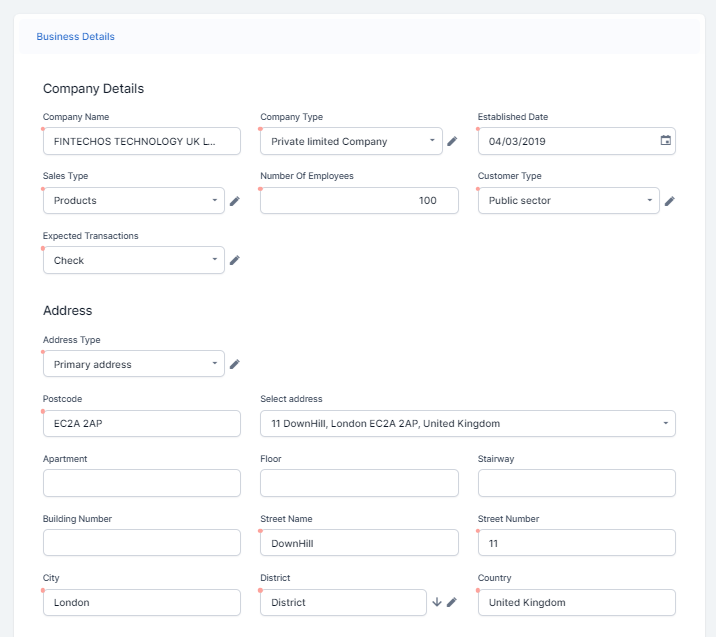
Review the company's details displayed on the Business Details screen. The fields are auto-completed, and the information is collected through the integration with Companies House (for the Company Details section) and Ideal Postcode (for the Address section).
-
In the Company Details section, all the fields are mandatory to continue the application: Business name, Type of company, Established Date (date of starting a business), Sales Type, Number of Employees, Customer Type, and Expected Transactions. Fill in the fields where the information is missing.
-
In the Address section, all the fields are mandatory except Select address, Apartment, Floor, Stairway, and Building Number.
Fill in the fields where the information is missing. In the Select address option, you can find a list of address suggestions based on the Postcode, City, Street Name, Street Number, and Country.
-
Click Continue.
Determining Eligibility
A set of predefined questions and answers are displayed in this step.
-
To determine if the SME customer is eligible for the credit application, ask the Customer Representative the following questions:
The application process can continue if the Customer Representative answers No to all the questions available in the Eligibility step.
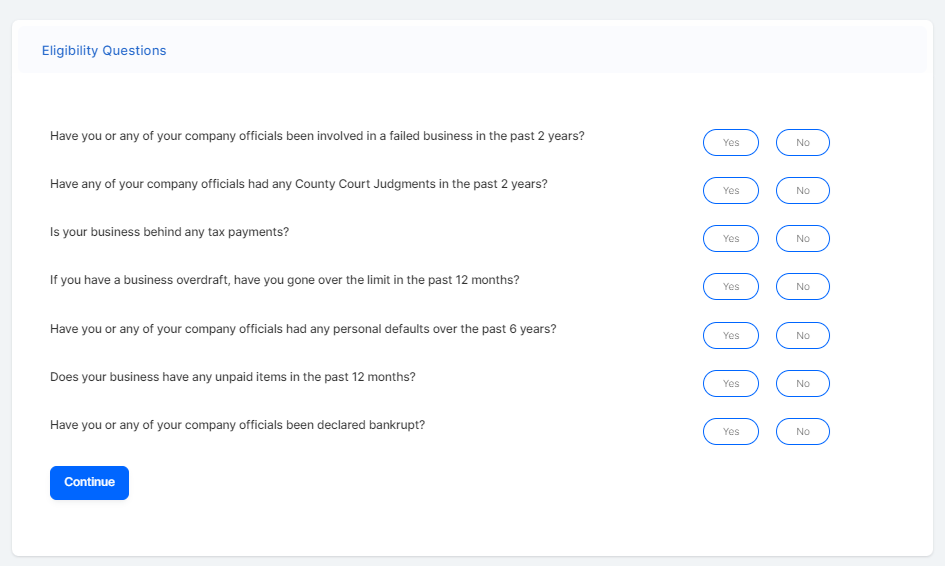
- Click Continue. If the applicant is found eligible, you can continue the application otherwise, you can't navigate to the next step of the application. A message is displayed informing you that the customer hasn't passed the minimum eligibility checks.
Obtaining Accounting Information
Once the credit application passes the Eligibility step, an email is sent to the Customer Representative. To proceed with the application, the Customer Representative needs to provide the bank with permission to pull the accounting information required for the credit application.
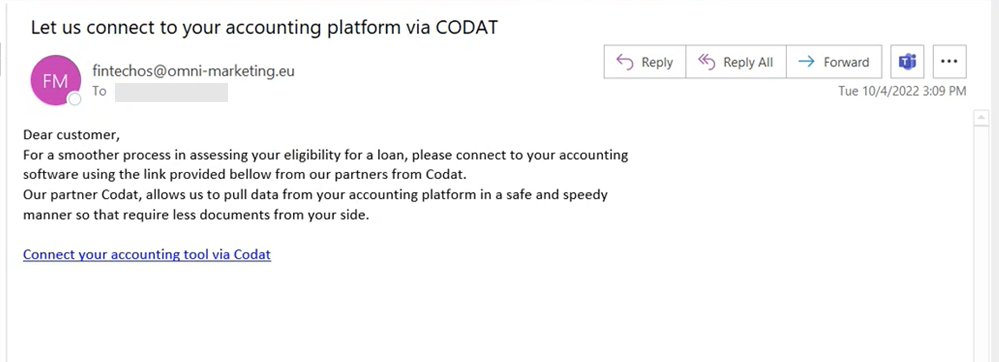
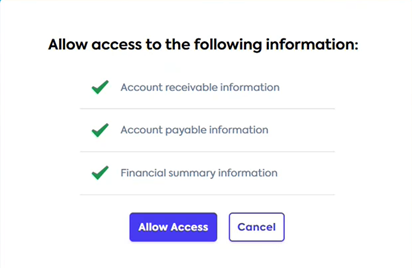
The Customer Representative clicks Connect your accounting tool via Codat and is redirected to the Codat portal, where they need to enter their credentials and allow access to their accounts receivable, accounts payable and financial summary information.
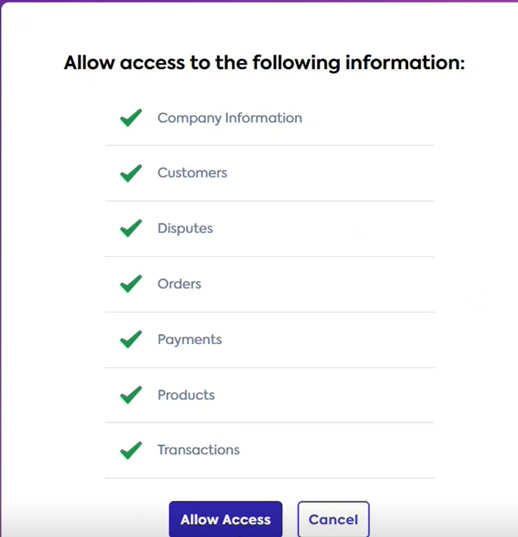
Also, the Customer Representative needs to allow access to the Company Information, Orders & Payments, Products, Disputes & transactions, and Customers.
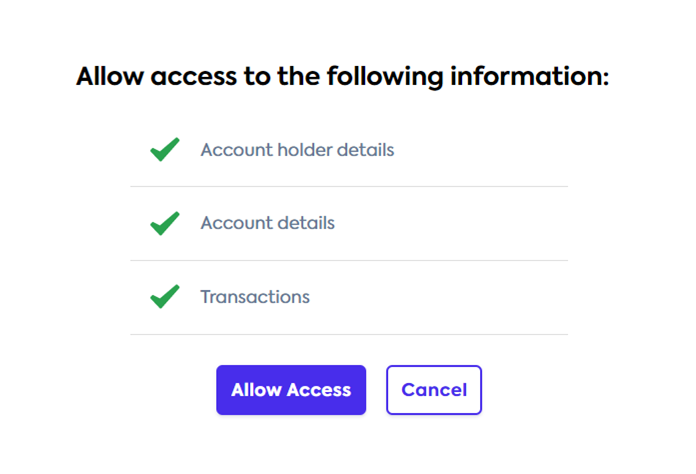
Optionally, the Customer Representative can allow access to the account holder details, account details, and transactions.
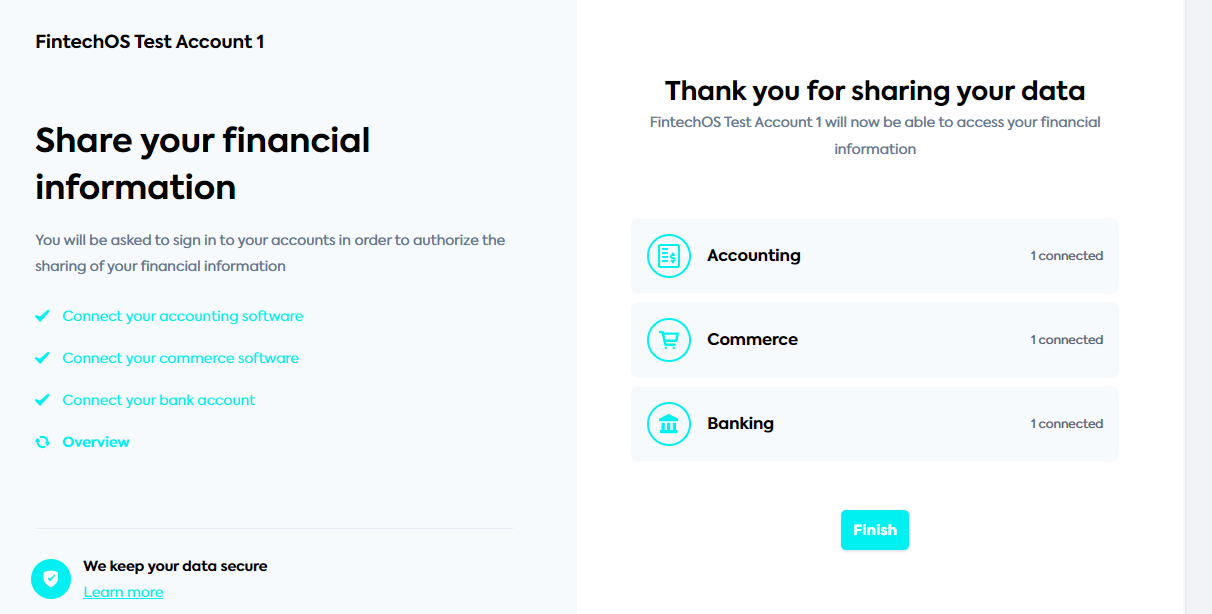
The Customer Representative views all the allowed access on a thank you page and needs to click Finish.
After the Customer Representative provides access to the accounting information, on the Get Integration Data page, click Get Accounting Tool and you are redirected to the Company Details > Overview tab.