Configure the Quote
In order to correlate the existing configuration with a quote process, a quote registration has to be configured. In this way, a quote configuration is be integrated with the Quote&Bind application.
To set up a quote configuration, general information must be completed and also correlate with the DNT question previously configurated.
In this section, you can configure the quote types to be displayed.
-
Log in to Innovation Studio.
-
Navigate to Q&B Configurator > Quote Config.
-
Click the Insert (+) button on the top right to insert a new quote.
-
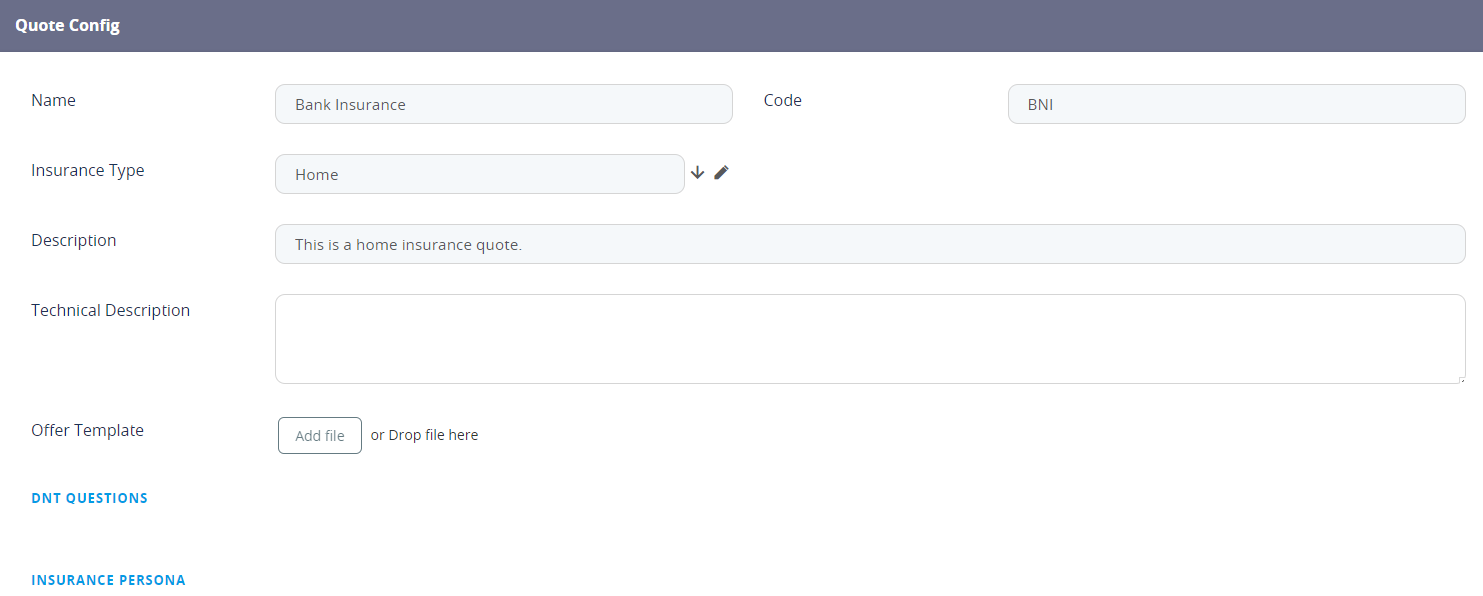
Fill out the fields with the needed information.
Field Description Name The name of the quote, e.g. Bank Insurance. Code Assign a code for the quote to make it easily recognizable. Insurance Type Choose the type of insurance from the option set. The insurance type needs to be pre-configured as per the steps detailed here. Description Free text field to describe the created quote. Technical Documentation Input a technical description for the created quote, if needed. Offer Template Upload a file representing an offer template to be printed. 
-
Click the Save and Reload button on the top right of the screen.
-
The DNT Questions and Insurance Persona grids are unfolded.
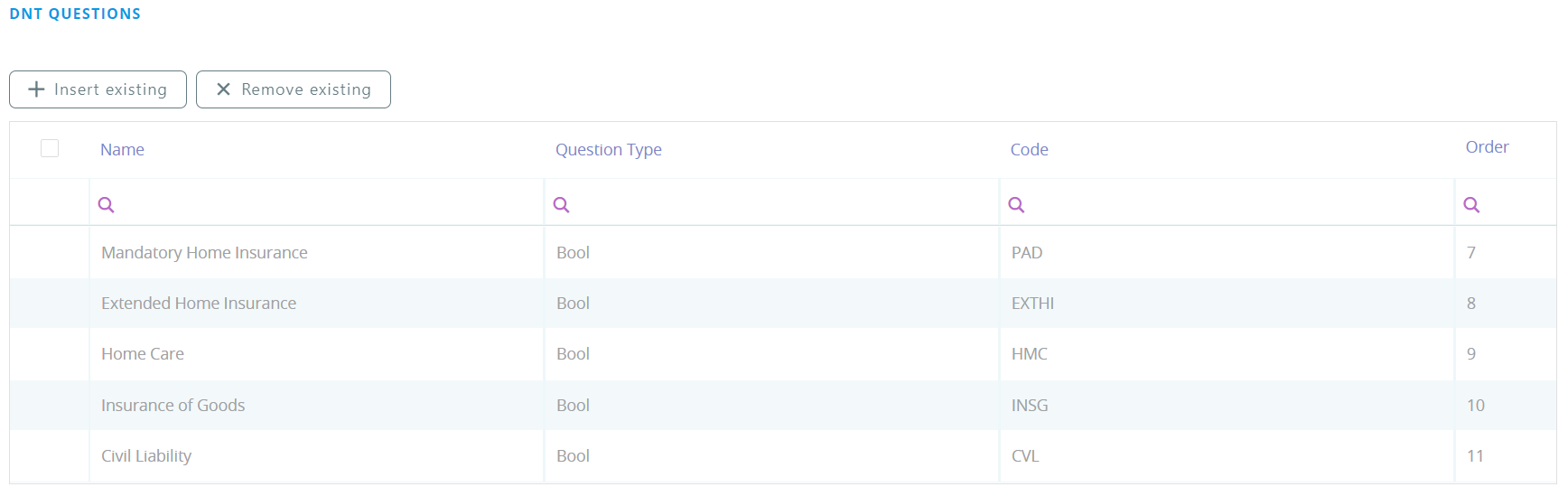
In the DNT Questions grid, you can create the questionnaire by adding the questions which are configured in the Q&B Configurator > DNT Questions section.
Similarly, in the Insurance Persona grid, you can add the persona types which are configured in the Q&B Configurator > Insurance Persona section.
-
After configuring the DNT Questions and Insurance Persona, click the Save and Close button on the top right corner.
-
The quote is listed in the Quote Config List grid.


You can delete any of the quotes by ticking one of multiple records and clicking the Delete button on the top right corner. In addition, the data in the Quote Config List can be exported in an .xsls file by clicking the Export button on the top right corner.