Excess Amount
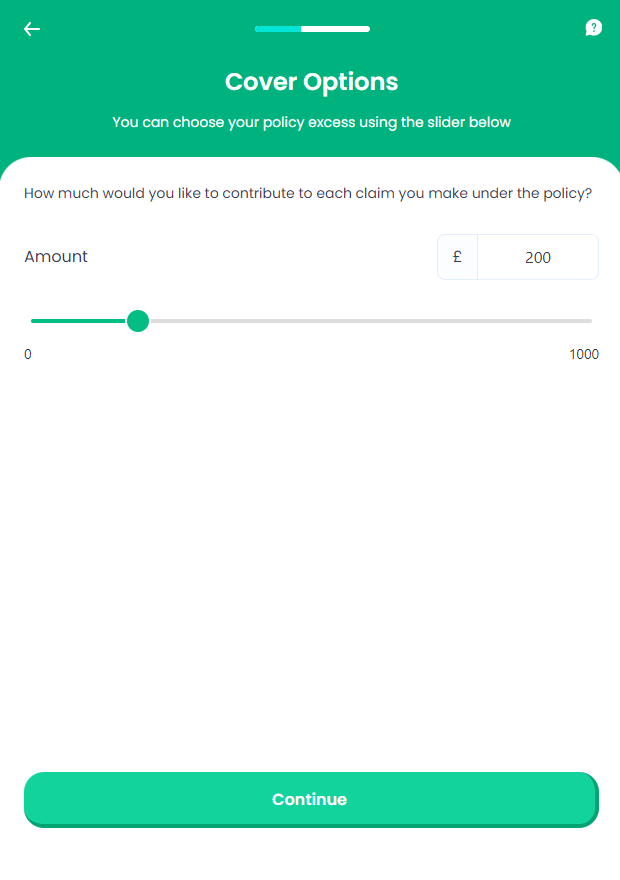
This screen, allows the pet owners to select the excess amount they agree to contribute to a claim made on the pet policy. On this step, the solution stores the amount chosen by the customer for further processing, including quote pricing and also generating the quote document. For this step, the values inserted by the user are stored in the Pet Quote entity.
For more details about handling the excess amount by the Pet Insurance solution, consult the Product Configurations and Product Definition pages.
From here: When the user clicks Continue, the Owner's contact details page is displayed.
On-Screen Assets
The following user interface components are included with the Excess Amount screen:
| UI Components | Description |
|---|---|
| Progress Bar | The progress bar gives the user a visual answer to the "How much till I get insurance for my pet?" question. |
| Back Button | The back button helps the user to re-take previous steps in the flow. |
| Help Button | The help button allows the user to find support for completing the flow. |
| Heading Title | The following heading title is displayed in the header section: Cover Options |
| Supporting Text | The following supporting text is displayed under the heading title: You can choose your policy excess using the slider below |
| Text | The following text is displayed in the header section: How much would you like to contribute to each claim you make under the policy?. |
| Amount Input Form | Under the label Amount, this input form captures the value (amount) inserted by the user. |
| Currency Label | The currency label £, informs the user about the policy currency. |
| Excess Amount (range slider) | The slider is an alternative way for the user to indicate the Excess Amount. The slider covers values from 0 to 1000. |
| Action Button | Continue - This button is used to display the next flow step. |
For details about the default UI style components used for creating the journey, consult the UI Style Components list on the Customer Journey page.
Below is an example of the Excess Amount screen: