Online User Migration
This process transfers the users from the legacy internet banking service of the bank to the FintechOS Online and Mobile Banking solution.
These steps are done by the user who accesses the B2C Portal An anonymous frontend environment with a secure architecture has been designed to allow exposing journeys to unauthenticated users (consumers).:
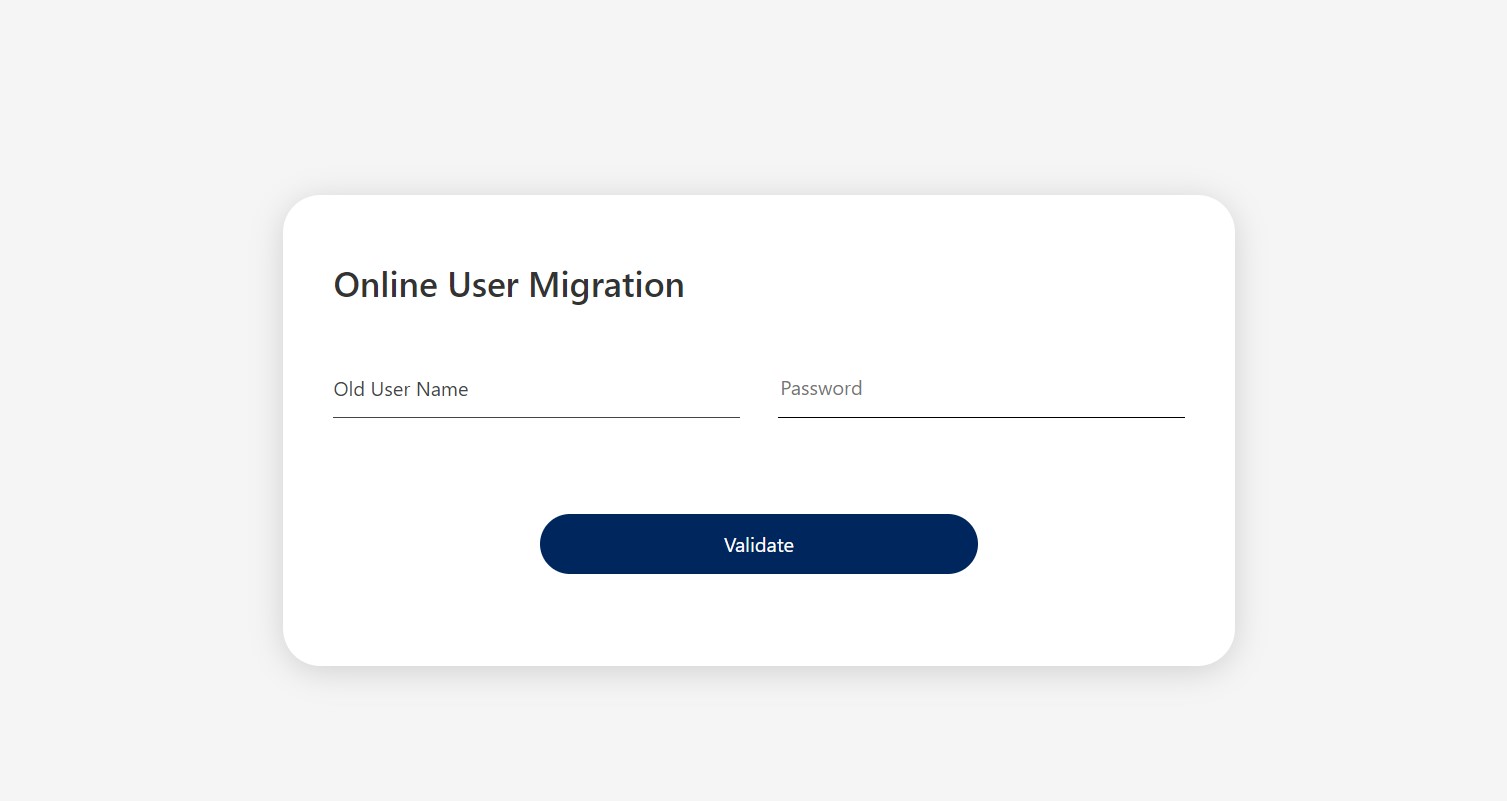
- Insert the old username and password.
To see the characters from the password, click on the eye icon next to the password.
The old username field has two validations in place:
- the name must be found in the legacy database for the process to advance
- the username must not have been migrated already.
HINT
The password is verified through an API integration (which now is simulated through an endpoint). - Click Validate. If you click this button three times in 15 minutes, the system declares an error.
- If the credentials were confirmed, a One-Time-Password OTP One-Time-Password. It is a password generated by the system to validate a piece of information or sign a document. is sent to your phone number. Insert the code into the OTP field.
Two actions are available:
- to change the phone number by clicking the dedicated button labeled Change phone number.
- to resend the code by clicking the dedicated button labeled Resend phone code.
- Once inserted, click OTP Verification.
-
If the code insertion was successful, the page displays the following message:
Your request has been registered, we expect you in the following 7 days in any of our branches to continue the registration.
-
On this page, insert a nickname for logging into Online and Mobile Banking. By default, the system displays the phone number as username. It is automatically generated, but you can modify it. It must be the phone number without the country code. The string numbers must be unique.
Furthermore, the user must set a password and confirm it by inserting it twice.
HINT
It is advisable to keep the new username identical to the phone number because both of them are unique to each user.These validations are done on this page:
- not recently used
- not sequence, letters, name of bank
- minimum 8 characters for the password
- password and username must be different
- the password must not be the email address
- the password must include digits, upper and lowercase, special characters
- the two fields where the password is inserted must match
- the username must be unique, start with zero and have exactly 10 characters.
A confirmation message is displayed.
- Click the Home button.Checking if the request was successful
As a maker or checker, to see if the user has successfully created a request in the System users list from the Innovation Studio (to access the list, open the Innovation Studio> Security> System users), a new entry is displayed with the name, email, and password that were configured.
Additionally, a maker can view the request from a user in the FintechOS Portal, on the dashboard in the grid named Online requests validated as explained in Back-Office Administration.