Log in to Online and Mobile Banking
After you've successfully registered for an account to the Online and Mobile Banking solution by following the steps detailed in the Register for an Account page. Depending on the type of accounts you have and the way access was set up for you, you can use a single username and password for both your individual and corporate accounts, or separate sets of credentials for the two.
Follow the instructions below to log in to the Online and Mobile Banking application:
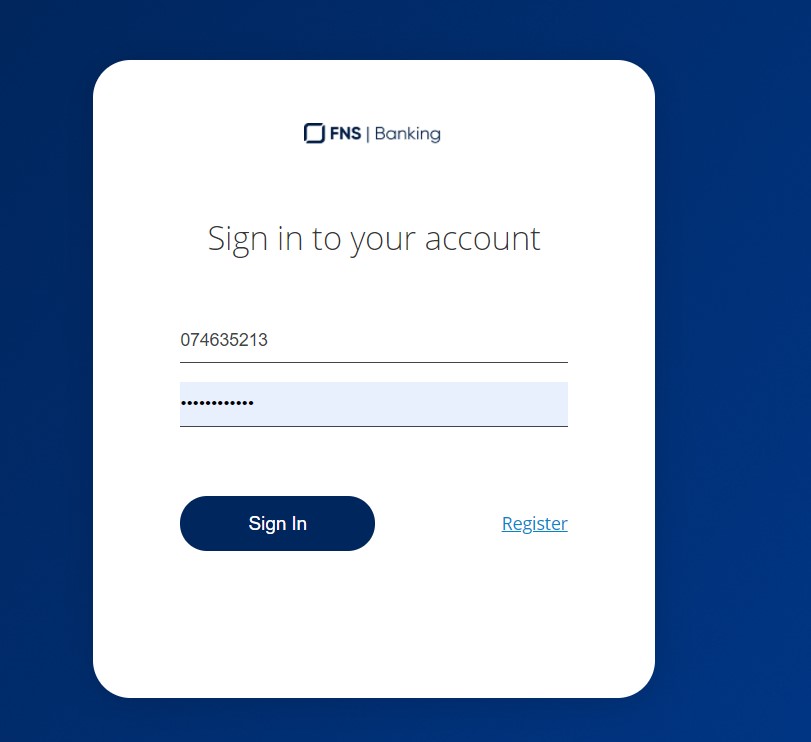
- Access the Online and Mobile Banking and insert the username or email address and password. Click Sign in.
- A SMS was sent to your phone number with a code to be inserted in this page. Insert the code and click Next.
-
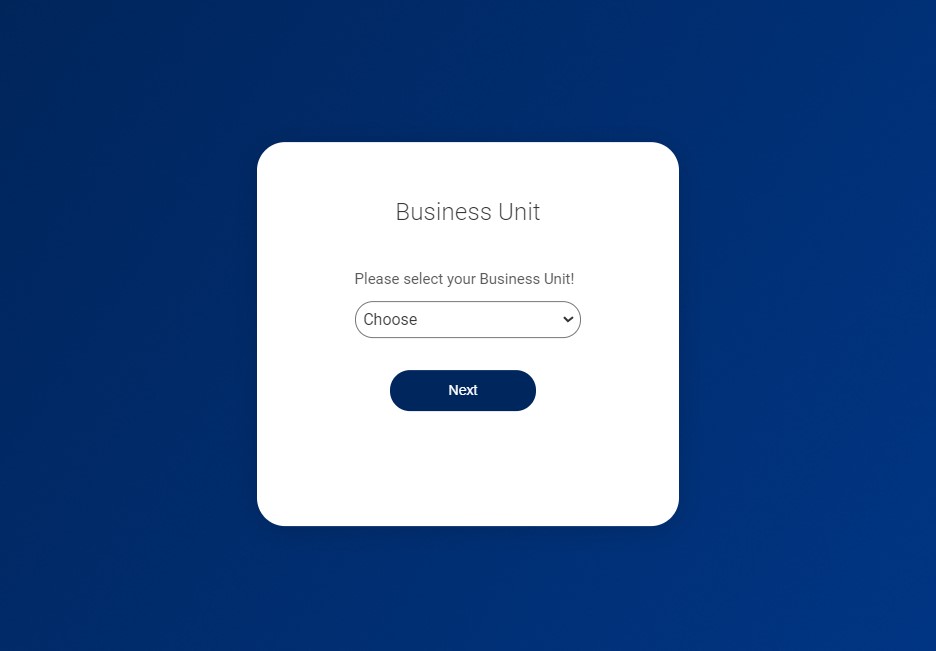
Choose the Business Unit from the drop-down field, the customer for whom the login is made. This screen is available for users with access to multiple customers with only one set of credentials. Selecting a business unit is essential for security reasons.
- Click Next and you are now logged in to the Online and Mobile Banking.
Changing your Password
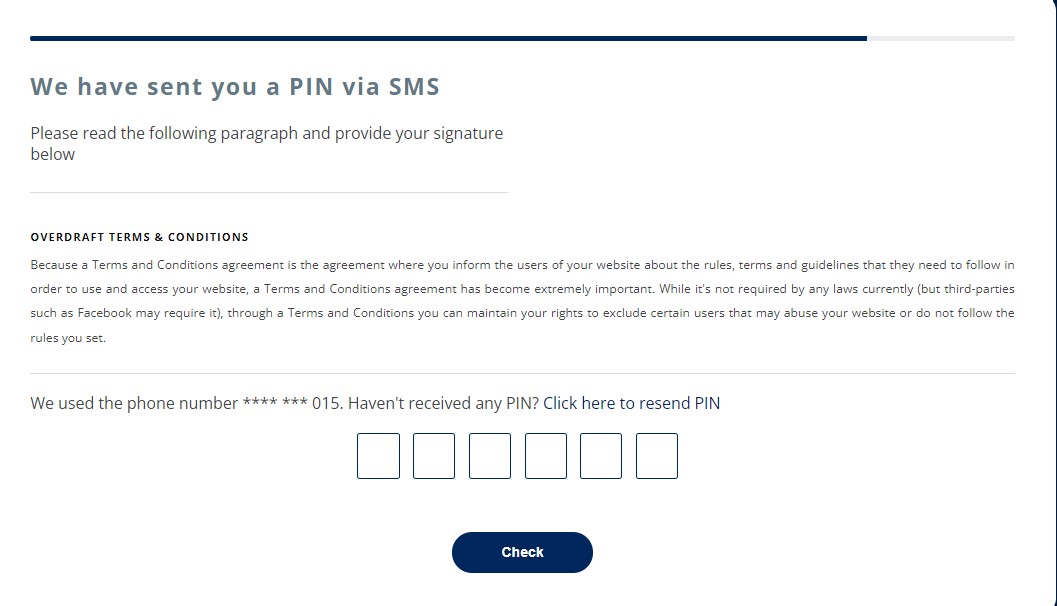
- Click the key icon. The page We have sent you a PIN via SMS. is displayed informing you that a OTP was sent to your phone number.
- There are six boxes. Insert the six numbers in each box. This is required to verify your identity.
If you did not receive the SMS, click Click here to resend PIN.
- After you inserted the code, click Check. The page Change Password is displayed with the password policy.
- Add your old password and the new one. Click Change password.