Online User Enrolment Request
An individual who wishes to apply to Online and Mobile Banking has to accomplish two actions:
- register a request online for this service from the bank (these are the steps described below)
- travel to the branch for the activation.
This process can be adapted to the wishes of the bank. It can be modified to be done online only.
Strong Customer Authentication Strong customer authentication (SCA) is a requirement of EU Revised Directive on Payment Services (PSD2) on payment service providers within European Economic Area. The requirement ensures that electronic payments are performed with multi-factor authentication, to increase the security of electronic payments.[1] Physical card transactions already commonly have what could be termed strong customer authentication in EU (Chip and PIN), but this has not generally been true for Internet transactions across EU prior to the implementation of the requirement,[1] and many contactless card payments do not use a second authentication factor. was implemented by verifying the password and the phone number. The user, i.e., the individual, inserts details about themselves, verifies the email and phone number provided, and selects a username and password to be inserted in the login page when authenticating in Online and Mobile Banking.
To register a request, a user must:
1 Complete an Online Form
- Access the link to the online form.
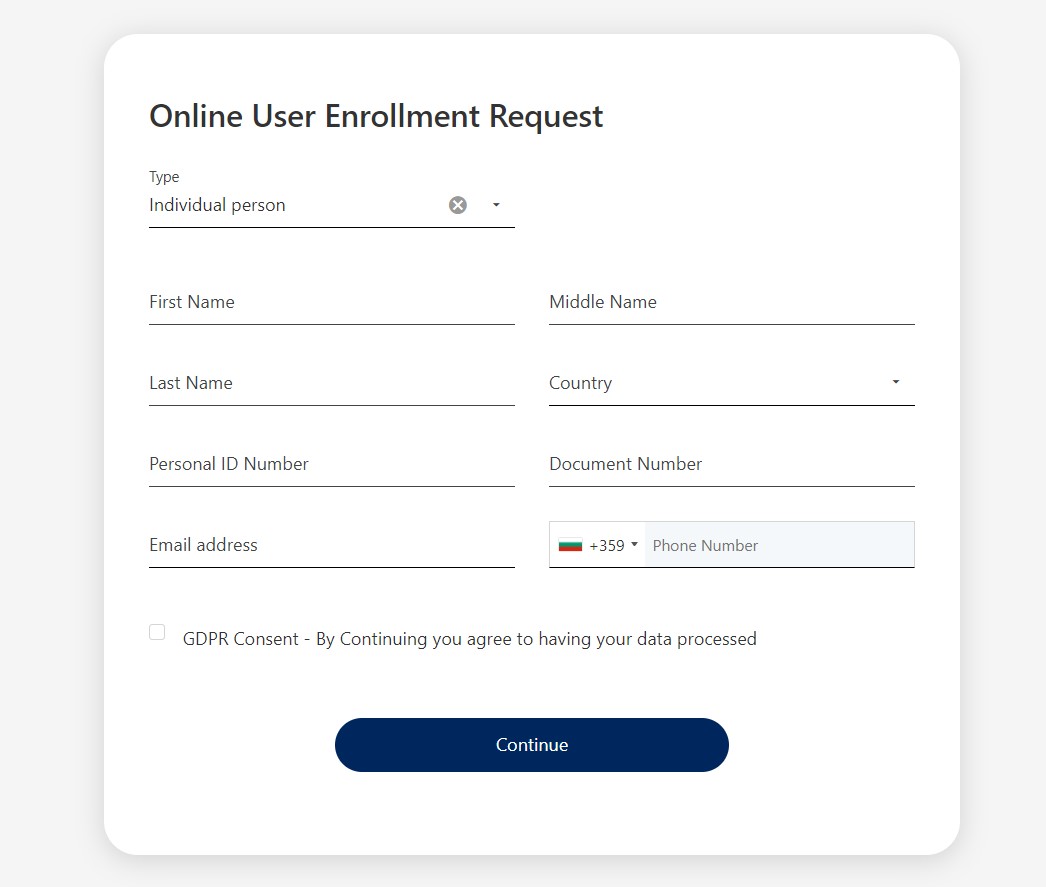
- Fill in the following fields:
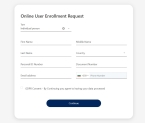
Fields
Data Type Required Description Type Option Set Mandatory Select from the list the type:
- Individual Person
- Legal Person
- Self-employed Individual.
First Name Text Mandatory Insert your first name. Middle Name Text Mandatory Insert your middle name. Last Name Text Mandatory Insert your last name. Country Lookup N/A Select from the list the country of origin. If the country selected is different from the country you are a resident in, then the field Personal ID number is replaced with the Document Number field. Personal ID number Text Mandatory Insert the Personal Identification Number. It is displayed only for individual persons. It must have only alphanumeric characters, no special characters are allowed.
If you are not a resident of the country where you are applying for the Online and Mobile Banking service, you have to provide a document/identification number, e.g., passport.
or Document Number Text Mandatory Insert the document number. It applies only if the Personal IndividualAccount Type was selected previously.Email Address Text Mandatory Insert the email address. It must be filled in because the email address is verified. There are some validations on this field to ensure the email format.
IMPORTANT!
The email address must be unique. If you insert an email that is already used, the system displays a toast message informing you to use a new email address.Mobile Phone number Text Mandatory Insert the phone number. Select the country code from the drop-down list. GDPR The General Data Protection Regulation is a regulation in EU law on data protection and privacy in European Union and European Economic Area. ConsentBoolean Mandatory Tick the checkbox, otherwise, the request cannot be registered. When a field is not completed, there is a toast message displayed asking for the missing data.
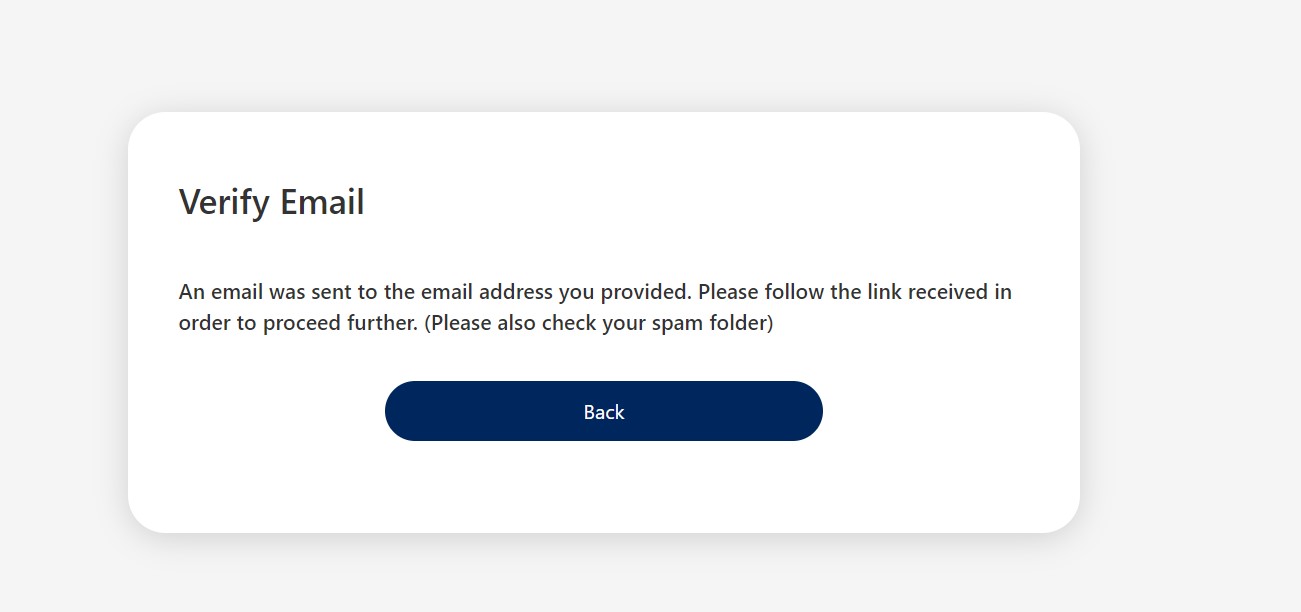
- Click the Continue button. The page Verify email is displayed with the message: An email was sent to the email address you provided. Please follow the link received in order to proceed further.
or
Click the Back button to return to the previous step. Change the email address in case it was inserted wrongly.
2 Verify Email Address and Phone Number
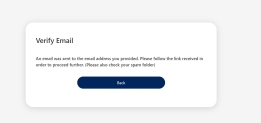
- Navigate to your email provider.
- Open the email received.
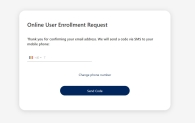
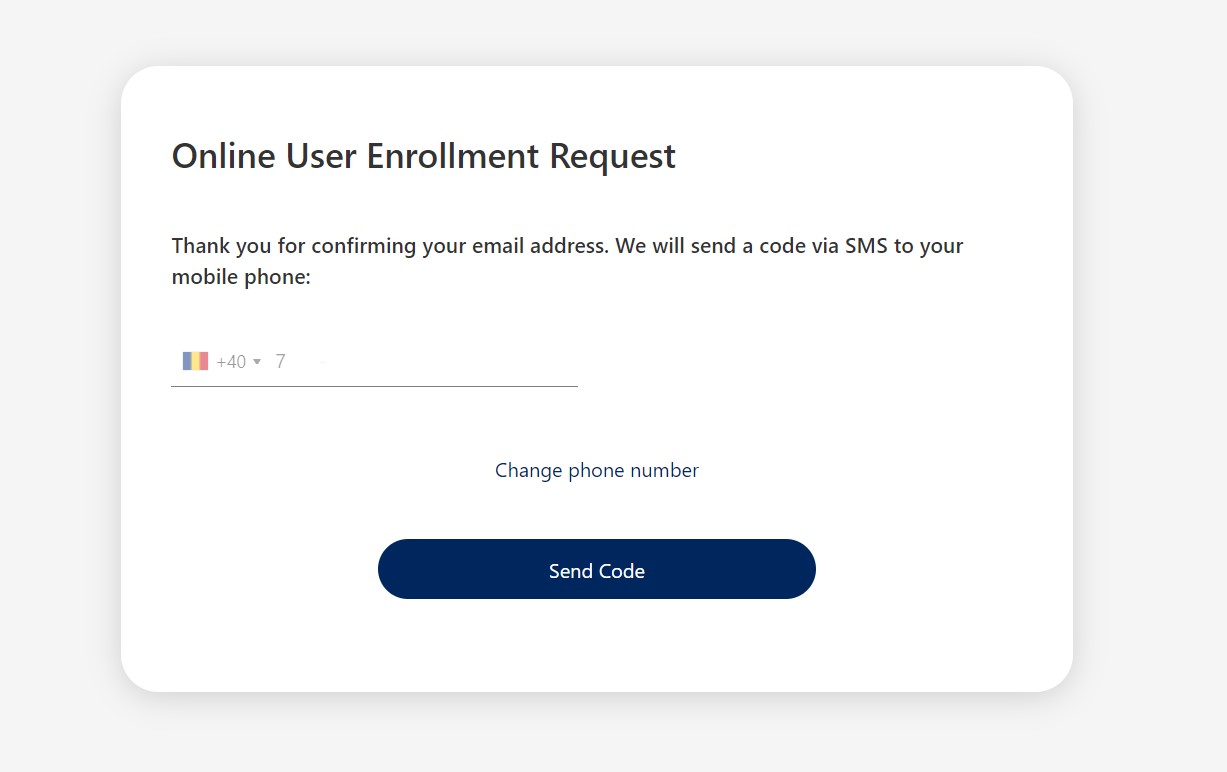
- Access the link from the email to verify your email address. The link opens the page Online User Enrolment Request with the message: Thank you for confirming your address. We will sent you a code via SMS to your mobile phone.NOTE
The previous page expires, and only the page opened with the link from the email is valid.The page contains the inputted phone number (it is read-only).
-
To change the phone number, click the dedicated button labeled Change phone number. The phone number field becomes editable. Insert the new phone number, and the system sends automatically a code to that number.
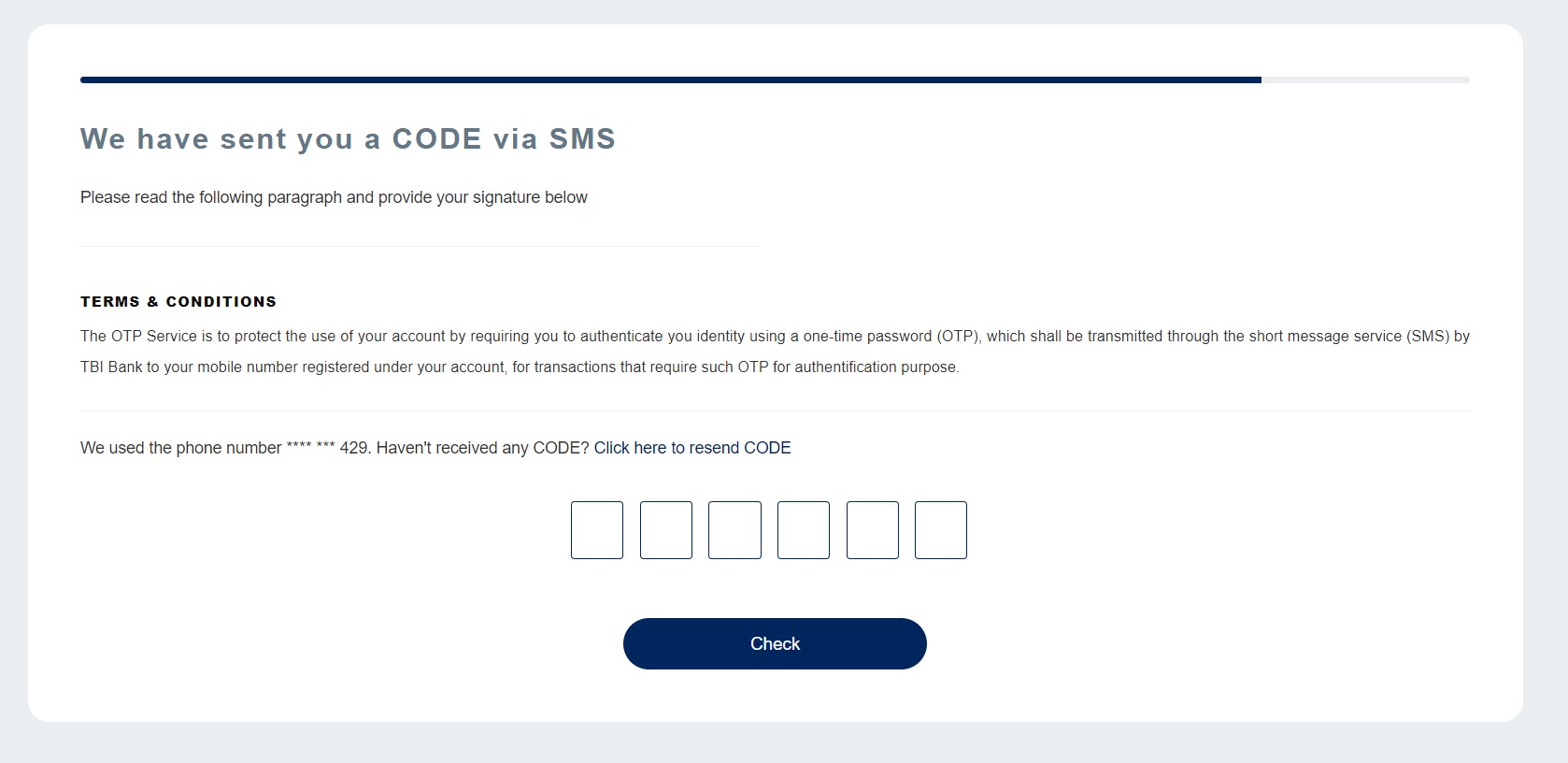
Click Send Code. - Check your mobile phone SMS application. The page We have sent you a code via SMS is displayed:
The OTP Service is to protect the use of your account by requiring you to authenticate your identity using a one-time password (OTP), which shall be transmitted through the short message service (SMS) by Bank to your mobile number registered under your account, for transactions that require such OTP for authentification purpose.
- Insert the code.
To resend the code, click Click here to resend code.
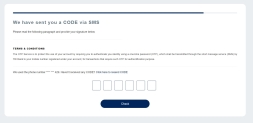
- Click the Check button.
3 Insertion of username
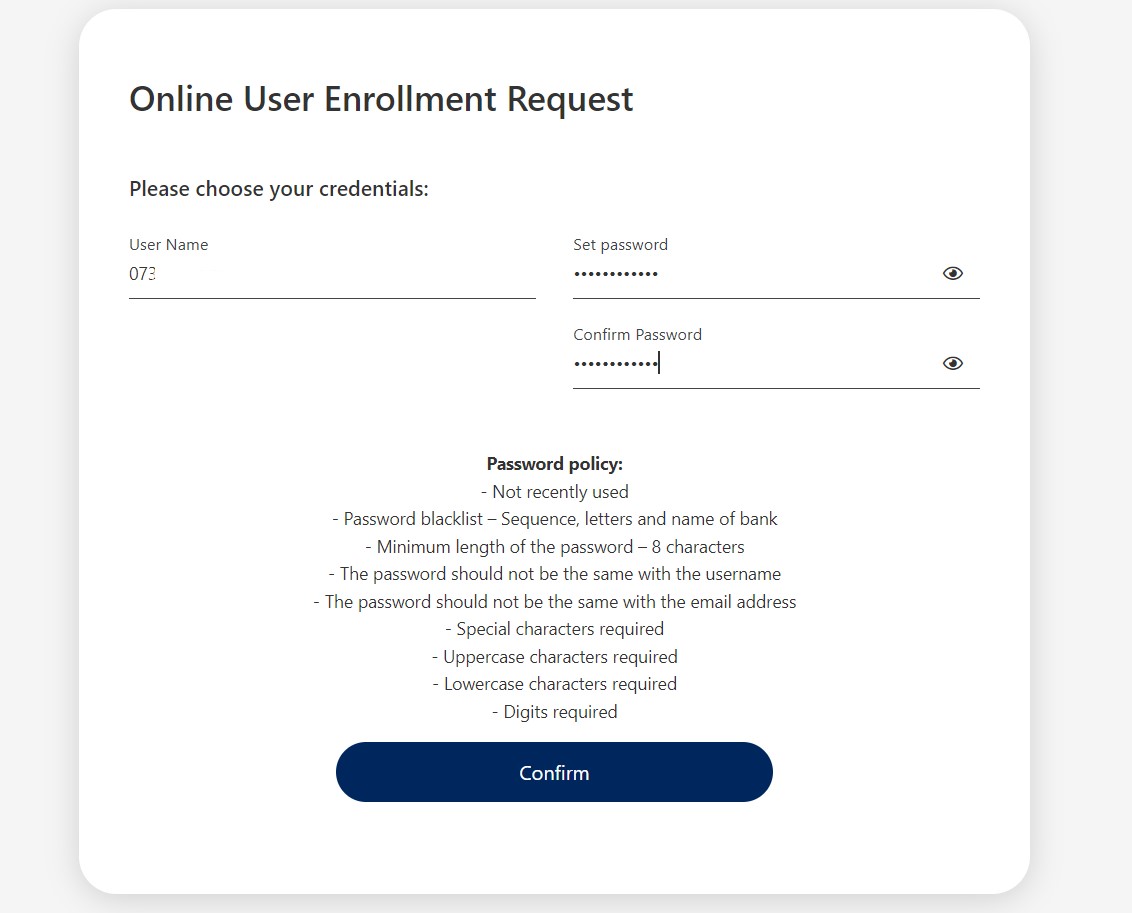
- The page Online User Enrolment Request refreshes the message: Please choose your credentials.HINT
Depending on the process that the bank has set in place, the registration for Online and Mobile Banking is different.On this page, there are three fields:
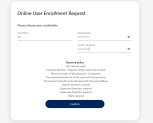
Field Data Type Description Username Text Insert a nickname for logging into Online and Mobile Banking. By default, the system displays the phone number as username. It is automatically generated, but you can modify it. By hovering over the field, a tooltip is displayed saying that the Username should be the phone number without the country code. The string of letters and numbers must be unique, each user has a different username. Additionally, there are these validations:
- only digits can be filled in,
- it should be exactly 10 digits,
- it should start with 0.
Set password Text Insert a secret word or phrase that must be used to gain admission to Online and Mobile Banking Application. When you click this field, a static text is displayed with the password policy.
To see what you typed in this field, click the icon symbolizing an eye.
Several validations are done for the password:
- minimum 7 characters,
- the two fields where the password is inserted must match
- not recently used
- not sequence, letters, name of bank
- minimum 8 characters for the password
- password and username must be different
- the password must not be the email address
- the password must include digits, upper and lowercase, special characters.
Confirm password Text Insert the password again. - Click Confirm.
4 Confirmation
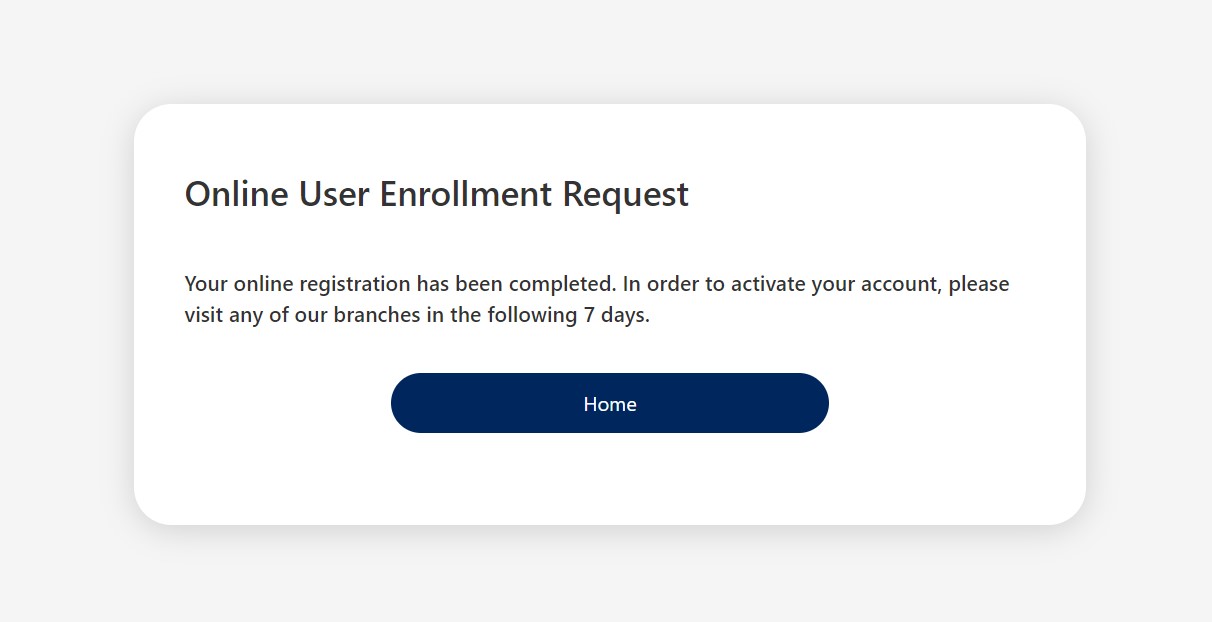
- The following message is displayed: Your registration online has been completed. In order to activate your account, please visit any branch in the following 7 days.
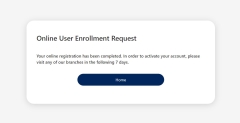
Click Home.
After these steps, travel to a branch near you to finish the activation for the Online and Mobile Banking service. At the branch, the bank's employees are going to associate your user with a customer and activate the service. For details, see Add a User to Online and Mobile Banking.
Checking if the request was successful
As a maker or checker, to see if the user has successfully created a request in the System users list from the Innovation Studio (to access the list, open the Innovation Studio> Security> System users), a new entry is displayed with the name, email, and password that were configured.
Additionally, a maker can view the request from a user in the FintechOS Portal, on the dashboard in the grid named Online requests validated as explained in .