Contact Center
This is a service provided by the bank to help their customers when they cannot log in or when they wish to change for 24h the limits a client has to transfer funds. This role within the back-office has the possibility to help the users, i.e., the customers of the bank to:
NOTE
The role of contact center can accommodate more actions depending on the services provided by the bank.
The role of contact center can accommodate more actions depending on the services provided by the bank.
- activating/inactivating a user
When a user's credentials have been compromised or the device has been lost/stolen, the customer calls Contact Center to block the user.
- set the temporary limits for transactions in Back-Office Administration
- reset the user's password.
 Steps Taken by the Contact Center Employee to Inactivate a User
To inactivate a user, two flows are in place. The maker must:
- Open the FintechOS Portal.
- Click the button Search Users.
- Type a value in one of the columns: User name, first name, last name, mobile phone number, email address, personal ID number, Core Banking Unique Id, System User Id.
- Select the user needed for the modification from the grid.
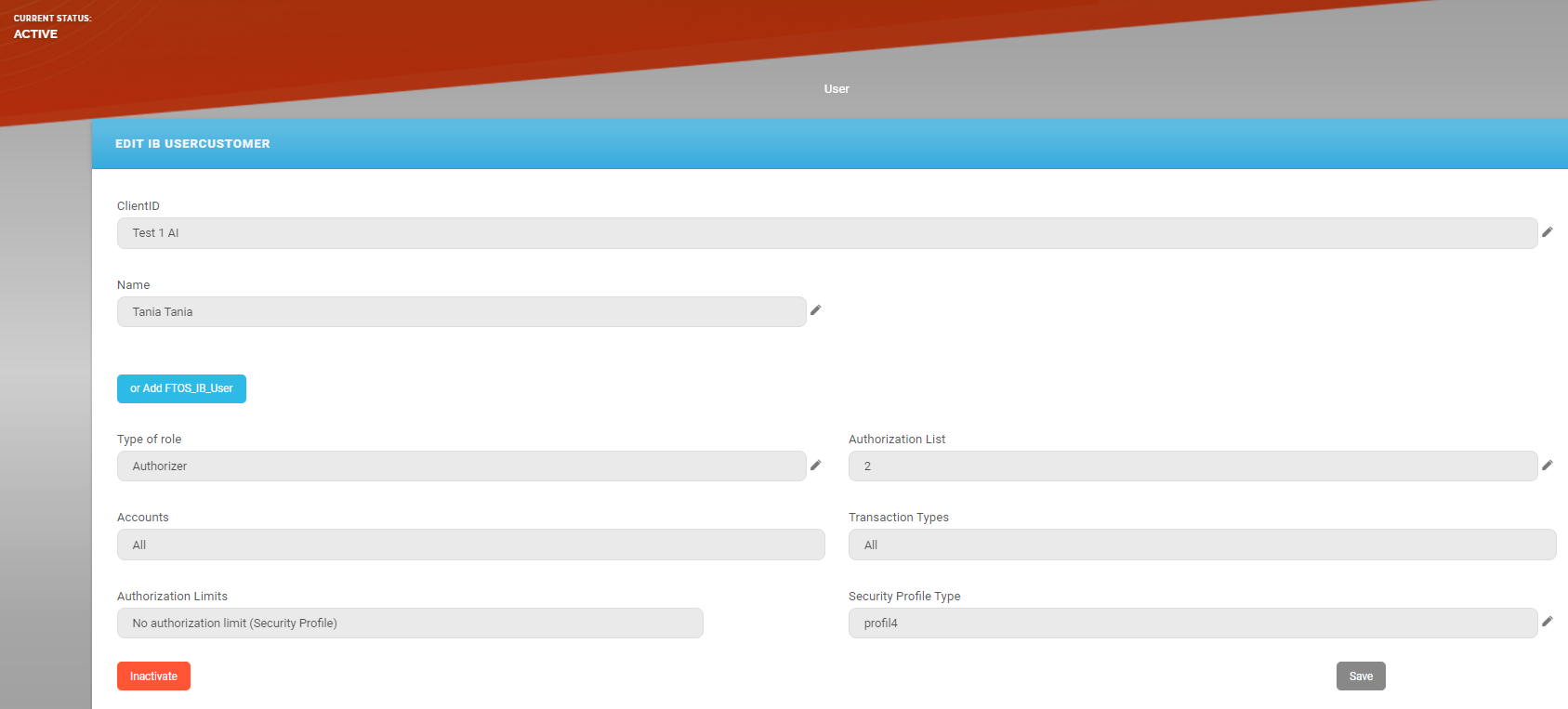
- On the page Edit IB User, in the grid Associated Customers, select the customer. The User Client List page is displayed.
- In the grid Current Modifications List, select the active user by clicking once on the entry in the grid.
- Click Inactive.
 IMPORTANT!
You cannot inactivate a user from the grid Active settings (before current modifications). A toast message is displayed. Firstly, click Rest the modifications or Activate & Approve, then turn the user inactive.The record is saved automatically. The user is displayed in the grid Current Modifications List with the business status
To Be Inactivated.
From here, it is the checker who finishes the inactivation.
The checker must:
- Log in the FintechOS Portal with the given credentials.
- From the grid Requests sent for Approval, double-click the record with the business status
To Be Inactivated. The User Client List opens. - Click the Pick Up button. The page reloads.
- Click Approve & Activate. The business status is
Inactive.