Back-Office Administration
The administration of Online and Mobile Banking is performed by the bank employees within the FintechOS Portal.
Several configurations are available for a customer (legal entity or individual) such as:
- Service activation for a customer
- Give access to users to the customer's accounts
- Activate/Delete/Modify a user for that customer
- Edit security profile of a user
- Inclusion of the user in a list for the Signature Engine & Administrative Rules
- Linking the Authorizer
- Strong Customer Authentication
- Blocking or a user in case of stolen credentials/device
- Parametrize at each account level which transaction types are enabled for each user (Account/Transaction section tab).
Main Dashboard of FintechOS Portal for Back-Office
Log in the FintechOS Portal with the credentials.
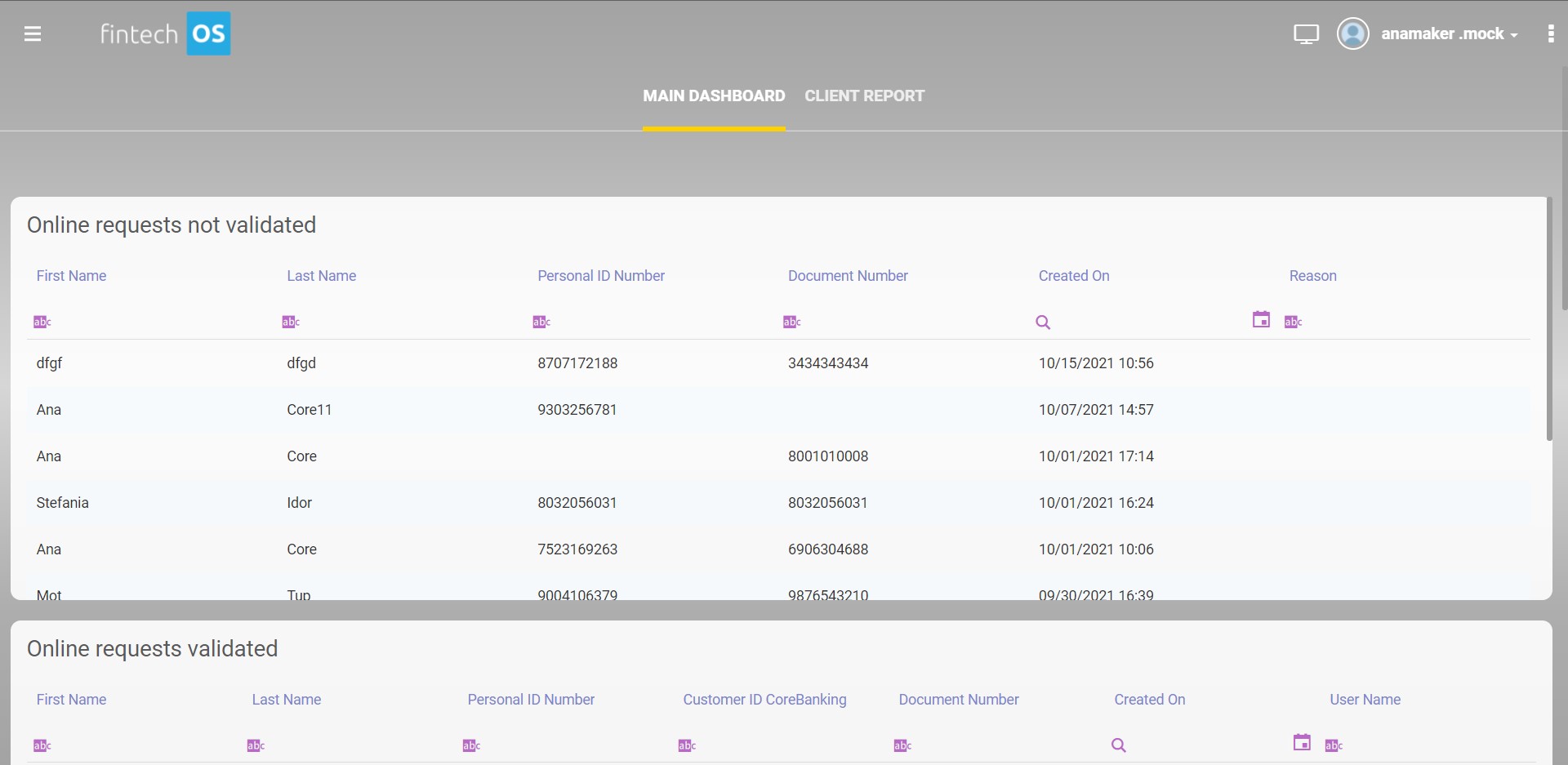
The dashboard contains:
- views
Online requests not validated, i.e., the user was not associated to a customer of the bank. The view displays the list from the most recent entry to the oldest. It displays the users' requests not created online successfully.
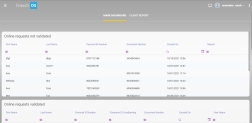
Fields Description Name Name of the person who initiated the online request. It is read-only. Last Name Last name of the person who initiated the online request for the Online and Mobile Banking service. It is read-only. Personal ID Number Personal ID of the person who initiated the online request, non-residents field is blank. It is read-only. Document Number This field is filled only by non-residents with the number of their passport or another document. It is read-only. Date created Date when the online request has been initiated. It is read-only. Reason Reason for which the user has not been created online (it is read-only): - Personal ID not found in Core Banking
- Document no. not found in Core Banking
- Mobile phone doesn’t correspond with the one in Core Banking
- Other errors.
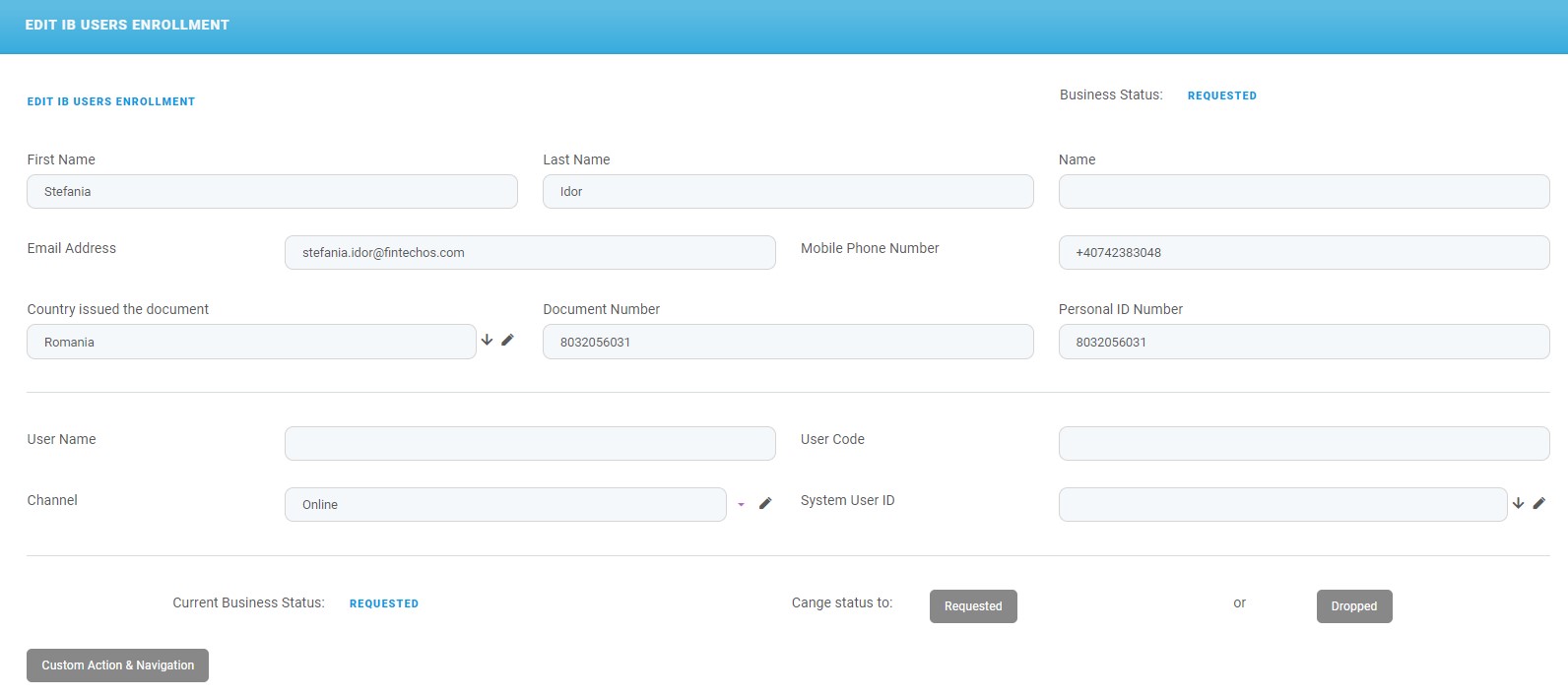
By double-clicking an entry in this grid, it opens the page EDIT IB Users Enrollment.
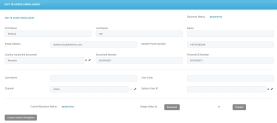
Fields Description Business Status The present status. The value is REQUESTED. First Name The first name of the user. Last Name The last name of the user. Name The full name. Email Address The email address of the user. Mobile Phone Number The mobile phone number of the user. Country issued the document The country that provided the document. Document Number The document number for identification. Personal ID Number The Personal Number for identification for residents. User Name The username for authentication in Online and Mobile Banking. User Code The user code. Channel The channel used for initiating the request. The value is Online. System User ID The ID of the system user in FintechOS Portal. Current Business Status It displays the present status. The value is REQUESTED. Change status to The next status by:
- clicking the button Requested
or
- clicking the button Dropped.
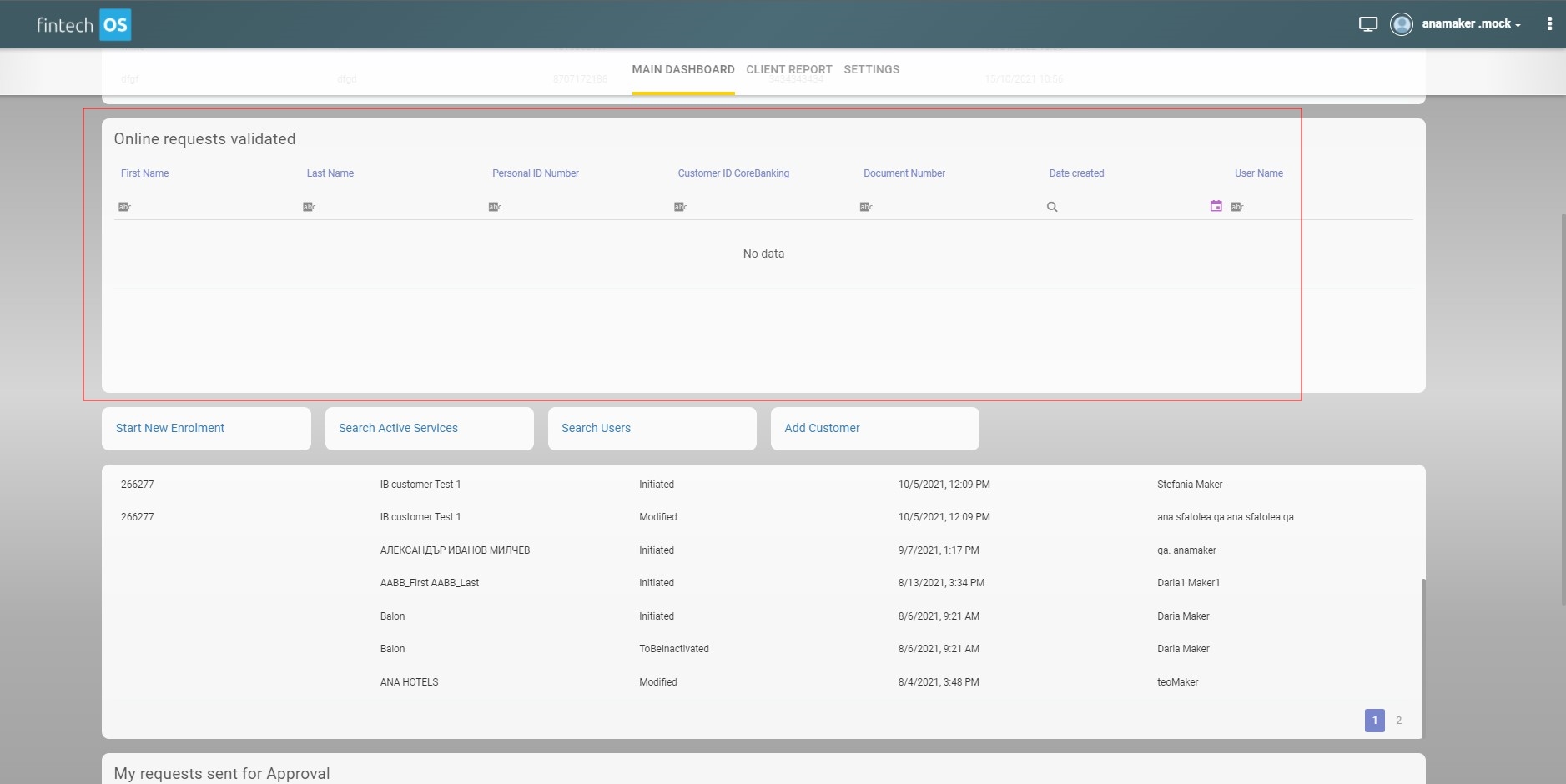
Online requests validated, i.e., the person who initiated the request online has a match with a customer of the bank.
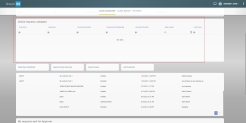
Column Description Name Name of the person who initiated the online request. It is read-only. Last Name Last name of the person who initiated the online request. It is read-only. Personal ID Personal ID of the person who initiated the online request, non-residents field is blank. It is read-only. Customer IDCoreBanking The Core Banking ID identified by the system based on the Personal ID or Document number provided by the person in the online request process following interrogation of API of the financial institution. It is read-only. Document Number This field is filled only by non-residents with the number of their passport or another document. It is read-only. Date created Date when the online request has been initiated. It is read-only. username The username created in the online request. It is read-only. My requests sent for Approval, i.e., the requests from the maker are sent to the checker, the records with the statuses
Sent to ApprovalorIn Progress Approvalare displayed.Column Name Customer ID CoreBanking Customer Name Status Date created for most recent record Created by Requests sent for Approval, i.e., all the requests from the makers.
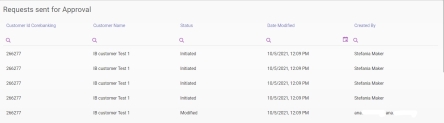
Column Name Customer ID CoreBanking Customer Name Status Date created for most recent record Created by
- buttons:
Start New Enrolment. Click this button to search for a customer and, then, create a user to be added to that customer.
Search Users. Click this button to search for users.
- Search active services. Click this button to search for services.
- Add Customer. Click this button to add a new customer in the system.

Depending on the security roles given to a system user, a bank representative sees a selection of grids.