Address Autocomplete
When searching for addresses in the Ideal Postcodes databases, the FintechOS Ideal Postcodes Connector offers a search-as-you-type functionality in order to return a list of address suggestions that match the query ordered by relevance score.
The below walkthrough is a proposition on how to use the FintechOSIdeal Postcodes Connector in a digital journey to search for accurate address data.
Follow the below steps to access and retrieve information using the address autofill functionality.
1 Access Ideal Postcodes Connector
1. Log into the FintechOS Portal using the given credentials.
2. Log into the Ideal Postcodes platform with the credentials provided by them.
The user and password are obtained from the Ideal Postcodes platform. Additional information can be found on the Installation page.
3. From the FintechOS Portal main menu expand Connectors and click Ideal Postcodes.
4. Select Address Autocomplete. The FTOS_EXTD_POST_addressesAutocomplete List page opens.
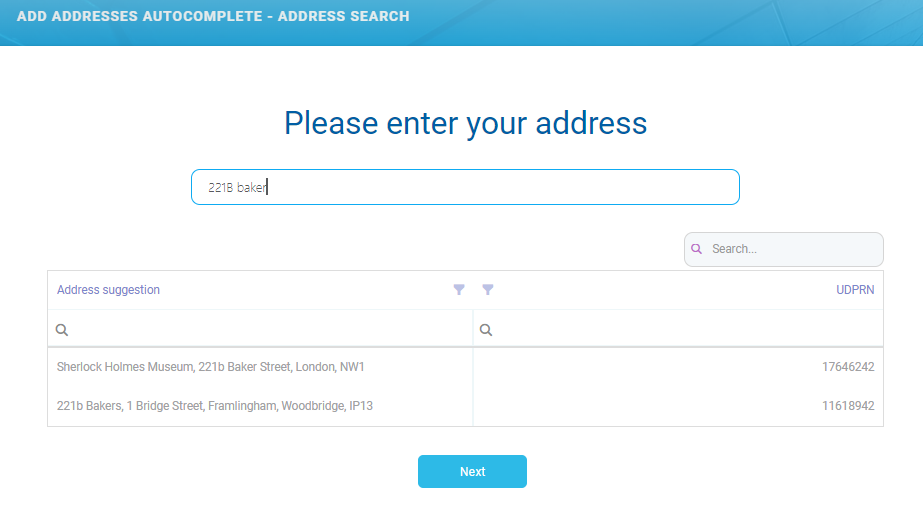
5. At the top-right corner of the screen, click the Insert button. The Add Addresses Autocomplete - Address Search page opens. Fill in the following field:
| Field | Required | Type | Description |
|---|---|---|---|
| Address | No | Text | Input the address to start the search. The suggestions are displayed in real-time. |
2 Address Data Displayed
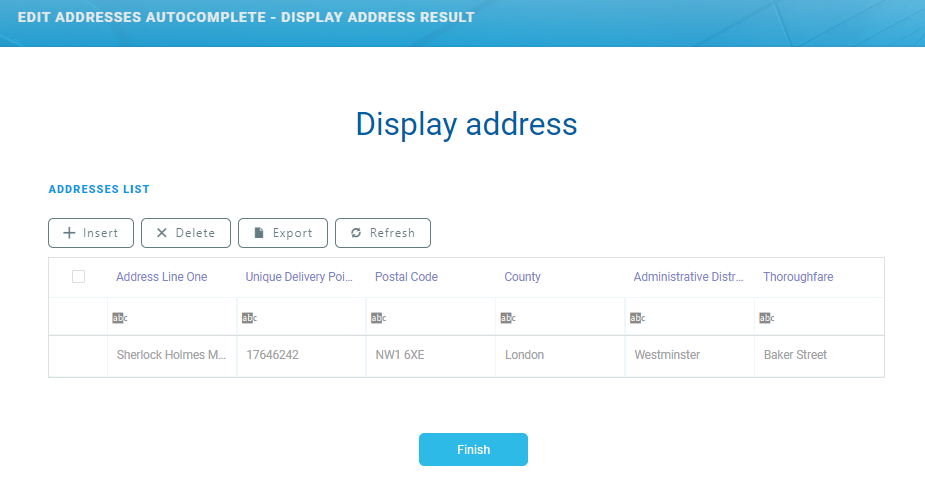
6. Click the Next button. The Edit Addresses Autocomplete - Display Address Results page opens. The following information is displayed:
| Field | Required | Type | Description |
|---|---|---|---|
| Address Line One | No | Text | The first address Line. Often contains premise and thoroughfare information. |
Unique Delivery Point Reference Number | No | Text | The unique delivery point reference number. |
Postal Code | No | Text | Correctly formatted postcode. |
County | No | Text | The county from the address. |
Administrative District | No | Text | The administrative district. |
Thoroughfare | No | Text | Also known as the street or road name. In general each Thoroughfare Name will have a separate Postcode. Longer Thoroughfares with high number ranges often have multiple Postcodes covering the entire length of the road, with breaks at suitable points e.g. junctions or natural breaks in the road. |
7. Click the Finish button. The FTOS_EXTD_POST_addressesAutocomplete List page opens.
To view additional address data, double-click on the record from the results list. The information displayed is detailed in the Additional Address Data section.