Business Workflow Configurations
This main menu entry opens the Business Workflow Configurations List. From here it is possible to:
- deactivate the workflow
- insert a business condition
- access the transition configurations
- insert data management.

The configurations from this page cannot be inserted, only exported. They are created and listed as in the picture above when the Business Workflow is created using the menu entry named Business Workflow Designer.
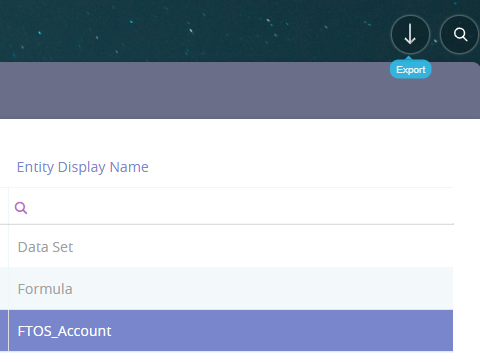
By double-clicking on one of the names from the Business Workflow Configurations List, it opens the following tabs and fields. The name is generated by the system when the workflow is created. The name has the structure: Name of the workflow for the name of the entity, e.g. Loan_Workflow for FTOS_AB_Account.
General tab
- Double-click on one of the entries from the list.
- The General tab is opened. It holds the following fields:

Fields Data Type
Description Name Text
Name of the workflow for the name of the entity, The user can change it to be more suggestive. Allow only defined transitions Boolean
If the boolean is true, then only the defined transitions between statuses will be visible in the entity form, i.e. that if there are four statuses such as Prospect, In progress, Approved and Denied, and two transitions between Prospect_In Progress and between In Progress and Approved, it will not be possible to add other transitions via code snippets.
If the boolean is false, then transitions that have not yet been defined can be via code snippets or other methods.
Business Workflow is active Boolean
The workflow is active for the entity it is attached to. To deactivate it, click on the button labelled Deactivate on the right side of the panel. - Click the Save and close button.

Business Condition tab
This tab attaches a condition to the workflow.

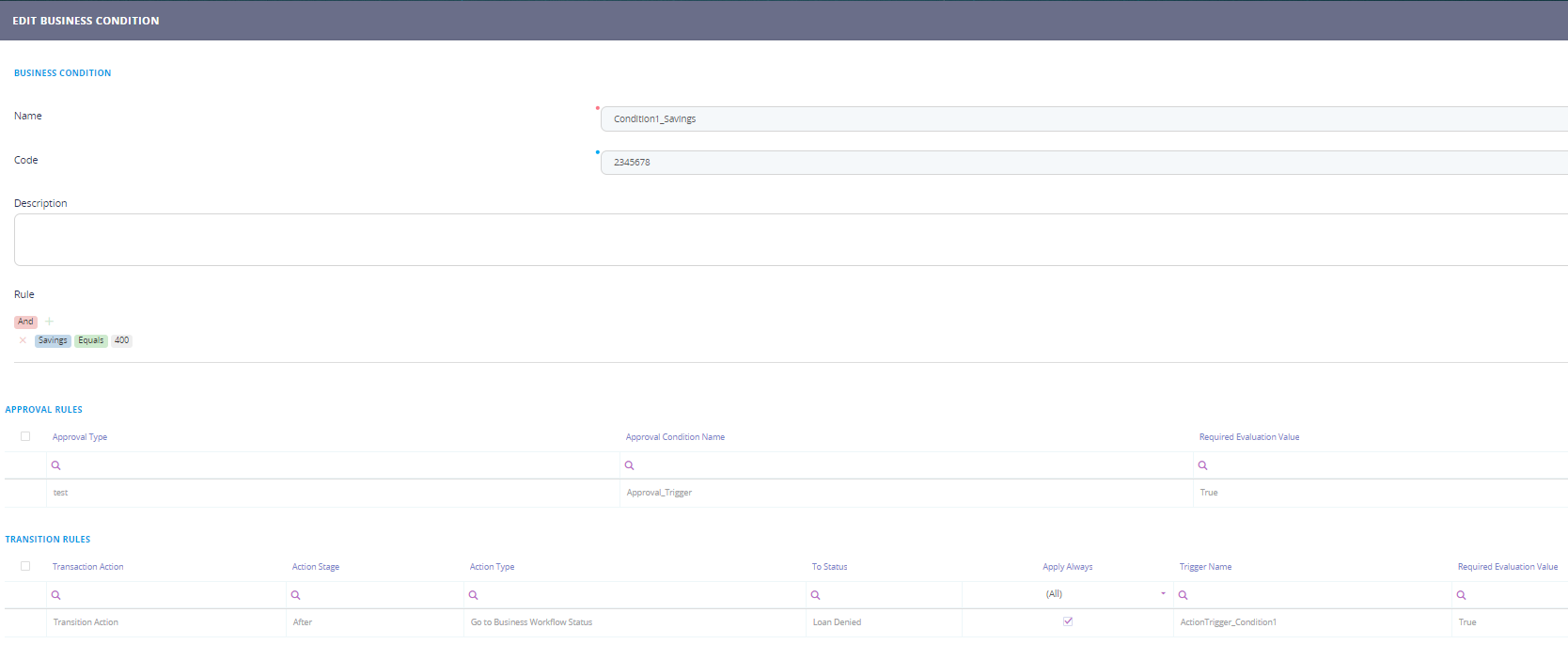
- Click the Insert button. The Add Business Condition page opens. This page can be accessed as well from the main menu as explained in this page Business Rules.
- Fill in the following fields:
Fields Data Type
Description Name Text
Insert a suggestive name. Code Text Insert a unique code. Description Text Area Insert a suggestive description. Rule
Add a rule to be executed to trigger a status change or approval, e.g. Savings equals $400.
- Click the Save and close button.
- Two grids will open: Approval Rules and Transition Rules.
Transition Configuration tab
In this tab, the list of transitions is displayed.
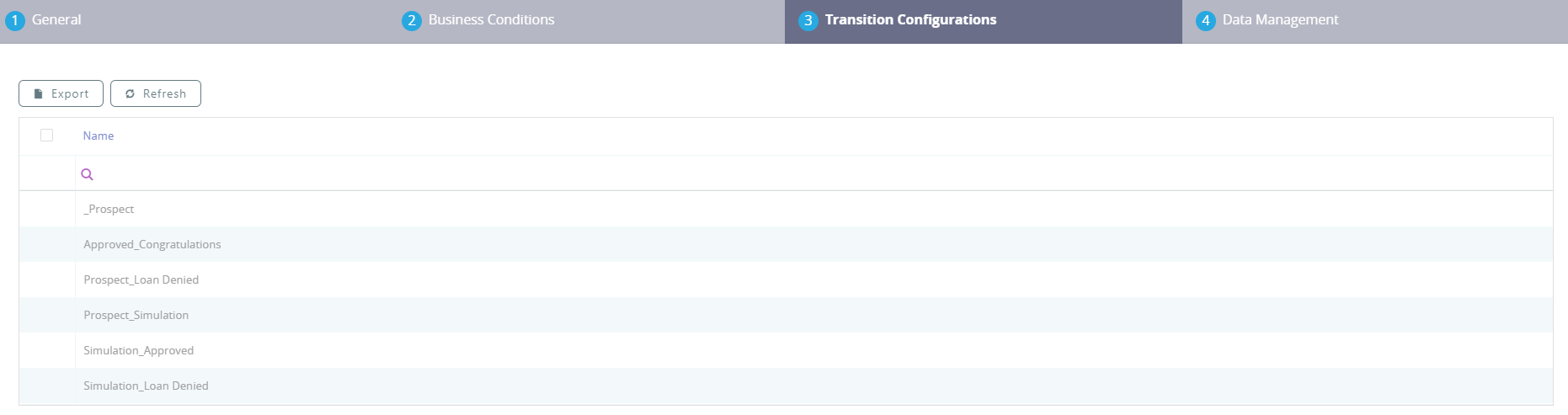
From this page, it is not possible to add a transition, only edit it.
- Click on one of the transitions displayed. The General tab opens.

- The name cannot be changed. The Requires Approval boolean marks whether the transition has to be approved by a back-end officer. If the boolean is true, then the change in status can only be performed if the back-end officer approves it.
- Click on the Action Groups tab. Click on Insert to add a new action group.
- The General tab opens.
- Insert a name, code and description for the Transition Action Group.
- Click the Save and reload button to display the following tabs: Actions Before and Actions After.
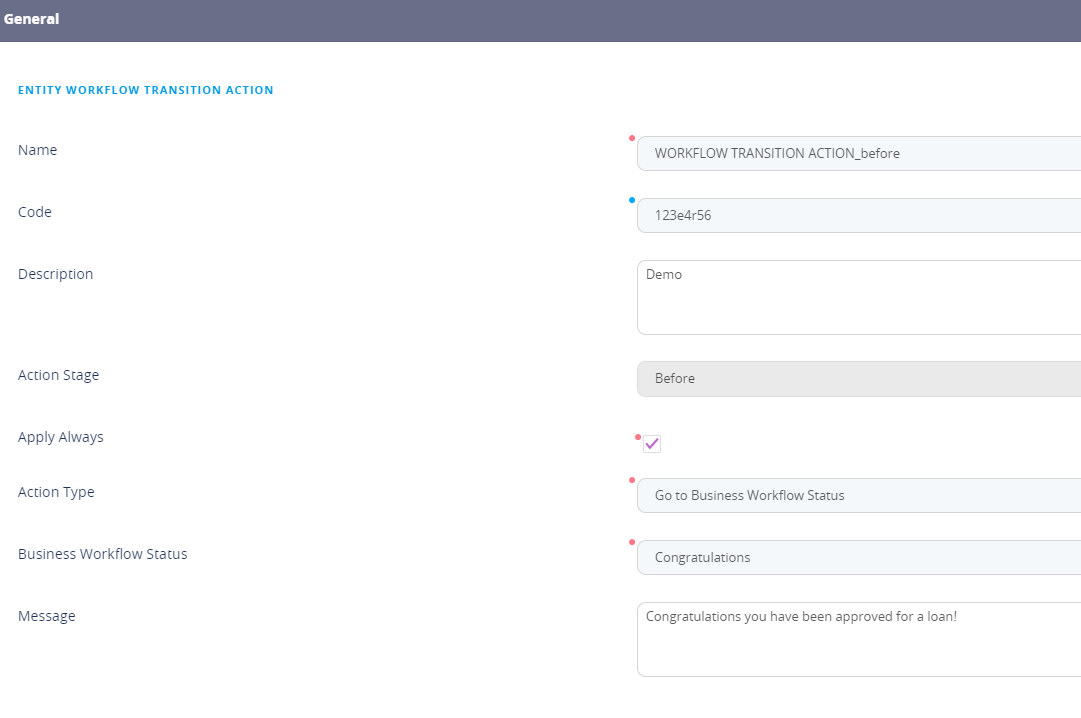
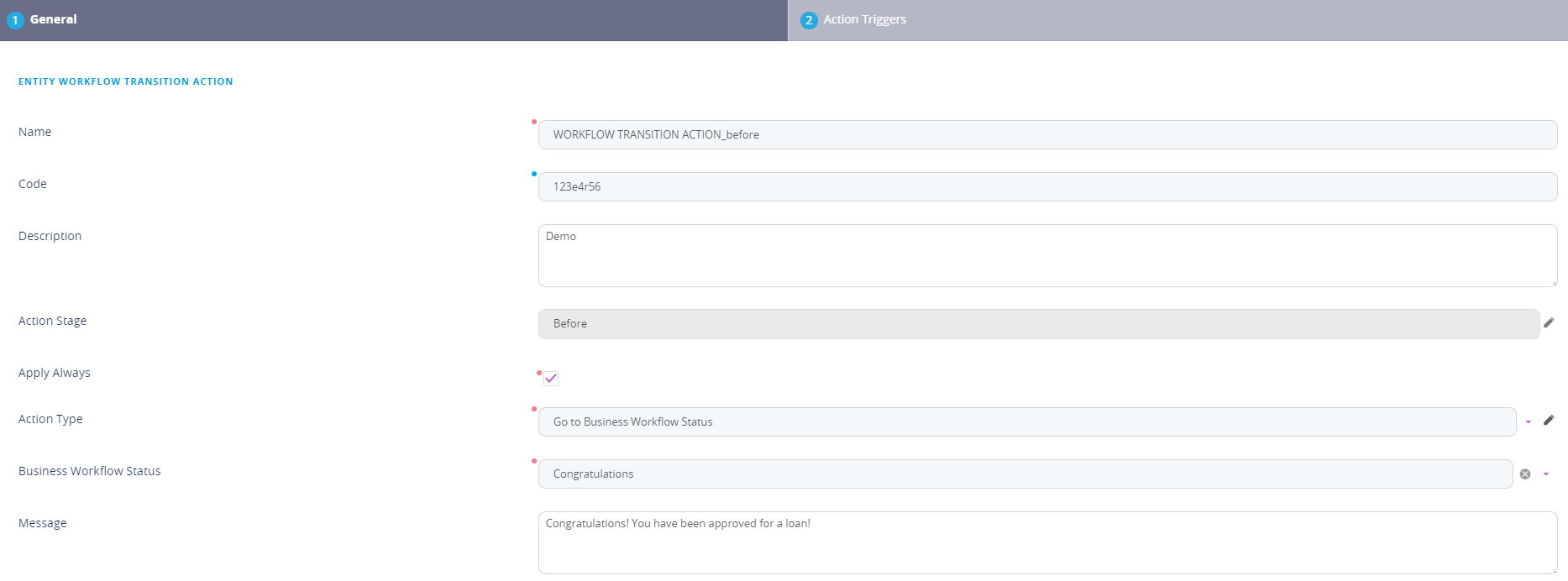
- Click on the Actions before tab or the Actions after. Click the Insert button to add a new entry. The General tab opens.
Fields Data Type
Description Name Text
Insert a suggestive name of the action. Code Text Insert a unique code for the action. Description Text Area Insert a suggestive description for the action. Action Stage
Lookup
This field is read-only. It is automatically filled in by the system with Before or After depending in which grid the user wishes to insert the action and its trigger.
Apply Always
Boolean
If the boolean is true, then the action and its trigger (later applied) will always execute.
Action Type
Lookup
Select from the list:
Go to Business Workflow Status
Run Custom Script
Cancel Transition.
depending on what is selected from here, then the following fields will be displayed.
Go to Business Workflow Status
Business Workflow Status
Lookup
Select from the list the status to which the action points. Message
Text area
Insert a suggestive message to be displayed to the user in the FintechOS Portal.
Run Custom Script
Custom Script
JSON file
Insert the script to run when it is triggered.
Cancel Transition
Error message
Text area
Insert a suggestive message to be displayed to the user in the FintechOS Portal.
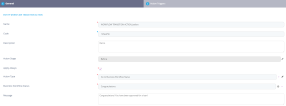
- Click the Save and reload button, the Action Triggers tab will be displayed.
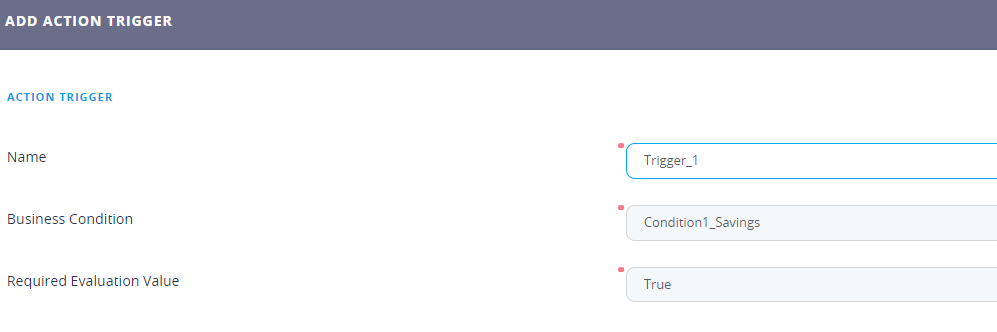
- Click the Insert button. The Add Action trigger page will open.
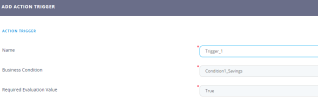
- Fill in the following fields:
Fields Data Type
Description Name Text
Insert a suggestive name for the trigger. Business Condition Lookup Select from the list the condition to be applied. Required Evaluation Value Option set Select from the list the value to which you wish the condition to be assessed: - True
- False.
- Click the Save and close button.
- Navigate to the Approvals Tab which corresponds to a transition.
- Click the Insert button. For details on configuring Approvals, see Define Workflow Transition Approvals.

Data Management
- Click the Insert button from the grid. The page named Add Record Protection by Business Workflow Status opens.
- In the field Business Workflow Status, select from the lookup the status to be protected.
- In the field Record Action Type, select from the lookup the protection level:
- update
- delete.

- Click the Save and close button.
