Transaction Fee List
Lists are used to group previously defined transaction fees. The transaction fee lists are attached to each bank account transaction type. The lists can further be filtered. When a transaction operation type is selected on a bank account transaction, Core Banking identifies the fee list and fee values and applies them considering the current date of the transaction.
Core Banking enables you to define lists to group transaction fees by managing the records within Innovation Studio's dedicated menu, Transaction Fee List.
To manage transaction fee list records:
-
Log into Innovation Studio.
-
Click the main menu icon at the top left corner.
-
In the main menu, expand the Product Factory menu.
-
Expand Bank Transaction Configurations menu.
-
Click Transaction Fee List menu item to open the Transaction Fees Lists List page.

On the Transaction Fees Lists List page, you can:
-
Create a new transaction fee list record by clicking the Insert button at the top right corner.
-
Edit an existing transaction fee list record from the list by double-clicking it and editing the existing values in the fields.
-
Delete a record by selecting it and clicking the Delete button at the top right corner
-
Search for a specific record by filling in the column header of the displayed records list.
Creating Transaction Fee List Records
Follow these steps to create new transaction fee list records:
-
In the Innovation Studio, click the Insert button on the top right side of the Transaction Fees Lists List page. The Add Transaction Fee List page is displayed.


-
Fill in the following field:
| Field | Mandatory | Data Type | Details |
|---|---|---|---|
| Name | No | Text | Enter the name of the transaction fee list record. |
-
Click the Save and Reload button at the top right corner of the page.
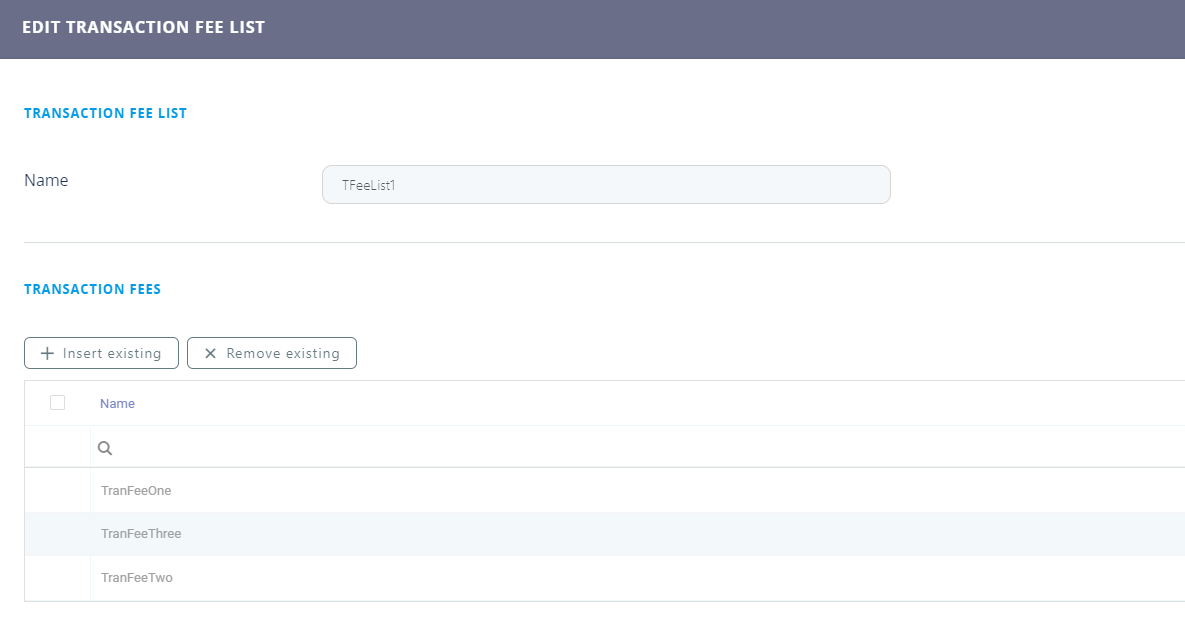
A new section, Transaction Fees, is displayed after saving the record. The actual transaction fees of the list are managed within this section.
-
Click the Insert existing button within the Transaction Fees section to add a new transaction fee to the list.
-
In the newly displayed pop-up window, select one or more transaction fees and click OK to attach them to your list.
-
Click the Save and Close button at the top right corner of the page.
NOTE
You can add as many transaction fees as needed to your list.