Installing Core Banking Corporate
The Core Banking Corporate package comes with a series of features such as credit facility management which are complementary to the Core Banking package.
Follow the steps described below to perform an automatic installation of the Core Banking Corporate package. This is a process of running a script, the install_SysPack.bat file, on your environment. The script automatically imports the content of the Core Banking Corporate v21.1.1001 into your Innovation Studio, on top of your Core Banking v21.1.1001 installation.
The Core Banking Corporate v21.1.1001 package must be installed only after installing the Core Banking v21.1.1001 package!
You must run the script on the machine where Innovation Studio is installed.
Make sure you have access rights to Studio's database.
Dependencies
In order to install Core Banking Corporate v21.1.1001, first you need to install the following:
-
Innovation Studio minimum version v21.1.6.1
-
Standard SysPack minimum version v21.1.1005
-
Single Customer View (Retail & SME) v3.1
-
FTOS.Foundation - Project
-
Banking Product Factory (Project or Standard Pack) v21.1.8001
A JobServer must be running on your platform in order to process any asynchronous, batch, end of day and start of day jobs.
Pre-Installation Checklist
The SysPack has unique constraints on some of the standard entities like: FTOS_DFP_FlowSettings , FTOS_DFP_ProcessorSettings, FTOS_VersionSettings, FTOS_VersionSettingsItem, FTOS_EntityStatusSettings, FTOS_MKT_AudienceSegments, FTOS_MKT_Audience, and for all Banking Product entities.
If you have already moved data using the Configuration Data Deployment Package menu, then you probably have already configured some unique constraints.
Before running the script, make sure you:
-
Disable the constraints that you have created on your environment, allowing the system to create the new ones after the Core Banking Corporate v21.1.1001 is imported.
-
Use the new Configuration Data Definitions imported with the Core Banking Corporate v21.1.1001 file when you export the data.
Installation Steps
-
Unzip your
CoreBankingCorporate 21.1.1001.ziparchive file. -
Locate the FtosSysPackageDeployer folder in the
FintechOS installation kit(the path is <unzipped_install_archive>\Tools\FtosSysPkgDeployer). You need it to install the SysPack.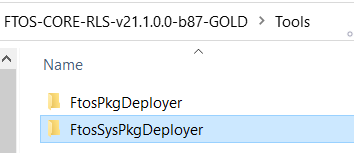
-
Select and copy the FtosSysPackageDeployer folder.
-
Navigate to the location where you have unzipped the
CoreBankingCorporate_21.1.1001.zip(let’s call this location <pckg_deployer_dir>), then paste the FtosSysPackDeployer folder there.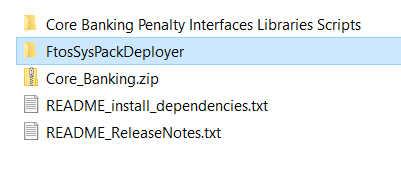
-
Edit the
install_Syspack.batfile. Replace the parameters described in the install_SysPack.bat Parameters Explanation section with your own values. Save and close the file. -
Right-click
install_SysPack.bat» Run as administrator.
The script starts running in your Windows console. Wait for it to finish. If your parameter values were correct, the FintechOS Portal has one new menu, visible after refresh, the Core Banking Operational > Credit Facility menu:
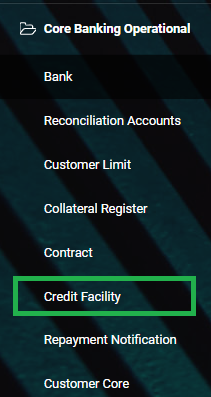
The install_SysPack.bat file allows you to import the data model:
install_SysPack.bat syntax for Data Model import
FtosSysPkgDeployer.exe -i -s "<StudioLink>" -u <AdminStudioUser> -p <user_password> -z <DataBaseServer> -v <DB_user> -k <DB_user_password> -d "<TheNameOfTheDataBase>" -r "<syspack_path>\*.zip"
The syntax presented here is for information purposes only. Please run the actual
install_SysPack.bat file.
install_SysPack.bat Parameters Explanation
-
<StudioLink>- The web URL of the Innovation Studio installation, for example http://localhost/ftos_studio. -
<AdminStudioUser>- The username of the Innovation Studio user under which this import is executed. The user has to exist in Innovation Studio prior to this operation. -
<user_password>- The password for the Innovation Studio user. -
<DataBaseServer>- The name of the database server where the FintechOS installation database was created. -
<DB_user>- The username of the SQL Server user with administration rights on the FintechOS installation database. -
<DB_user_password>- The password for the above mentioned SQL user. -
<TheNameOfTheDataBase>- The name of the database where the CoreBankingCorporate_21.1.1001 is deployed. -
<syspack_path>- The physical path to the unzipped CoreBankingCorporate_21.1.1001 previously downloaded.
For more information about the script, please run
FtosSysPackageDeployer.exe without any arguments to see the built-in help.If you're using SQL Server Integrated Authentication, make sure that the Windows user used for running the script has access to the FTOS database, with read/ write rights. Run the command without the SQL username/ password parameters.
If you're using SQL Server Build In Authentication, make sure that the SQL Server user has read/ write access to the FTOS database. Run the command with the SQL username/ password parameters.