Visual Studio Code FintechOS Extension
This is an extension in the Visual Studio Code, which allows you to sync and deploy solutions through remote code Github repositories.
Configure the editor in the following way:
Go to Configuration Manager and in the kv/<environment name>/<studio>/<app-features> path, set the feature-use-external-dev-environment key value to:
-
0 - edit in Studio/Monaco;
-
2 - edit in Visual Studio Code FintechOS Extension on desktop.
You can disable the code extension on one environment by logging into Studio with a user with Developer security role, navigating to the user profile and ticking the Disable External Editor box.
Check out the VS Code Extension Development Tutorial for steps on how to set up the editor for your environments, how to collaborate with your team, as well as guidelines for setting up your GitHub branches and way of working.
Open the Extension
The Visual Studio Code FintechOS Extension is used for editing items that are part of a Digital Asset. Therefore, you must first organize all the items you need in Digital Assets, Digital Solutions, and Digital Solution Packages.
-
In the General tab of your digital asset, click the Open in Editor button.
-
Select the corresponding digital solution and the digital solution package. If the digital asset is not included in any digital solution, one is automatically created.
Make sure that you are connected to your environment and that you have a folder open in the extension. Otherwise, follow the steps from Way of working - VS Code Extension.
Extension Layout
The edit function is available only for CSS, HTML and JavaScript files (not metadata).
Explorer Structure
| Section | Description |
|---|---|
| Workspace | Section where the digital asset and digital solution files are centralized. There are two main folders:
|
| Outline | Allows easy navigation between file sections through a short overview of the file tree. |
| Timeline | Local version control system that lets you keep track of the changes you make to your files. |
| SonarLint Issue Location | Shows issues in your code reported by SonarLint. |
FintechOS Explorer
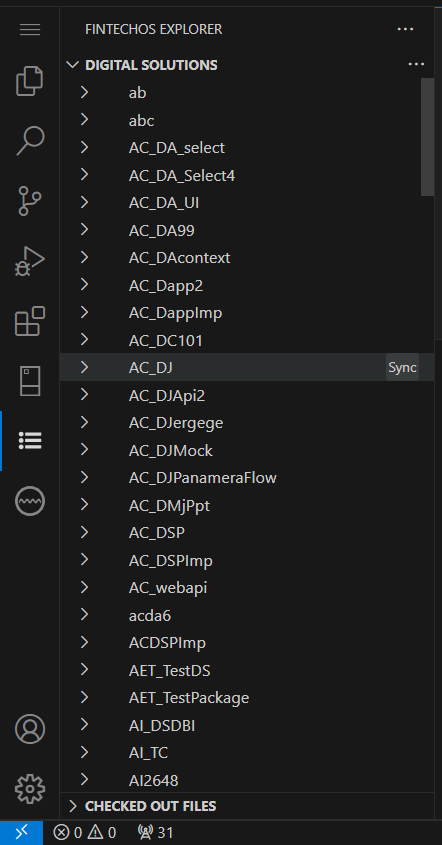
Use the FintechOS Explorer menu item to add new digital solution packages to your workspace or update existing ones. Click the Sync button next to the desired digital solution package to bring it up to the latest version or add other digital solution package from your environment to the code extension instance.
Manage and Edit Files
The editing mechanism allows you to edit all Javascript, HTML and CSS files while keeping the check-out and release features present only for cloud environments. For local environments, you simply save your work because there’s no collaborative layer involved.
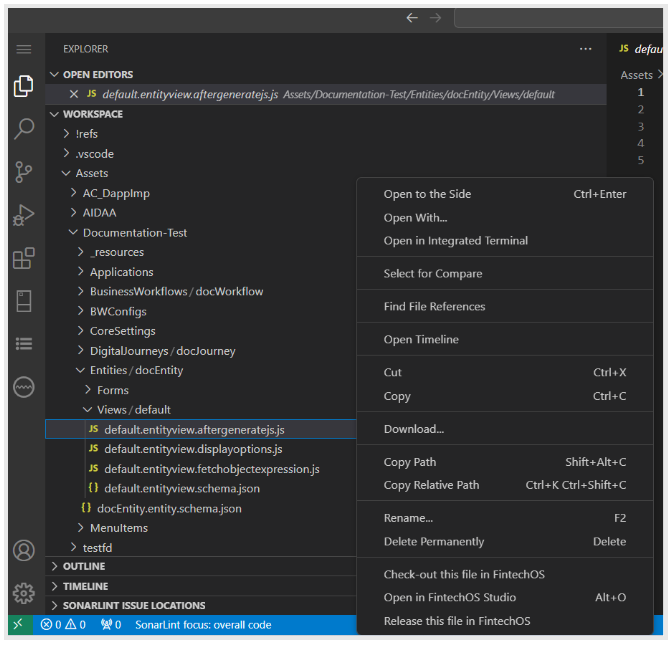
Right-click the item in the workspace to open the following controls:
| Control | Description |
|---|---|
| Check out this file in FintechOS | Use this option to lock the file and enable editing. |
| Release this file in FintechOS | Use this option to release the file. You cannot edit the file after release. |
| Open in FintechOS Studio | Use this option to open the element in FintechOS Studio. |
This is available only for Cloud only environments. When using the extension with Sandbox, the behavior is described in the Way of working with the extension.
Source Control
Manage digital solution package versions and track changes to the digital asset components to ensure all users can easily work on items and trigger a code review process through branching and version control. For more details, read the Way of working with the extension.
Intellisense for SDK Methods
You can use intellisense in the code extension and get the definitions for your SDK methods.
To do so, add the ftos.data.query.getAlias('property') in your server automation script either in Studio or directly in the code extension. For example, you can add ftos.data.query.getAlias('entityName') and in the code extension to see and use the properties of an entity.
Keep in mind to sync the script in the Visual Studio Code FintechOS Extension to use the definitions.
Code Extension in Sandbox
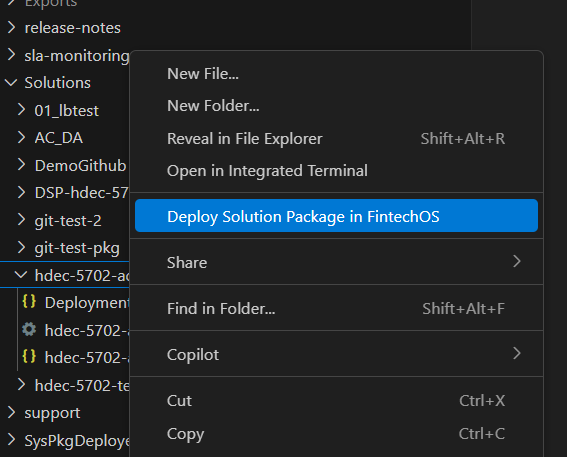
The code extension is also available with the Local Developer Sandbox, a local instance of the FintechOS Platform (v24.4.0) for building, testing, and syncing your development work. After setting up your local sandbox, you may notice the option Deploy Solution Package in FintechOS. Use this option after you've made changes that you want to deploy to Studio. Right-click the file and click Deploy Solution Package in FintechOS to include it in a solution package and deploy to Studio.