Product Testing Framework
The product testing framework allows you to simulate how a product's pricing, underwriting, and eligibility rules perform under different scenarios. To access it, from the product view, open the ellipsis menu (...) and select Test Product.
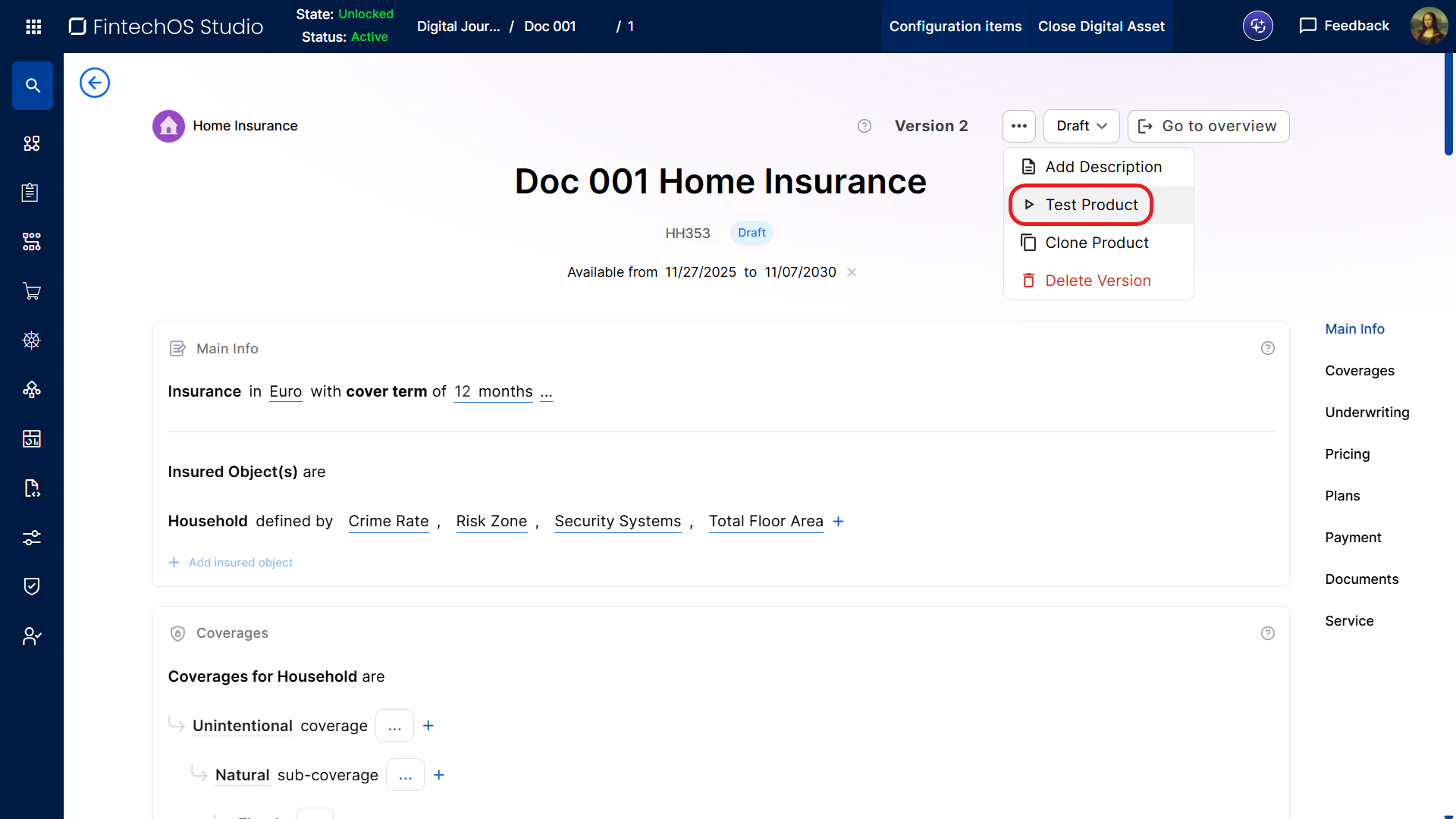
From the product's testing framework page, you can:
- Run an Individual Product Test Case from the UI
- Check Product Offers Available for a Specific Audience
- Import and Execute Multiple Product Test Cases in Bulk
- Download a Postman Collection for the Product APIs
- Manage Mandatory Test Cases for Product Approval
- Inspect the Full Execution History for All the Test Runs
- Review Aggregated Test Analytics
Run an Individual Product Test Case from the UI
Manual testing allows you to quickly validate product behavior and troubleshoot configuration issues, especially during the early stages of product configuration, when the product structure, rules, formulas, and data sets may change frequently. Creating test cases directly in the UI helps you validate initial scenarios and confirm that core product logic behaves as expected before scaling testing activities.
We recommend validating at least one or two successful test cases for each major testing area (Pricing, Eligibility, and Underwriting) before moving to bulk test management (see Import and Execute Multiple Product Test Cases in Bulk). This approach provides a faster feedback loop while the product definition is still evolving and reduces rework during large-scale testing activities.
To run a test case from the product test framework:
- Go to the Product Manual Testing section.
- Enter a Test Name.
- Optionally, add a Description, Reference Date, and, for insurance products, the Insurance Plan(s) you wish to cover.
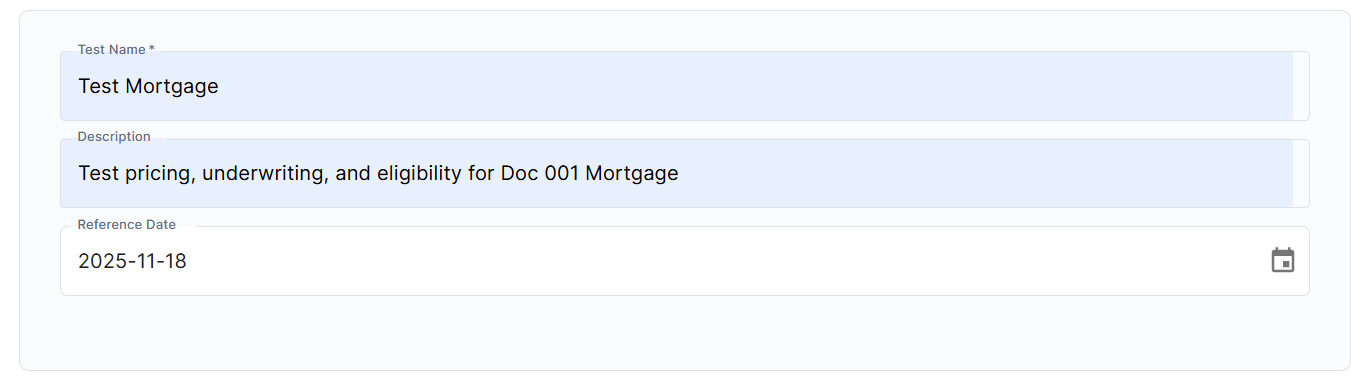
After providing the general test information, choose the type of test you want to run:
Test Product Pricing
- In the Test Pricing tab, provide the pricing inputs. The available inputs are generated dynamically based on the product configuration.
- You can optionally fill in the Expected Results section. If there are differences between the actual and expected results, the test case will fail.
- Click Run Pricing Test.
- Once the test is complete, a Test Output window is displayed that includes the pricing details in both HTML and RAW JSON format:
- For banking products, results include fees, bancassurance components, and the repayment schedule.
- For insurance products, the results include a breakdown of the insurance premium(s).
Test Product Underwriting
- In the Test Underwriting tab, enter the underwriting rules inputs. The available inputs are generated dynamically based on the product configuration.
- You can optionally fill in the Expected Results section. If there are differences between the actual and expected results, the test case will fail.
- Click Test Underwriting.
- Once the test is complete, a Test Output window is displayed that includes the underwriting rules results in both HTML and RAW JSON format:
Test Product Eligibility
- In the Test Eligibility tab, enter the eligibility rules inputs. The available inputs are generated dynamically based on the product configuration.
- You can optionally fill in the Expected Results section. If there are differences between the actual and expected results, the test case will fail.
- Click Run Test Eligibility.
- Once the test is complete, a Test Output window is displayed that includes the eligibility rules results in both HTML and RAW JSON format:
Check Product Offers Available for a Specific Audience
If your product has Offers configured, you can test which product offers will target a specific audience:
- Scroll the product testing framework page to the Available Offers section.
- Fill in the audience rules inputs. The available inputs are generated dynamically based on the product's offer configurations.
- Click Get Offers to display all offer cards applicable for the target audience.
- Optionally, you can click Test Offer on any offer card to open the Offer Testing Framework for its offer.
Import and Execute Multiple Product Test Cases in Bulk
If you need to run multiple product test cases, you can streamline the process by uploading test data using an Excel template based on the current product configuration and executing all tests in one go. This approach is recommended after the product configuration becomes stable and the core product structure, rules, formulas, and data sets are finalized, making it more efficient to manage large numbers of test cases for regression testing and mass validation activities.
Because Excel templates are generated based on the current product definition, downloading templates too early in the configuration process can lead to unnecessary maintenance work whenever product configurations change. Previously generated templates may become obsolete and require additional updates or corrections. During the early stages of product configuration, manual testing is recommended instead (see Run an Individual Product Test Case from the UI).
To run test cases in bulk:
- Click Get Template at the top of the product testing framework page to download the Excel test template.
- Open the template file and fill in the data for your pricing, underwriting, and/or eligibility test cases.
- The template is customized based on your product configuration: mandatory fields are highlighted in red and entries are validated as you type. For detailed instructions, read the template's Instructions sheet.
- The template includes formatting for 20 test cases, but this number is not mandatory. You can leave test cases empty or add columns for additional test cases depending on your requirements.
- Use the Pricing Input sheet to fill in your pricing test cases.
- Use the Underwriting Input sheet to fill in your underwriting test cases.
- Use the Eligibility Input sheet to fill in your eligibility test cases.
- You can optionally fill in the Pricing Result, Underwriting Result, and Eligibility Result sheets with your expected results for various test cases. If there are differences between the actual and expected results, the test case will fail.
- Save the test file.
- Go back to the product testing framework page, click Upload & Run, and select the test file you saved earlier.
- Once the tests are finished, an Excel file with the test results is generated. Open the test results Excel file and browse the Pricing Result, Underwriting Result, and Eligibility Result sheets to view the pricing, underwriting, and eligibility tests results respectively.
The individual test cases are also saved in the Test Suite section of the Product Testing Framework. To review the results of an individual test case within the batch, scroll the product testing framework page to the Test Suite section and and click the eye icon next to a test case to display its output (see Inspect the Full Execution History for All the Test Runs for details).
Download a Postman Collection for the Product APIs
For approved products, you can download a JSON file containing the Postman collection containing the Product APIs. This allows you to test the APIs locally or share them with your team.
To download the collection:
- From the product view, open the ellipsis menu (...).
- Click Download Postman Collection.
The collection includes requests for:
- Product metadata
- Product eligibility, underwriting, and pricing
- Offer eligibility, underwriting, and pricing for all associated offers
Manage Mandatory Test Cases for Product Approval
For specific product test cases, you can designate a minimum number of successful tests that is required for product approval (see Product Life Cycle and Replication) and iterate through them until enough tests execute successfully.
Configure the Minimum Number of Successful Product Test Cases
The minimum number of successful product test cases is controlled by the following Configuration Manager key:
kv/<environment>/mkexp-pfapi/app-settings/minNumberOfSuccessfulTestsForProductsApproval
The default value is 0, allowing product approval without enforcing any minimum number of successful tests.
Run the Product Approval Test Cases
- Scroll the product test framework page to the Test Suite section.
- Tick the For Approval checkbox next to the desired test case. The test case must include expected results in its test run
- Once you have marked all the required test cases, you can adjust and re-run them until enough test cases execute successfully. See Test Case Actions for details on how to reload a test case.
Test cases that are marked for approval are not recorded in the Test Suite execution history on subsequent runs. This lets you repeat critical tests as needed without adding excess entries to the execution log.
Inspect the Full Execution History for All the Test Runs
Scroll the product test framework page to the Test Suite section to inspect all the product's test runs.
Test Suite Batch Actions
In the Test Suite section, you can tick the checkmarks next to the test cases you wish to process in batch. The following batch actions are available:
- Run All Tests - Executes all selected test cases at once.
- Download Test Cases - Exports an Excel test template containing the input data of all selected test cases. You can then use this file to run the tests in their current state or after modifying the test inputs (see Import and Execute Multiple Product Test Cases in Bulk).
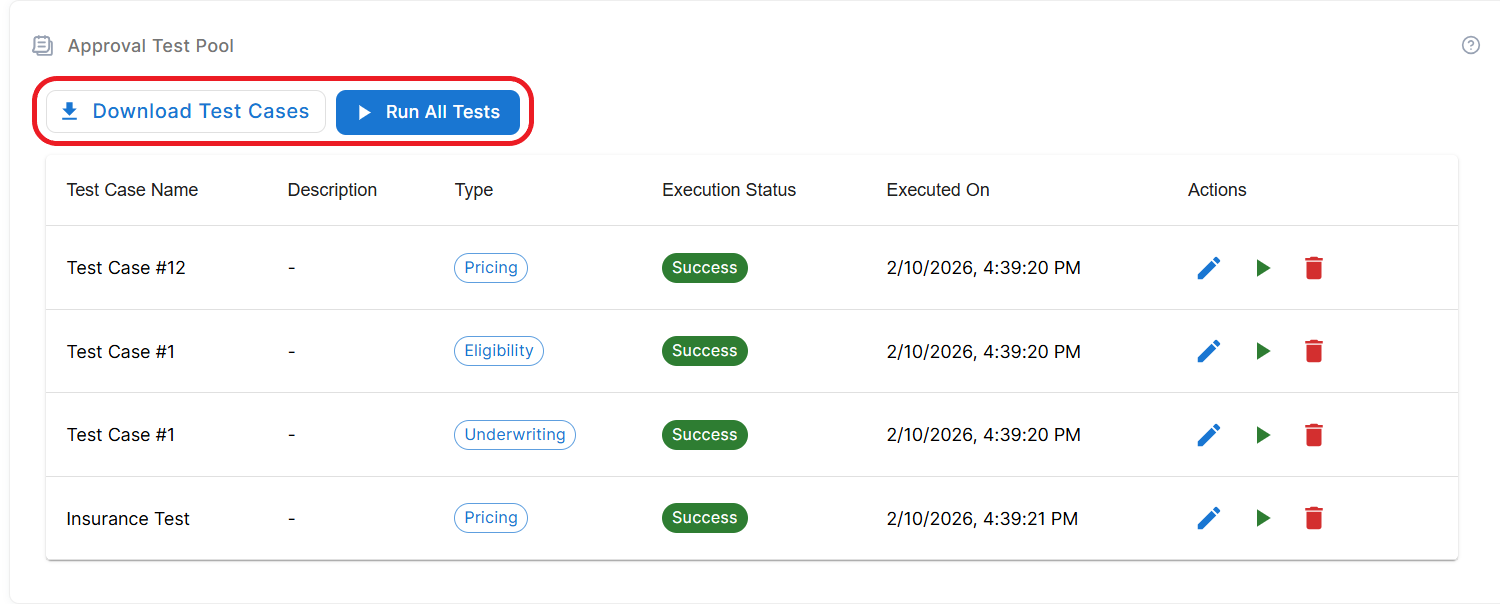
Test Case Actions
- View test case output - Click the eye icon to display the test case output.
- Reload the test case - Click the pencil icon to edit the test case inputs and execute it again:
- This scrolls the page to the Product Manual Testing section and populates it with the test case's input data.
- Update the inputs as needed and save them.
- Run the test again
- Show History - Click the clock icon to display the test case's previous runs and updates.
- Archive the test case - Click the folder icon. Archived test cases cannot be reloaded or marked for approval (see Manage Mandatory Test Cases for Product Approval). Test cases that are marked for approval cannot be archived. Click the icon again to unarchive the test case. If archived test cases are hidden, use the Show Archived filter to display them (see Filter the Test Execution History for details).
Filter the Test Execution History
You can click the Show Filters button to filter the displayed test cases. You can filter test case results by:
- Test Case Name - Type a sequence of characters that is part of the test case you are looking for.
- Calculation Type - Pricing, Underwriting, Eligibility, or All
- Status - Passed, Failed, Pending, or All
- Time Interval - Date From and Date To controls
- Product Version - If the product was versioned, you can filter the test cases based on the product version.
- Show only Required for Approval - Filters the test execution history to display only the test cases that have been marked as mandatory for product approval.
- Show Archived - Displays test cases that have been archived, allowing you to unarchive them.
Review Aggregated Test Analytics
To view summary metrics for your test runs, scroll the product test framework page to the Test Analytics section. This area displays:
- A distribution of test outcomes pie chart (passed, failed, incomplete)
- A number of tests by category bar chart (pricing, underwriting, eligibility)
- A day-to-day trend of executed tests line chart.
Use the From Date and To Date selectors to limit the analytics to a specific time interval.
Use the Required for Approval Only checkbox to include only test cases that have been marked as mandatory for product approval.