Personal Crypto Wallet
Crypto Wallets are accounts for holding and managing cryptocurrency balances. Each wallet is configured for a specific cryptocurrency and can operate across one or more supported blockchain networks.
In the title field, enter a name for the product. Optionally, you can click the ellipsis button (...) to also provide a description and/or an availability period. Below, fill in the following product configurations.
Main Info
This section defines the cryptocurrency, supported blockchain networks Infrastructures on which cryptocurrency-based products can be held and transferred. Each network represents a distinct processing environment with specific capabilities, protocols, and constraints that influence how transactions are executed and validated., and custody model for the wallet.
| Parameter | Description |
|---|---|
| Available in | The cryptocurrency in which the wallet operates (e.g., BTC, ETH, SOL). Available options are based on the entries in the Currencies settings list that have the Is Crypto parameter enabled. If the required cryptocurrency is not available, click + Create new to add it. |
| Network(s) supported | The blockchain network(s) on which the wallet can hold and transfer its cryptocurrency. Available options are based on the entries in the Blockchain Networks settings list. |
| Custody account |
|
Fees
- Click +Add fee.
- Select a predefined type of fee from the list, or click Create new to define a new fee type (you can also rename an existing fee by clicking the fee name). The type of fee determines parameters such as the conditions under which the fee is applied, how often the fee is charged, whether the fee is refundable or not, etc. For more information, see Fee Types.
- Enter the amount of the fee:
- value - a fixed value in the specified currency.
- percentage - a specified percentage of the remaining value, financed value, paid value, unused amount, used amount, overdraft limit amount, amount, etc.
- based on formula - Allows you to set fees based on Product Formulas.
- If the fee type has a recurring periodicity (e.g., monthly, annual, weekly), you can configure different amounts for specific installment ranges. For example, you may define a fixed amount for the first three installments, a variable amount for the next six installments, and a formula-based amount for the remaining installments.
E.g.: Down Payment Fee is based on formula Down Payment * 0.002 for the first 3 installments and then based on formula Down Payment * 0.001 for 3 installments and then value 0 € until end.
Fee types with the periodicity set to Once are automatically configured to be charged a single time.
You can set up multiple fees that will be charged independently, based on their Fee Types. E.g.:
- Front-end Fee is 25 € one time.
- Repayment Fee is 4% over remaining value one time.
This will always charge the borrower a $25 fee on loan application. If, during the loan, the borrower decides to repay the loan in advance, a 4% fee is charged over the loan's remaining value.
Discounts
In the Discounts section, you can define discounts on any of the already configured interest items, commission items, or on all pricing elements.
There are three ways to create discounts:
- Follow the sentence-based interface to configure a condition based on a dictionary attribute (e.g., Age >18), for which you define a discount. Note that you can also create new attributes, extending your dictionary (+Add discount > Create New).
- Add a Dataset based on one, two, or more attributes for a pricing item. You can add more data sets, one for each pricing item. For more details on how to create Data Sets, see Product Data Sets.
- Add a formula to define discounts with more advanced conditions based on mathematical expressions, data sets, and other inputs. You can add more formulas, one for each pricing item. For more details on how to create formulas in Product Designer, see Product Formulas.
A discount does NOT override the previous value of a pricing item, but is applied to it, decreasing the pricing item's final value. For example:
- A discount of 10% applied to an existing 10€ commission results in a new value of 9€ for the commission.
- A discount of 2€ applied to an existing 10€ commission results in a new value of 8€ for the commission.
Underwriting
The underwriting rules determine an applicant's eligibility for the product and whether or not a manual approval process is required (available only for underwriting rules based on Product Data Sets).
There are three ways to add Underwriting rules:
- Add Rule - Follow the sentence-based interface to configure a condition based on a Lexicon Term (e.g. Credit Rating is Good or Excellent).HINT
In the attributes' pop-up window, you can click +New Attribute to quickly add a new lexicon term or Product Settings to edit the current lexicon term. - Add Formula - Use Product Formulas that return a boolean result ("True" for approval and "False" for rejection);
- Add Data Set - Use Product Data Sets for the evaluation. This is mandatory if the rule can return an outcome where the application must go through a manual approval process. The data set can return only the Approved, Derrogation, or Rejected results (or an equivalent terminology defined in the Underwriting Data Set Values, e.g. Passed, Manual Analysis, or Not Passed).
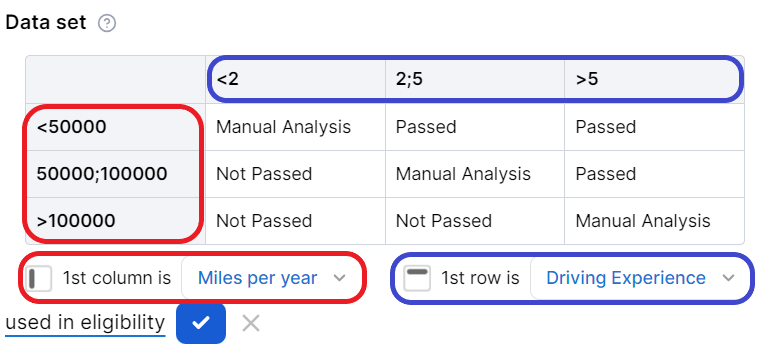
For each rule, you can select the used in eligibility option to mark it as a knock-out rule, which automatically disqualifies the applicant if its condition is not met. Otherwise, the rule is submitted to the final approval review.
For the manual approval result, you need to configure the journey to direct the application to a back-office manual approval process. If you are using Multi-Dimensional Data Sets based on cascading data sets, the manual approval outcome must be defined in the top-level data set.
Documents
Specify the document types required from the applicants (and/or others involved in the origination process, e.g. codebtors Individual who assumes joint responsibility for repaying a loan alongside the primary borrower. If the primary borrower defaults on the loan, the codebtor becomes liable for the remaining debt.), as well as the document types provided to the applicants.
| Parameter | Description |
|---|---|
| Required from customer |
Documents that the applicant must provide in order to verify identity, income, product eligibility, etc. To add a required document:
E.g.: Income statement mandatory for debtor and mandatory for co-debtor. |
| Provided to customer |
Documents that must be provided to the applicant typically in order to obtain an agreement and/or signature. To add a provided document:
E.g.: Terms and conditions is static requires accord and requires signature. |