State Workflow Designer
To set up a state workflow, you need to define its statuses and the transitions between those statuses, and, if some business transitions are set to be automatically triggered by specific rules, the Rules to Apply Workflow Statuses to an Entity.
To do so, follow the steps below:
 Define Business Workflows
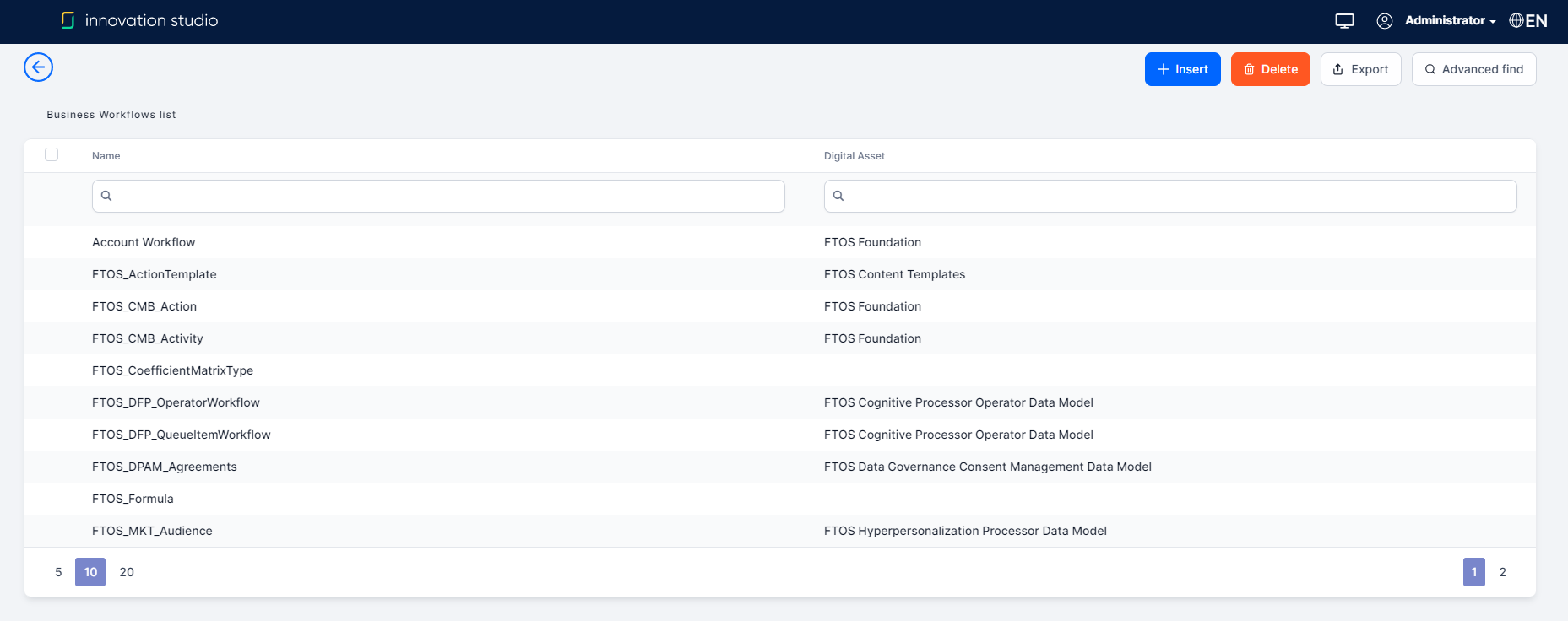
- In FintechOS Studio, go to Main Menu > Data Models > State Workflow Designer.
- Click Insert.
- Enter the Name of the state workflow.
- Click Save and Reload.
- On the left side of the grid there is an Attach to entity button which opens the list of entities. Select the entity for which entity the workflow is built.
- Click Save and reload.

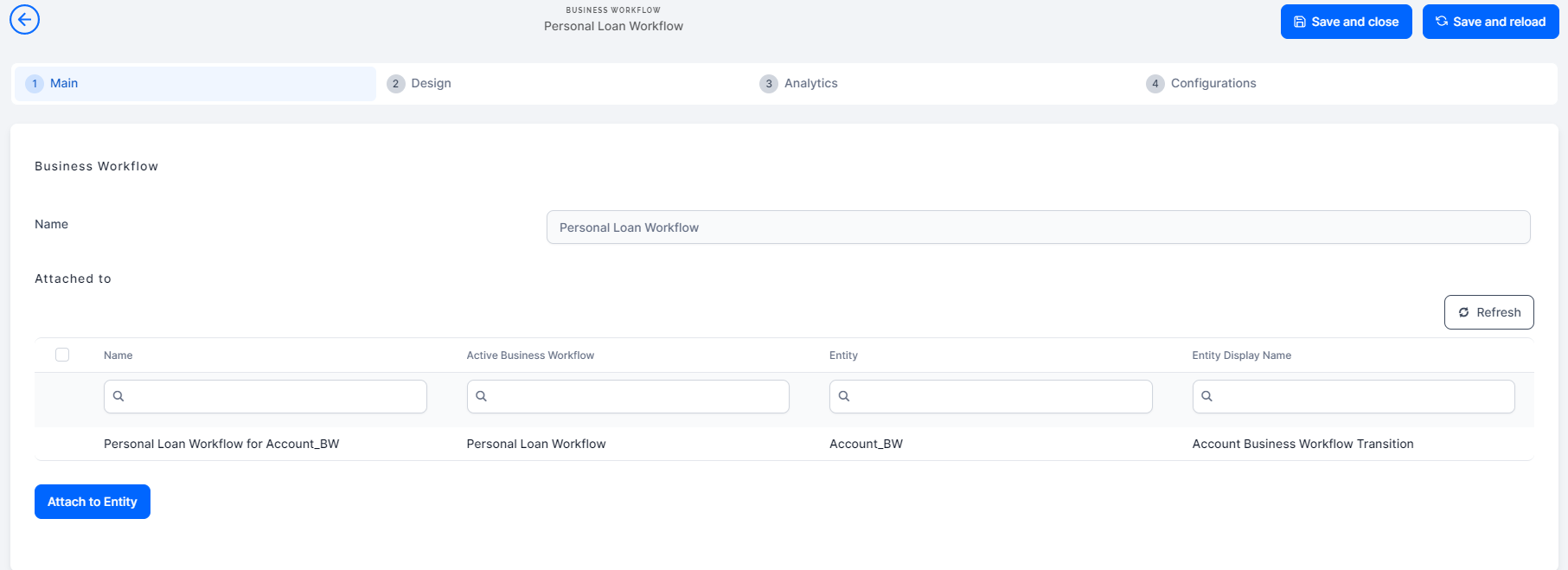 Define Workflow Statuses
Whether you add a status from the Designer or Configurations tab, they are automatically updated in each tab to reflect the situation properly. Therefore, any modification in each tab is propagated in both places.
Add statuses from the Designer
- After creating the state workflow and attaching it to the proper entity, click the Designer tab.
- On the left side of the screen, there is a panel which contains the list of statuses created. To add a status, click the Add status button. It will open a pop-up window.
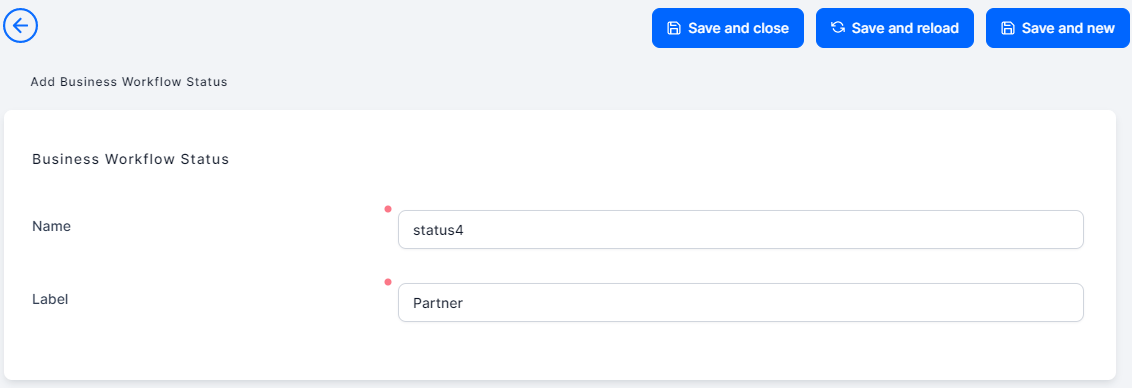
- In the Name field, enter the status name that will be used by the system.
- In the Label field, enter the name of the status that will be displayed in the UI.
- Click Save and Reload.
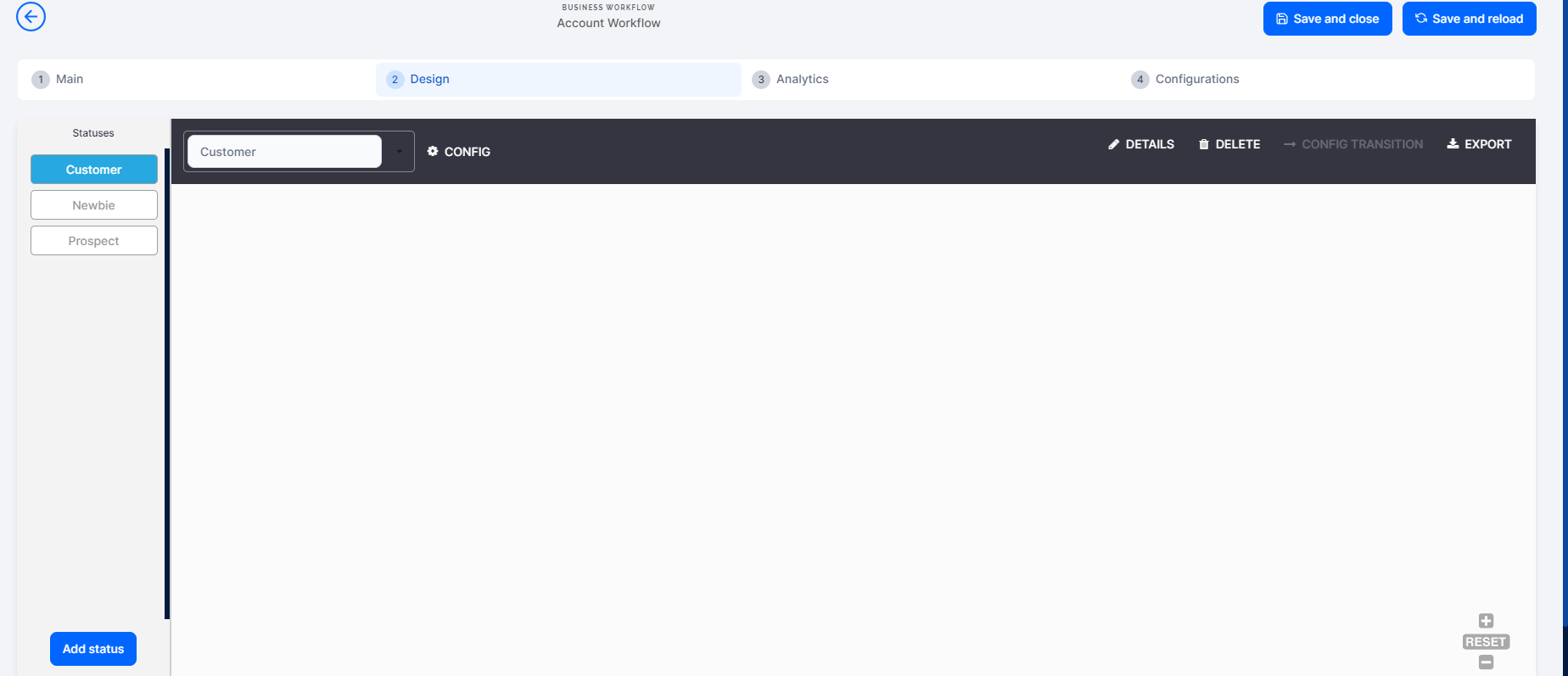
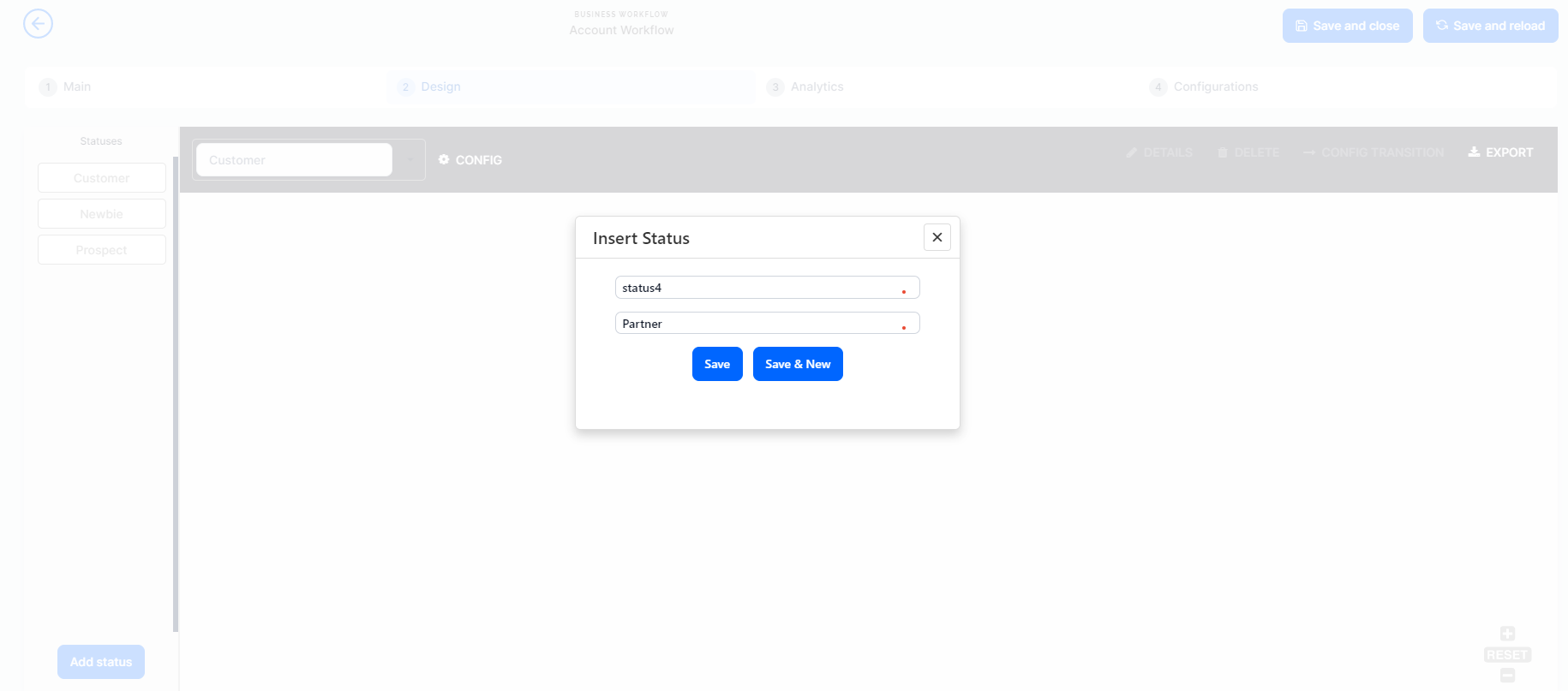
Follow the procedure above for every status you wish to add.
Add statuses from the Configurations tab
The second method is available through the Configurations tab. The first grid named Business Workflow Statuses shows the statuses list. To add one from here:
- Click the Insert button.
- Fill in the name and label for it.
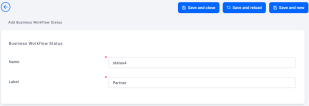
- Click the Save and reload button. Repeat as many times as needed.
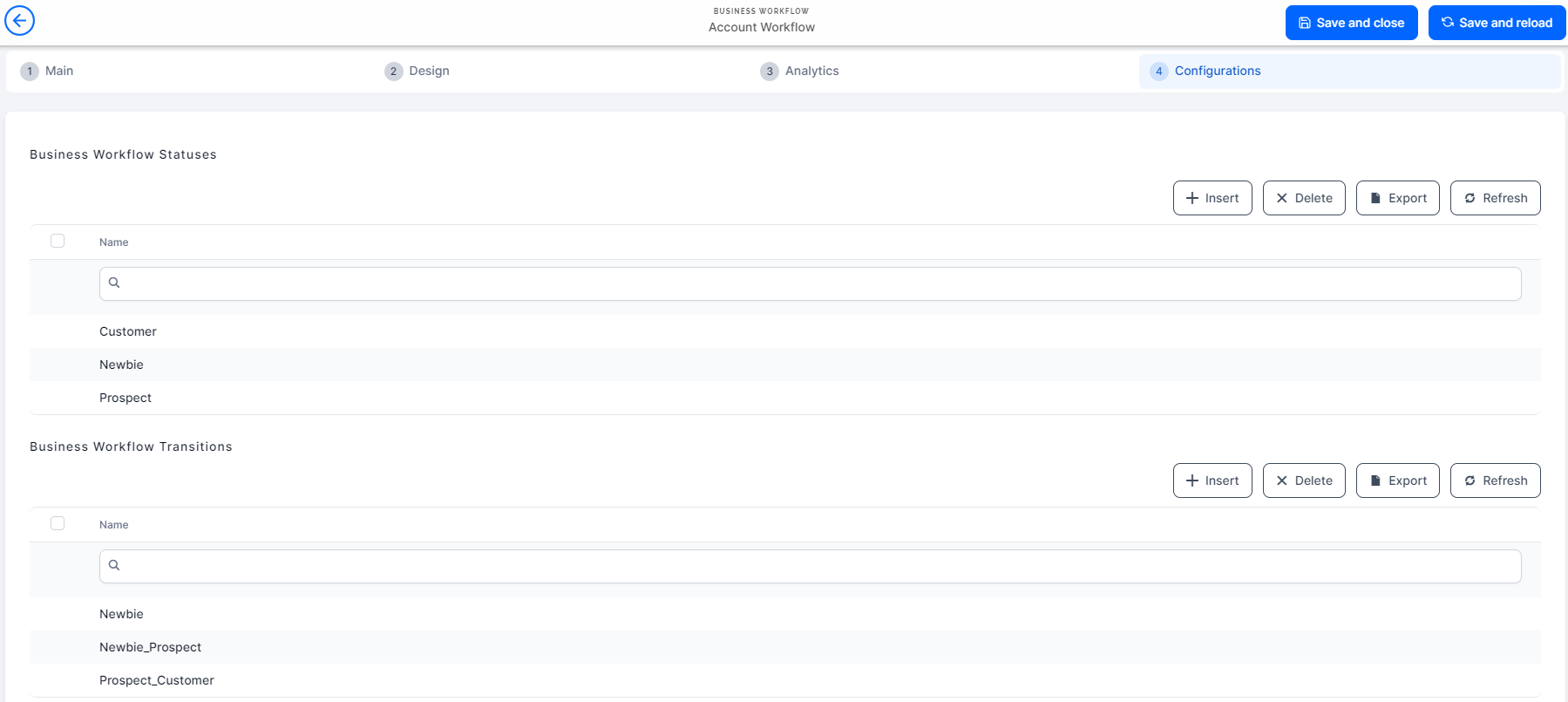
 Define State Workflow Transitions
Add a transition from the Designer tab
- Drag and drop the states you wish to create a transition between. Drag them from the left panel to the white panel.
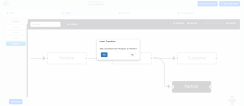
- Click Yes to agree to the creation of the transition.
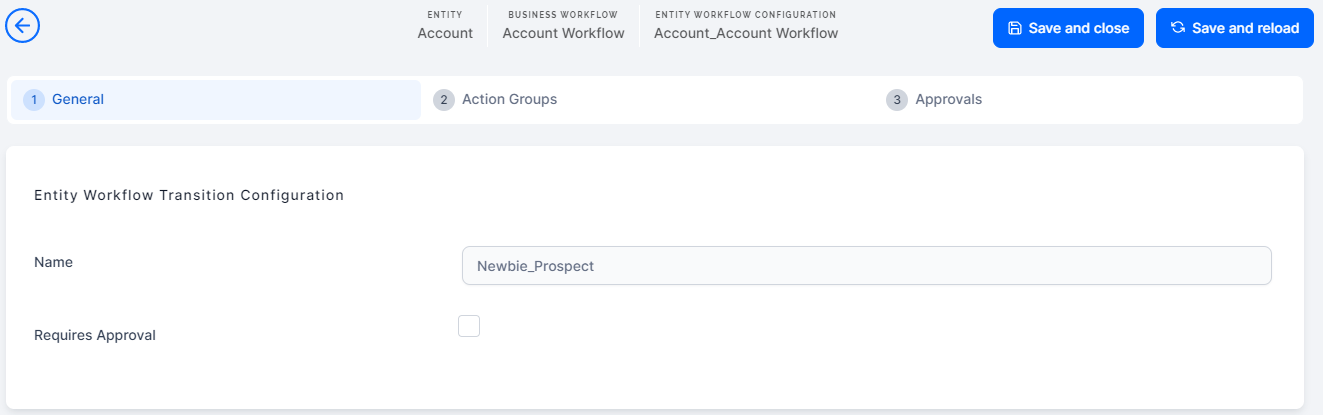
- After it has been created, to configure additional features (action groups and approvals) select Configuration transition from the right side of the designer.
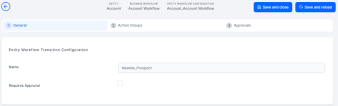
- To see how to configure these tabs, access Edit Workflow Transition Configurations.
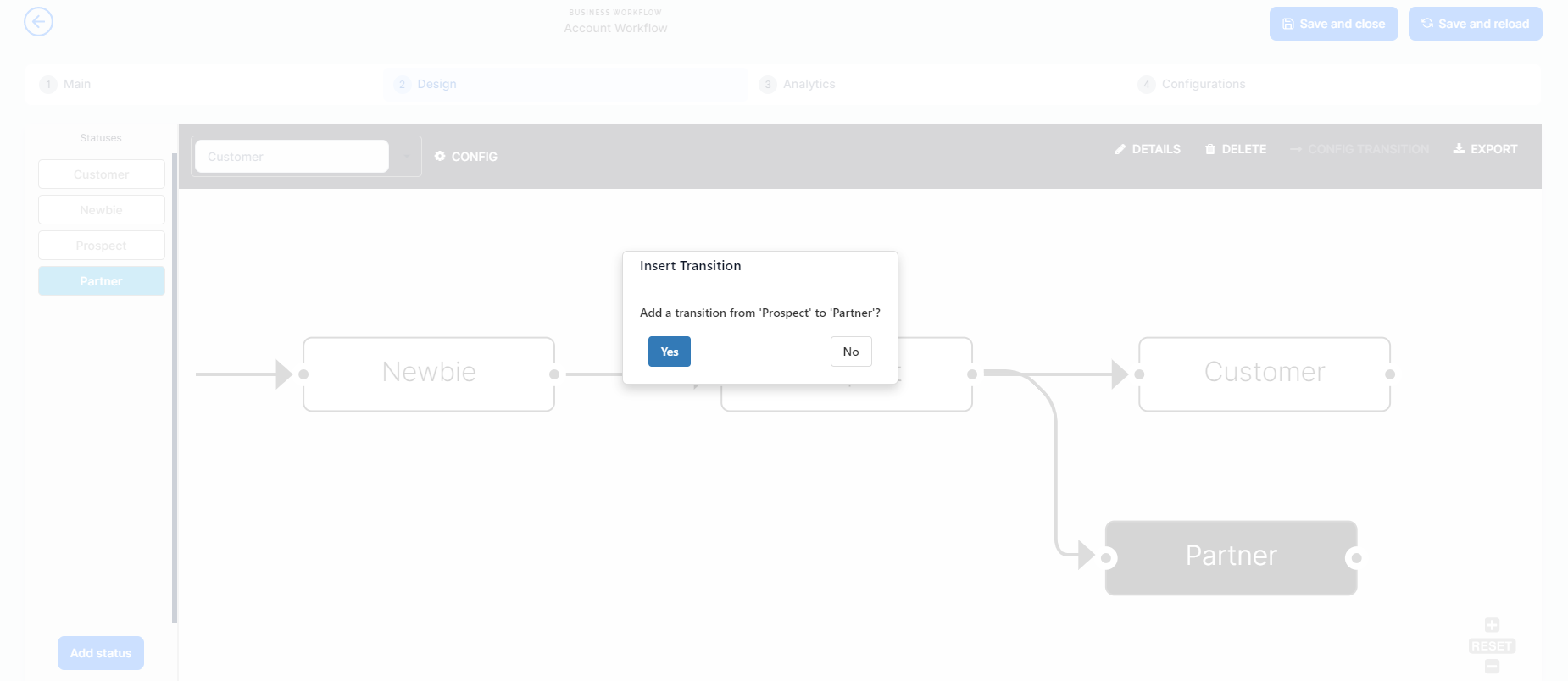
The design of the lines form the diagram marks different configurations.
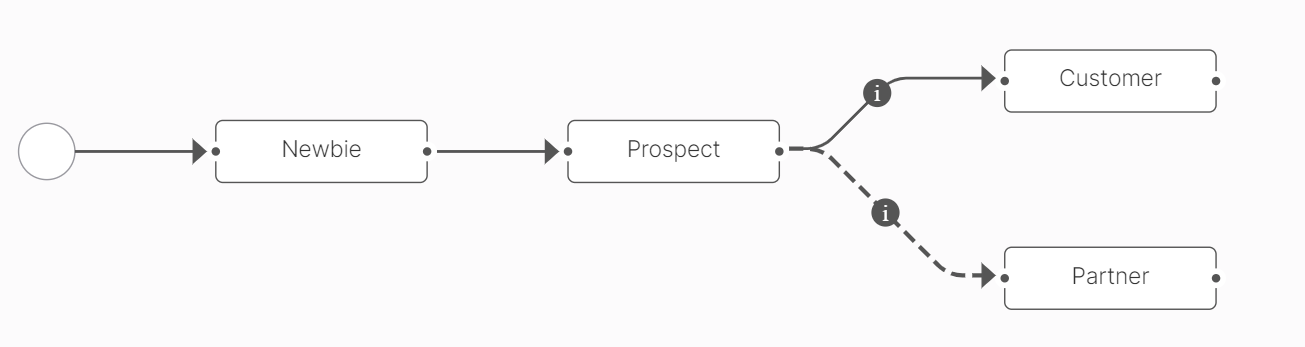
The dash types mark the configurations. The unidirectional arrow with a straight line is a transition with no configurations, e.g. Newbie to Prospect. The unidirectional line with an ''i'' symbol signifies a transition with an action group, e.g. Prospect to Customer. The dash line signifies a true boolean do not allow manual transition between the two statuses. e.g. Prospect to Partner.
Add a transition from the Configurations tab
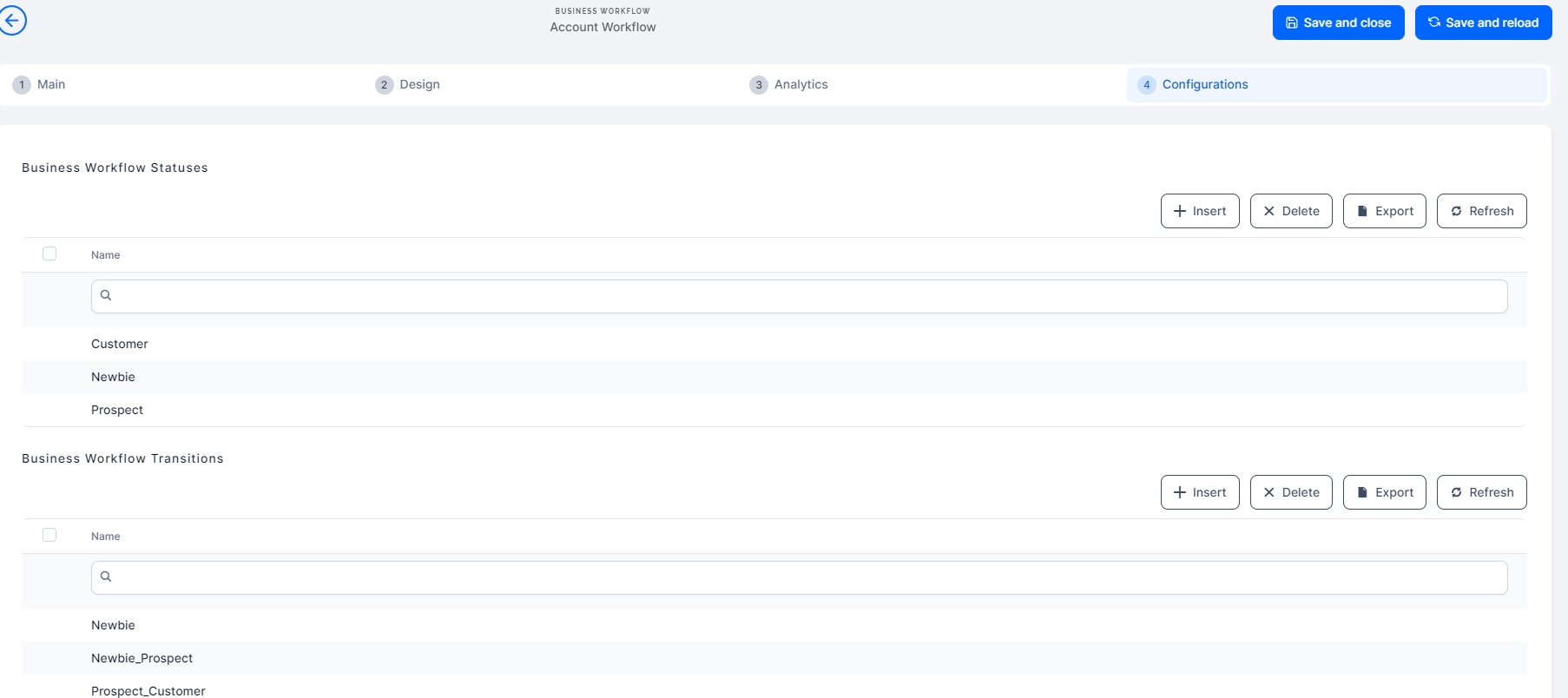
- In the Edit Business Workflow page, click on the Configurations tab.
- Click Insert for the BUSINESS WORKFLOW TRANSITIONS grid. The Add Business Workflow Transition page appears.
- From the From Status field, select the status from which the workflow transitions.
- From the To Status field, select the status to which the workflow transitions.
- The name is automatically filled in with the concatenation of the names entered in the From Status and To Status fields. If this is the initial workflow transition it follows the following naming convention: "_ToStatus". However, it can be changed to the desired name for the transition.
Tick the Do Not Allow Manual Change checkbox if you want the workflow transition to be automatically triggered based on strict business rules.
- The Business Workflow field is non-editable and displays the name of the business workflow for which you define the transitions.
- If you allowed manual changes (ticked clear the Do Not Allow Manual Change checkbox) and want all users to manually perform the workflow transition, skip steps 2 and 3, go to step 4, for example.
- If you want only users with specific security roles to perform the business status transition, click Save and Reload. The Security Roles grid appears.
- To add a specific security role, from the Security Roles section, click the Insert existing button and from the pop-up that appears, double-click the security role. Repeat this step to add as many security roles as your business requires.
Click Save and Close.
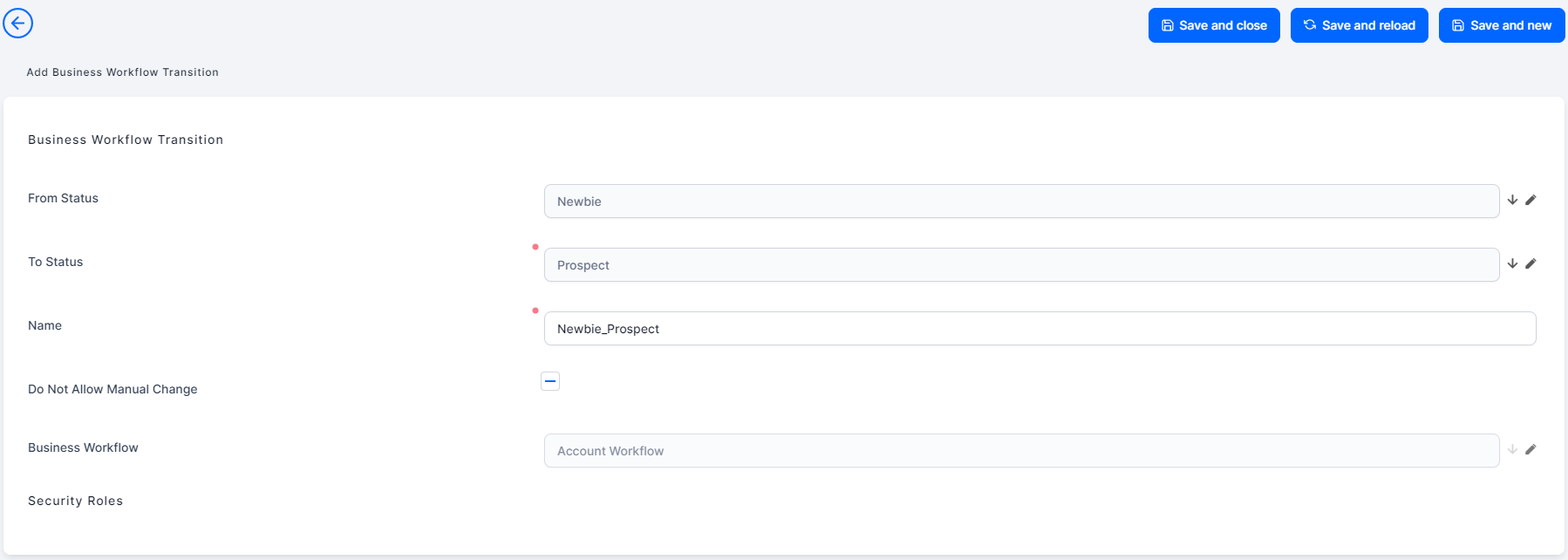
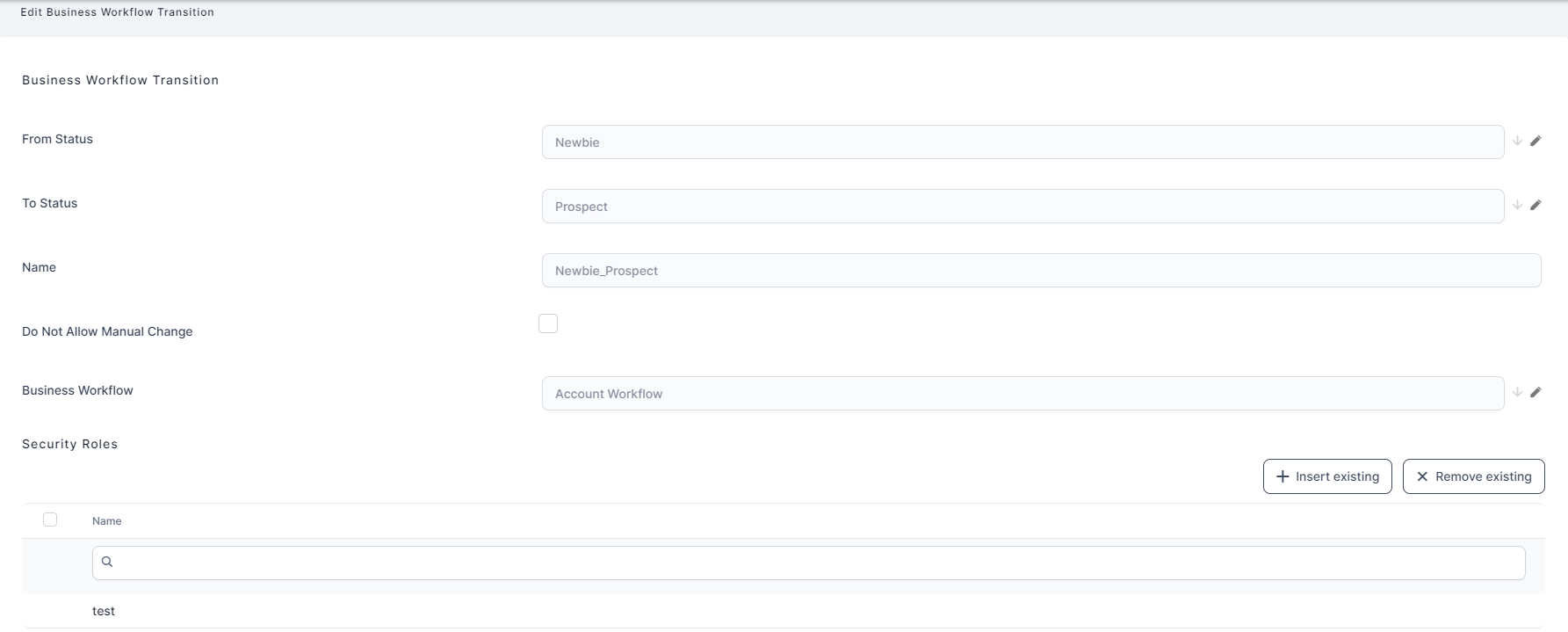
If you ticked the Do Not Allow Manual Change checkbox, users will not be able to manually change the status transition; it will be automatically triggered based on strict business rules.
Follow the procedure above as many times as business status transitions you need to meet your business needs. If you want to visually see the workflow statuses and transitions, click Designer. The Workflow Designer appears.
Rules to Apply Workflow Statuses to an Entity
FintechOS Studio enables you to define sets of rules to be automatically triggered on state workflow status change and also define specific actions to be performed before or after a status change.
To configure the state workflow rules, you need to apply the state workflow to the entity you want to use it. To do so, follow these steps:
- In FintechOS Studio, go to Main Menu > Data Models> Data Model Explorer.
- Double-click on the desired entity.
- In the Business Workflow field, select the business workflow to be used on the business entity.
- Click Save and close.
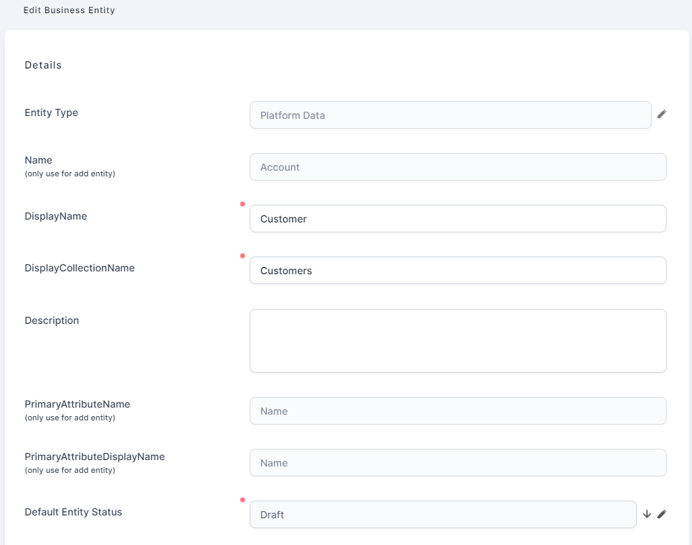
A new record is added to the State Machine Configurations with a name that follows this convention: "<the name of the business workflow> for <the name of the entity on which the business workflow was selected>".