Data Import Templates
To import a package or data with its metadata from another system source follow the steps below:
Prior importing data in bulk in FintechOS Platform, go to the legacy system and export the data in an Excel file.
Do not include the source primary keys in the data exports. Primary keys are generated automatically by the system.
Make sure to include in the source export any attributes that are required in the destination entity, otherwise the import will fail.
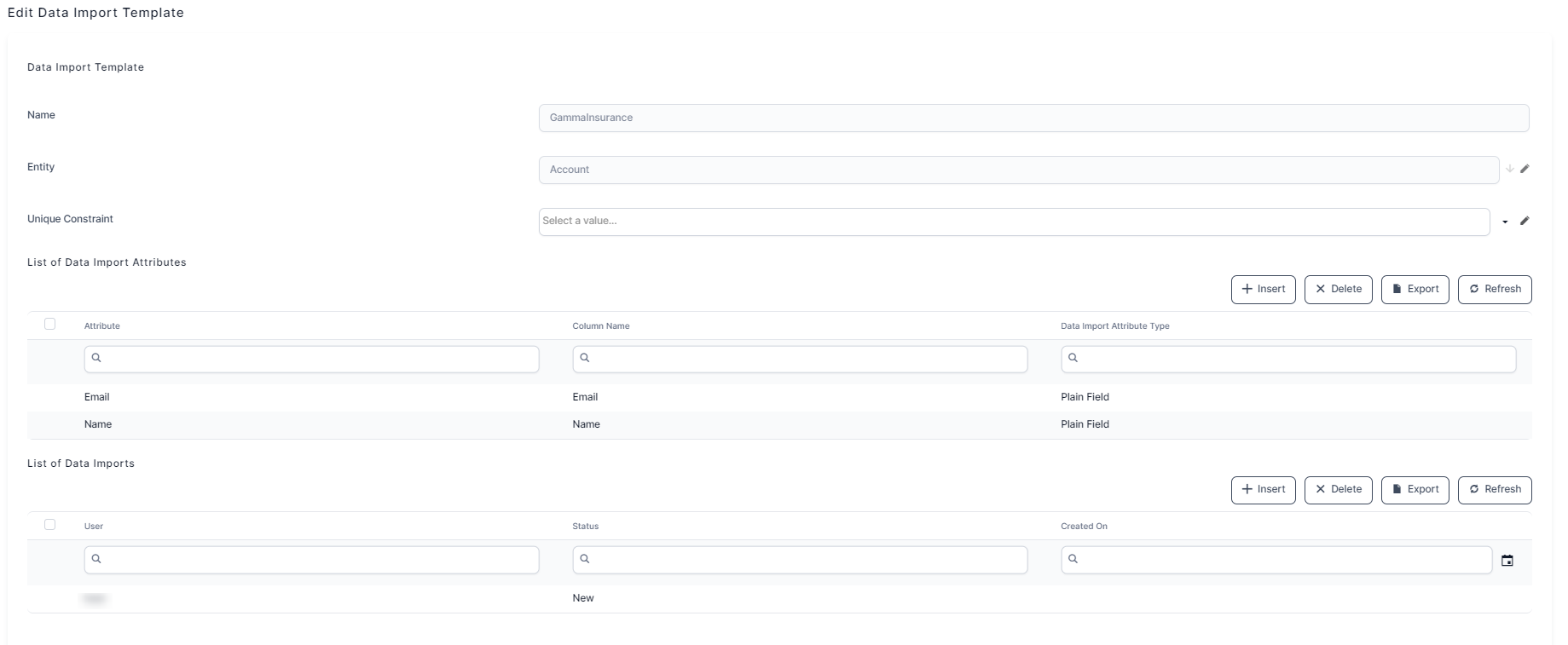
- From the main menu, select Evolutive Data Core > Data Import Templates > Insert.
- Fill in the Name for the package, the Entity you wish to have the import done on, and the Unique Constraint (For more info, see Entity Unique Constraints. For each entity record, there will be unique values).
- Click Save and Reload. Two grids will show up: List of Data Import Attributes and List of Data Imports.
- In the list of data import attributes, click Insert to insert an attribute by filling in the following fields:
- Attribute you wish to include. Be sure to include the attribute which has the unique constraint.
- Column Name .
- DateTime format and Data Import Attribute Type.
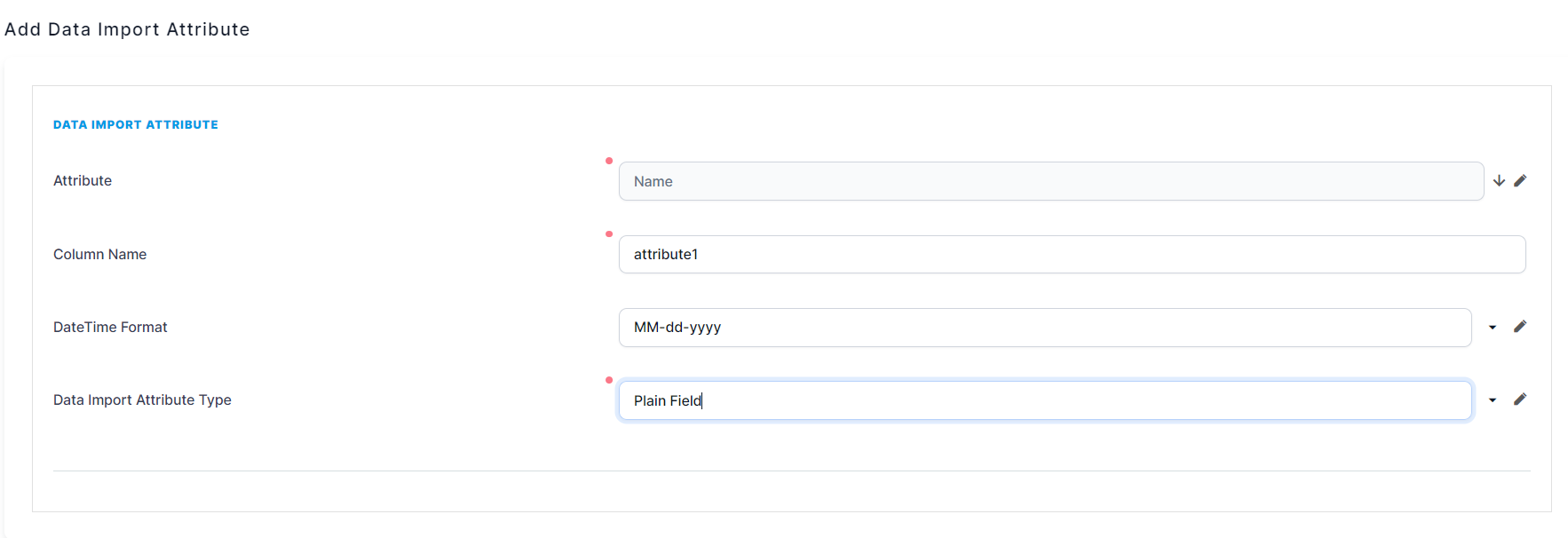
5. Click Save and close.
6. Repeat for as many attributes as needed. It is possible to delete an attribute by clicking Delete, next to Insert
7. In the list data imports, click Insert.
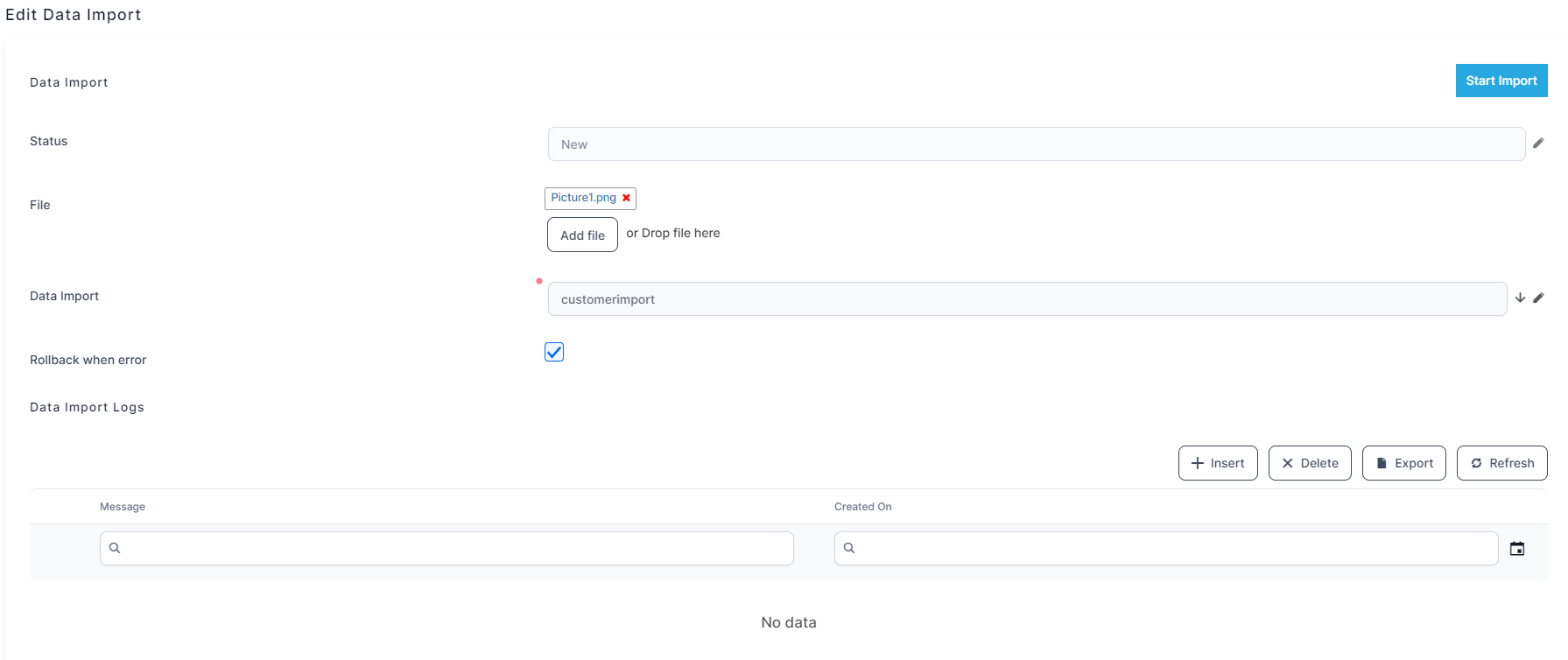
8. Fill in the following:
-
Status - This is auto-filled. The options are:
-
New (this is the initial status of an import before the ''Start import'' button has been clicked)
-
Imported (this is the confirmation if the import was successful)
-
Error (this is the status if the import failed)
-
File - Add the Excel file here
-
Data Import - Name of the template
-
Rollback when error - This checkbox will enable the process of coming back to the initial state of the data base when the import fails.
9. Click Start Import. In the Data Import Logs grid, the history of the process will be recorded. If there is an error, the detailed error messages are displayed in the grid.
10. Click Save and close. Repeat as many times as needed.