Offers
Offers allow you to decide how to sell your products (either individually or by bundling multiple products together), create user-friendly descriptions, target specific audiences, or provide additional discounts. With offers, you can make changes to products (commercially) with autonomy and agility.
Create Offers
The instructions below explain how to configure each offer component. You can customize your offers according to your business requirements, or pair a distinctive combination of financial products into a bundle.
To create an offer, you must first define and approve at least one product in Product Designer.
To create an offer:
- In FintechOS Studio, go to Main Menu > Products
- Select an approved product from your Product list. This will be the offer's main product.
- Click +New Offer.
- To set the offer's name and availability period, click and type over the corresponding fields at the top left of the screen.
Products
When you create an offer, the offer's main product is automatically added to the Products section. This primary product is a mandatory component of the offer and cannot be removed.
Product Bundles
To provide comprehensive financial solutions, you can enhance the main product with additional products that you offer together as a bundle. For example, you may include a home insurance alongside a mortgage loan main product to improve customer convenience and streamline the purchasing process.
To bundle additional products in the same offer, click +Add product in the offer's Products section.

You can bundle additional insurance products in the same offer only if they have single pricing plans.
Content
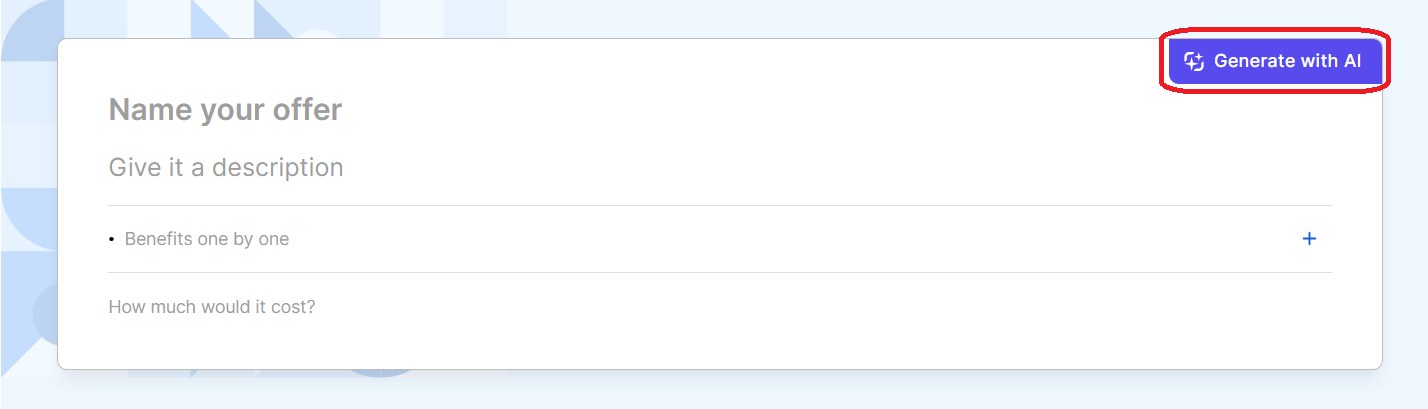
The offer content includes a distinctive name, a comprehensive description, and appealing benefits designed to attract customers. The content cards determine how the offer will appear in your customers' digital journeys.
- Name: The distinctive title of your offer, used to efficiently identify and market your products.
- Description: An optional summary outlining the content, features, and purpose of your offer. This helps customers understand what is included and how it aligns with their needs.
- Benefits: The advantages and perks associated with your offers, such as potential cost savings, convenience, or added value, designed to enhance the customer experience and meet specific preferences and goals.HINT
You can pre-populate the Name, Description, and Benefits fields by clicking Generate with AI. This functionality draws data from your offer's product(s) and generates a comprehensive introduction for your offer.
To activate AI generation, you must enable the sys-pf-enable-ai system parameter (see System Parameters for details).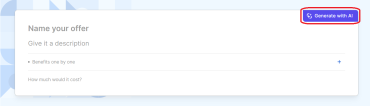 IMPORTANT!
Offer AI Content Generator uses OpenAI's generative artificial intelligence to allow your users to create content for offers, based on the details of your products and services offering.
This AI feature is optional and enabling it may offer the functionalities intended for any user across your organization.
By enabling the Offer AI Content Generator feature, you agree to the Supplemental Terms of Service. - Plans: If an offer includes insurance products, the insurance plans configured at product level will automatically appear in the offer's content. See the Insurance Plans section below for information on how to configure plans in your offer.
- How much would it cost: This section allows you to include additional information that could be relevant, such as pricing.
Insurance Plans
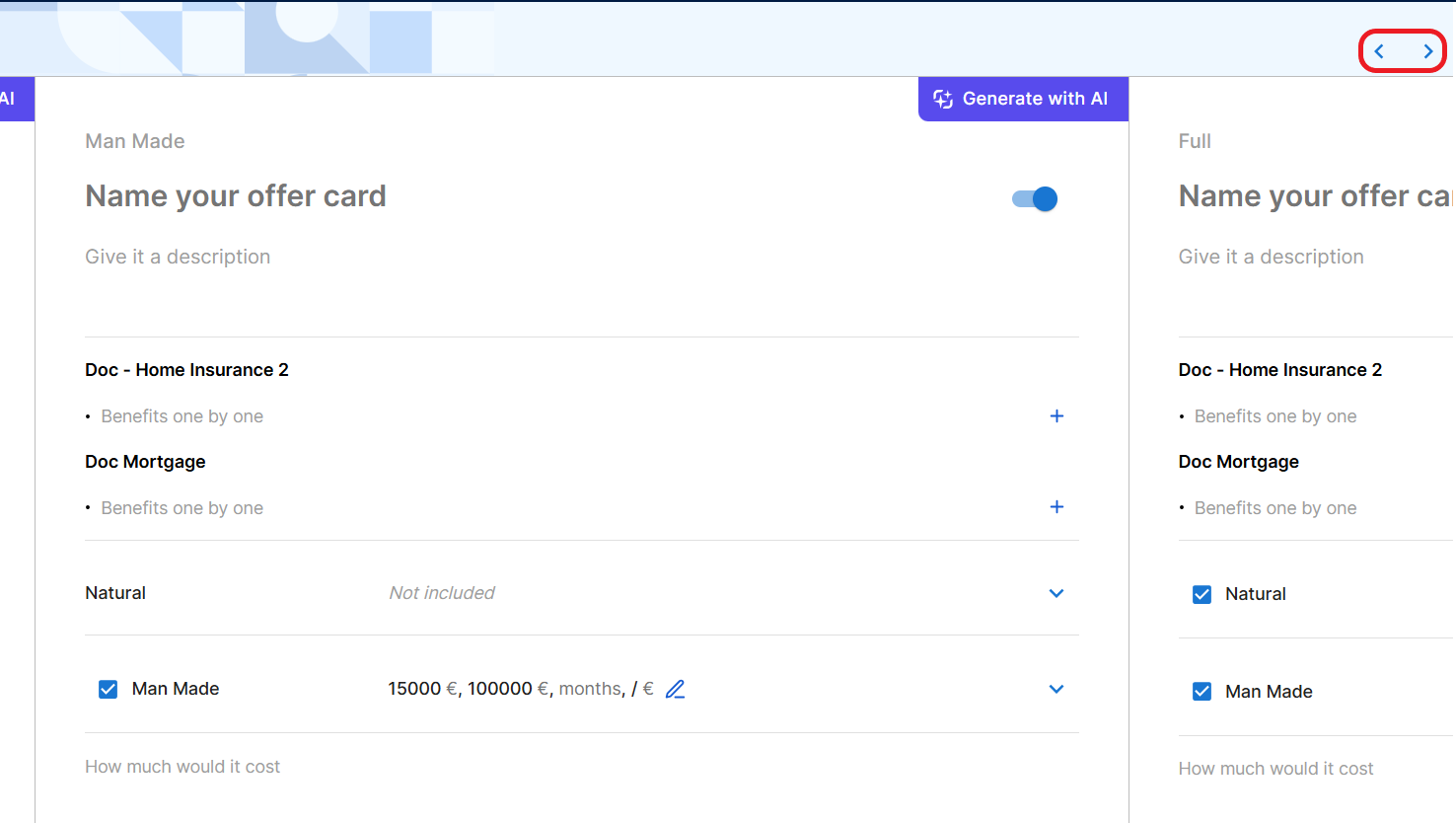
If your offer includes insurance products, you can configure the coverage choices that you want to appear on the content card(s). You can set up multiple cards, one for every coverage variation you wish to provide, each with its own name, description, benefits, plan, and pricing information.
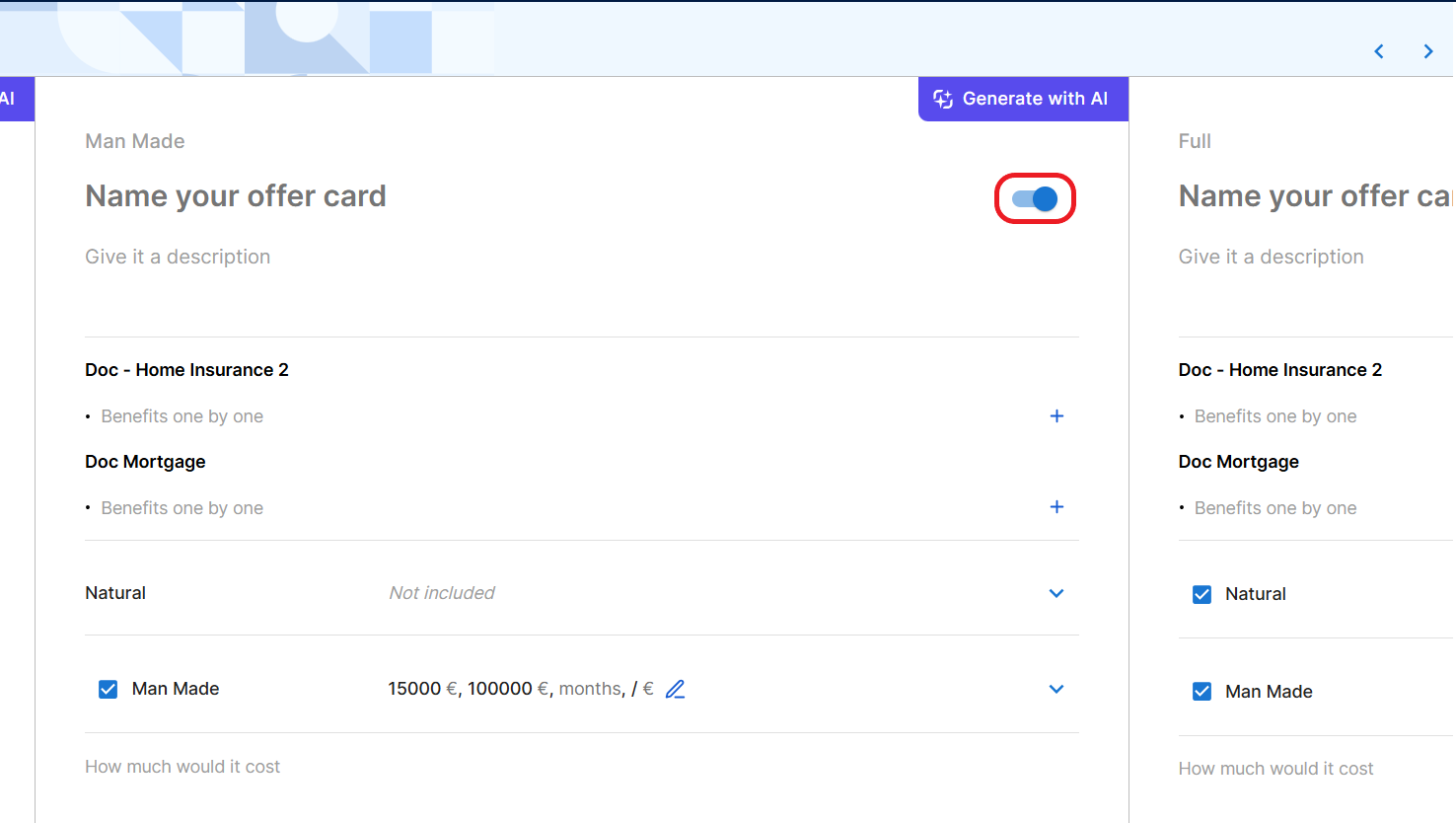
By default, a content card is created for each insurance plan of the main product. (use the < > buttons to navigate between cards).
If your offer includes an insurance product with multiple plans, you can manually create additional cards. To create a new card, go to the last available card slot, select an insurance plan as template, and click Create New.
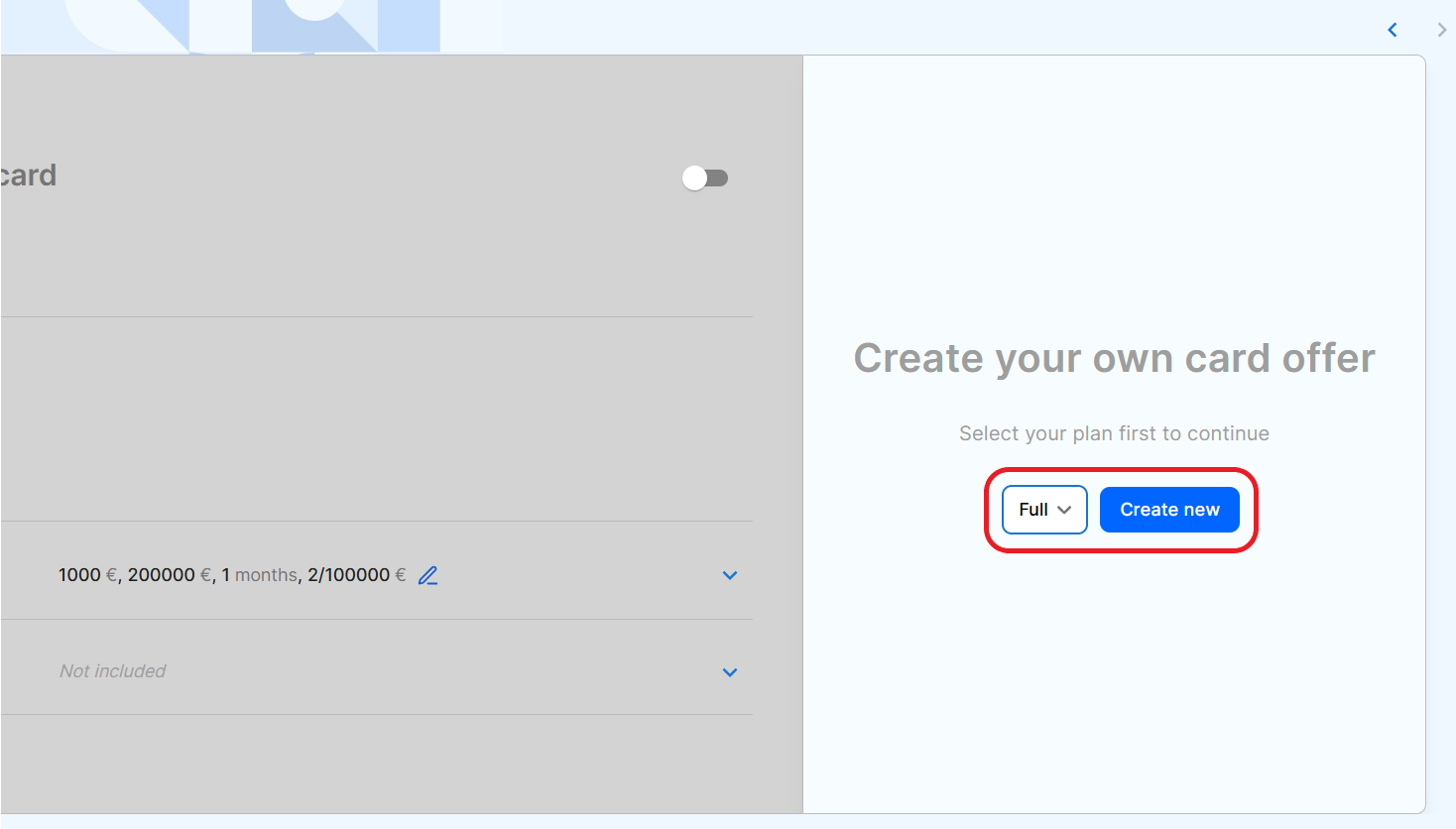
To enable or disable a card on the offer, use the toggle at the top right corner of the card. This allows you to create targeted offers with specific plans.
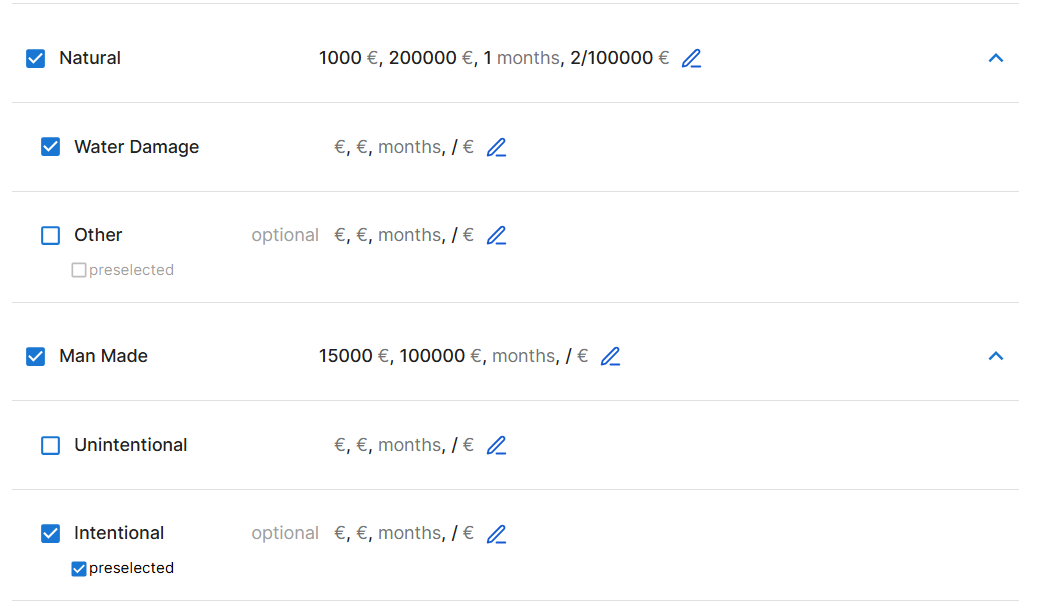
You can configure coverage/subcoverage options using controls similar to those in the plans interface:
- Use the checkmarks to enable or disable coverages and subcoverages.NOTE
You cannot enable a coverage that was not included in the card's template plan. - Use the pencil icons to customize the claim rules (the deductible
 Amount of money that the insured party must pay before their insurance policy starts paying for covered expenses., indemnity limit Maximum amount of the insurer’s liability for any claim or claims under a policy., waiting period Amount of time an insured party must wait before some or all of their coverage comes into effect., or event limits), overriding the values set at the plan or product level.
 - Use the preselected checkbox to mark the optional coverages or subcoverages that should be enabled by default when a user opens the card.
Audience
A target audience for your commercial offering refers to the specific group of consumers that you aim to reach with your advertising efforts.
Click Add rule and select one or more attributes that are directly linked to the product for which you are creating the offer. The attributes function as a filter mechanism to help you efficiently focus on a particular segment of customers.
For example, you can divide the target audience into groups based on demographic factors like age and income. This makes your offer only available to people 18 years old or older, and earning at least EUR 2,000 a month.

Discounts
The Discounts section allows defining discounts over the pricing of the underlying product, in part or for all the pricing. There is one sub-section per product (in the case of bundles). Including discounts in your offers is a great method for maintaining market competitiveness while attracting new clients and addressing the needs of existing ones.
While applying a discount to your offer, you have three options to choose from:
- Accumulate with product: Choose this option to combine the discounts assigned during product configuration with the discounts you create in this section.
- Override the product: Choose this option to override the discounts initially set during the product configuration for which you create the offer, allowing you to define a new discount.
- Apply highest discount: Choose this option to compare and apply the highest discount assigned during the product configuration process for which you create the offer, to the one you are configuring in this section.
Duplicate or Delete Offers
In the offer screen, use the ellipsis button (...) to select one of the following options:
- Duplicate - This creates a new offer with the same settings. The name of the duplicate is the original name preceded by the wording Copy of. For instance, a duplicate of the Special Promotion offer will be called Copy of Special Promotion.
- Delete offer - Deletes the offer.