Add relations to the UI
The relations element allows you to display and/or edit Data Views with entity records that reference the record currently displayed in the UI. The field is based on a view of the referencing entity filtered by the lookup attribute that points to the form's base entity to match only the current record.
For instance, you may have in your data model a Deposits entity that references the Customers entity (has a lookup attribute pointing to the Customers entity to indicate the customer that owns the deposit). If you display the Deposits-to-Customers relation on a Customers form, you will be able to see all the deposits that the customer owns.
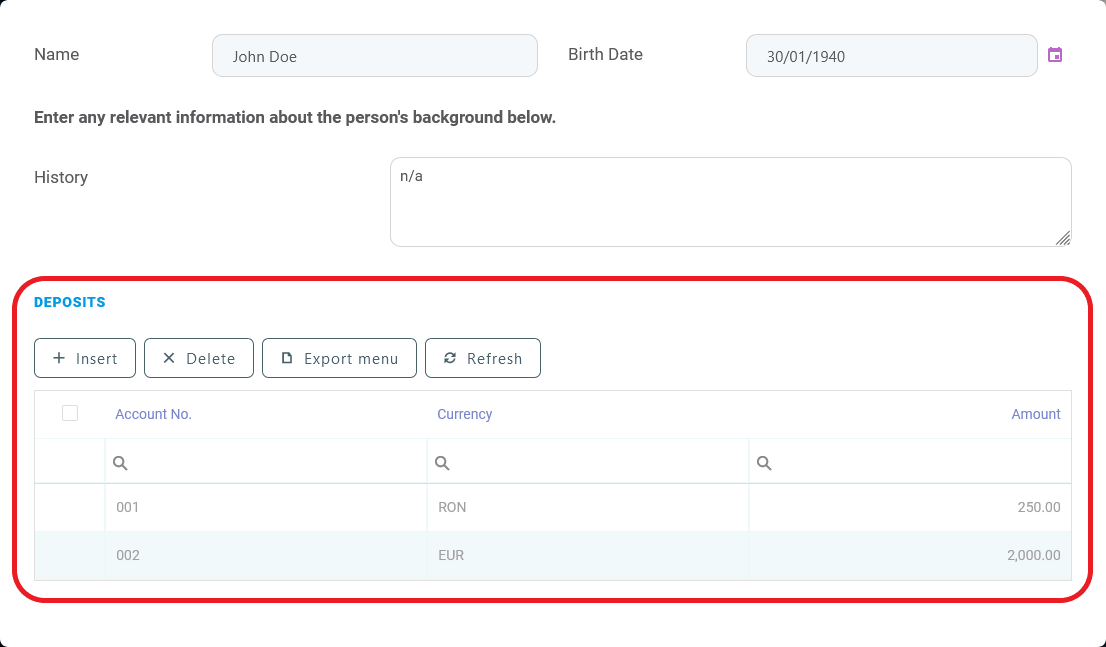
To add a relation element to the user interface:
- In the UI Designer's left panel, from the Data Templates section, select the relation template and drag it to the working area in the desired position. For more information, see Adding UI elements to the user interface.
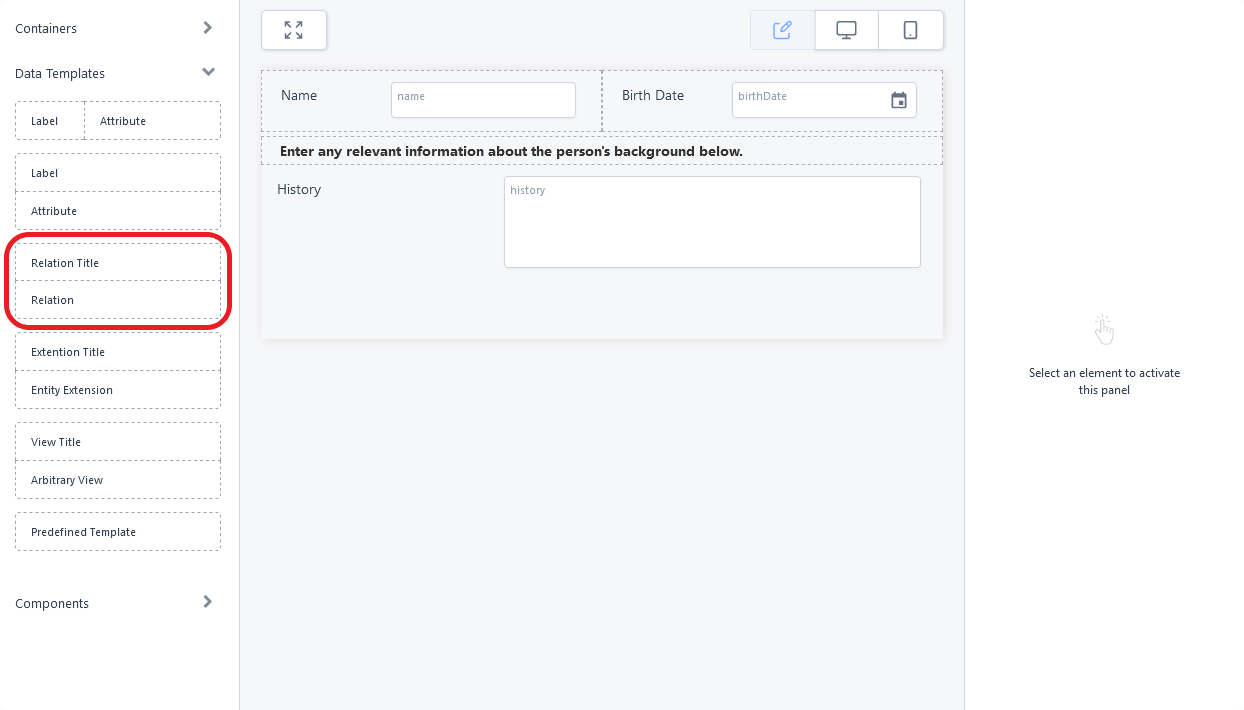
- While the relation field is selected, fill in its properties in the right panel.
Property Description Select the Relation Select the name of the relation that you want to display. Edit Mode Makes the relation view editable and sets the mode of the inline editing on the view: - cell - allows you to edit view records cell by cell.
- row - allows you to edit a view record by editing the cells in a row then saving the view record changes.
- batch - allows you to edit several view records and then save the changes in batch.
Collapse Makes the relation field collapsible and sets the heading of the collapsible panel. View The name of the view of the referencing entity to be displayed. If left unchecked, the default view is used.
IMPORTANT!
The view must include the referencing entity's primary key and the lookup attribute pointing to the form's base entity.Form If the referencing entity has multiple forms and you want to use a specific data form for edits, select this checkbox and provide the form name. Otherwise, the entity's default edit form will be used. Insert Form If the referencing entity has multiple forms and you want to use a specific data form for inserts, select this checkbox and provide the form name. Otherwise, the entity's default insert form will be used. No Header Does not display the view header. No Filter Does not display the view filtering / search. No Insert Does not display the Insert button on the view toolbar. NOTE
Do not select No Insert when using Form. and Insert Form; otherwise, issues might occur.No Delete Does not display the Delete button on the view toolbar. No Export Does not display the Export button on the view toolbar. No Refresh Does not display the Refresh button on the view toolbar. No Toolbar Does not display the view toolbar. Select Label Type - default - The attribute's display name is used as a field label.
- custom - Manually enter the text for the field label. You can also manually add translations for each platform language, by clicking the toggle translation button placed in the Enter the desired text field. In this case, you also need to choose a name for the resource key that will save this text in the Localization Resources page.
Additional CSS classes Write any CSS class names you wish to apply to the field. The classes must be defined in one of the form's associated Style Sheets. NOTE
You must press Space or Enter after typing a class name to confirm it. - Click Apply changes to save the field's properties.
- Click Save and reload to save the form.
Do not intersect two relation layouts mixing them by moving relations rows up and down; otherwise, errors might occur.
To modify a relation field, select it in the main area and edit its properties from the right panel.
To move a relation in the user interface or to delete it, see Moving and deleting UI elements.