Entity Cloning and Versioning
Cloning allows you to replicate entity records for a variety of operations such as:
- Reducing redundant manual entries when creating similar records.
- Using standard records as templates with pre-filled attribute values.
- Duplicating data for various purposes such as testing, training, or demos.
Versioning is useful when you need a thorough validation and tracking of your record updates, such as when storing information about security roles or customer documents. Versions can be used to preserve snapshots of the a record's values at different points in time, aiding in auditing or other regulatory requirements. The versioning process uses Business Workflows to assign different states to a record indicating if it is:
- a draft that hasn't been approved yet
- the currently active version of the record
- a discontinued prior version
- a substitute version that is a candidate to replace the currently active version.
The record versioning process is illustrated below.
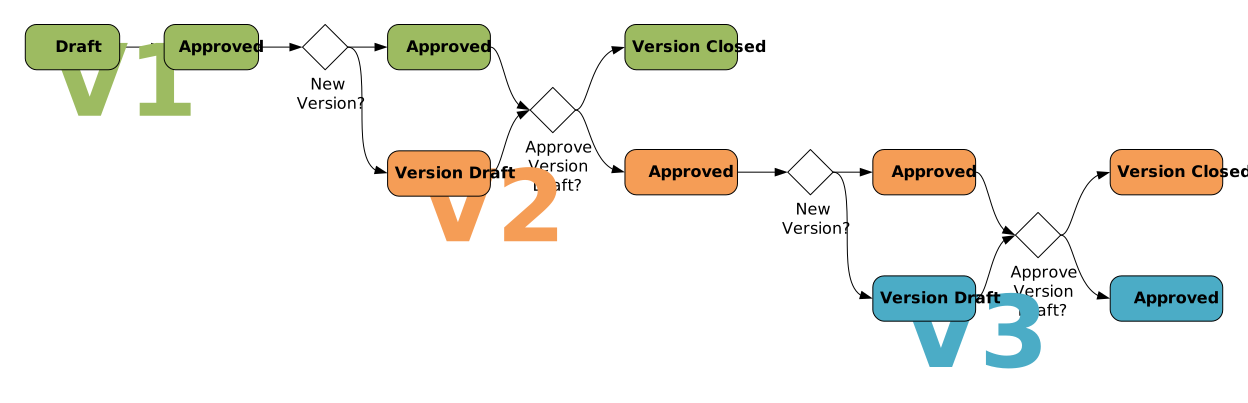
- The original record starts out in a Draft state.
- Once the draft is validated, the record goes into the Approved state, indicating that this it is the currently active version of the record.NOTE
Only one version of the record can be active (in the Approved) state at one time. - To modify an active record, you need to create a secondary version of it. The secondary version starts out in the Version Draft state, while the original record remains in the Approved state.
- If the version draft is approved, then the original record transitions into the Version Closed state and the secondary version becomes the Approved currently active entity record.
- The process can then be repeated from step 3 whenever a new version of the record is necessary.
How to Set Up Cloning and Versioning on an Entity
1 Configure the entity's data events
On the entity that you wish to enable for record cloning or versioning, create the following Event Triggered Automation Scripts:
| Name | Event | Stage | Code |
|---|---|---|---|
| <EntityName>_After_Insert | Insert | After |
Copy
|
| <EntityName>_After_Update | Update | After |
Copy
|
| <EntityName>_Before_Insert | Insert | Before |
Copy
|
2 Set Up the Entity Workflow
Assign a business workflow to the versioned entity. You may use any workflow that has at least 4 states which you can map to the Draft, Approved, Version Draft, and Version Closed statuses with the corresponding transitions.
FTOS_VersioningWorkflowExample is an example of a preset business workflow that meets the above criteria.

3 Configure the Clone and Version Settings
Use the FTOS_Versioning_Setting system entity to configure sets of clone and version settings that track your versioned entities, statuses, naming convention suffixes, etc. For this purpose, you can expose one of the entity's Data Views or Data Forms in one of theFintechOS Portal instance's Dashboards or Menu Items.
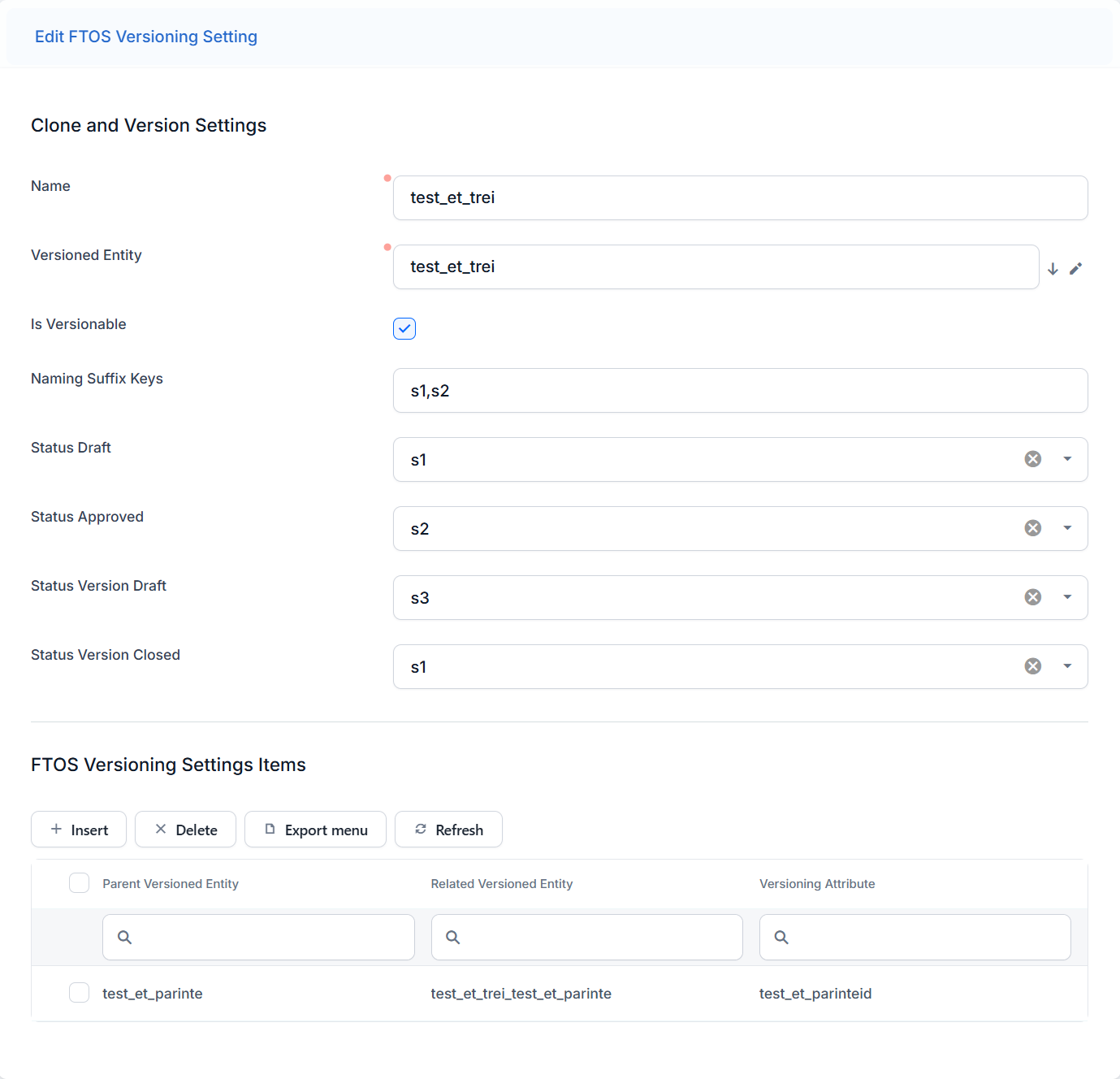
For instance, you can use the FTOS_Versioning_Setting entity's default form to populate the following fields:
- Name - Assign a name to the set of clone and version settings.
- Versioned Entity - Name of the entity you are making available for cloning or versioning.
- Is Versionable - Toggles if the entity is available for versioning or only for cloning.
- Naming Suffix Keys - Comma separated list of placeholders which will be replaced with suffixes to be appended to the cloned/versioned records' primary attributes.
- Status Draft - State in the entity's business workflow you wish to map to the Draft status. Mandatory if the entity is versionable.
- Status Approved - State in the entity's business workflow you wish to map to the Approved status. Mandatory if the entity is versionable.
- Status Version Draft - State in the entity's business workflow you wish to map to the Version Draft status. Mandatory if the entity is versionable.
- Status Version Closed - State in the entity's business workflow you wish to map to the Version Closed status. Mandatory if the entity is versionable.
(Optional) Set Up Related Versioned Entities
When you clone/version an entity record, you may also want to automatically clone/version some of its related entity records. These records belong to entities that have lookup attributes pointing to the versioned entity either directly or indirectly (through a stream of intermediate related entities).
This allows you to propagate your cloning/versioning to any relevant dependencies. For instance, you may have an insurance product record with a number of related insured items records, each of which has multiple related covered risks records. When you create a new version of an insurance product, you will also be able to create new versions of all its insured items and all of their covered risks at the same time.
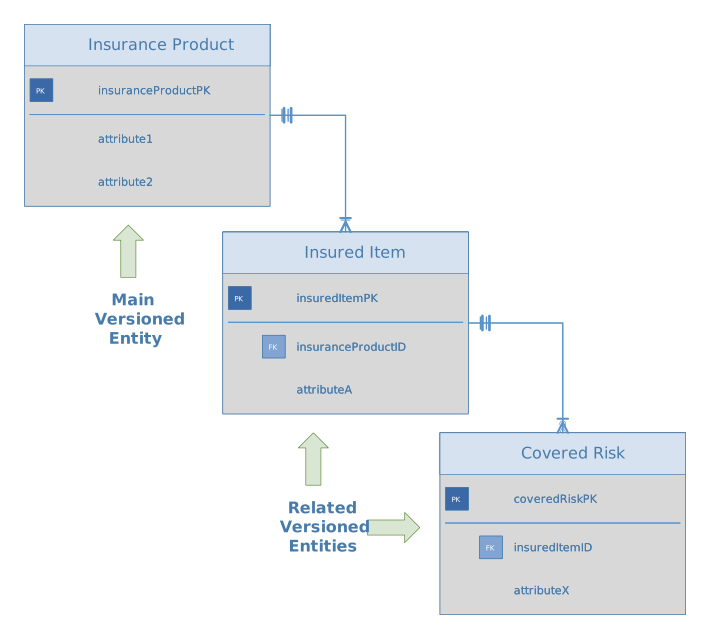
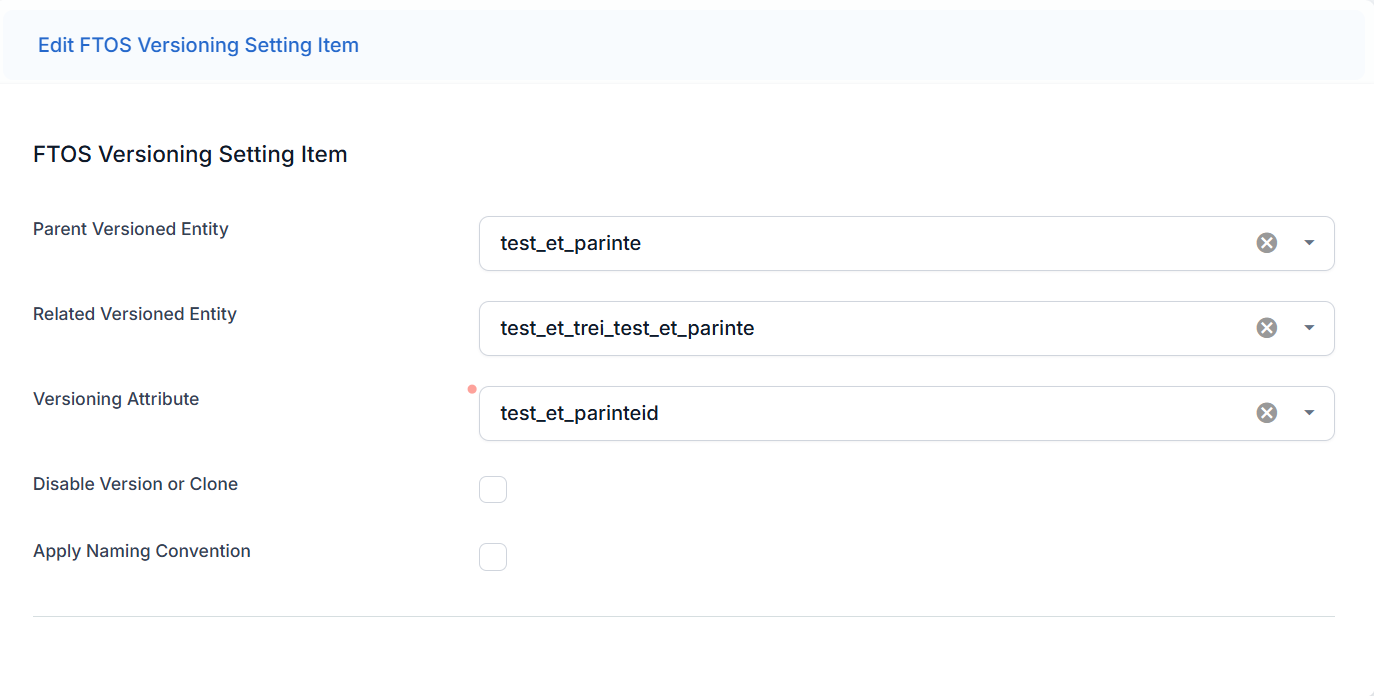
For this purpose, scroll down to the FTOS Versioning Settings Items section and add the desired dependencies:
- Parent Versioned Entity - If the versioning attribute points to the main versioned entity (is linked directly), leave empty. Otherwise (if it is linked indirectly), select the entity the versioning attribute points to.
- Related Version Entity - Name of the related versioned entity.
- Versioning Attribute - Lookup attribute pointing to the main versioned entity (either directly or indirectly through a stream of intermediate related entities).
- Disable Version or Clone - Allows you to temporarily disable cloning and versioning for the related entity.
- Apply Naming Convention - Propagates the naming suffix keys to the related entity.
How to Clone or Version an Entity Record
To clone or version an entity record, use the ftos.data.clone or ftos.data.version Server SDK methods respectively
 Legacy Entity Versioning (Deprecated)
Entity versioning allows you to implement a record update process that is certified and documented. The versioning process uses Business Workflows to assign different states to a record indicating if it is:
- a draft that hasn't been approved yet
- the currently active version of the record
- a discontinued prior version
- a substitute version that is a candidate to replace the currently active version.
The entity versioning process is illustrated below.
- The original record starts out in a Draft state.
- Once the draft is validated, the record goes into the Approved state, indicating that this it is the currently active version of the record.NOTE
Only one version of the record can be active (in the Approved) state at one time. - To modify an active record, you need to create a secondary version of it. The secondary version starts out in the Version Draft state, while the original record remains in the Approved state.
- If the version draft is approved, then the original record transitions into the Version Closed state and the secondary version becomes the Approved currently active entity record.
- The process can then be repeated from step 3 whenever a new version of the record is necessary.
Entity versioning is useful when you need a thorough validation and tracking of your record updates, such as when storing information about security roles or customer documents.
How to Set Up Versioning on an Entity
Entity versioning requires the Digital Foundation deployment package. Make sure you have it installed on your FintechOS Platform instance before attempting to version an entity. The Digital Foundation deployment package is included in all FintechOS System Packs.
1 Configure the versioned entity's attributes
On the entity that you wish to version, add the following attributes:
- masterAttributeId - lookup attribute that self-references the versioned entity. You need to also change the default relationship name to a custom value.
- referencedAttributeId - lookup attribute that self-references the versioned entity. You need to also change the default relationship name to a custom value.
- attributeVersion - Whole Number
- attributeVersionDate - Date Time
- isLastVersion - Boolean
2 Configure the versioned entity's data events
On the entity that you wish to version, create the following event-driven server side scripts:
| Name | Event | Stage | Code |
|---|---|---|---|
| <VersionedEntity>_After_Insert | Insert | After |
Copy
|
| <VersionedEntity>_After_Update | Update | After |
Copy
|
| <VersionedEntity>_Before_Insert | Insert | Before |
Copy
|
3 Set Up the Versioning Button
On the form or step where you wish to be able to trigger the record versioning, add the following code in the After Events tab of the Advanced section:
var vh = ebs.importClientScript("FTOS_VersioningHelper");
vh.createVersioningContext(formScope);
This will display the versioning button, which allows you to create a new version of the currently displayed record.

4 Set Up the Entity Workflow
Assign a business workflow to the versioned entity. You may use any workflow that has at least 4 states which you can map to the Draft, Approved, Version Draft, and Version Closed statuses.
FTOS_VersioningWorkflow is an example of a preset business workflow that meets the above criteria.
5 Configure the Version Settings
- Go to Main Menu > Admin > Entity Versioning > Version Settings.
- Click Insert to create a new set of version settings.
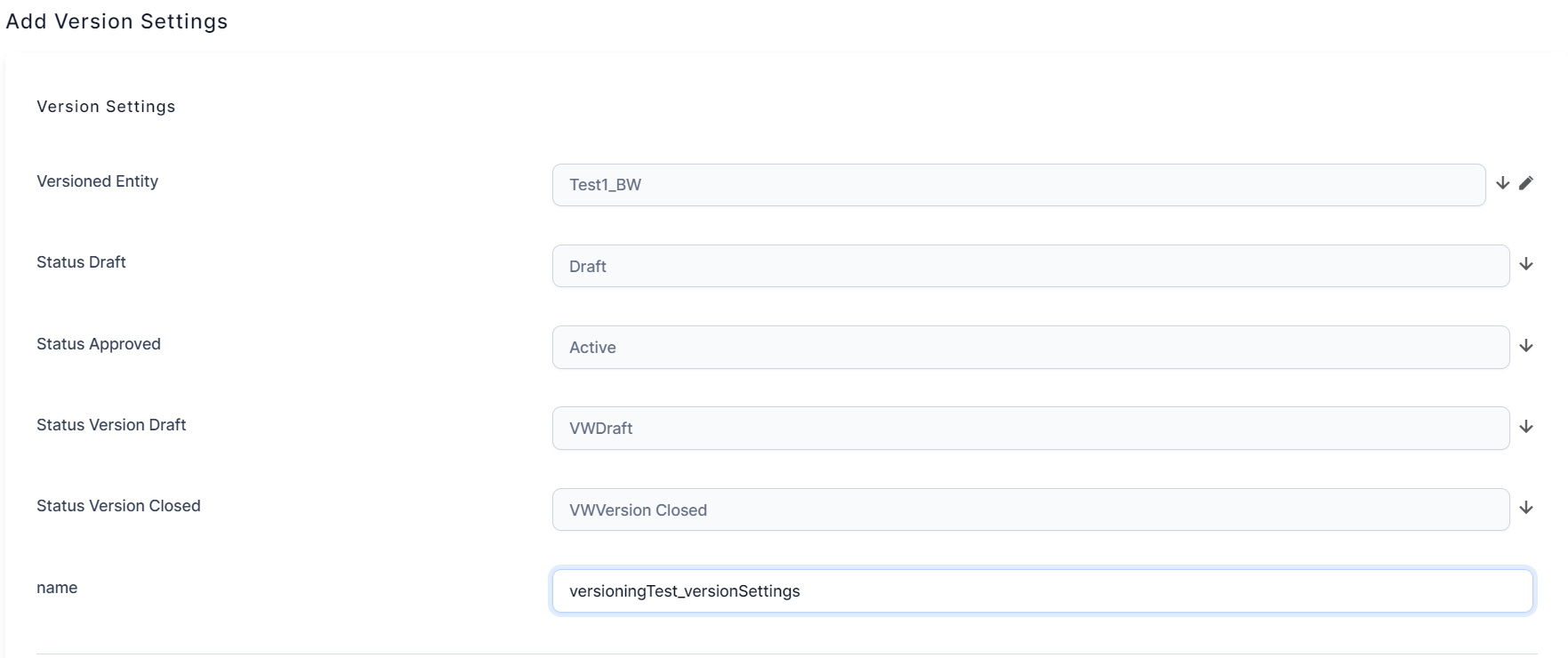
- In the Add Version Settings window, enter the following information:
- Versioned Entity - Name of the entity you are versioning.
- Status Draft - State in the entity's business workflow you wish to map to the Draft status.
- Status Approved - State in the entity's business workflow you wish to map to the Approved status.
- Status Version Draft - State in the entity's business workflow you wish to map to the Version Draft status.
- Status Version Closed - State in the entity's business workflow you wish to map to the Version Closed status.
- Name - Assign a name to the set of version settings.
-
Click Save and Reload.
(Optional) Set Up Related Versioned Entities
When you version an entity record, you may also want to automatically version some of its related entity records. These records belong to entities that have lookup attributes pointing to the versioned entity either directly or indirectly through a stream of intermediate related entities.
This allows you to propagate your versioning to any relevant dependencies. For instance, you may have an insurance product record with a number of related insured items records, each of which has multiple related covered risks records. When you create a new version of an insurance product, you will also be able to create new versions of all its insured items and all of their covered risks at the same time.
To add a related versioned entity, in the Version Settings window of your versioned entity:
- Scroll down to the Version Settings Items grid and click Insert .
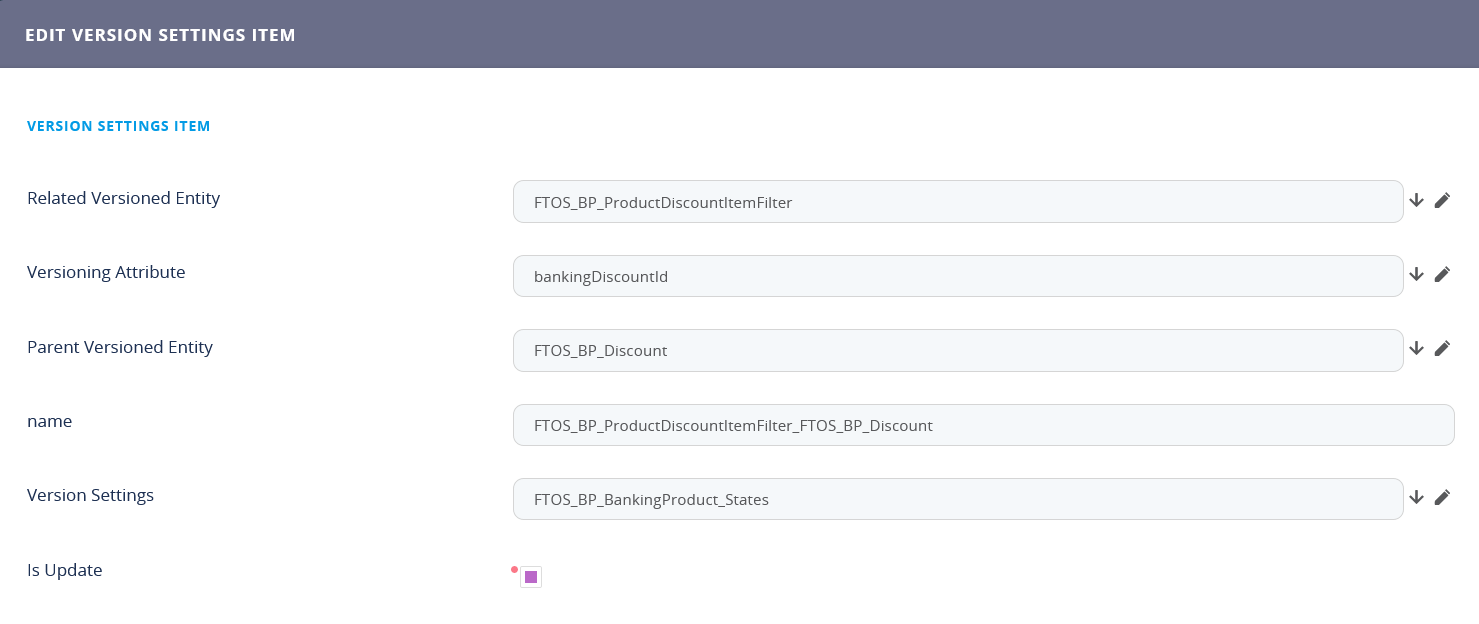
- Fill in the Version Settings Item details as follows:
- Related Version Entity - Name of the related versioned entity.
- Versioning Attribute - Lookup attribute pointing to the main versioned entity (either directly or indirectly through a stream of intermediate related entities).
- Parent Versioned Entity - If the versioning attribute points to the main versioned entity (is linked directly), leave empty. Otherwise (if it is linked indirectly), select the entity the versioning attribute points to.
- Name - Enter a name for the version settings item.
- Version Settings - Select the name you assigned to the set of version settings.
- Is Update - Select if you want the related entity to be versioned together with the main entity.
- Click Save and Reload.
- Repeat for any additional related versioned entities.
6 Configure the Entity Status Settings
Go to Main Menu > Admin > Entity Versioning > Entity Status Settings and insert settings for each of the Draft, Approved, Version Draft, and Version Closed business states of the versioned entity:
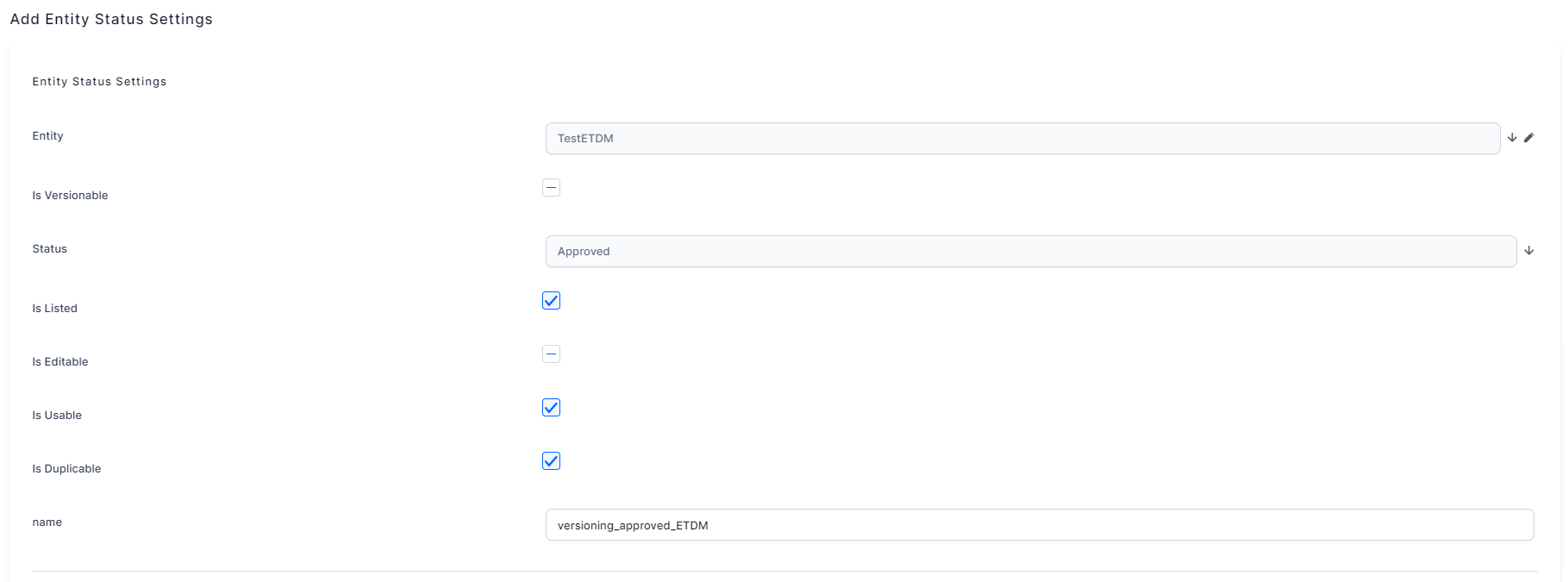
- Entity - Name of the versioned entity.
- Is Versionable - Indicates if you can trigger the versioning when a record is in this status (typically, it's the Approved status).
- Status - State in the versioned entity's business flow you mapped to either the Draft, Approved, Version Draft, and Version Closed statuses.
- Is Listed - Label you can use for customization purposes. Doesn't impact entity behavior.
- Is Editable - Indicates if you can edit the record when it is in the current status. For instance, you may want to be able to edit a record that is in Draft or Version Draft status, but avoid editing a record that has been archived (is in the Version Closed status).
- Is Usable - Label you can use for customization purposes. Doesn't impact entity behavior.
- Is Duplicable - Label you can use for customization purposes. Doesn't impact entity behavior.
- Name - Assign a name to the entity status settings.
Example of How to Version an Entity Record
After you have set up versioning on an entity, you can start versioning its individual records.
- When a record reaches a business state that is versionable (see 6 Configure the Entity Status Settings), the versioning button will be displayed on the form or step you have set up accordingly (see 3 Set Up the Versioning Button).
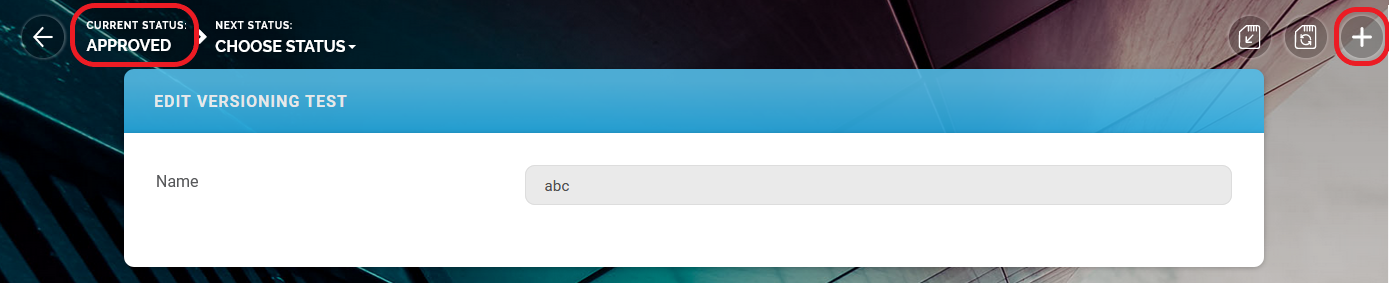
- If you click the versioning button, a new record version will be created and opened in the Version Draft status. By default, the text "new version" will be appended to the record's primary attribute.

- If you approve the version draft, the new version becomes the active record and the original record automatically transitions into the Version Closed status.

