Access predefined HTML Templates
There are two types for templates:
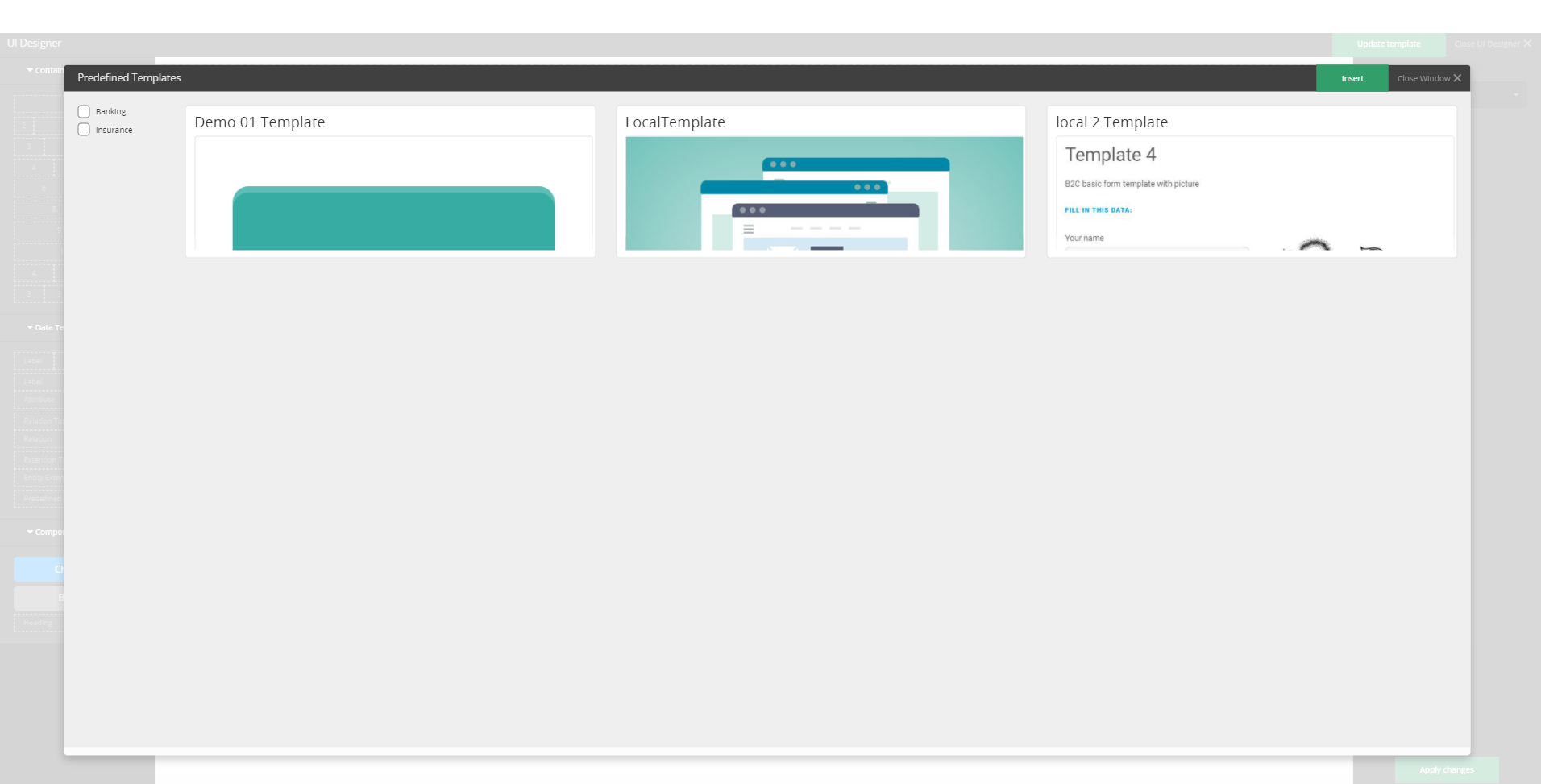
- Banking
- Insurance
IMPORTANT!
To add templates for a digital journey, the FintechOS environment needs a special key in the web.config file with the url from the server where the templates are found to be able to access them in FintechOS Studio.
To add templates for a digital journey, the FintechOS environment needs a special key in the web.config file with the url from the server where the templates are found to be able to access them in FintechOS Studio.
To add a template, follow these steps:
- From the main menu, select Digital Experience > Customer Journeys > Form Driven Flows and open the Form driven flow (or a mockup) depending on what project you are working on.
- After selecting the desired flow, open the step you wish to add the template to, or create a new step where to add the template.
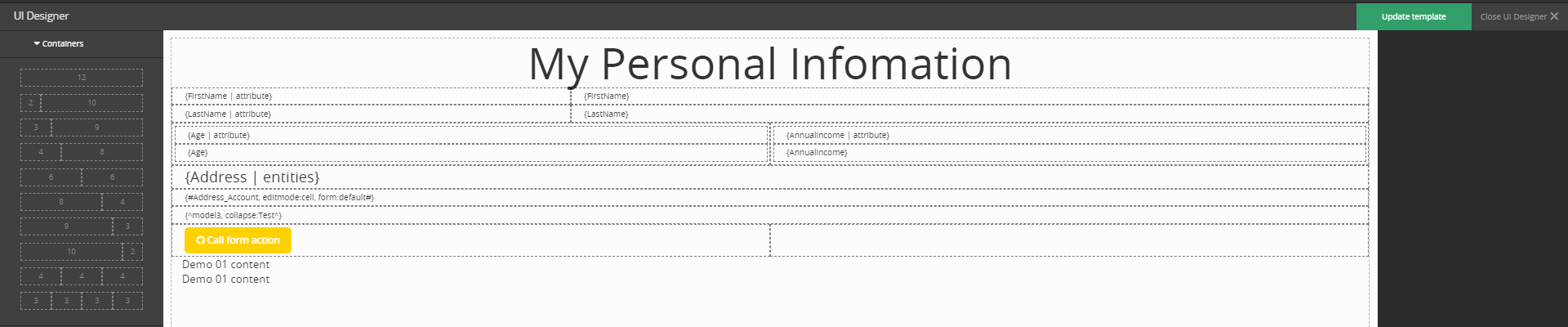
- Open the UI section with the UI designer.
- Drag the ''Predefined Templates'' on the left bottom of the page to the body of the page. Select the branch of industry you are interested in: Banking or Insurance. Select the desired template for your step. Click Insert.
- Modify the name of the attributes and select the attributes type.
-
NOTE
It is possible to add multiple static templates to the same step. - Click Update template.
- Click Save and close. Repeat for any other step as needed.