Manage Business Workflows
The Workflow Designer allows you to edit business workflows by editing or deleting both statuses and transitions.
Edit workflow statuses
To edit a workflow status, in the Design Area, click on the status. In the Details Panel, click the Edit button. The Edit Business Workflow Status page appears. You can edit both the name and label. Make the desired edits, then at the top-right corner of the page click Save and Close.
Edit workflow transitions
To edit a workflow transition, in the Design Area, click on the transition. In the Details Panel, click Edit. The Edit Business Workflow Transition page appears. You can change the transition from one status to another, allow manual change on workflow transition or add security roles to restrict users access who manually change the workflow status. Make the desired edits, then at the top-right corner of the page click Save and Close .
Delete workflow statuses and transitions
To delete a workflow status, from the Design Area, select the status and in the Details panel click Delete. A confirmation dialogue appears. Click Yes to confirm deletion.
The status is deleted and so do all transactions to / from the status.
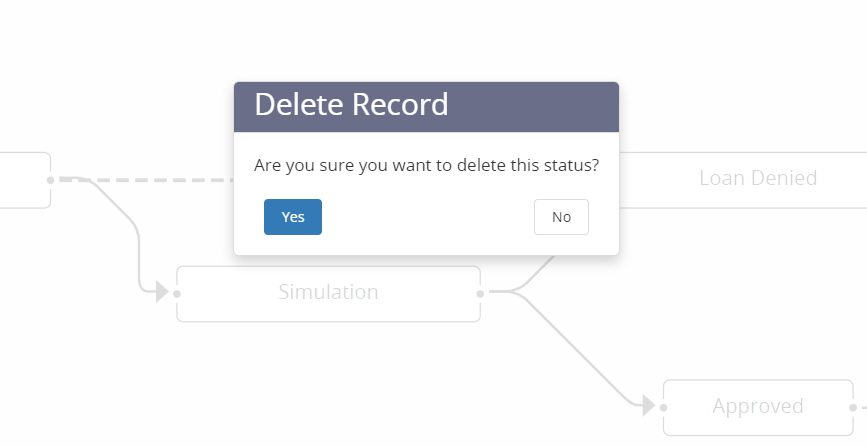
To delete a workflow transition, select the transition arrow and in the Details Panel click Delete. A confirmation dialogue appears. Click Yes to confirm deletion. The workflow transition is removed.