Import Data using Deployment and Configuration Data Packages
There are two ways in which you can import data and metadata .xml files in Innovation Studio. Depending on what you are importing, there are several steps to follow and dedicated spaces to use:
- To import a deployment package, from the Innovation Studio main menu, select Configuration Management > Deployment > Deployment Packages.
- To import a configuration data package, from the Innovation Studio main menu, select Configuration Management > Deployment > Config Data Packages.
Deployment Package Import
To import the package:
- From the Innovation Studio main menu, select Configuration Management > Deployment > Deployment Packages.
- Click on the Import deployment package icon found on the top right-side part of the screen.
- The local Files menu of the device opens. Select the file to be imported.
- The system warns you about the source database version. The answers options are Yes and No. Select Yes to continue.
- The system asks ''Do you want to deploy audit configurations (you should normally choose 'Yes')?''. The answers options are Yes and No. Select Yes if you wish to deploy it. If you do not wish to deploy it, click No.
- The package is successfully imported if it meets the requirements. These requirements must be met when the package is created, i.e. exported. For details, see Creating Enhanced Deployment Packages.
To check the result of the import, see Viewing Deployment Package Logs.
Configuration Data Package Import
IMPORTANT!
This package only contains the records, not the metadata. Records are inserted into the fields in a FintechOS Portal.
This package only contains the records, not the metadata. Records are inserted into the fields in a FintechOS Portal.
To import the package:
- From the Innovation Studio main menu, select Configuration Management > Deployment > Config Data Packages.
- Click on the Import Data Config Data icon found on the top right-side part of the screen.
- The local Files menu of the device opens. Select the file to be imported.
- The system warns you about the source database version. The answers options are Yes and No. Select Yes to continue.
- The system asks ''Do you want to deploy audit configurations (you should normally choose 'Yes')?''. The answers options are Yes and No. Select Yes if you wish to deploy it. If you do not wish to deploy it, click No.
- The package is successfully imported if it meets the requirements. These requirements must be met when the package is created, i.e. exported.
To check the package import:
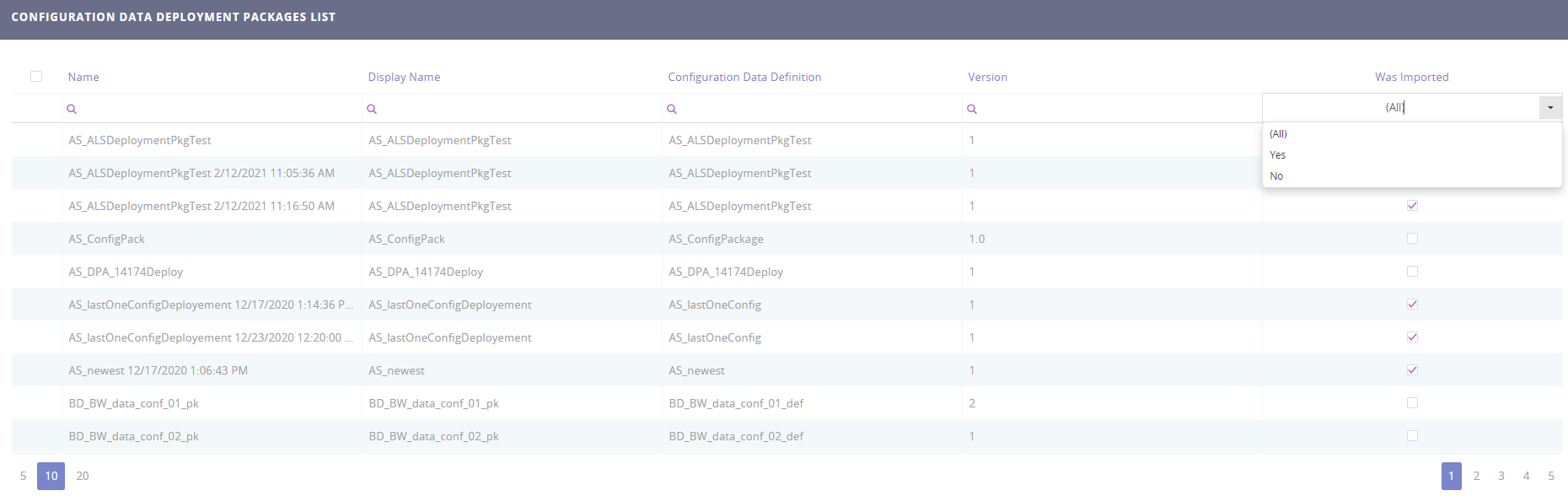
- Search for it by its name or to see only the imported packages tick the boolean was imported yes.
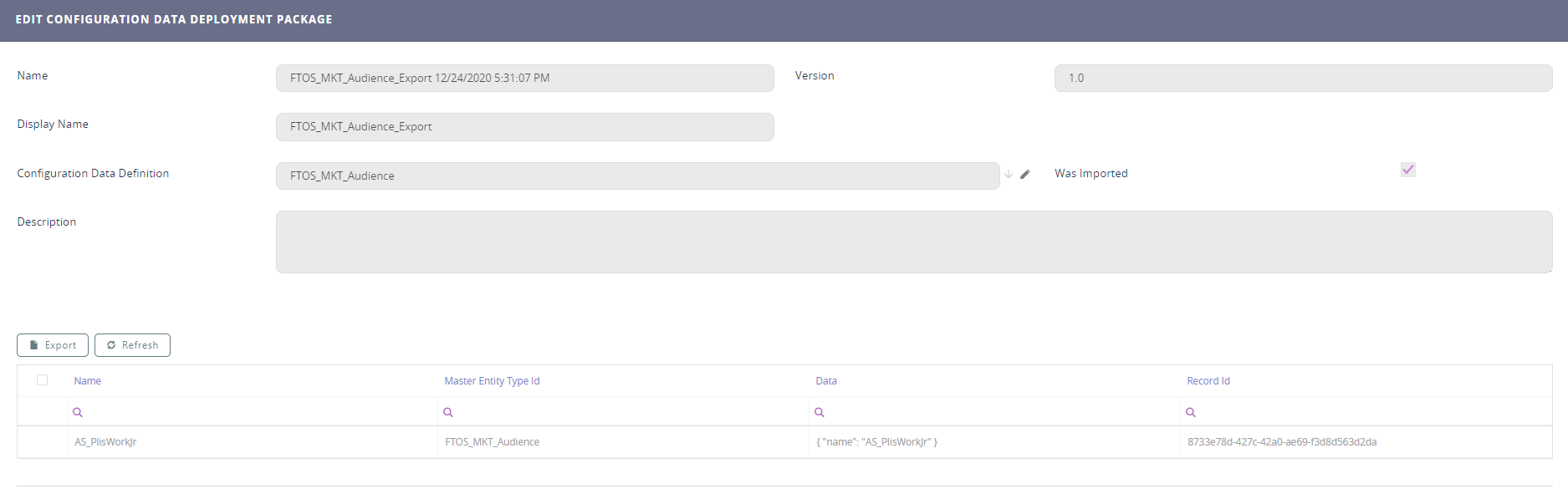
- To open the package, double-click on the name. The fields are read-only. If the boolean Was imported is true, i.e. ticked, then the package was imported successfully.