Code Execution Sequence
In Innovation Studio, you can attach client-side scripts in multiple places within forms, flows, and views. The script's location determines when the code is executed, for instance after a view is loaded, before a form is displayed, between two form steps, etc.
Entity Forms
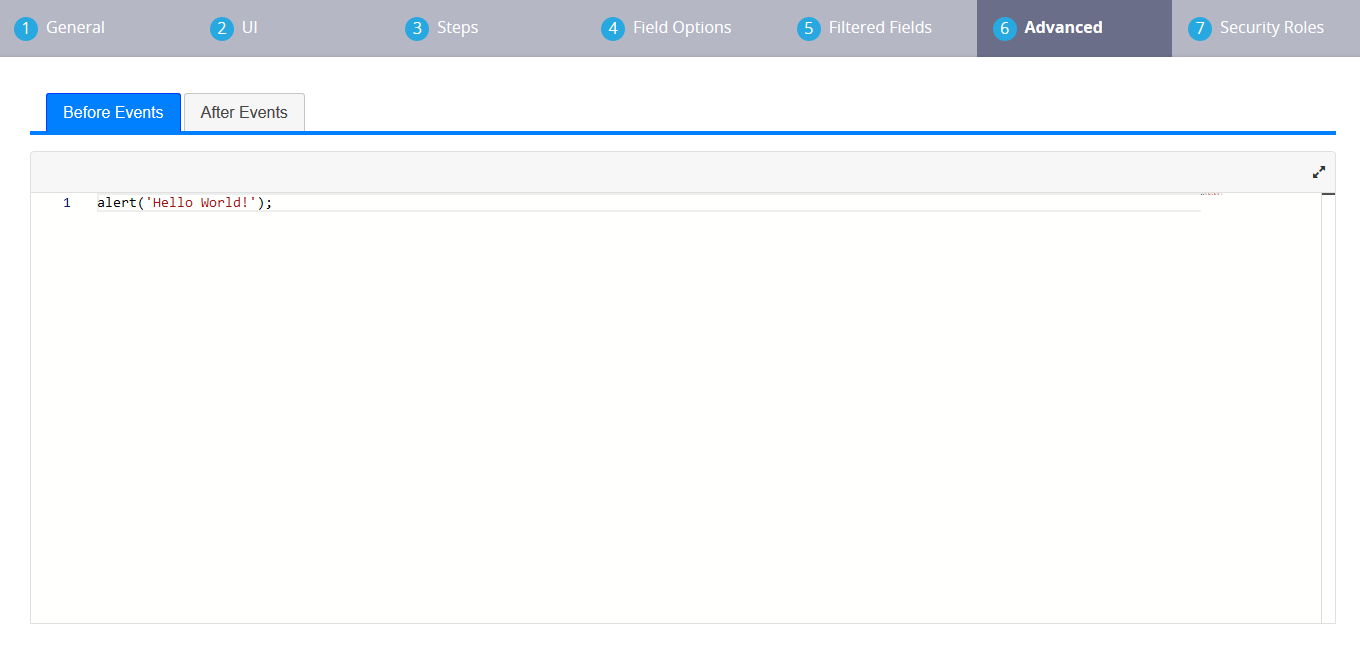
In the Advanced section of entity forms, there are two tabs called Before Events and After Events where you can add client code that will run when the form is loaded.
When an entity form with no steps is loaded, the code executes in the following sequence:
-
Code in the Before Events tab.
-
Form HTML code.
-
Code in the After Events tab.
Entity Form Steps
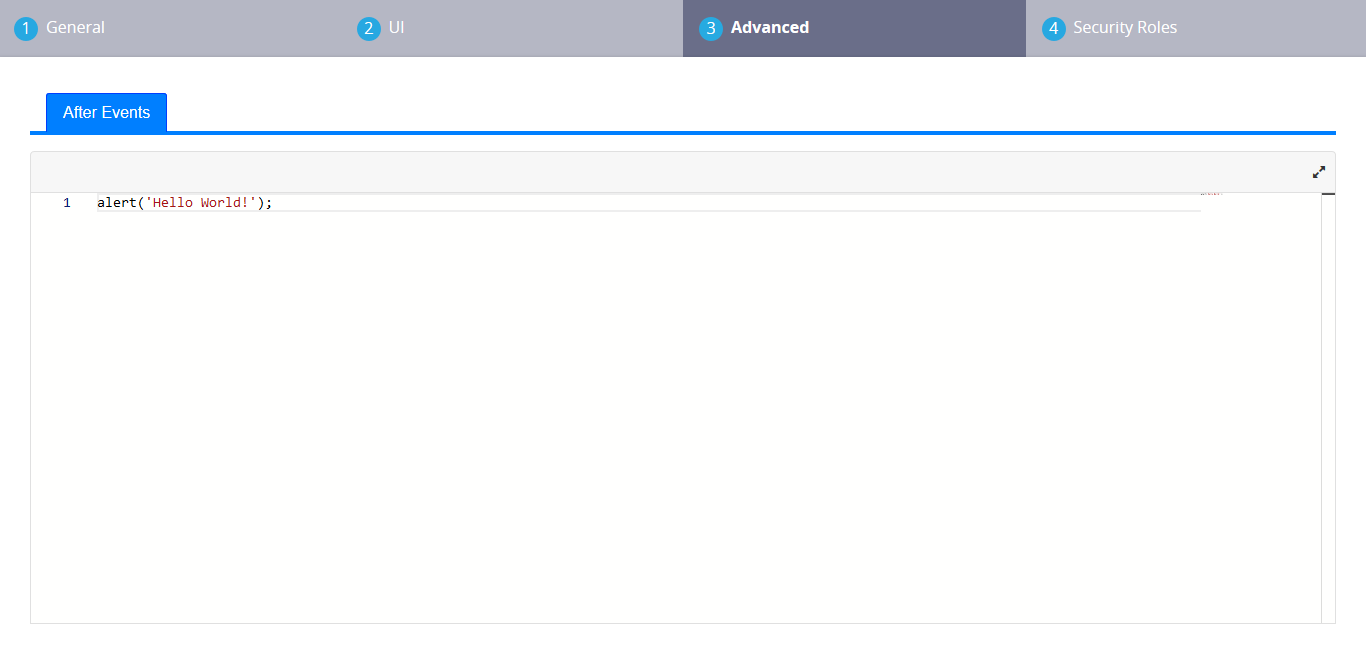
In the Advanced section of entity form steps, there is a tab called After Events where you can add client code that will run when the step is loaded.
When an entity form with steps is loaded, the code executes in the following sequence:
-
Code in the form's Before Events tab.
-
HTML code for all steps.
-
When a step is displayed:
-
Step HTML code.
-
Form After Events code.
-
Step After Events code.
-
-
Repeat from Step 3. for each subsequent step that is displayed.
Step After Events code is executed only the first time that the step is displayed. If, in the entity form, you navigate away from a step and later return to the same step, the step's After Events code will not run again.
Form Driven Flows
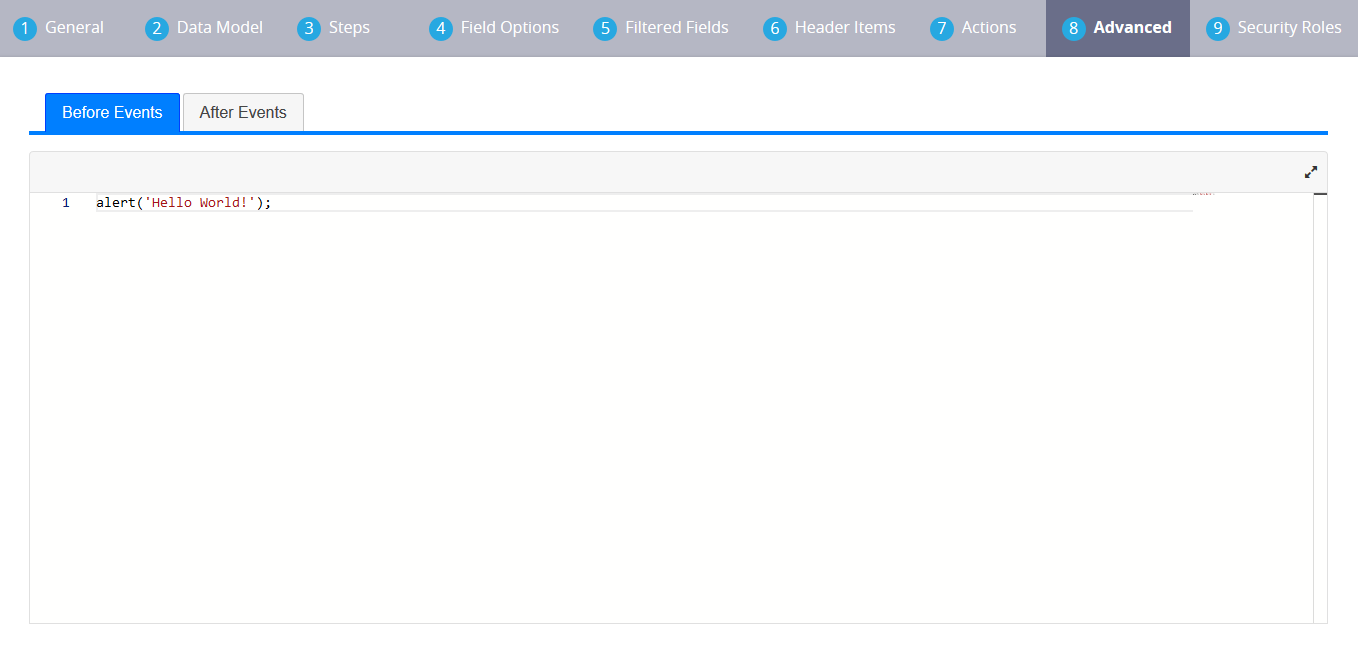
In the Advanced section of form driven flows, there are two tabs called Before Events and After Events where you can add client code, that will run when the flow is loaded.
Form driven flows always include steps. Check the Form Driven Flows Steps section for details about the code execution sequence.
Form Driven Flow Steps
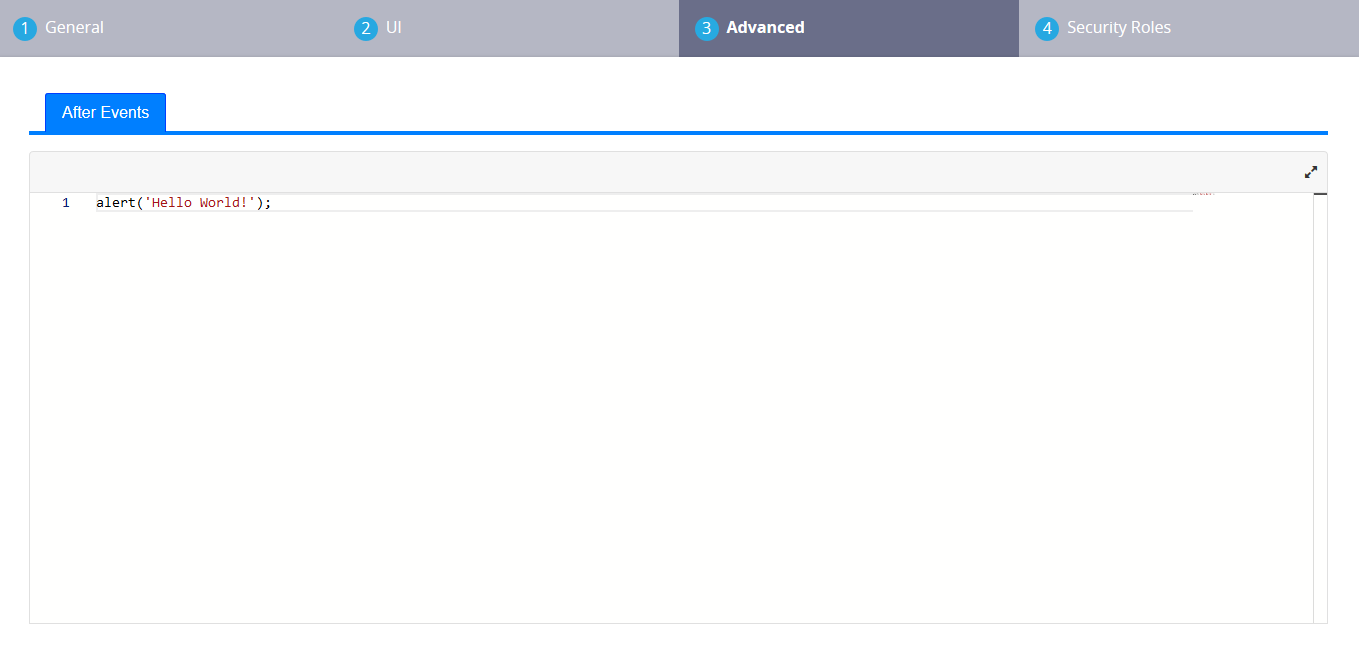
In the Advanced section of form driven flow steps, there is a tab called After Events where you can add client code that will run when the step is loaded.
When a form driven flow is loaded, the code executes in the following sequence:
-
Code in the flow's Before Events tab.
-
HTML code for all steps.
-
When a step is displayed:
-
Step HTML code.
-
Flow After Events code.
-
Step After Events code.
-
-
Repeat from Step 3. for each subsequent step that is displayed.
Step After Events code is executed only the first time that the step is displayed. If, during the form driven flow, you navigate away from a step and later return to the same step, the step's After Events code will not run again.
Form Driven Flows (Wizard Mode)
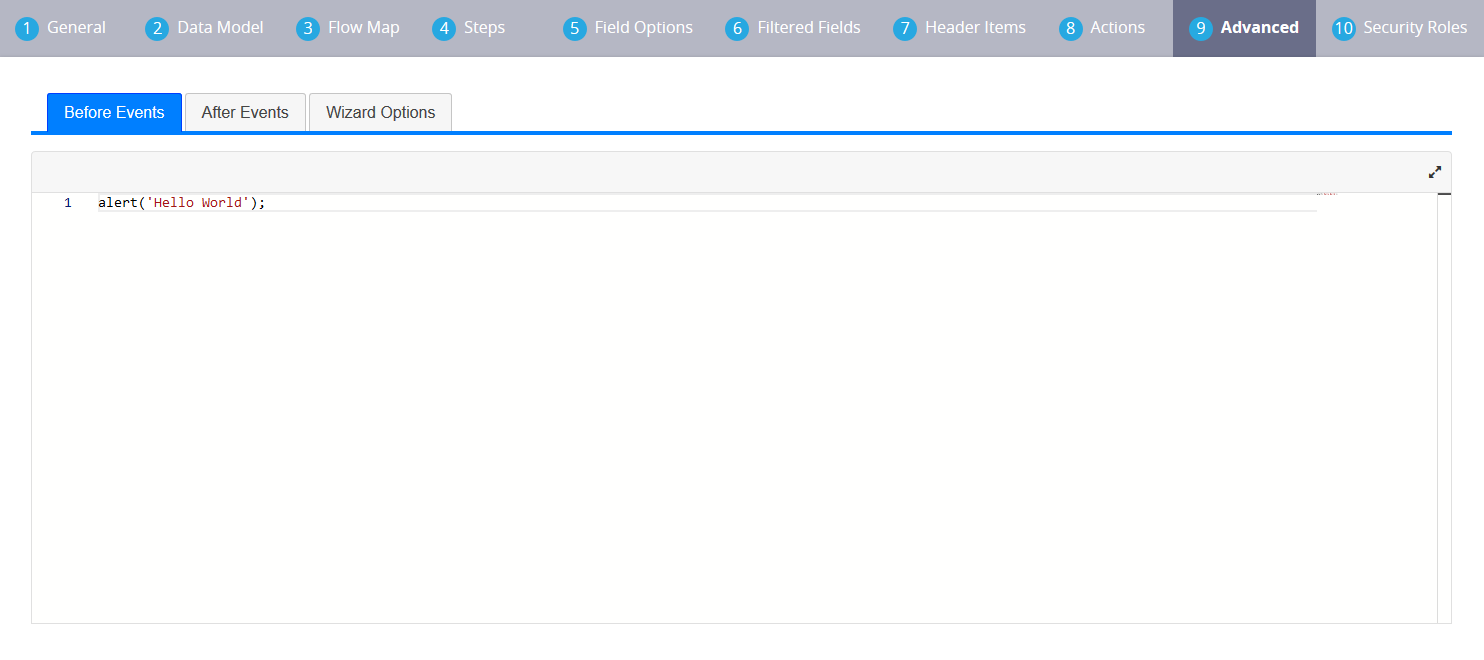
In the Advanced section of form driven flows in wizard mode, there are three tabs called Before Events, After Events, and Wizard Options, where you can add client code.
The code in the Before Events and After Events tabs will run when the flow is loaded.
The code in the Wizard Options tab allows you to define settings for the wizard's look and feel, such as labels and positioning for the navigation buttons, colors, or title bar. For details, see the Client SDK documentation for the ebs.createWizardObject function.
Form driven flows in wizard mode always include steps. Check the Form Driven Flows Steps (wizard mode) section for details about the code execution sequence.
Form Driven Flow Steps (Wizard Mode)
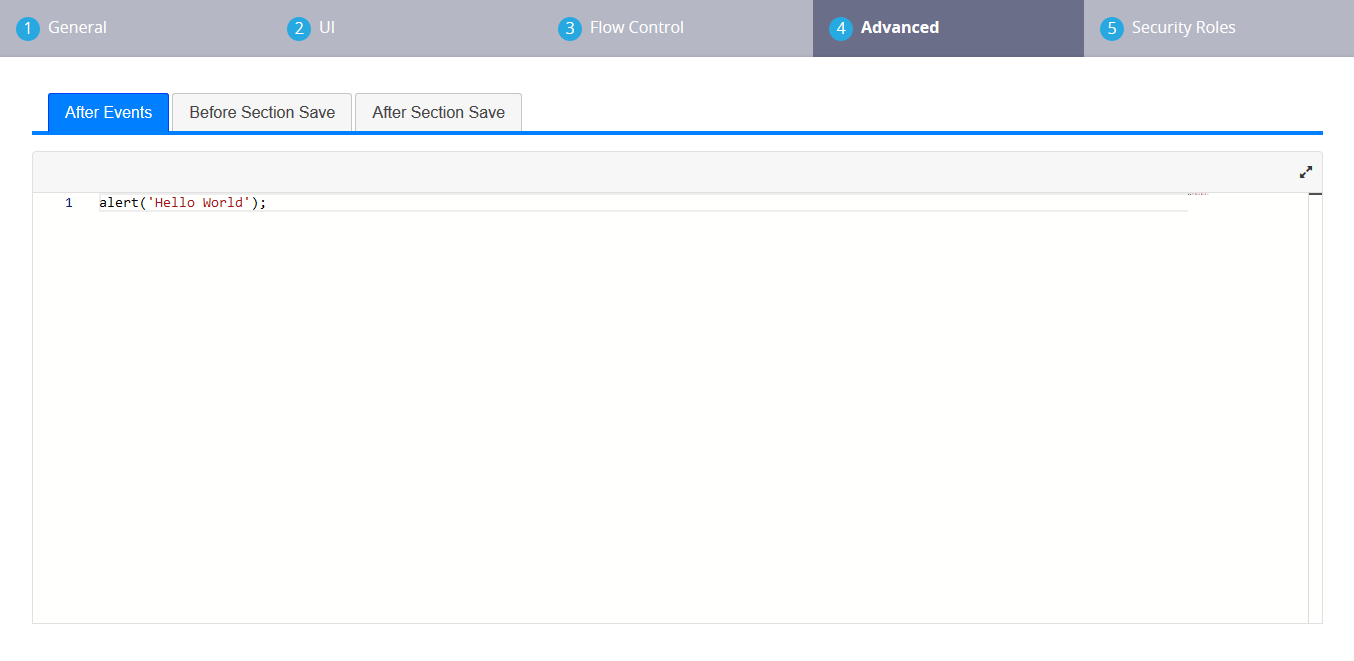
In the Advanced section of Form Driven flow steps (in wizard mode), there are three tabs called After Events, Before Section Save, and After Section Save where you can add client code.
The code in the After Events tab will run when the step is loaded.
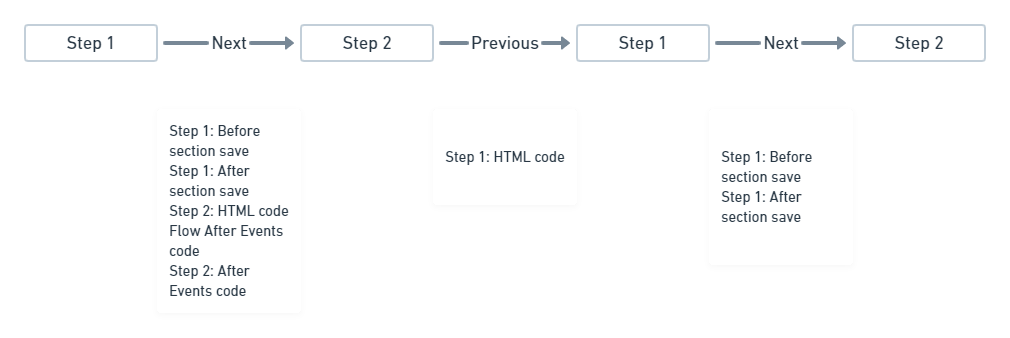
The code in the Before Section Save and After Section Save tabs will run when you advance either to the next step in the wizard (click the Next button) or, if this is the final step in the flow, you conclude the wizard (click the Finish button). This allows you to run distinct operations before and after the step's data is committed to the database.
When a Form Driven Flow in wizard mode is loaded, the code executes in the following sequence:
-
Code in the flow's Before Events tab.
-
HTML code for all steps.
-
Flow Wizard Options.
-
When a step is displayed:
-
Step HTML code.
-
Flow After Events code.
-
Step After Events code.
-
When you advance (click the Next or Finish button):
-
Step Before Section Save code.
-
Step After Section Save code.
-
-
-
Repeat from Step 4. for each subsequent step in the wizard.
When you go back to a previous step in the wizard (using the Previous button), no After Events or Section Save code (Steps 6, 7, 9, or 10) is executed. Then, if you advance again to a step that you opened previously (using the Next button), only the current step's Section Save code (Steps 9 and 10) is executed. The next step's After Events code (Steps 6 and 7) is not executed again.
Custom Flows
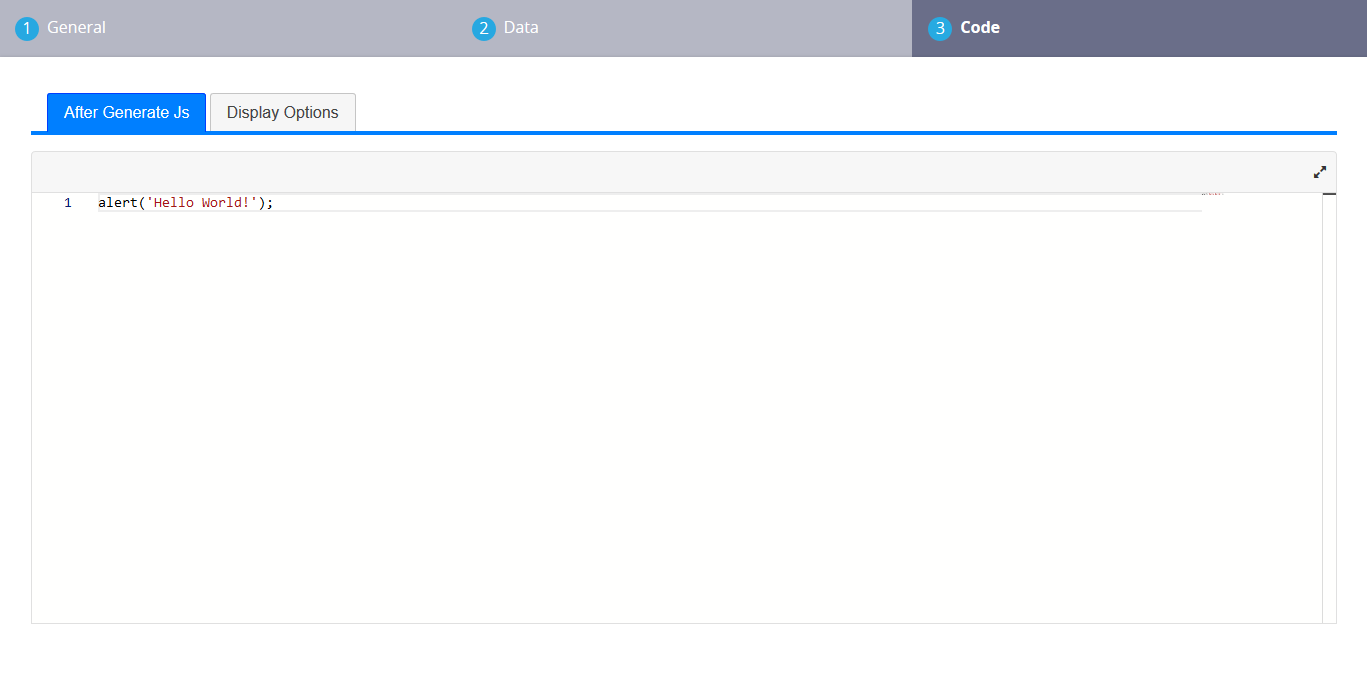
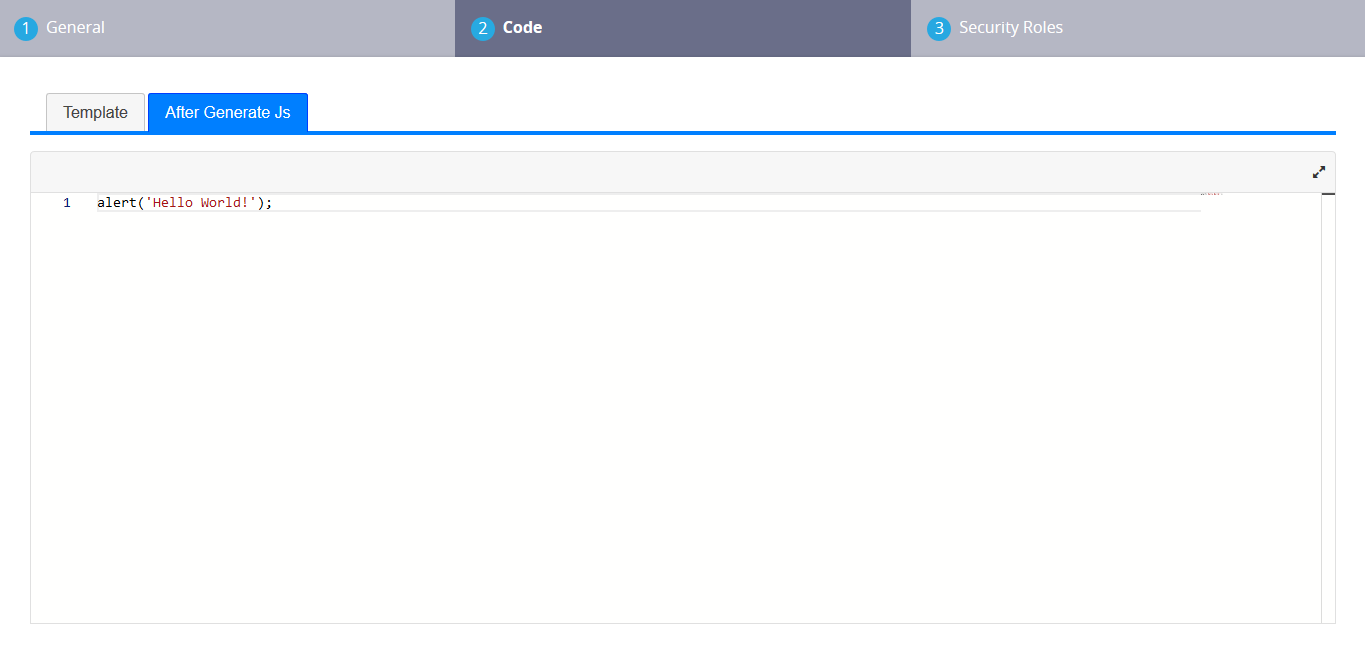
In the Code section of custom flows, there are two tabs called Template and After Generate Js where you can add client code.
The code in the Template tab contains the flow's HTML code. Since this is a custom design, you must provide the form's entire content in the Template tab.
The code in the After Generate Js tab is executed after the flow's HTML code is rendered.
-
Flow Template.
-
Flow After Generate Js.
Entity Views
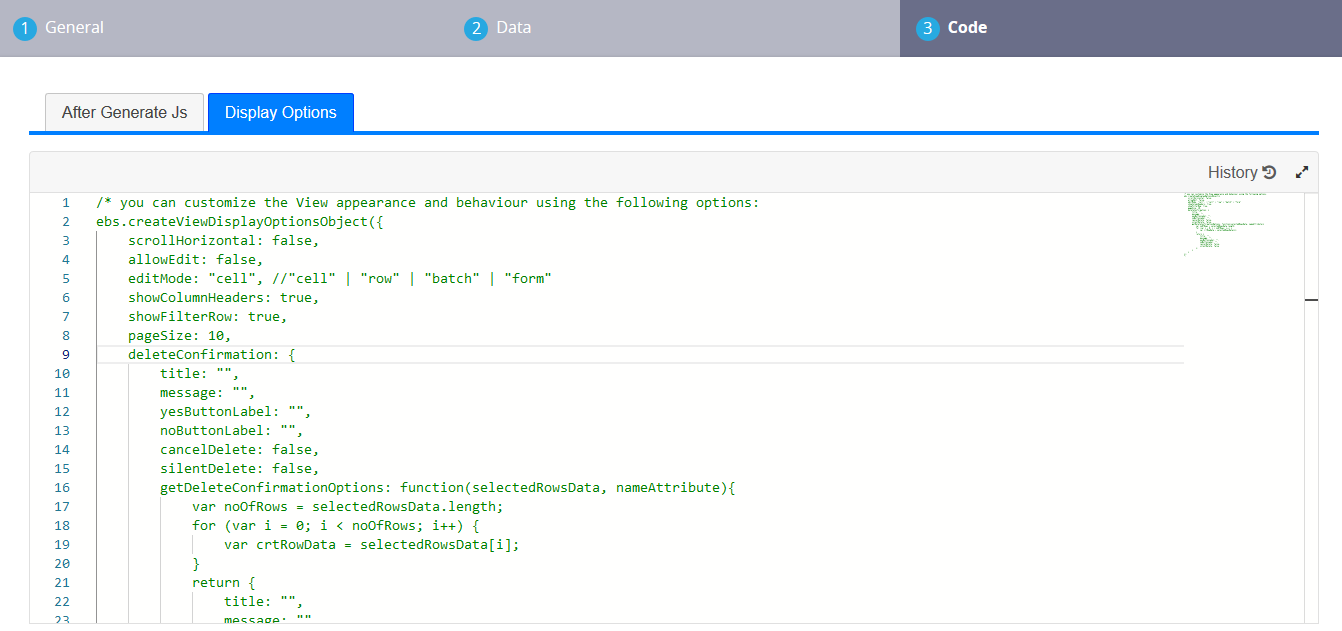
In the Code section of entity views, there are two tabs called After Generate Js and Display Options where you can add client code.
The code in the After Generate Js tab runs after the view is loaded.
The code in the Display Options tab allows you to define settings for the view's look and feel, such as scrolling, headers, filter row, page size, or the ability allow records editing in the view. The Display Options tab is pre-populated with the available settings commented out which you can modify according to your preference. These settings supplement the no-code view customizations.
-
Display view using any configured Display Options.
-
Run the After Generate Js code.
Charts
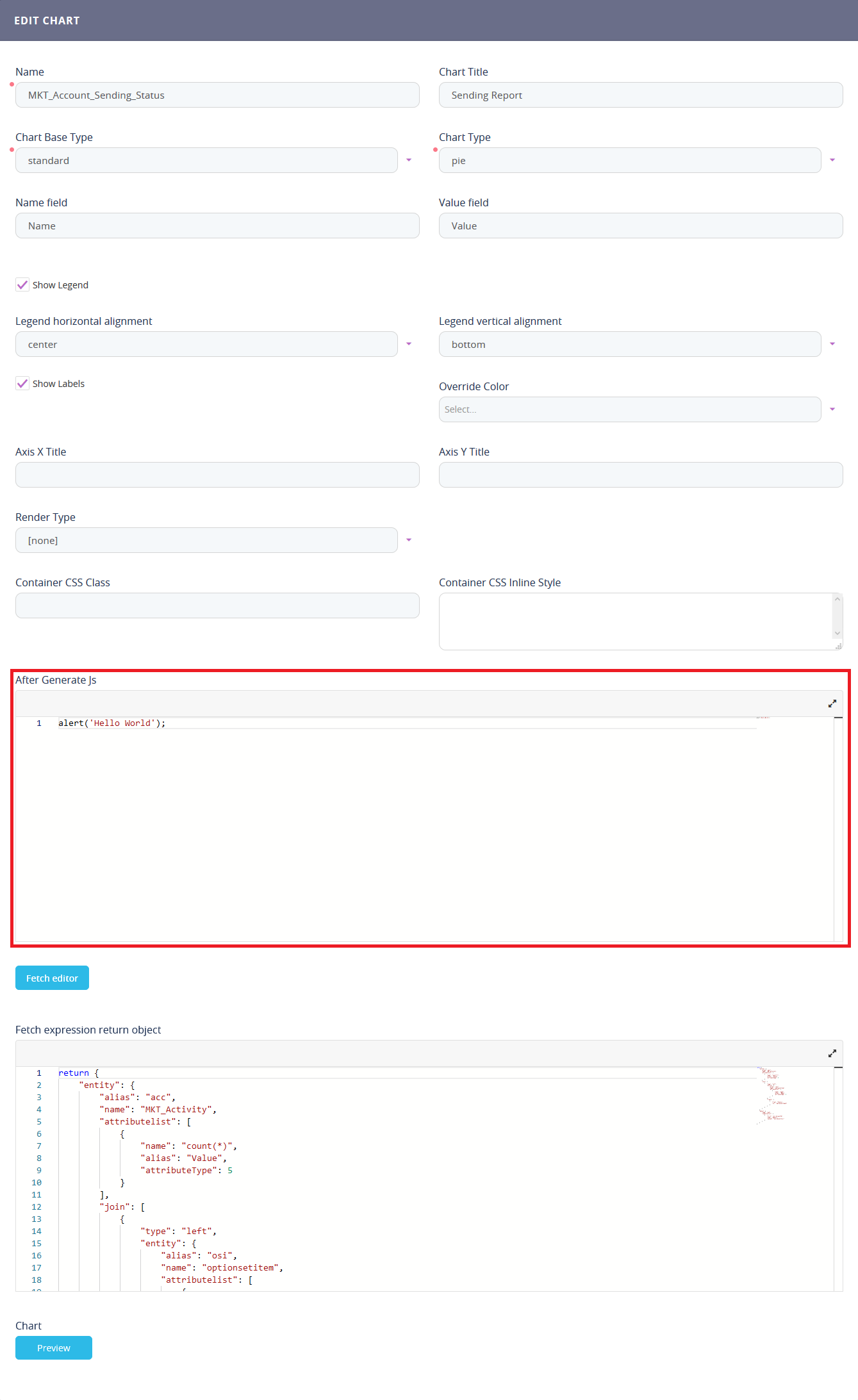
In the chart editing windows, there is a section called After Generate Js where you can add client code that is executed when the chart is rendered.