Adding Journeys to Dashboards
NOTE
- Create the form driven flow first and then add it to the desired dashboard by using entity dashboards.
- Do not confuse the entity shortcuts added to dashboards with shortcuts added to the Shortcuts by pinning entities on the main menu.
To add a form driven flow to a dashboard, add an entity shortcut to the desired dashboard by following these steps:
- From the menu, click Digital Frontends > Digital Experience Portals > Dashboards. The Dashboards List page opens.
- Double-click the desired dashboard from the list. The dashboard configuration page appears.
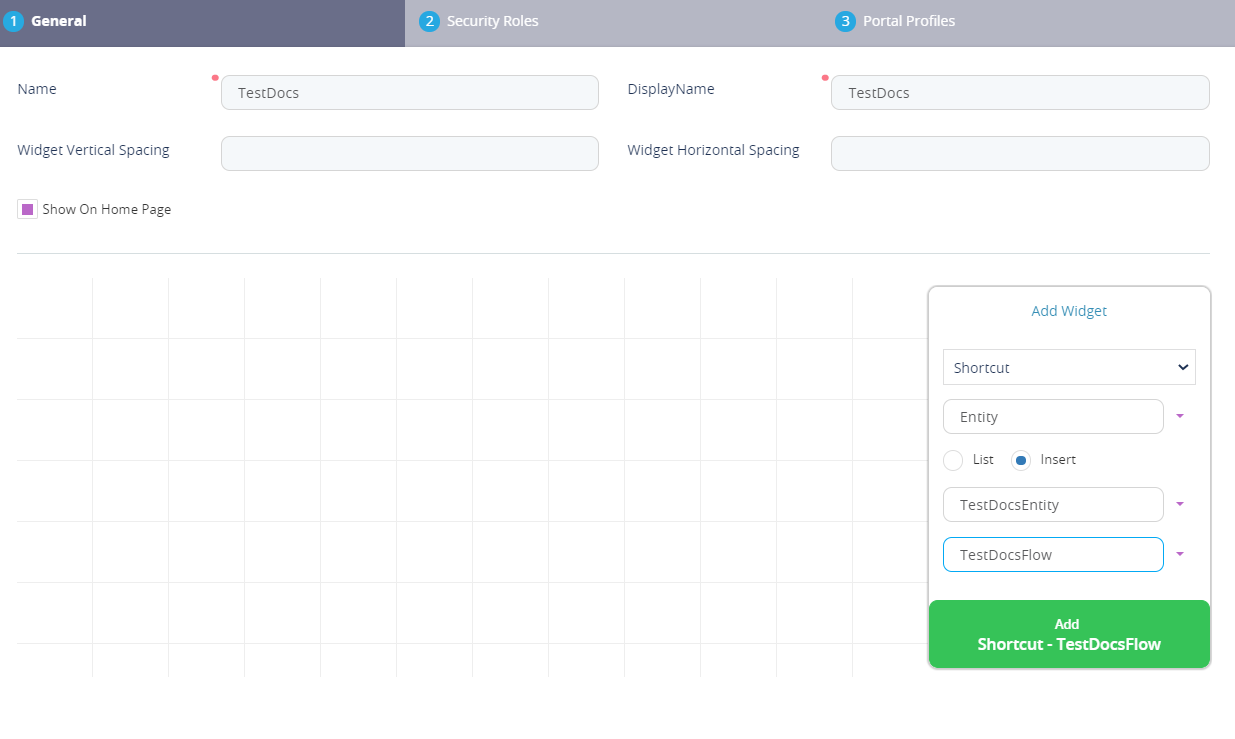
- In the Add Widget area, from the widget type drop-down list, select Shortcut.
- From the Select the type of Shortcut drop-down, select Entity.
- Choose how you want to have the data form displayed on the dashboard:
Select List if you want the data form to be listed on the dashboard.
Select Insert if you want the data form to be inserted on the dashboard. A new drop-down field will be displayed.
HINT
A user can add a form driven flow mockup for preview. Select the title of the mockup when inserting the shortcut. - Select the desired entity for which you want to have the default data form added to the dashboard.
- Click the Add button. The shortcut widget is displayed on the left side of the page. You can resize the widget by placing the cursor on the bottom-right corner of the widget and using drag and drop.
- Optionally, customize the entity shortcut widget. To do so, on the left-side, double-click the widget. The add widget details displayed on the right-side are replaced by customizable widget details. You can choose to add a title, provide the widget title, description and tag.
Save the customization by clicking the Save Widget button.
- At the top-right corner of the page, click the Save and close icon.
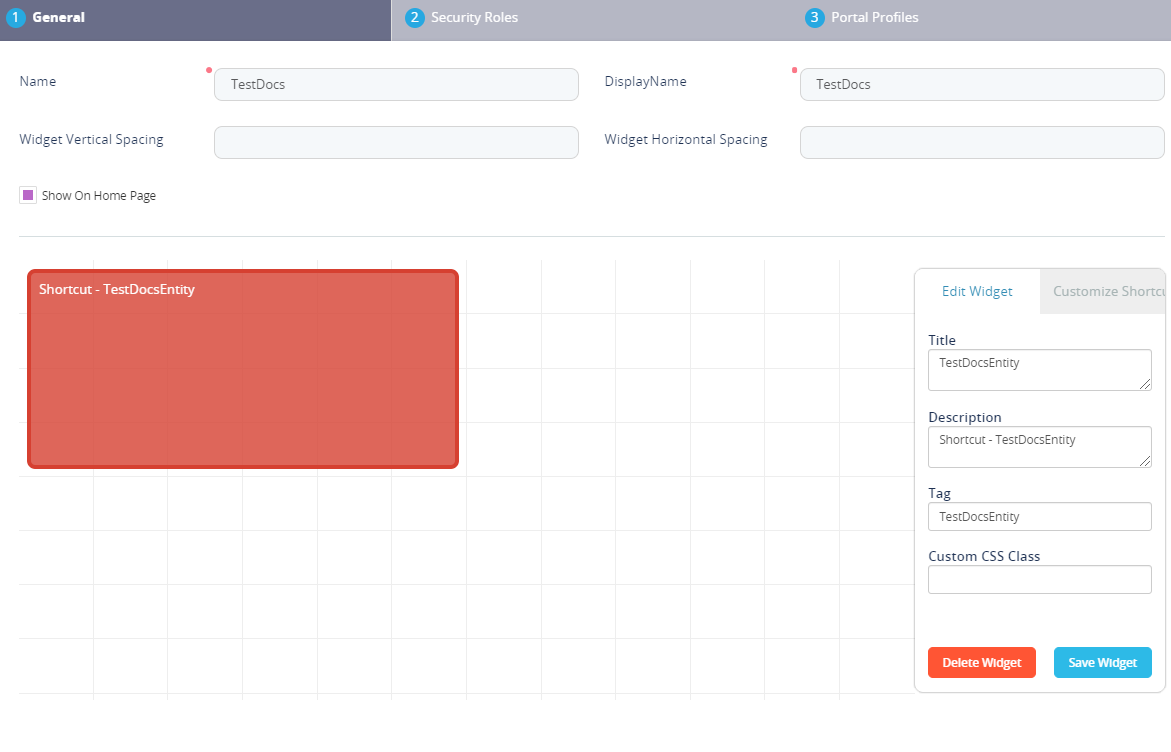
The figure below shows an example of an entity shortcut added to the dashboard.
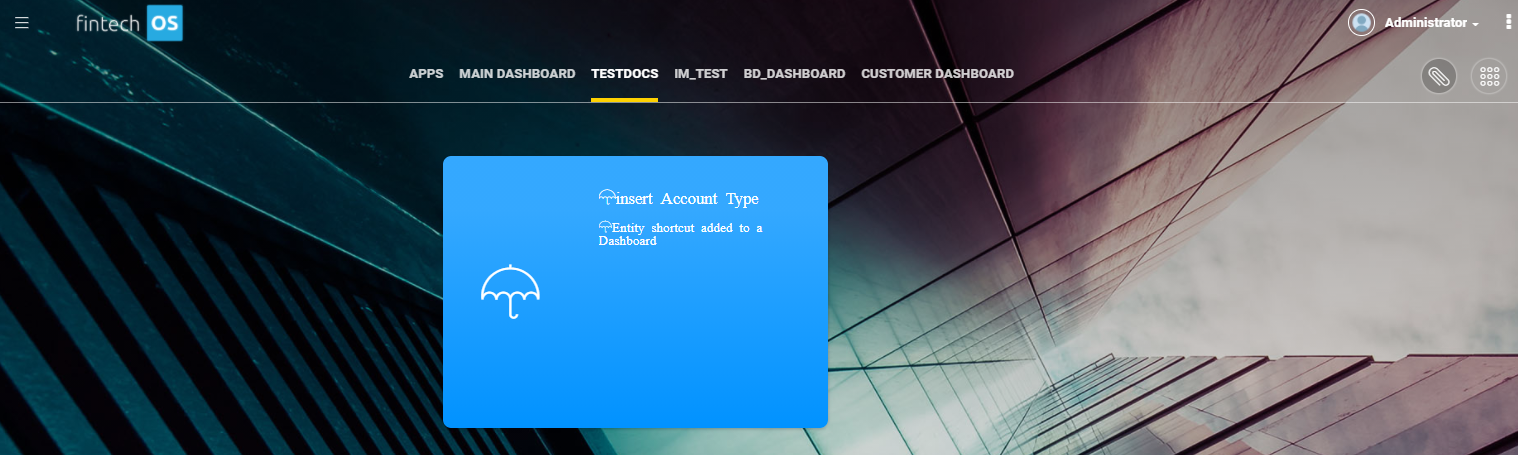
When clicking on the desired entity shortcut on the dashboard, the entity default data form will be displayed in the format selected when adding the shortcut widget to the dashboard (List or Insert).
To add custom flows, see Creating Custom Flows.