Add Power BI Report to Dashboard
Prerequisites
- You should have created a dashboard.
- You should have registered Power BI for apps.
- You should have embedded the Power BI report into FintechOS Studio
How to add a Power BI report to a dashboard
Follow these steps to add a Power BI report to a dashboard,:
- From the menu, click Digital Frontends > Digital Experience Portal > Dashboards. The Dashboards List page appears.
- Double-click on the desired dashboard. The dashboard configuration page appears.
- In the Add Widget area, from the first drop-down, select Power BI Report.
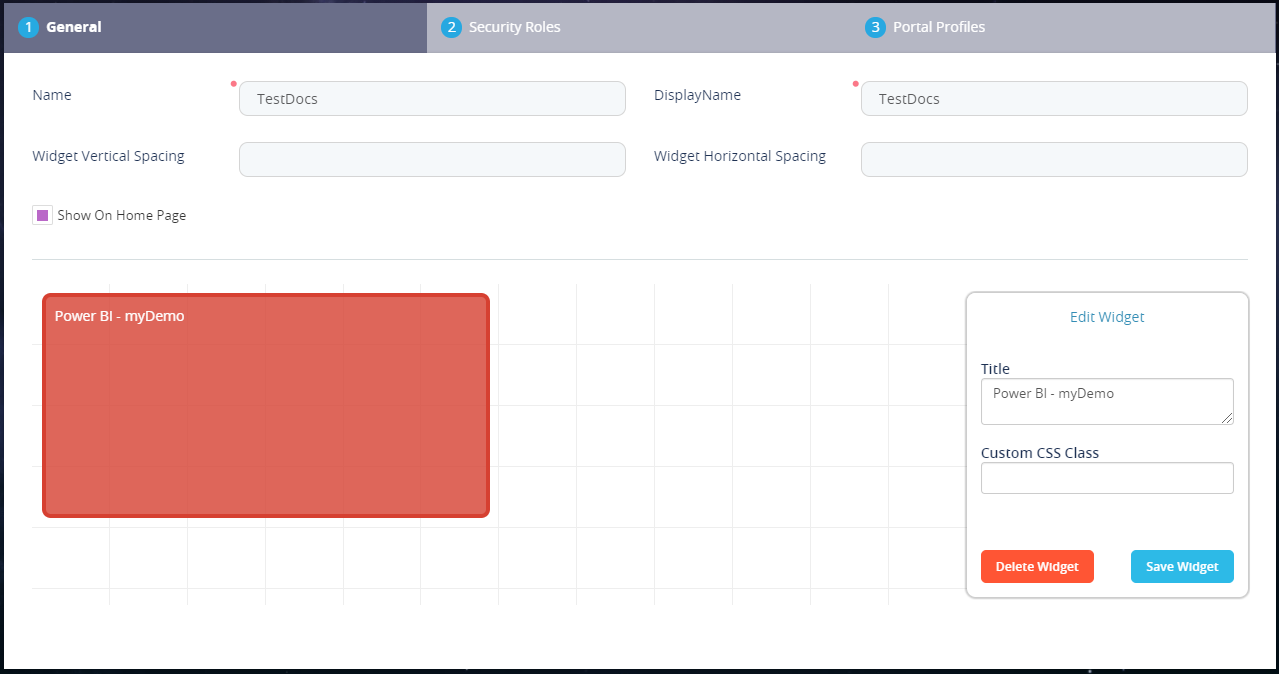
- From the second drop-down, select the Power BI report you want to add to the current dashboard. The name of the Power BI report appears in a rectangle below the toolbar.
- Click the Add button. The report widget is added to the dashboard, and the Add Widget area is replaced by Edit Widget.
- Optionally, you can resize the widget by placing the cursor on the bottom-right corner of the report rectangle. A resize icon will be displayed. Click to drag and drop, and resize as preferred.
- At the top-right corner of the page, click the Save and close icon. The Power BI report is added to the dashboard.