STEP 3. Configure and add relations
Prerequisites:
- You should have at least one entity with attributes, besides the entity for which you create the HTML template.
- You should add one relationship between the entity on which you define the HTML template and the other entity(ies).
- To add relations, you first need to add a container.
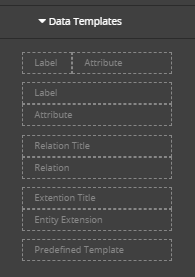
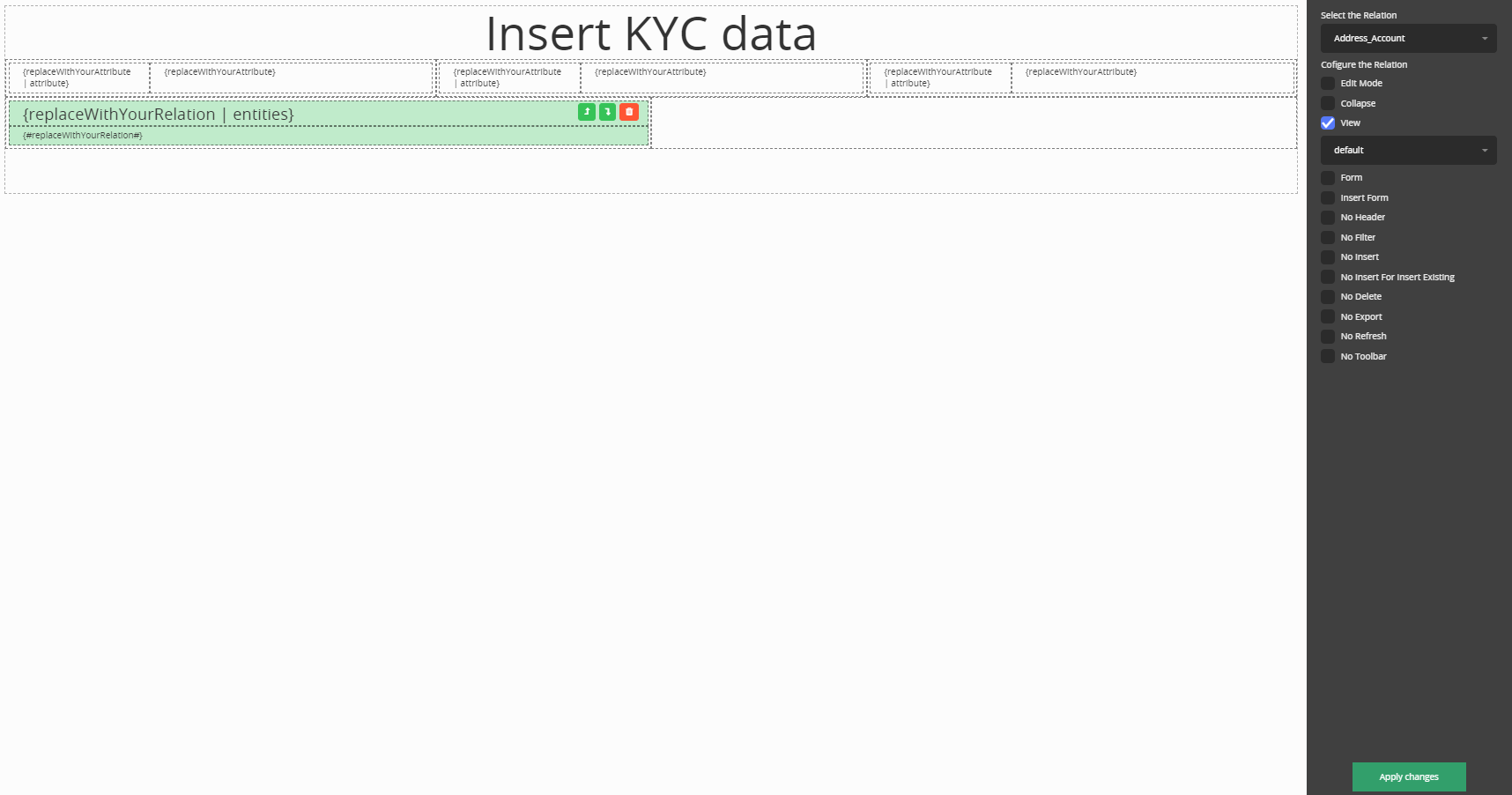
- Then from data templates add the relation. Select the desired relation on the right side of the screen.

- The configuration for that relation will be displayed.

Configure the relation based on your needs. The table below describes the configuration options.
Option Description Edit Mode Sets the mode of the inline editing on the view. Click the checkbox and from the drop-down below, select the desired options: - cell - allows you to edit view records cell by cell.
- row - allows you to edit a view record by editing the cells in a row then saving the view record changes.
- batch - allows you to edit several view records and then save the changes in batch.
Collapse The text displayed as a collapse panel. Click the checkbox and in the field below, provide the name of the collapse panel. View The name of the view from another entity to be displayed. Form If the entity from which you render the view has multiple forms and you want a specific data form on edit directly from this view, select this checkbox and from the Insert Form drop-down, select the desired data form. Insert Form If the entity from which you render the view has multiple forms and you want a specific data form on insert directly from this view, from the Insert Form drop-down, select the desired data form name. No Header Does not display the view header. No Filter Does not display the view filtering / search. No Insert Does not display the Insert button on the view toolbar.
Do not select No Insert when using Form. and Insert Form; otherwise, issues might occur.No Delete Does not display the Delete button on the view toolbar. No Export Does not display the Export button on the view toolbar. No Refresh Does not display the Refresh button on the view toolbar. No Toolbar Does not display the view toolbar. -
Click the ''Apply changes'' button on the right side panel.
Do not intersect two relation layouts mixing them by moving relations row up and down; otherwise, errors might occur. - Click the ''Update template'' on the top right corner of the screen.
- Click the ''Save and reload'' button.