
Importing a Deployment Package
Once you import the deployment package into another environment, you can extend/enrich the imported metadata without altering the data already imported. If the metadata imported is modified by any means, update issues might occur if another user imports the same deployment package again or another version of it. The deployment package is used to update or insert metadata; it does not delete metadata.
Prerequisites:
- Make sure that the language set in FintechOS on the browser is English.
- If you want to import deployment packages in a FintechOS version which has XSS prevention enabled, make sure that the deployment packages and the new metadata do not contain the characters ”<”, “</”, “>”, “<” or “>”next to text, otherwise, on import, you will get an error message and you will not be able to import the packages.
To import the deployment package in another environment, on that environment, in FintechOS Studio follow these steps:
- From the menu, click DevOps > Deployment Packages. The Deployment Packages List page opens.
- At the top-right corner of the page, click the Import deployment package icon. The Open pop-up appears.
- Browse for the deployment package (
xmlfile) or enhanced deployment package (zipfile) that you want to import, select it and click Open. A confirmation dialog appears that indicates the version of the database used by the source environment (from where the deployment has been exported): - Click Yes to confirm the import.
- You will also be asked if you want to deploy the audit configurations.
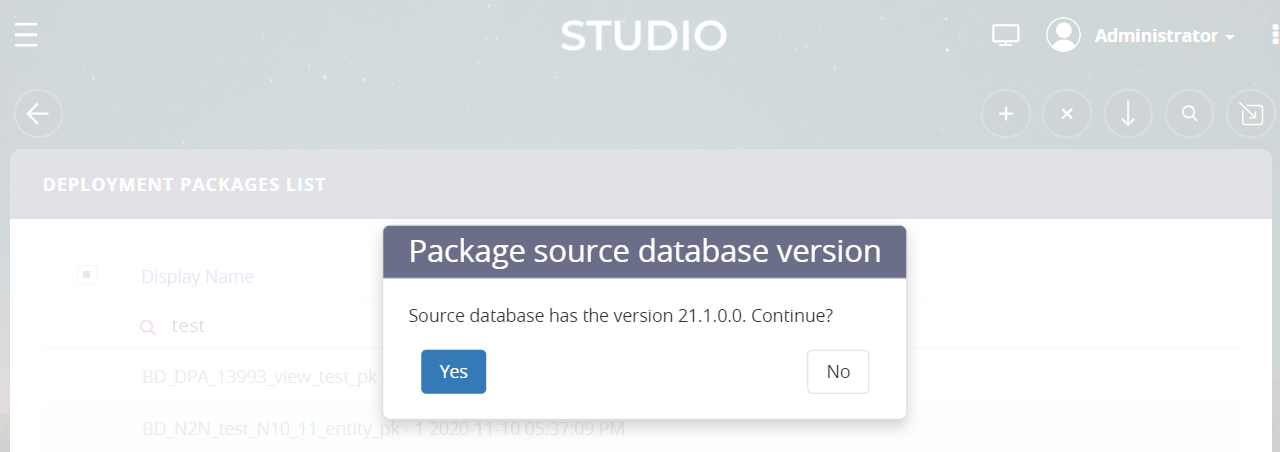
The system checks the deployment package metadata and if no errors occur, the metadata is successfully added into the database.
If errors occur during the import, the system will throw two types of errors:
- Blocking errors: The data is not imported and an error message highlighted in red will be displayed informing you on what the problem is.
- Warning errors: Warnings are logged in the Deployment Package log, if any. To see the warnings, consult the log of the selected deployment package. For more information, seeViewing Deployment Package Logs.
If on the last confirmation dialog, you have chosen to deploy the audit configurations:
- on insert, the entity will be inserted with IsAudited value from the package (or false if the field does not exist in the package).
- on update, IsAudited field will be updated with the IsAudited value from the package.
If on the last confirmation dialog, you have chosen not to deploy the audit configurations:
- on entity insert, the IsAudited field will be always set to False.
- on entity update, the IsAudited field remains unchanged.