Manage Quotes
The Quote Admin solution enables you to manage quotes and offers. In FintechOS Portal, you can view the list of all quotes, together with details like coverages, insured amounts, etc.
View Generated Quotes
There are two ways you can access the list of existing quotes in FintechOS Portal:
-
Go to Offer Management > Offers > Insurance Quotes.
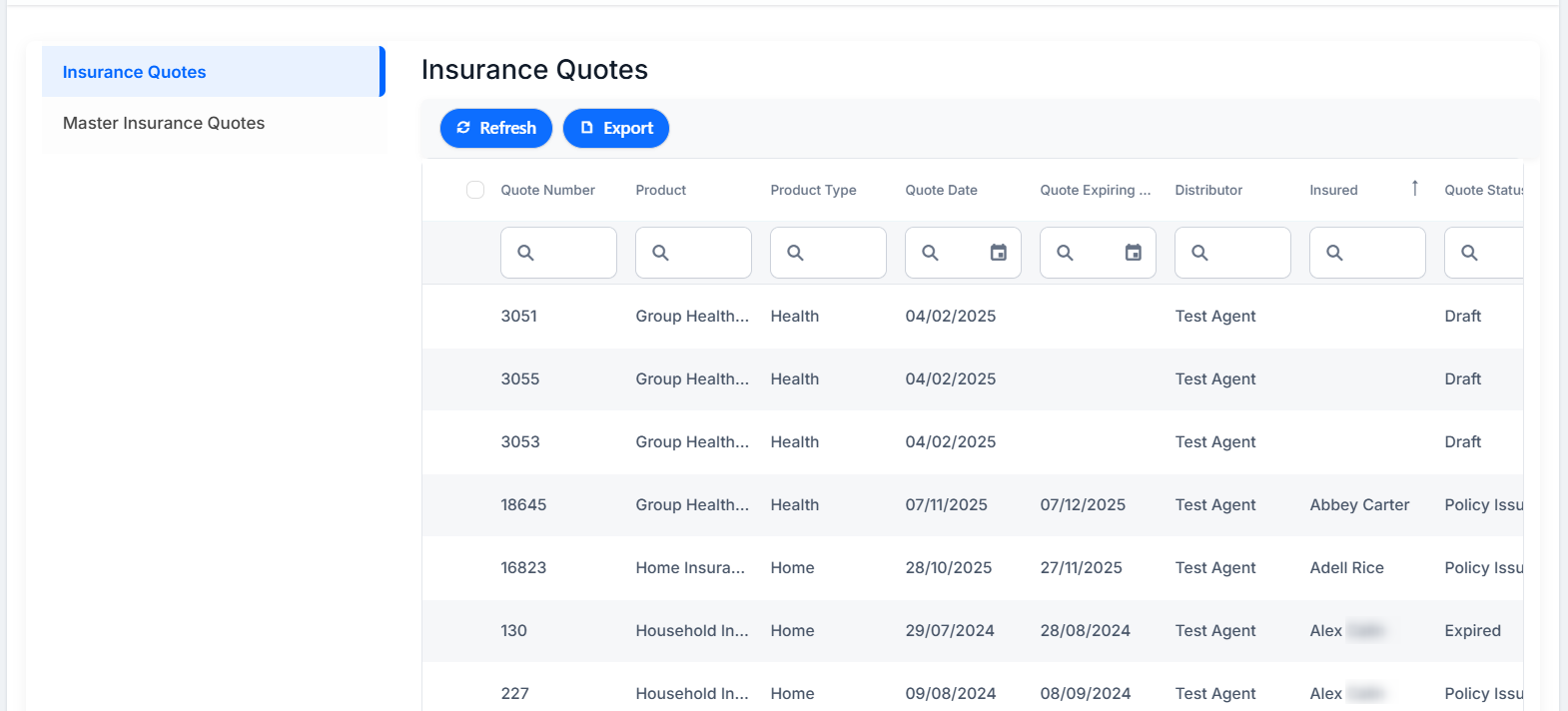
Double-click any quote record to view its components. The quote form opens with the following sections:
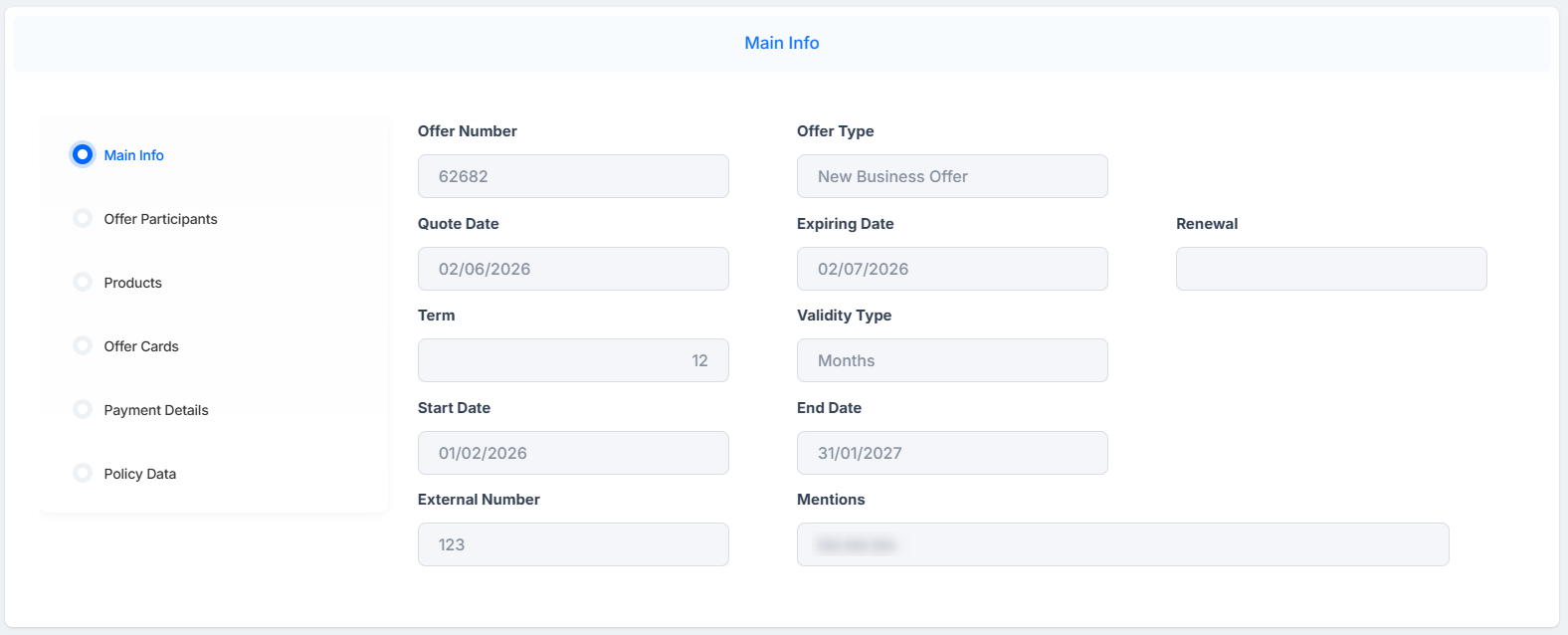
 Main Info
-
Offer Number: The unique identifier of the quote record;
-
Offer Type: The type of the quote.
-
Quote Date: The date when the quote takes effect;
-
Expiring Date: The expiration date of the quote. When the current date is greater than the expiring date, the quote transitions to the Expired status;
-
Renewal: The renewal type for the contract;
-
Term: The validity period or duration of a policy;
-
Validity Type: The policy validity type: months, days etc;
- Start Date: The date when the policy takes effect;
-
End Date: The date when the policy effect ends;
-
External Number: The external reference of the quote;
-
Mentions: Mentions regarding the quote.
Offer Participants
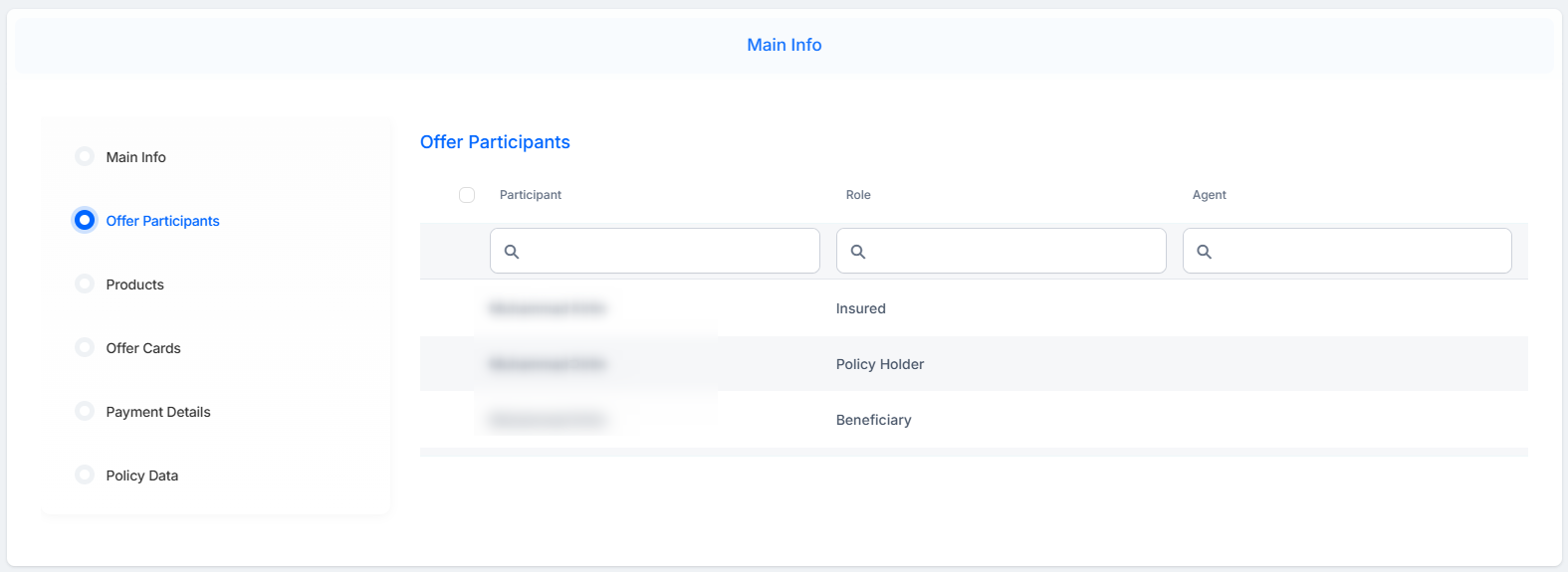
- Insured: The insured party of the quote;
-
Policyholder: The policyholder;
-
Beneficiary: The beneficiary of the insurance;
-
Distributor: The quote distributor.
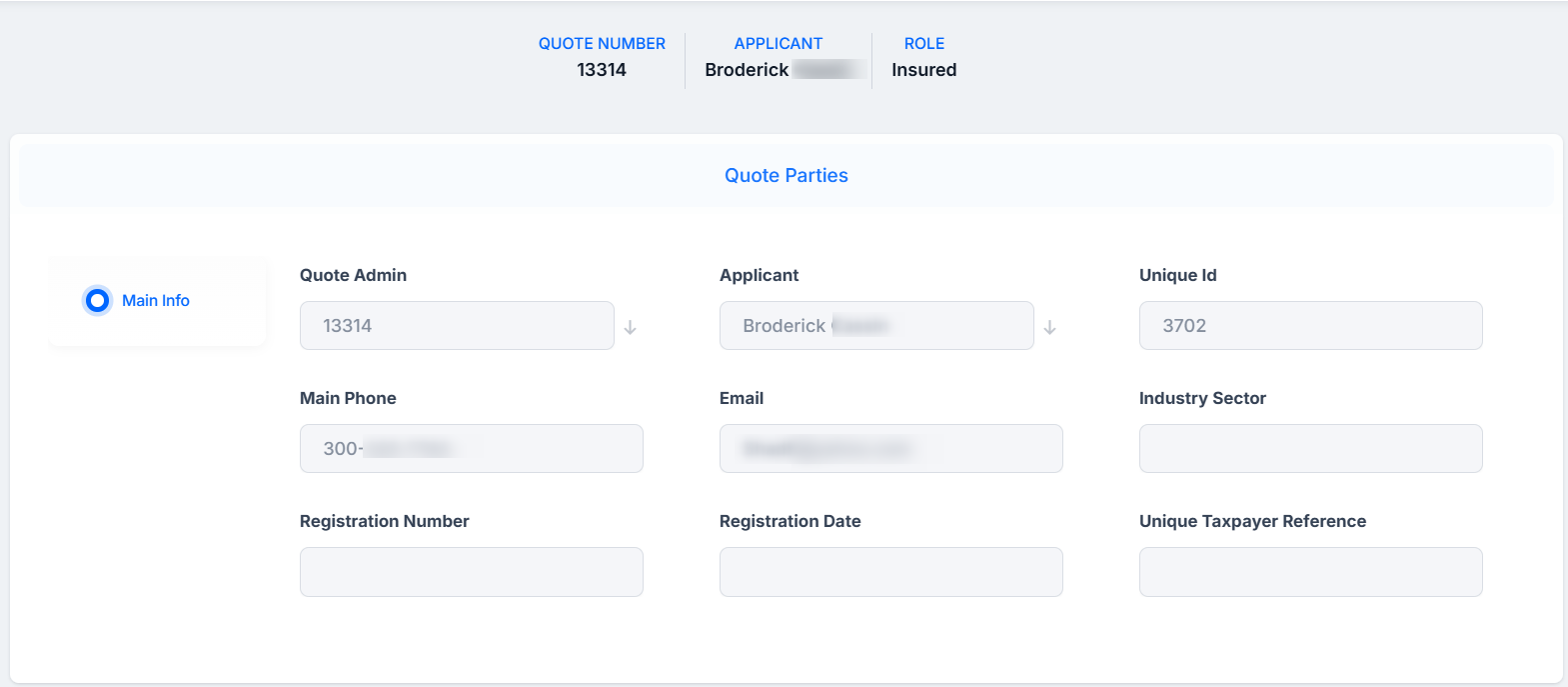
Double click a record to open the options for each party:
-
Quote Admin: the quote number;
-
Applicant: the individual or organization applying for insurance coverage;
-
Unique Id: a system-generated identifier used to track and manage the applicant's policy;
-
Main Phone: the primary contact number for communication regarding the insurance policy;
-
Email: the applicant’s official email address for receiving policy documents and updates;
-
Industry Sector: field of employment or professional activity of the applicant;
-
Registration Number: personal identification number used for official records;
-
Registration Date: date the applicant was officially registered in a national or local database;
-
Unique Taxpayer Reference: a tax identification number used to confirm financial and legal compliance.
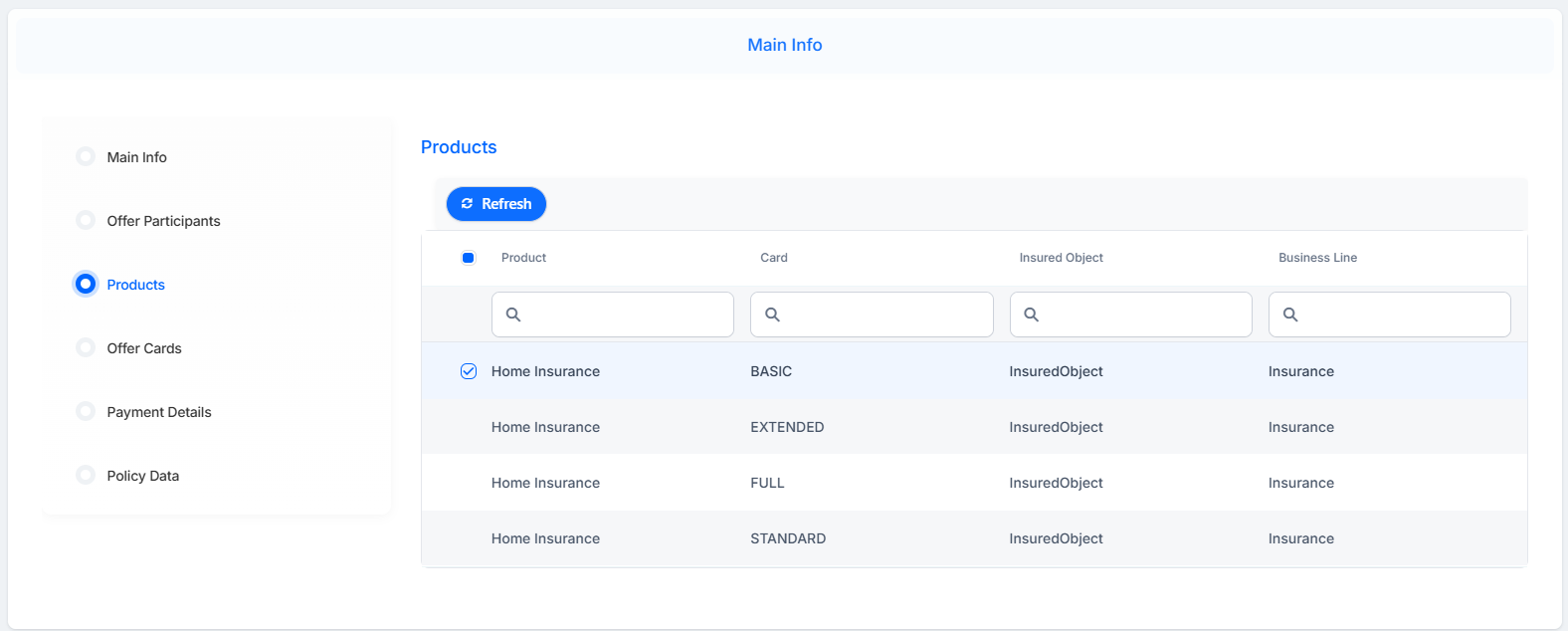
Products
Displays a list of insured objects for this policy. Double click an object to open its details:
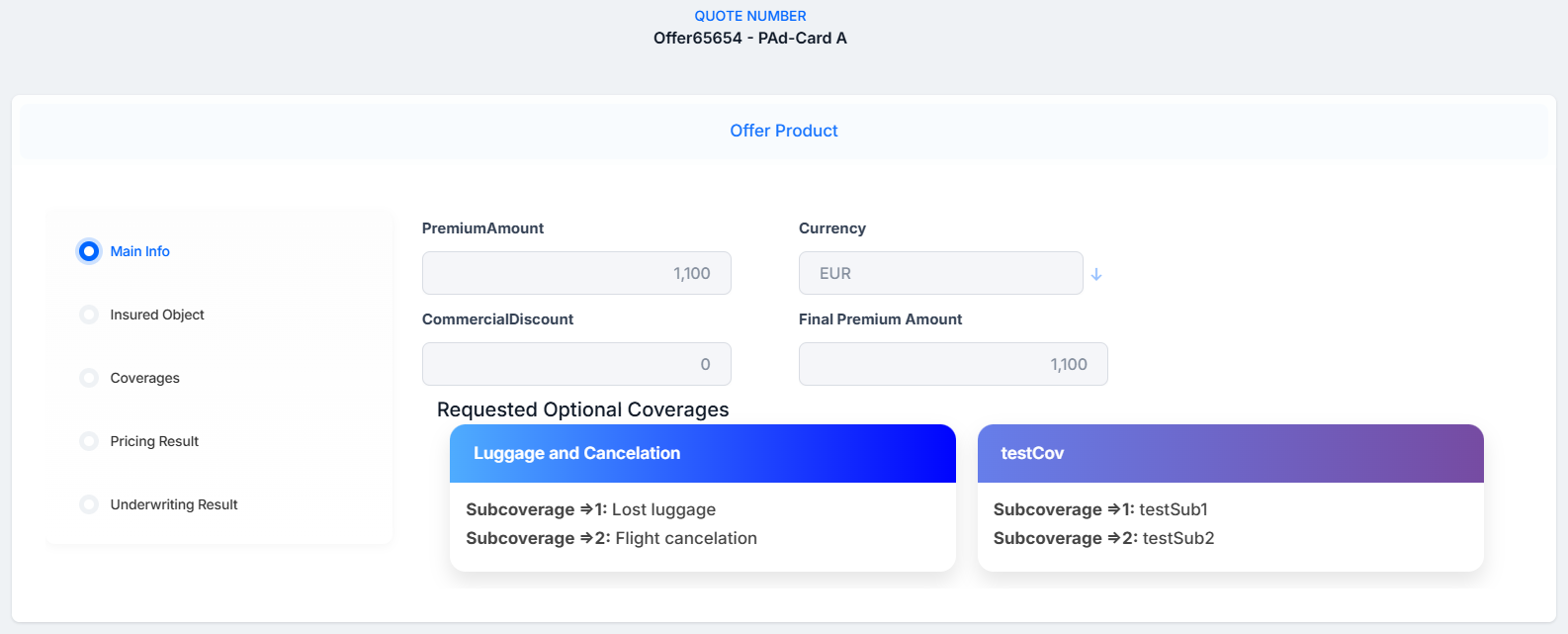
Main Info
-
Premium Amount: The total calculated price of the insurance product offered within a quote;
-
Currency ID: The currency in which the premium is expressed;
-
Commercial Discount: A discount applied to reduce the premium;
-
Final Premium Amount: The premium after the discount is applied.
-
Requested Optional Coverages: The optional (non-mandatory) coverages that were explicitly requested for an insured object during the quote generation process. Unlike mandatory coverages — which are automatically included with the product — optional coverages are selected per insured object at quote time and stored separately to distinguish them from the base product offering.
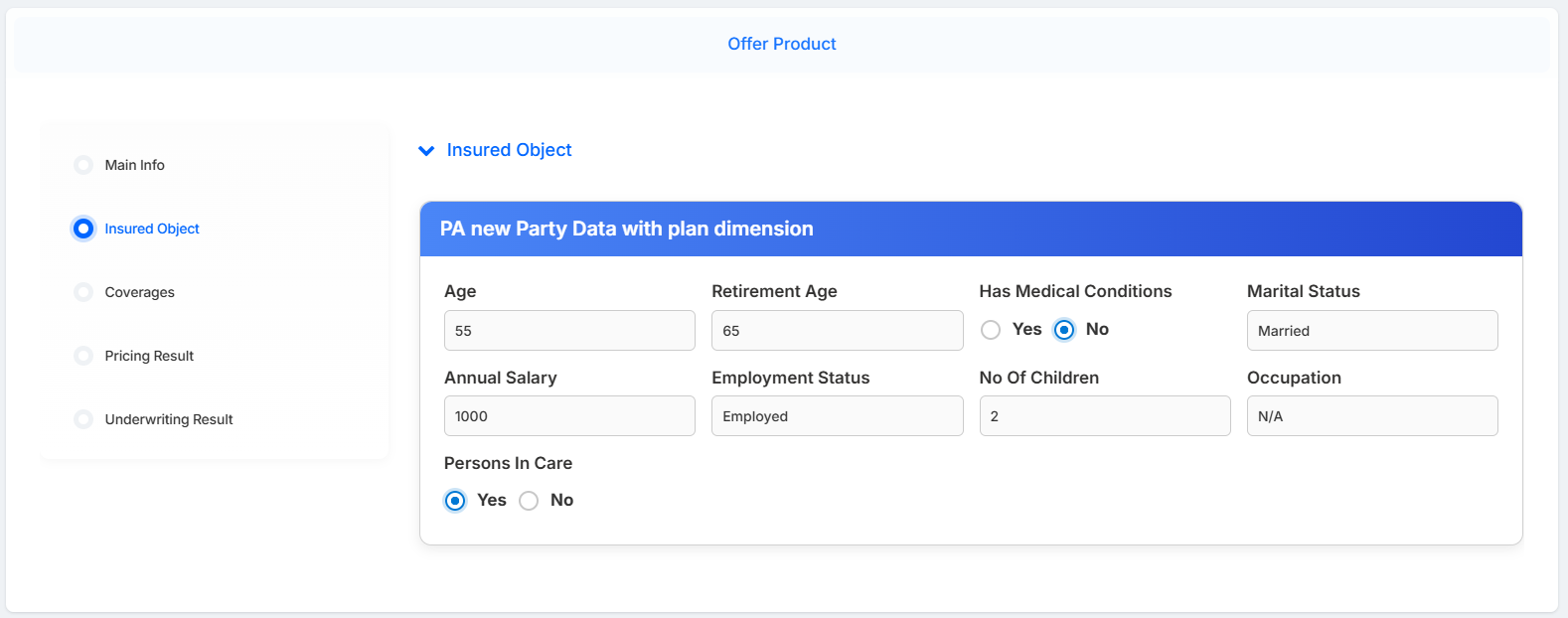
Insured Object
This section displays the insured object details and dynamic dimensions, which are custom, configurable parameters defined at the plan level in Product Factory and attached to an insured object, which capture product-specific pricing or underwriting inputs (e.g., a coverage amount or a custom percentage) as name-value pairs that get carried through from the quote to the policy.
Insured object details depend on the type of insured objects. Fields here are different for households, personal insurance, etc.
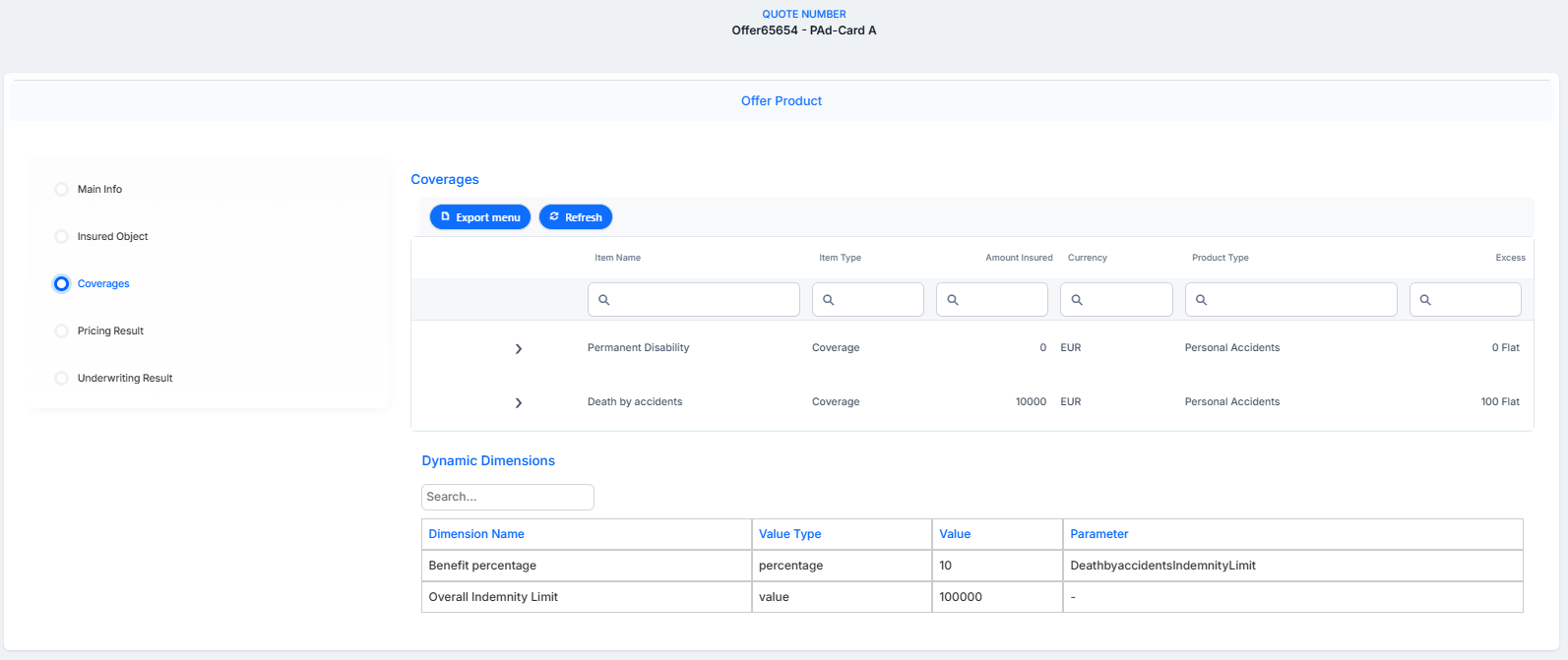
Coverages
This tab shows the insured amount, currency, excess for each coverage and subcoverage. It has a section on Dynamic Dimensions, the pricing rules set for a product that automatically shape how an offer's premium is calculated.
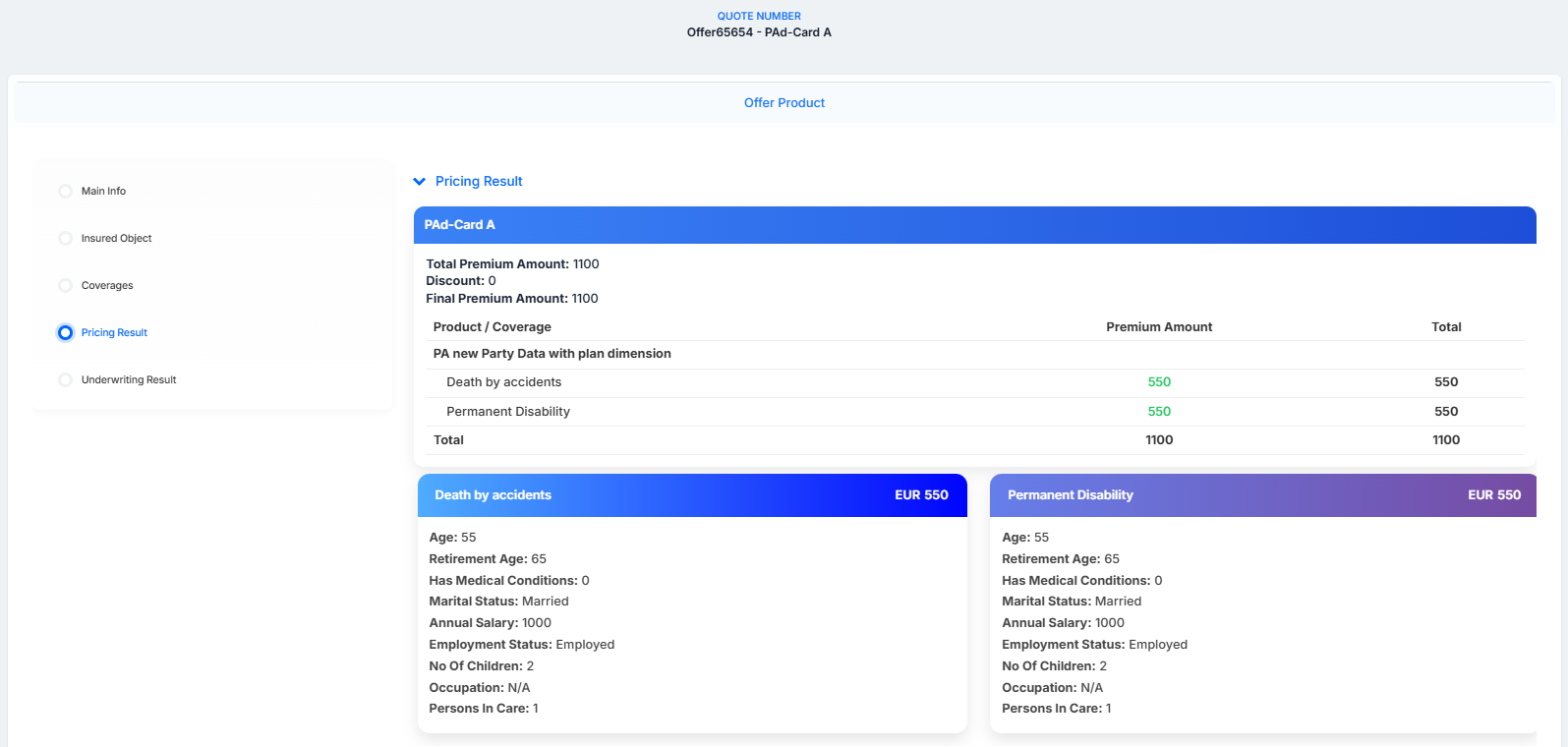
Pricing Result
This tab displays the values of inputs for several formulas, and formula results for parameters, for each coverage. In our example, it displays the formula related to death by accidents, with its inputs and results, the formula related to permanent disability, formula related to income compensations, and formula related to medical expenses.
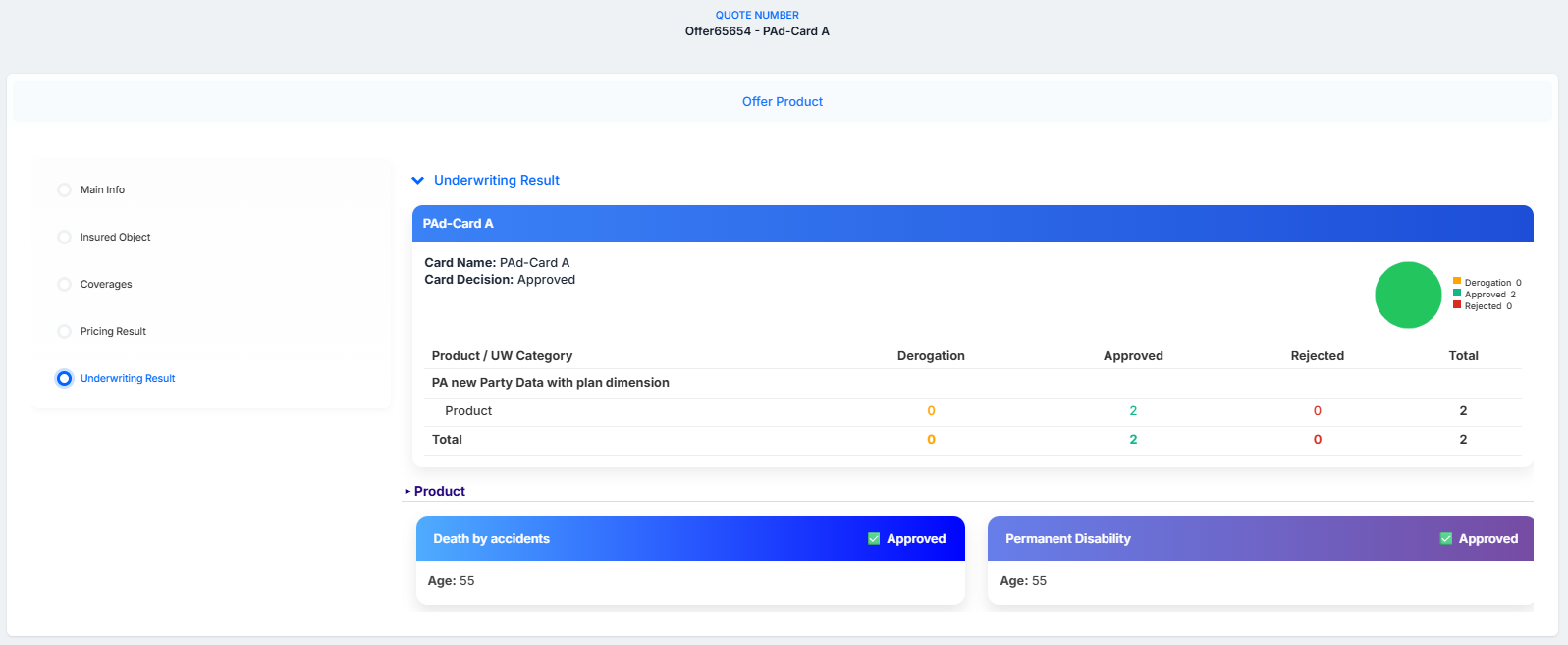
Underwriting Result
This displays the underwriting rules results for each chosen coverage, based on their formulas.
Offer Cards
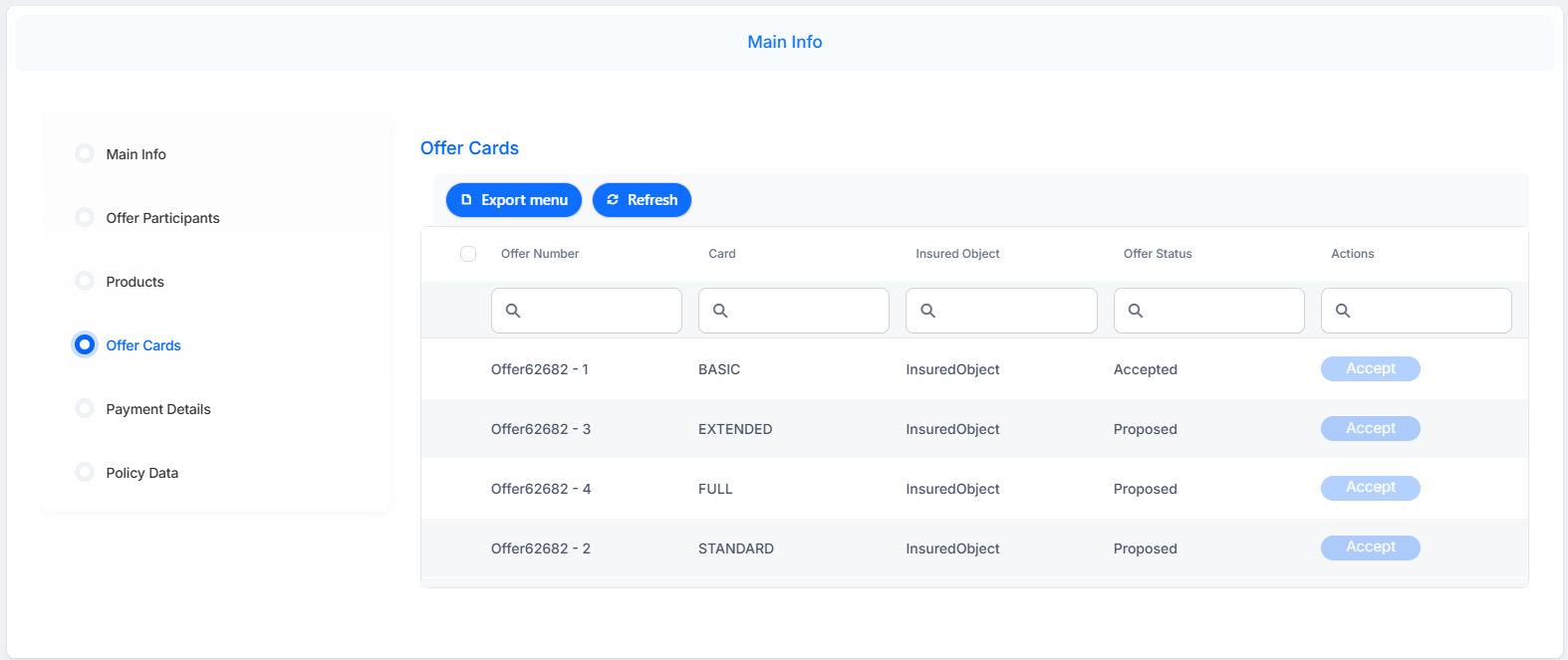
Double click a record to open options in the Offer Details tab:
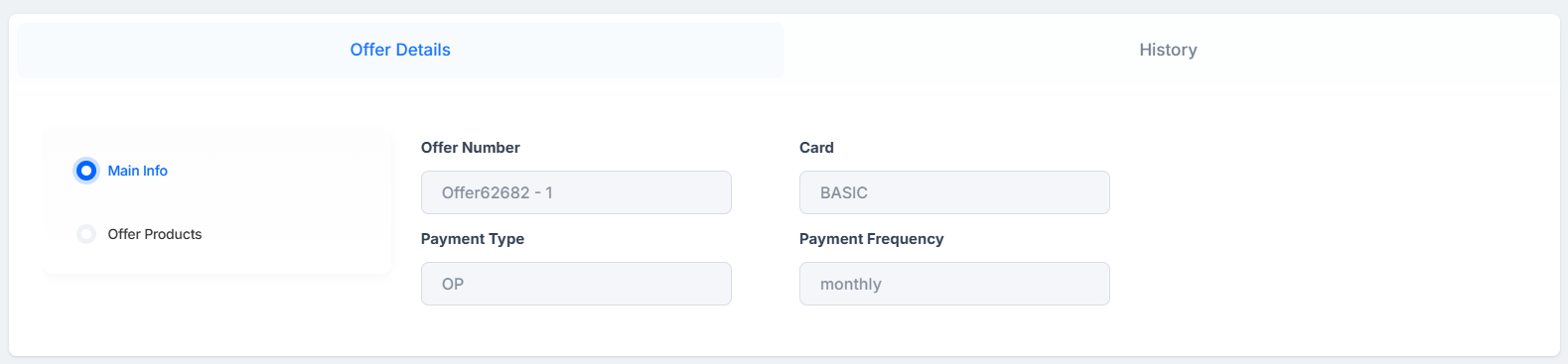
Main Info
-
Offer Number: unique identifier assigned to the insurance offer;
-
Card: payment card used to settle the insurance premium;
-
Payment Type: method chosen to pay the insurance premium, such as card or bank transfer;
-
Payment Frequency: interval at which premium payments are made, like monthly or annually.
Offer Products
This tab shows the insured object. Double click to open its details:
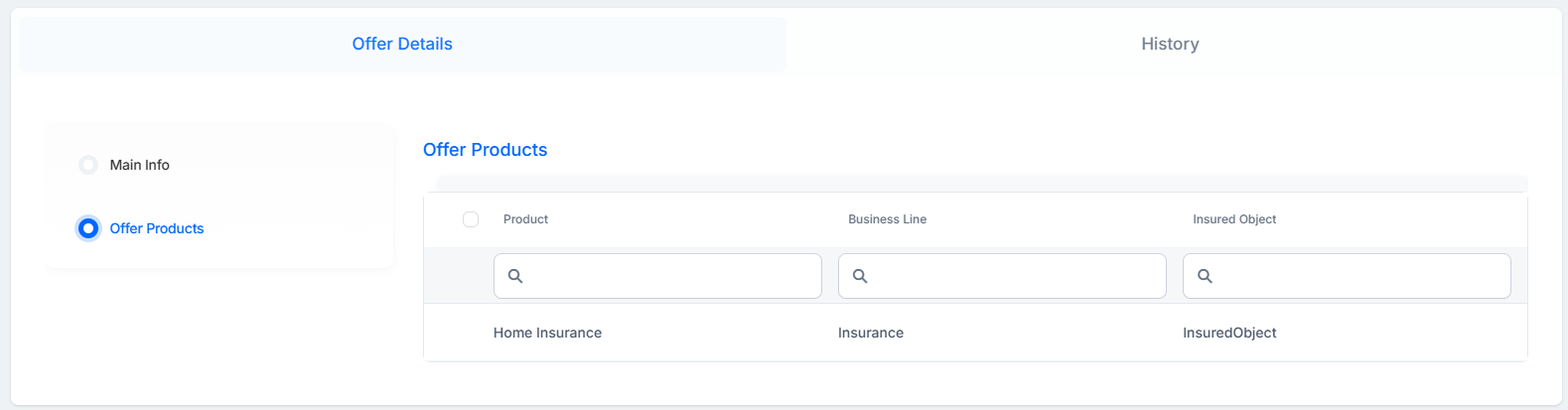
History
The History tab shows modifications to offers, together with the timestamp and the user name.
Payment Details
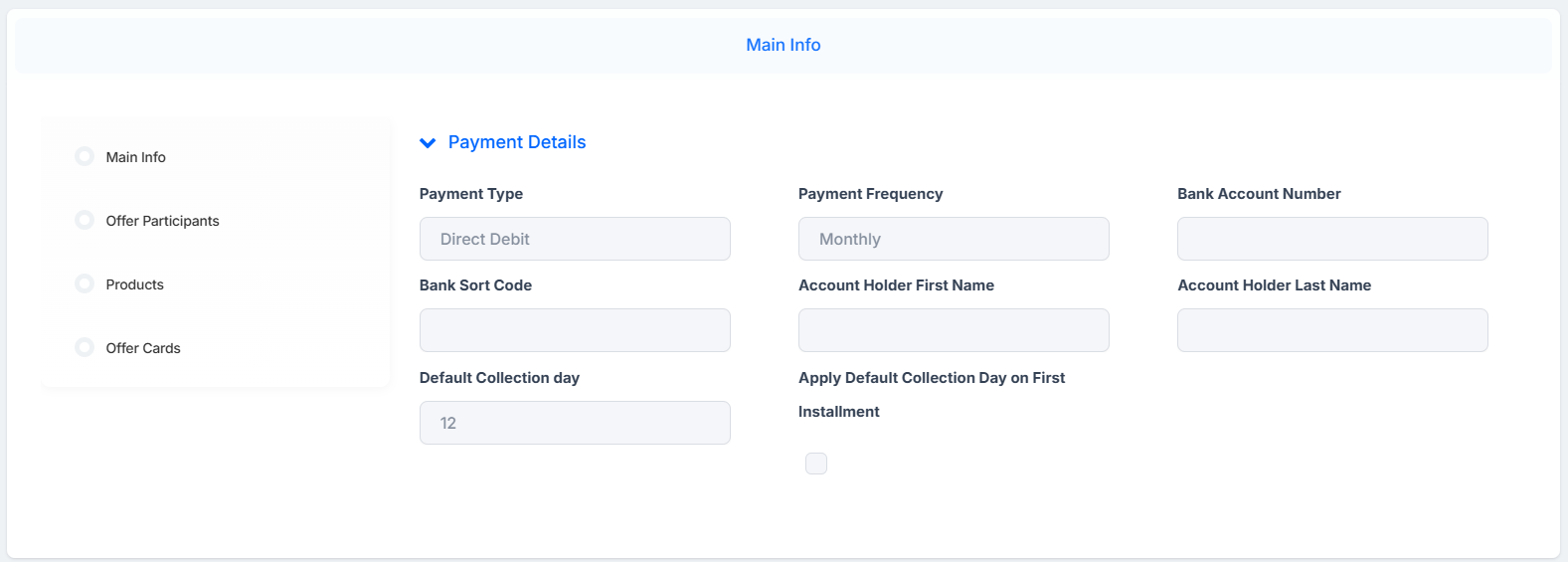
-
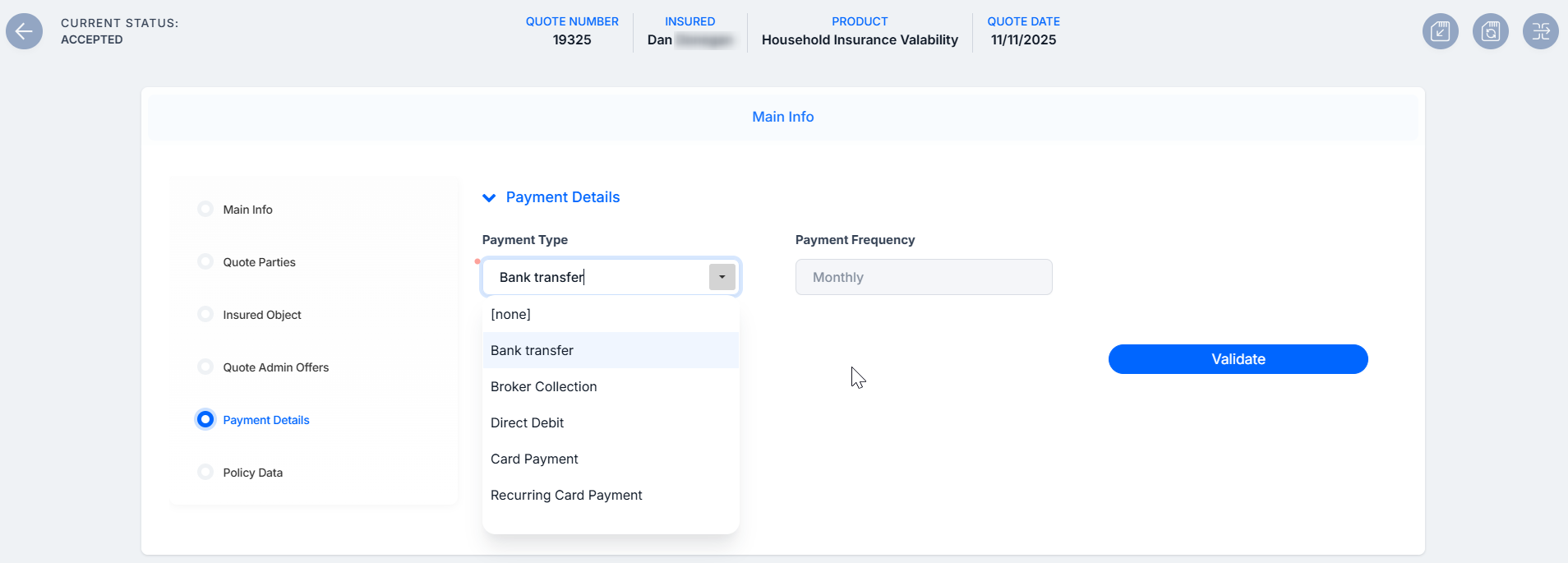
Payment Type: method chosen to pay the insurance premium, such as direct debit or credit card;
-
Payment Frequency: interval at which premium payments are made, like monthly, quarterly, or annually;
-
Bank Account Number: number identifying the applicant’s bank account for premium payments;
-
Bank Sort Code: code used to identify the applicant’s bank and branch for payment processing;
-
Account Holder First Name: first name of the person who owns the bank account used for payment;
-
Account Holder Last Name: last name of the person who owns the bank account used for payment.
-
If the payment frequency is weekly, the following fields are available:
-
Day Of Week: pick the day of the week for collection (defaults to today's day of the week)
-
Day Of Week First Installment: checkbox to apply the same day to the first installment (defaults to unchecked)
-
-
If frequency is not weekly (monthly, quarterly, etc.):
-
Default Collection Day: pick the day of the month for collection (defaults to today's date day, editable)
-
Apply Default Collection Day First Installment: checkbox to apply the same day to the first installment (defaults to unchecked)
-
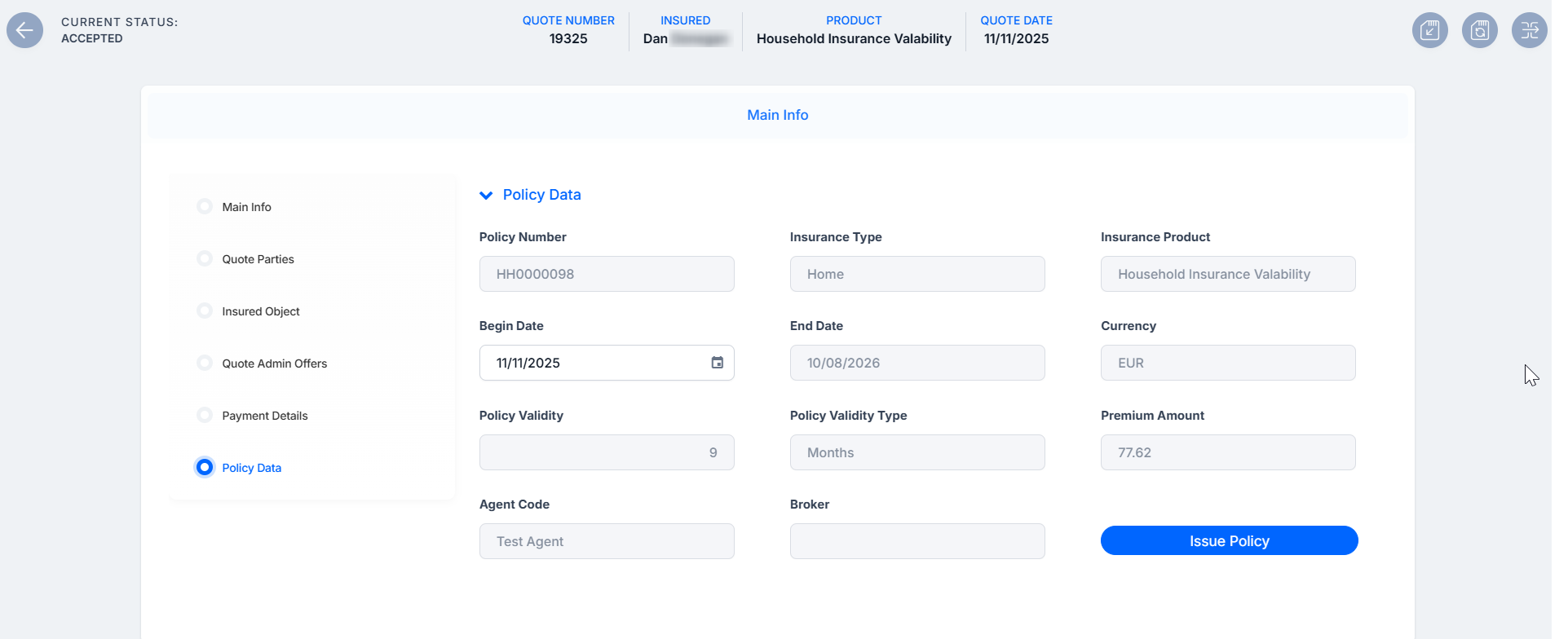
Policy Data
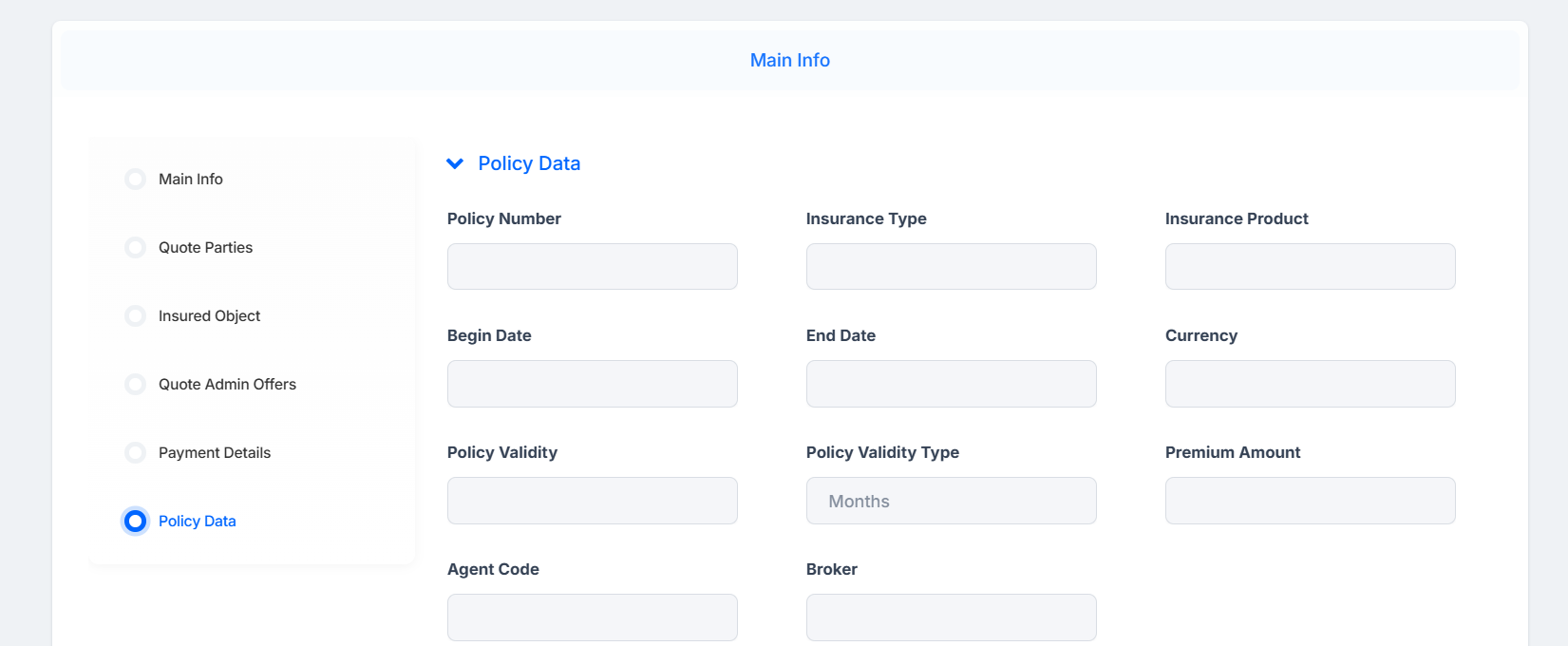
-
Policy Number: unique identifier assigned to the insurance policy;
-
Insurance Type: category of insurance coverage, such as health, home, or auto;
-
Insurance Product: specific insurance offering selected by the applicant;
-
Begin Date: date when the insurance coverage starts;
-
End Date: date when the insurance coverage ends;
-
Currency: monetary unit used for premium payments and policy values;
-
Policy Validity: status indicating whether the policy is currently active or expired;
-
Policy Validity Type: classification of the policy’s duration, such as fixed-term or ongoing;
-
Premium Amount: cost of the insurance coverage before any discounts;
-
Agent Code: identifier for the insurance agent managing the policy;
-
Broker: intermediary who facilitated the insurance agreement between applicant and insurer.
Accept a Quote Offer and Issue the Policy
-
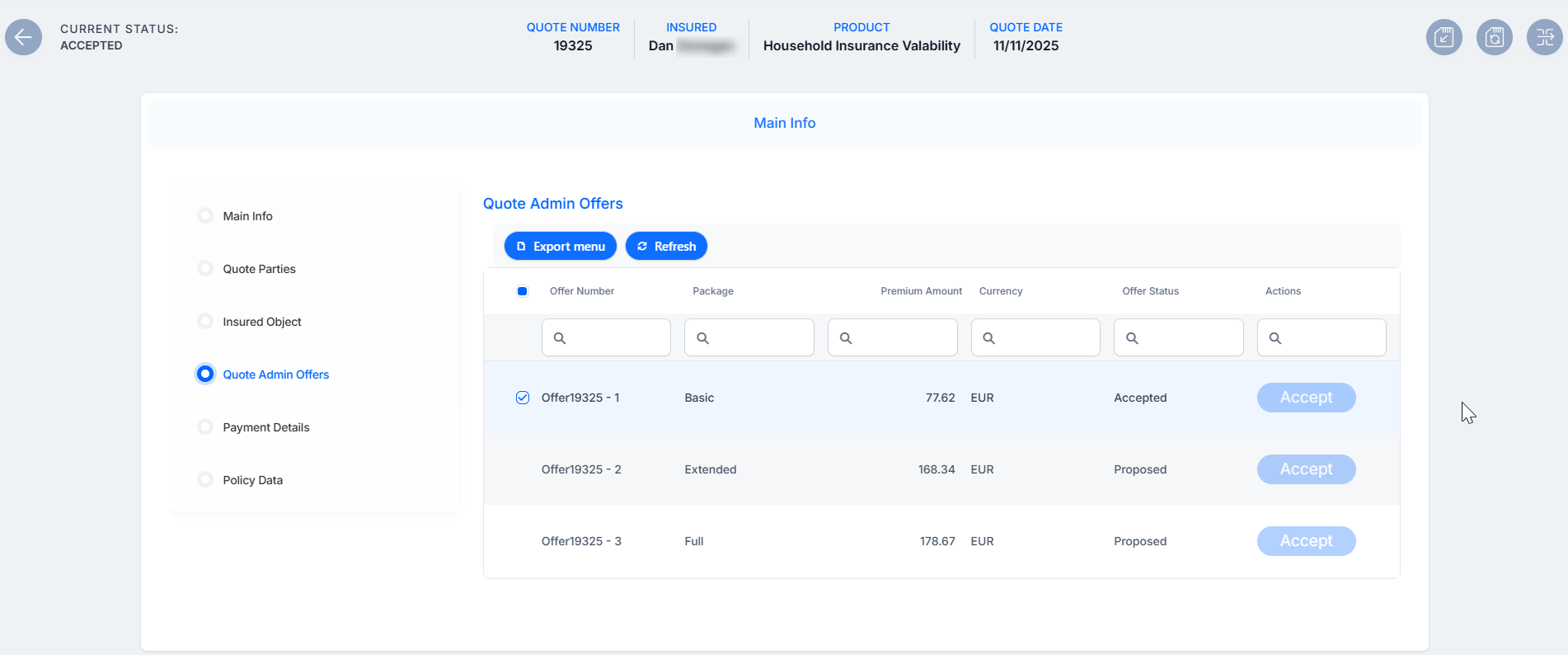
Go to the Quote Admin Offers tab of a quote in Offer Submitted status. You can open each individual offer to view. If the Accept button is greyed out, then the quote's decision type is automatic and generated with clientDecision API.
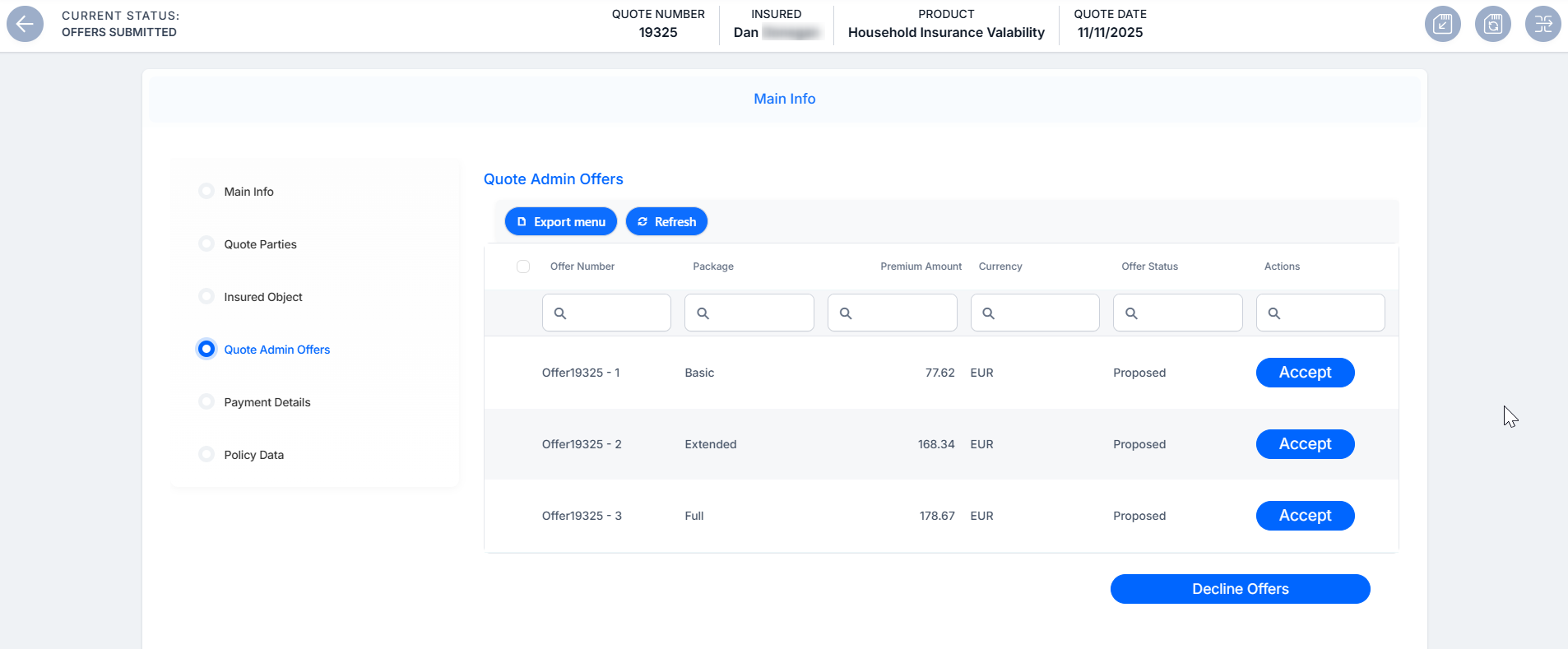
-
After clicking Accept on the quote offer button, the status of the quote transitions to Accepted.
-
Go to the Payment Details tab. Choose the Payment Type and enter the necessary details.
-
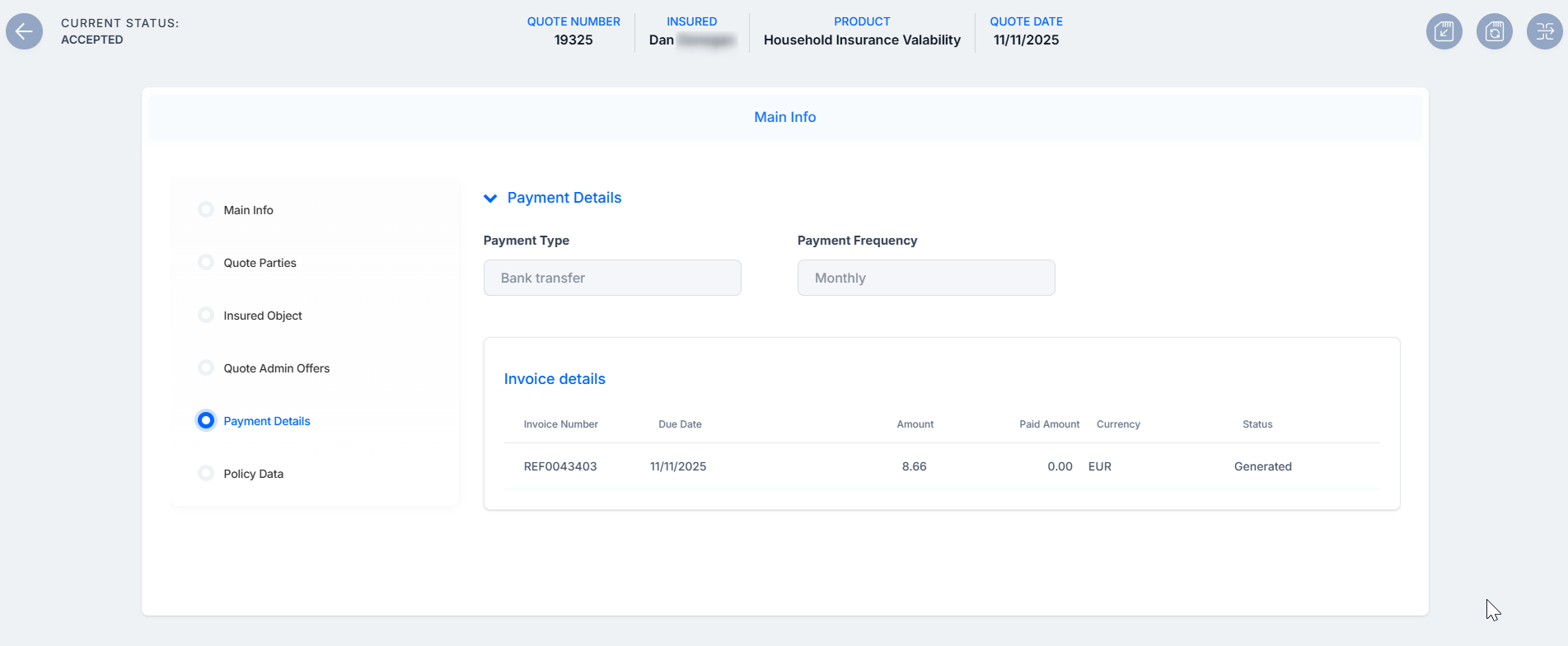
Click Validate. The invoice and the mandate details are generated, and displayed in the newly unfolded Invoice details section.
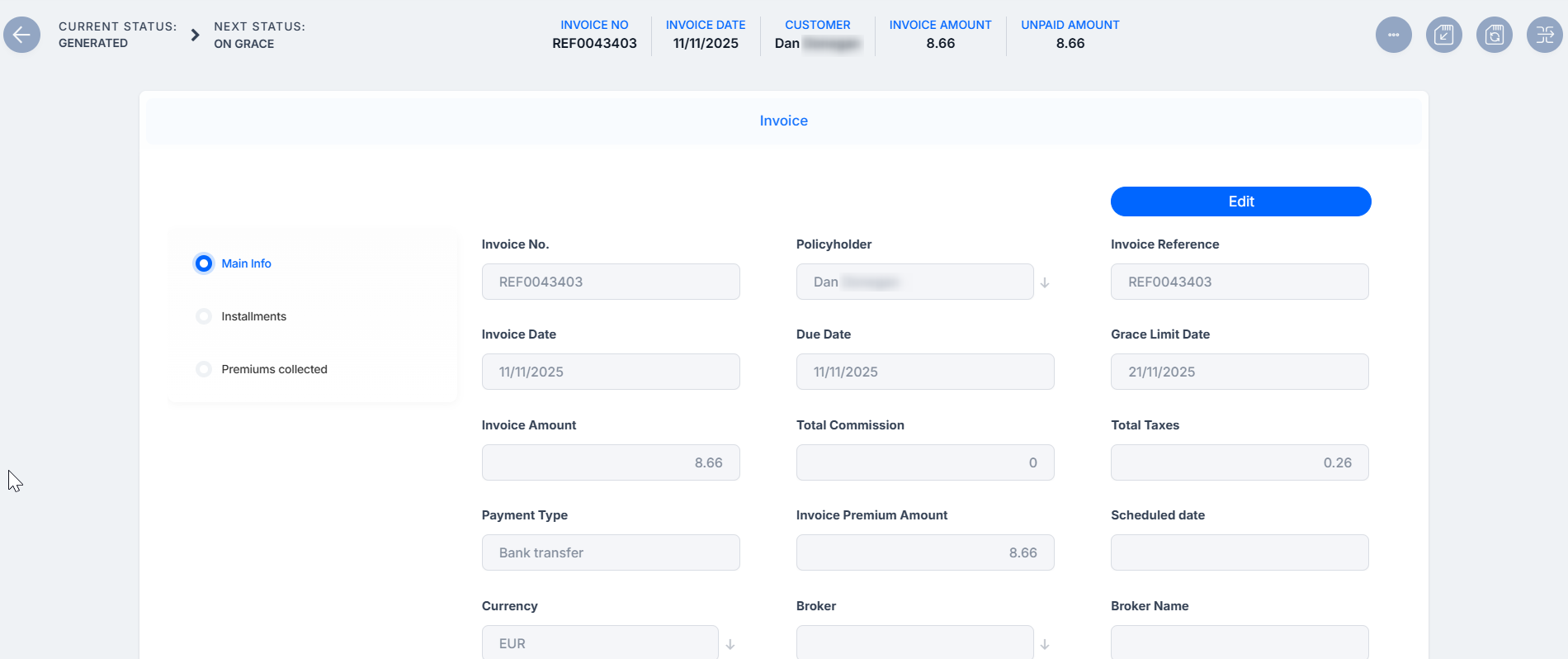
Double click the invoice to open details:
-
Go to the Policy Data tab, inspect the basic details of the policy to be generated, choose a Begin Date, and click Issue Policy. Now, the system updates the policy status from Proposed to Issued and triggers an alteration process that creates a new policy version with the revised start date, recalculated end date, and an updated payment schedule.
-
Click Save and close.
-
Go to Contract Management > Policies > Policies, and open the newly issued policy.