Exchange Rates and Types
Exchange rates represent the value between the currencies of two countries on a given date. These rates are free-floating or fixed. In most cases, exchange rates are free-floating and the value can rise or fall based on market supply and demand. Fixed exchange rates have more restrictions and their value is set by the government.
Although Service Insurance uses only the BNR (National Bank of Romania) rate when defining exchange rates, you can define exchange rate types if you need to differentiate rates by currency market or business area.
Create Exchange Rates
To manage exchange rates needed in financial operations, follow these steps:
-
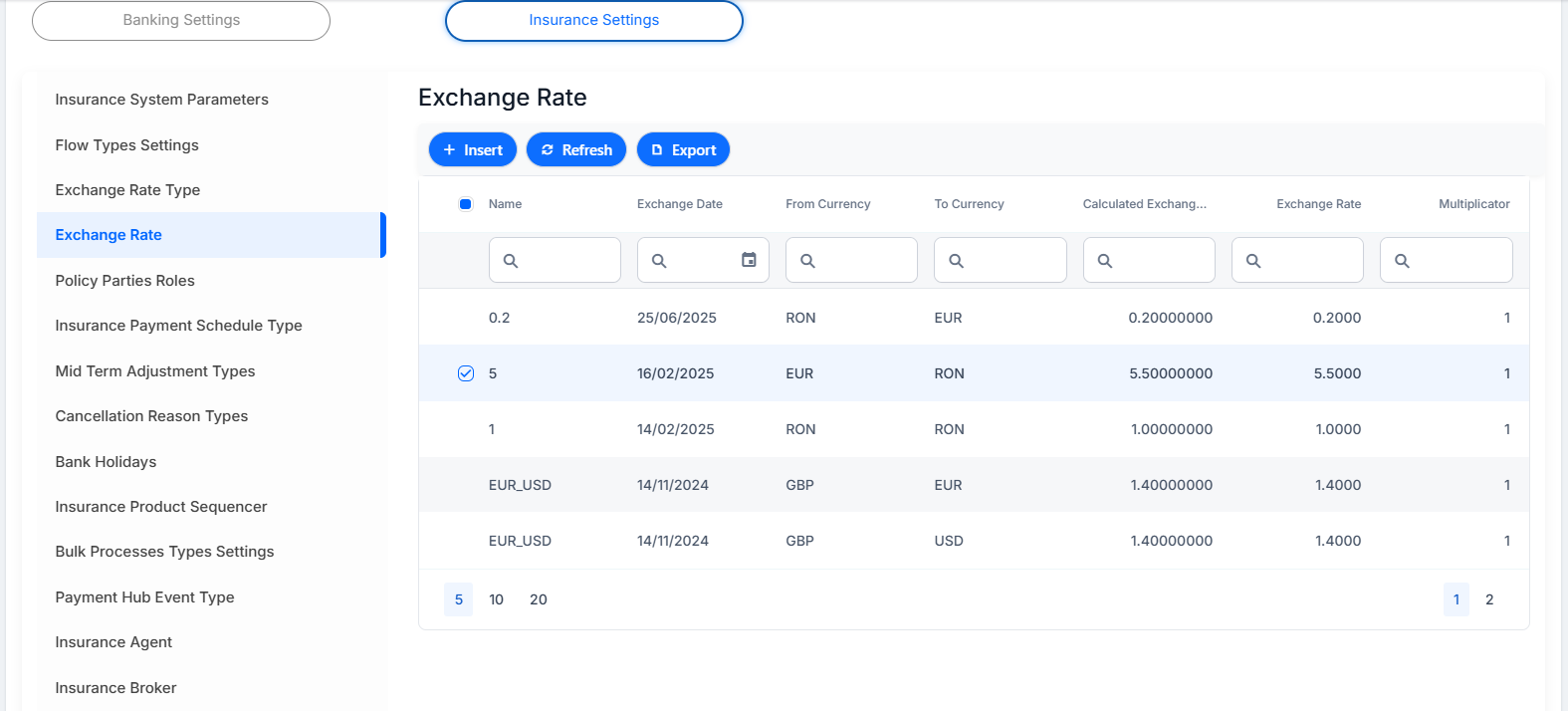
In FintechOS Portal, go to Main Menu > Contract Management > Contract Management Settings > Insurance Settings > Exchange Rate.
-
Click Insert to add an exchange rate.
-
Fill in the following fields:
-
Exchange Type: select the exchange type rate, if more than one was created in Service Insurance.
-
From Currency: select the currency from which the exchange rate is made.
-
To Currency: select the currency into which the exchange is performed.
-
Exchange Date: select the date of the exchange rate.
-
Exchange Rate: enter the exact rate for the exchange to be applied on the exchange date.
-
Multiplicator: you can multiply the exchange rate value with the whole number that you insert here. The default value is 1.
-
Calculated Exchange Rate: automatically completed with the exchange rate calculated based on the following formula: ExchangeRate * Multiplicator. You can edit the field.
-
-
Click Save and Close.
Create Exchange Rate Types
Follow these steps to create a new exchange rate:
-
In FintechOS Portal, go to Main Menu > Contract Management > Contract Management Settings > Insurance Settings > Exchange Rate Type.
-
Click Insert to add an exchange rate type.
-
Fill in the following fields:
-
Name: enter the name of the exchange rate type.
-
Code: enter the code of the exchange rate type.
-
-
Click Save and Close.
