Outgoing Payments
In order to manually deal with a payment in Unallocated or Partially Allocated business status, you must go to the Unallocated Payments List page and double-click the desired record to launch the allocation flow.
The details of an outgoing payment record are not editable. You can only (partially or entirely) allocate, deallocate or return the payment. When the payment is fully allocated, the record changes its business status to Closed. See more on the Unallocated Payments page.
Allocate an Outgoing Payment
Follow the steps below to allocate outgoing payments.
-
In FintechOS Portal, go to Main Menu > Contract Management > Billing and Collection > Unallocated Payments. The list of records of the unallocated payments is displayed.
-
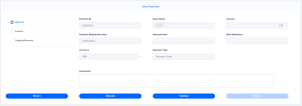
Double-click a record to launch the Client Payment form. The business status of the record can be either Unallocated or Partially Allocated.
-
Click Allocate, on the form. The Search Invoices and Installments grid is now displayed.
-
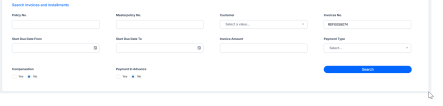
Find your invoice by using the search filters and then clicking Search:
-
Policy No. and/or Masterpolicy No.: the number of the policy or master policy;
-
Customer: opens a drop-down so you can input the customer name;
-
Invoices No.: the invoice number;
-
Start Due Date From or Start Due Date To: filter the dates around the invoice due date;
-
Invoice Amount: the amount to be paid;
-
Payment Type: pick from Bank transfer, Direct Debit, Card Payment, Recurring Card Payment;
-
Compensation: when No is checked, it finds invoices with negative amounts, and when Yes is checked, it returns invoices with amount higher than 0;
-
Payment In Advance: controls whether you search invoices or installments. When No is checked, it searches for invoices, When Yes is checked, it searches for installments (used for payments in advance, not linked to existing statements).
-
-
Click Add on the invoice record. The Allocated Invoices grid is displayed with the number of the invoice, the invoice amount, and the detailed paid amount.
-
Click Validate. The payment is now allocated.

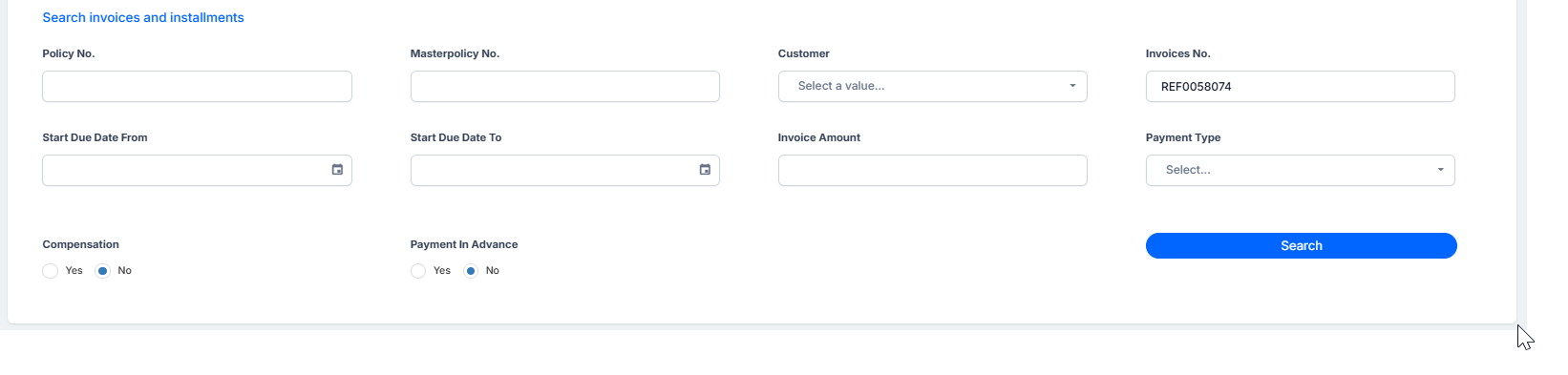
Before validation, the form allows you to allocate and remove allocations easily. For fully allocated amounts, the Return button is still available after validation.
Deallocate an Outgoing Payment
There are cases when you need to deallocate the amounts previously added to outgoing payments. For example, when an allocation error happens or a customer asks for a correction on a payment made for a future installment, and so on.
By using the Remove button, you can easily deallocate any amount when necessary. For doing so, follow the steps below:
- In FintechOS Portal, go to to Main Menu > Contract Management > Billing and Collection > Unallocated Payments. Open a payment in Partially Allocated status.
-
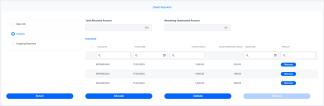
Go to the Invoices section, and click Remove, on the invoice record in the Allocated Invoices grid. The record is now removed from the grid. In case there are multiple invoice records, you can choose to remove one or more records.
-
Click Validate to save your updates on the current payment record. In this case, the status of the payment is now Unallocated. In case you have removed one record out of many, the status of the payment becomes Partially Allocated.

After removing the paid amount, you can find the payment record in the Unallocated Payments section.