Reinstate a Master Policy
The Masterpolicy reinstatement is the process of restoring an insurance Masterpolicy back in effect after it has been previously terminated due to various reasons, most often scenario being that the insured has missed the premium payments. The reinstatement is usually done at the request of the Insured and can be accepted in most cases conditionally by the Insurer.
When a Masterpolicy has at least one policy with unpaid installments and its grace period expired, the Masterpolicy transitions either to the Suspended or to the Lapsed status, according to the configuration at product level. Its linked policies inherit the Grace Period and Suspension Duration set at Masterpolicy level.
When a master policy becomes Suspended, any MTAs that are in Draft or Registered status are automatically closed, and become Cancelled.
If a reinstatement process is initiated, the masterpolicy transitions from the Suspended status to In Force. The most common scenario is due payments are paid. However, they can also be waived or deferred. Find below the supported scenarios:
-
due premiums are paid and allocated on the policy, the payment schedule is updated with the subsequent status (e.g. Paid) for the installment;
-
due premiums are waived entirely;
-
due premiums are deferred to a later date.
Only users with a certain security role can waiver or defer due premiums. Configure them, and set an additional approval step, in the Product Admin Configuration form.
Manually Reinstate a Master Policy
There are two ways to start the master policy reinstatement process. The first one is to go to the suspended policy, and click Reinstate.
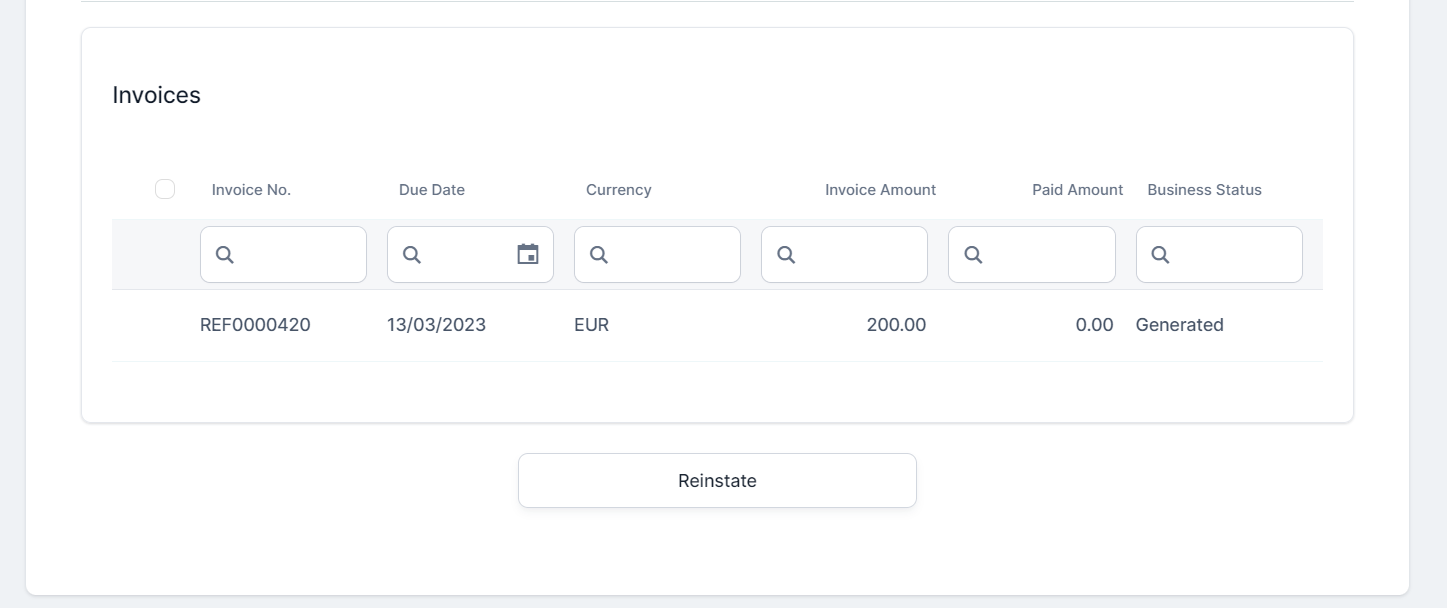
The second way is to go to the policy and master policy search page of the Reinstatement requests grid. Follow the steps below to reinstate a suspended master policy:
-
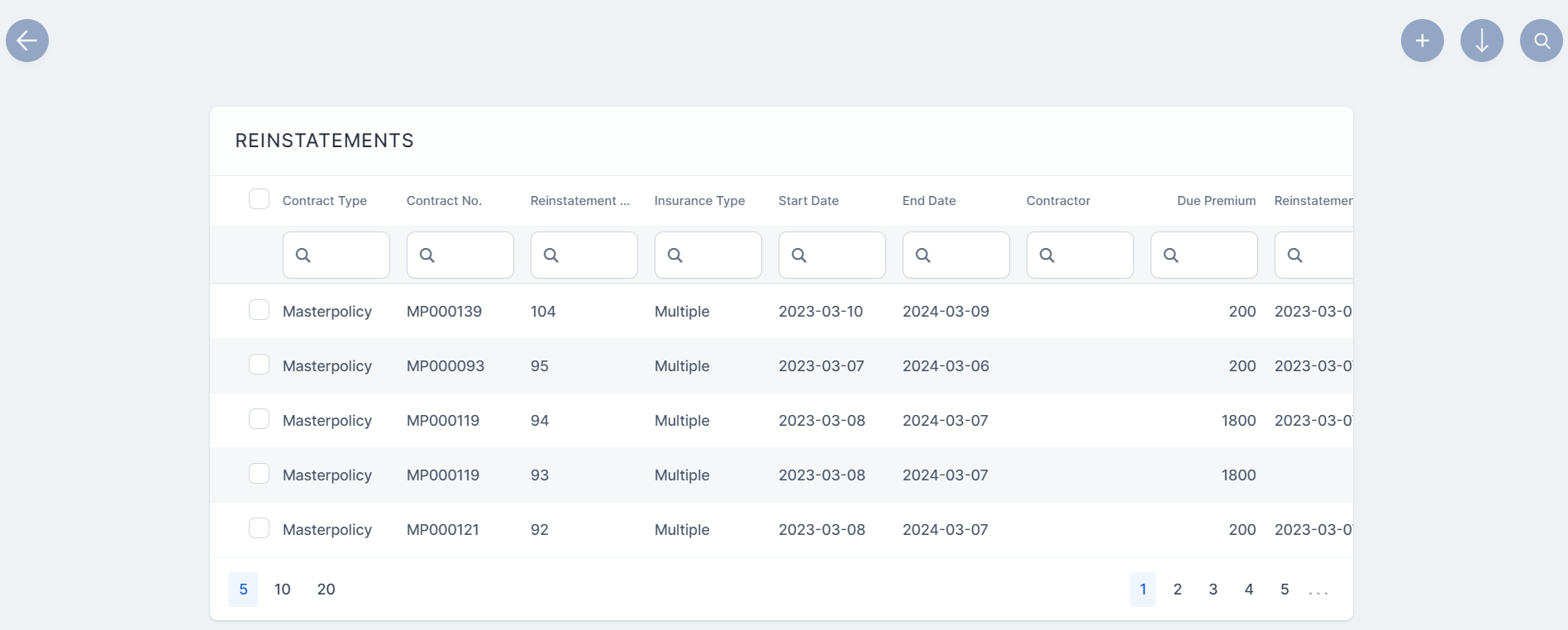
In the main menu, go to Policy Admin > Masterpolicies. A grid is displayed, listing the reinstatement request issued within the system, with their statuses.
-
Search for the masterpolicy you want to reinstate. Make sure it is in the Suspended status.
-
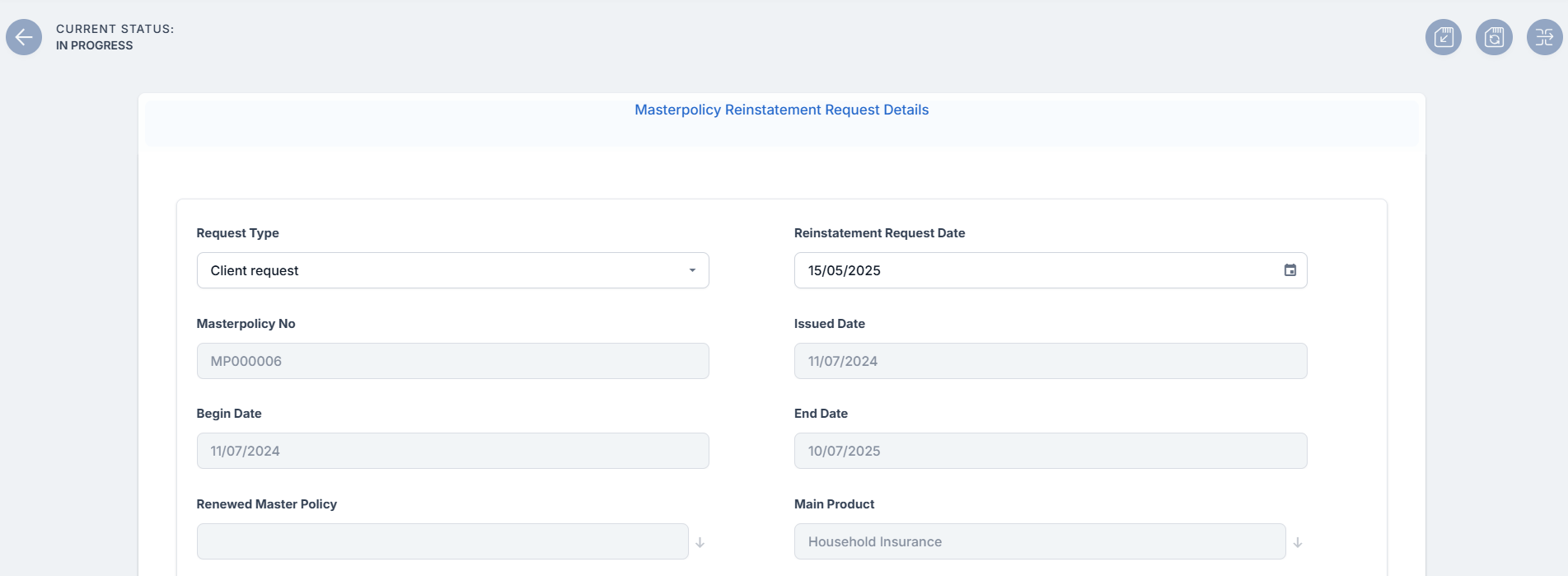
Open the masterpolicy and click the Reinstate button at the bottom of the screen. The Masterpolicy Reinstatement Request Details form opens.
-
From the Request Type drop-down, pick one of the available reasons for reinstatement: Client request or Paid on time but unallocated.
Depending on the scenario, the process can continue in the following ways:
 Pay Due Premiums
You can move forward and propose the reinstatement request after you have paid the unpaid installment:
-
Import the bank statement received after the payment was made. Follow the instructions in the Import Bank Statements page;
-
Allocate the payment to the masterpolicy. Follow the instructions in the Manage Incoming Payments page.
-
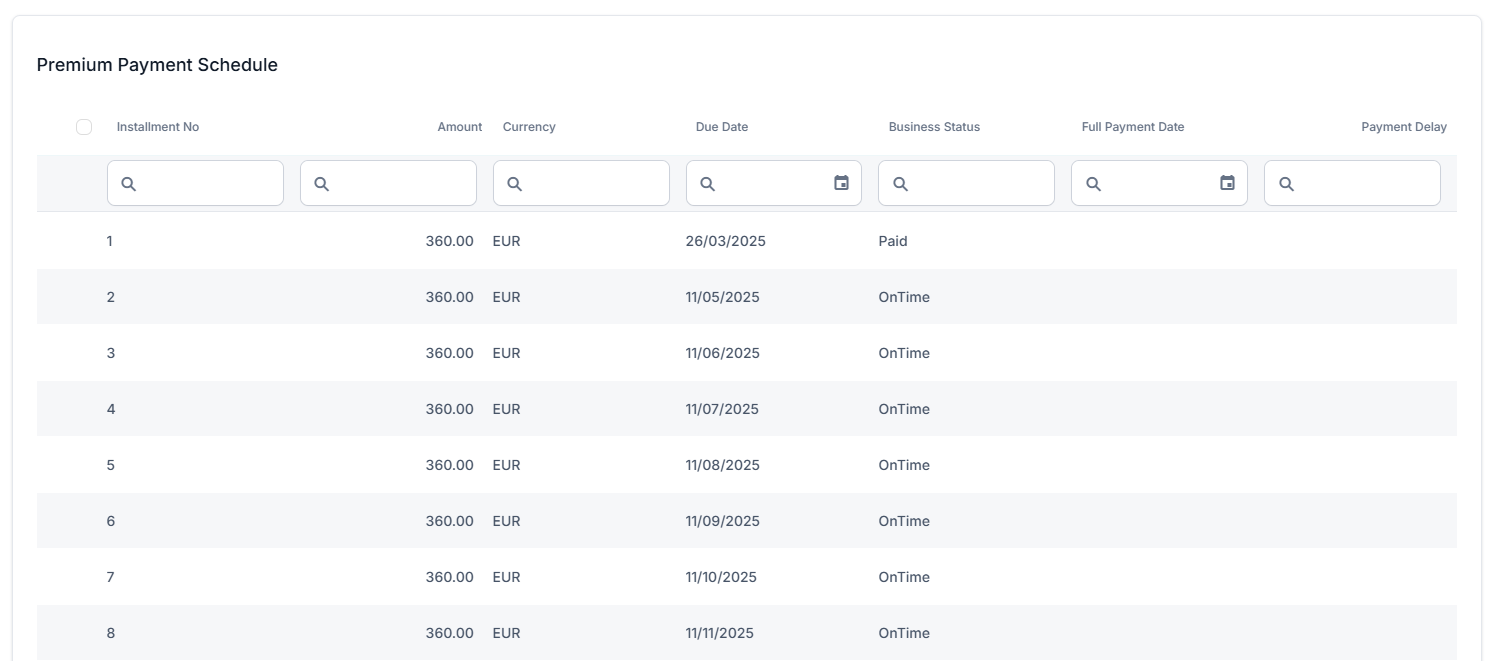
Go back to the reinstatement request record, and refresh the page. The installment is now in Paid status.
-
The Request Type and the Reinstatement Request Date fields are automatically filled.
Waive Due Premiums
A waiver is when the insurer voluntarily gives up a requirement, in this case payment, to allow the policy to be reinstated more easily, and move to the InForce status.
-
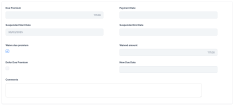
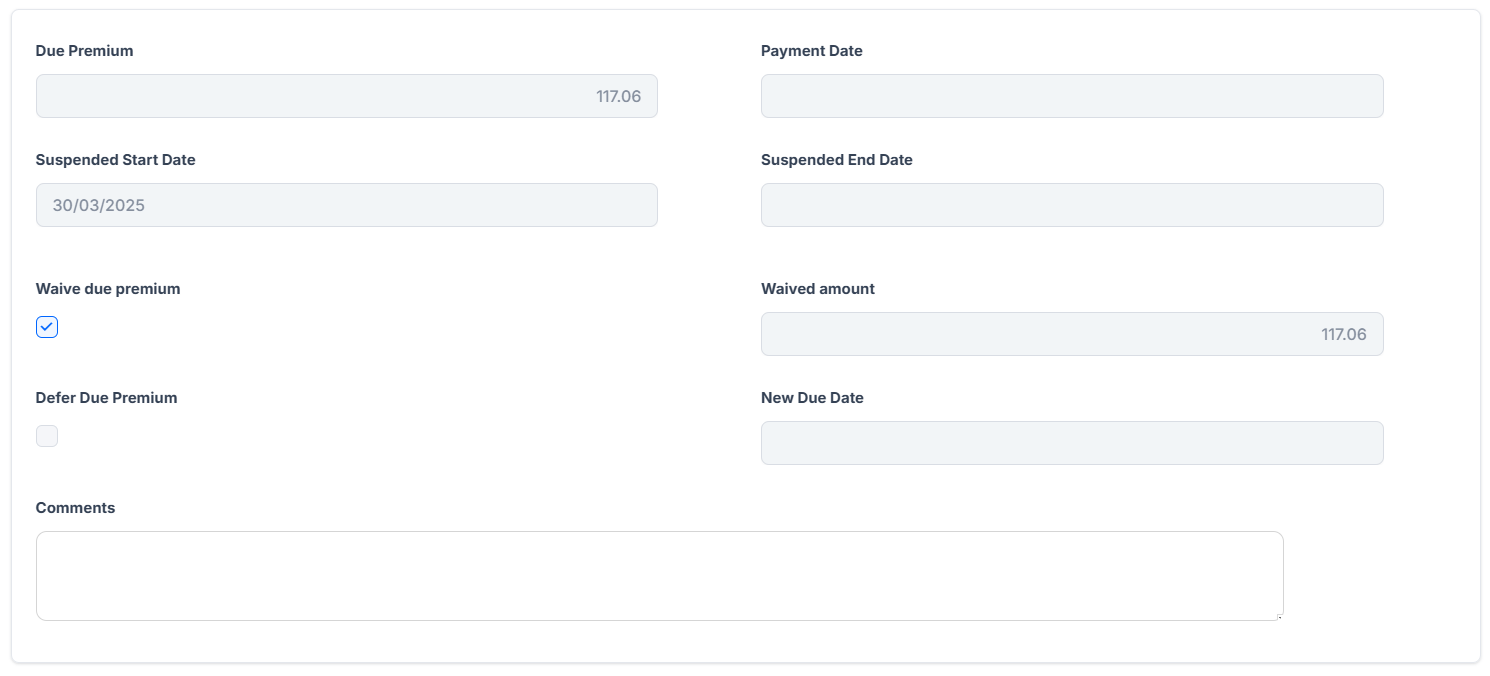
Scroll down to the Due Premium section and tick the box next to Waive due premium . The unpaid sum is automatically displayed in the Waived amount field, which is not editable. The Propose Request button becomes active.
-
Add a comment in the Comments section.
-
Continue with the steps illustrated below.
Defer Due Premiums
In the context of reinstating an insurance policy, defer means to postpone or delay certain actions. In this case, you are deferring a premium payment to a later date.
-
Scroll down to the Due Premium section and tick the box next to Defer due premium. The Propose Request button becomes active.
-
In the New Due Date field, pick the date when the payment will be due.
-
Add a comment in the Comments section.
-
Continue with the steps illustrated below.
-
-
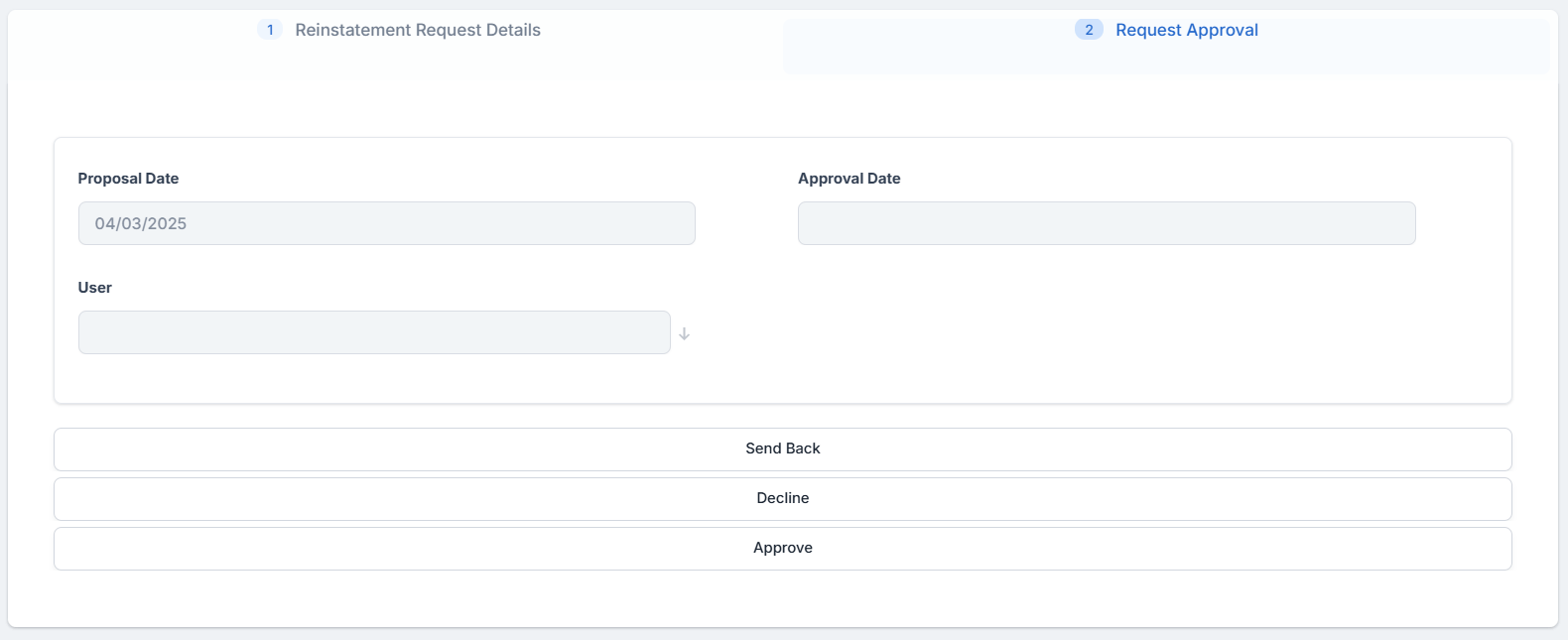
Click Propose Request. The Request Approval tab is now available. In order to move forward, you need to approve the reinstatement request.
IMPORTANT!
The Propose Request button is replaced by the Approve one if the Has Approval Step option is ticked in the Product Admin Configuration form.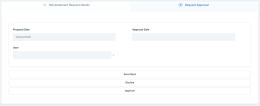
-
In the Request Approval tab, you have the following options:
-
Click Approve, and the current status of the reinstatement request is changed to Approved. The policy is reinstated to the In Force status. In the Cover Suspension section of the policy, you can view the time in which it was suspended.
The Suspension End Date, in this case, is the date when the Reinstatement is approved. The Duration is measured in days.
-
Click Decline, and the current status of the reinstatement request is changed to Declined. The policy remains in the Suspended status.
-
Click Send Back, and you will be redirected to the Request Details page, where you can edit any mistakes you might have in the reinstatement request, and send it back to approval.
-
Deallocate a Reinstatement Payment
If you have wrongly allocated a payment to a master policy for reinstatement, you can deallocate the premium, and assign it to another contract. When you deallocate the payment, the installment's Paid status is changed, and the reinstatement for the master policy and its linked policies are invalidated. Full Payment Dates for the installment details become null and Payment Delays are updated to reflect the Due Date of the installment.
If the payment is deallocated from a previous Paid installment related to an reinstatment that is in Draft or InProgress status, the payment date, payment delays and suspension period details are reset from the Reinstatement. The Reinstatement remains in the Draft or InProgress status, without being invalidated.
If you deallocate a payment when the reinstatement is in Paid in Grace Period, Pending Approval, or Approved status, after the deallocation, the trinstatement status becomes Invalid.
Learn how to deallocate a payment by accessing the Manage Incoming Payments page.
Automatic Reinstatement
If a payment is allocated on an installment that is due, where the Payment Date is less than the Due Date of the previously unpaid installment, then the master policy is transitioned back into InForce without the need of a manual reinstatement.
If more than one installment are due during the Suspended period, the automatic transition into Inforce is made if only the Payment Dates are less than the unpaid installments Due Dates. The Effective Date of this automatic transition is equal to the Payment Date. In the case where more payments are allocated, the Effective Date is equal to the most recent Payment Date. In the case of an automatic reinstatement, this is automatically Approved. In the case there is a reinstatement inserted that is not approved as a consequence of this flow, said reinstatement is also automatically Approved.
For this case, Paid on time but unallocated is the default request type, the installment status is Paid and the reinstatement is in PaidInGracePeriod status.