Create a Payment Proposal
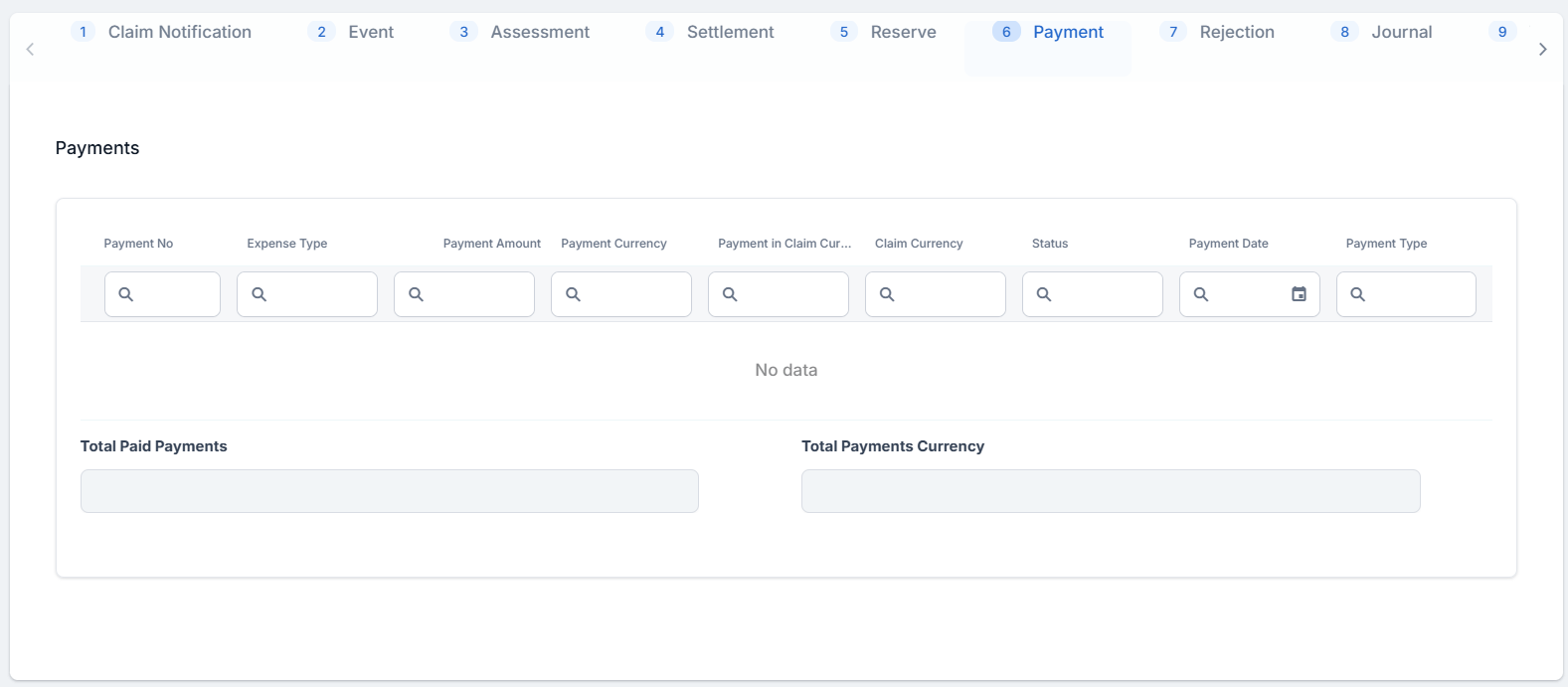
Payment proposals can be made anytime after the FNOL is initiated. The Payment window is displayed. You notice that some fields are already populated with data extracted from the policy.
Follow the steps below to create a payment proposal:
-
Go to the Payment tab.
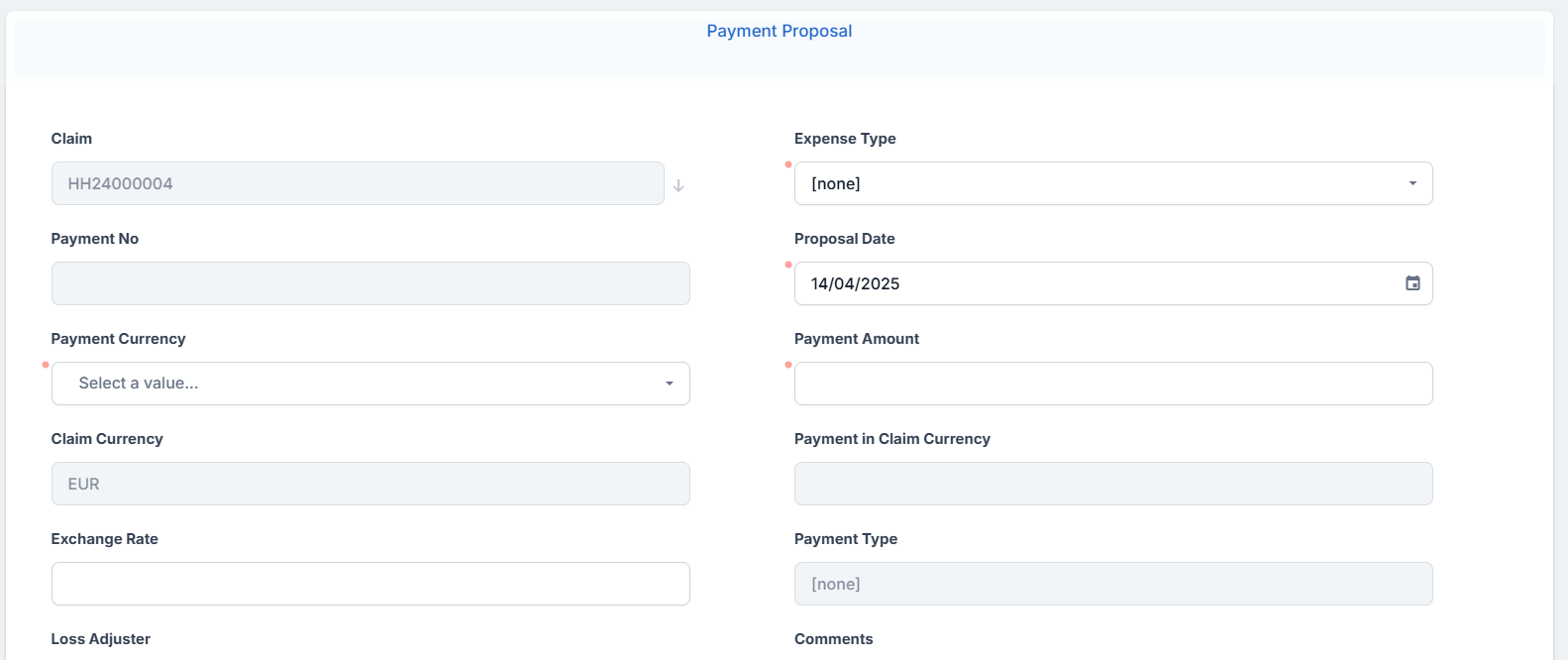
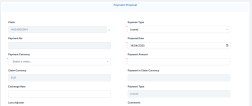
- Click Insert, and the Payment Proposal form is displayed.
- Choose the Expense Type from the drop-down, choose the Payment Currency and input the Payment Amount. If you input a value less than the loss value, then the Payment Type is Partial. If you input the whole loss value amount, then the Payment Type is full.
-
Click Save Payment. The payment is now in Proposed status, and the Approve Payment tab becomes available.
-
Go to the Approve Payment tab and choose to Approve or Unapprove the payment. If you click Unapprove, the payment status changes to Unapproved, and the flow stops. If you click Approve, the payment status changes to Approved, and the Accept Payment tab becomes available.
-
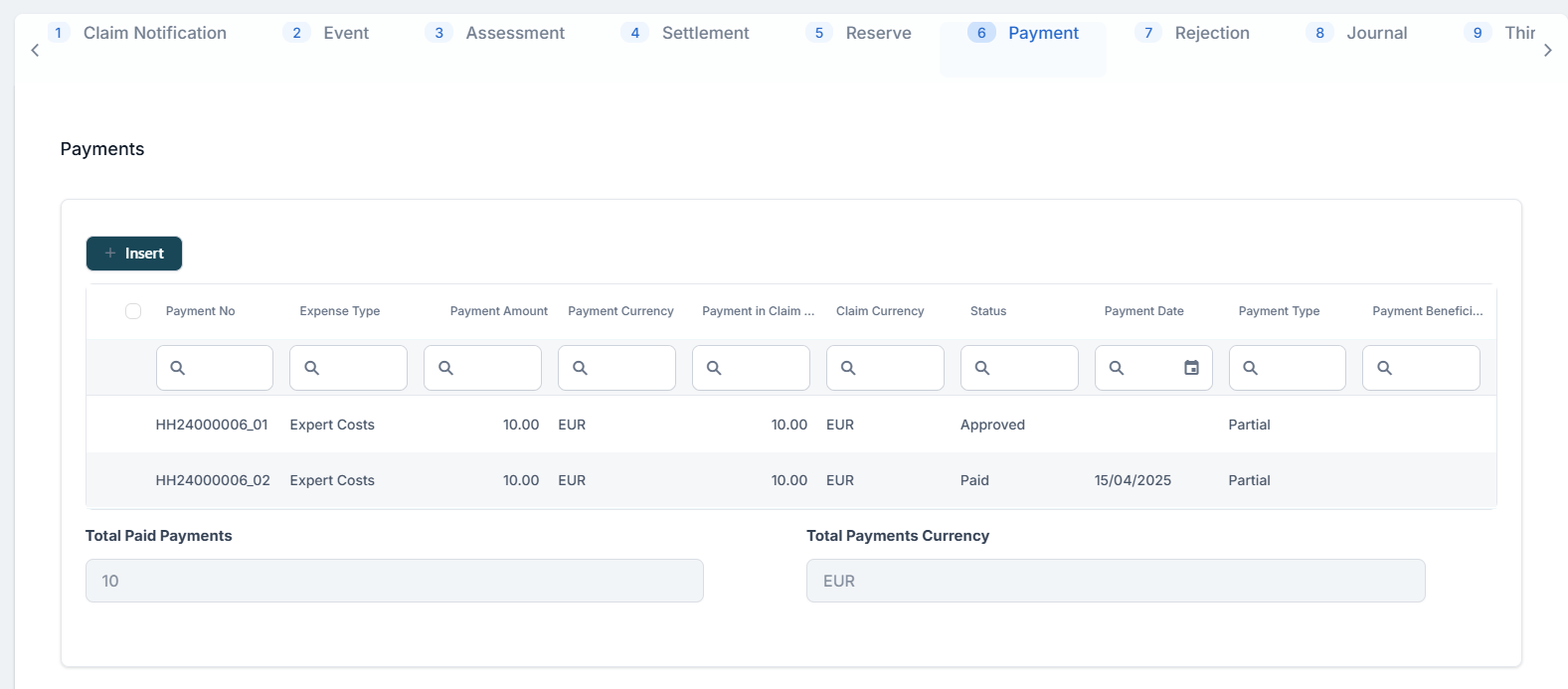
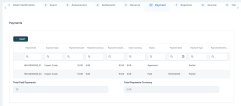
In the Payment tab, input the Payment Beneficiary from the drop-down (all the payment beneficiary data is automatically taken from the policy), the IBAN Account, Bankand Payment Date. Click Paid.
-
The next step of the Claims Management customer journey is to manage any claim related information. Go to the Rejection, Journal & Third Party Details for more information about these journey steps.