Bulk Process
A bulk process in insurance refers to performing operations on multiple policies at once, rather than handling each policy individually. This is used to streamline and automate high-volume tasks such as policy issuance, renewals, cancellations, or premium recalculations.
FintechOS comes with predefined process types for common bulk processes:
-
Change Policy Start Date: bulk change the start date of policies in Proposal and Issued statuses, but not InForce. The new start date must be greater or equal to the system date.
-
Change Card: sets a new card for the policy coverages. This is a value from Product Factory, configured on Offers.
-
Cancel Policy: bulk cancel several policies.
These can be inactivated and new bulk processes can be added by creating a new Bulk Workflow Type with the corresponding business service component with routes and async endpoints to cover the specific use case.
Business Workflow
A bulk process request transitions through a number of states until completed:
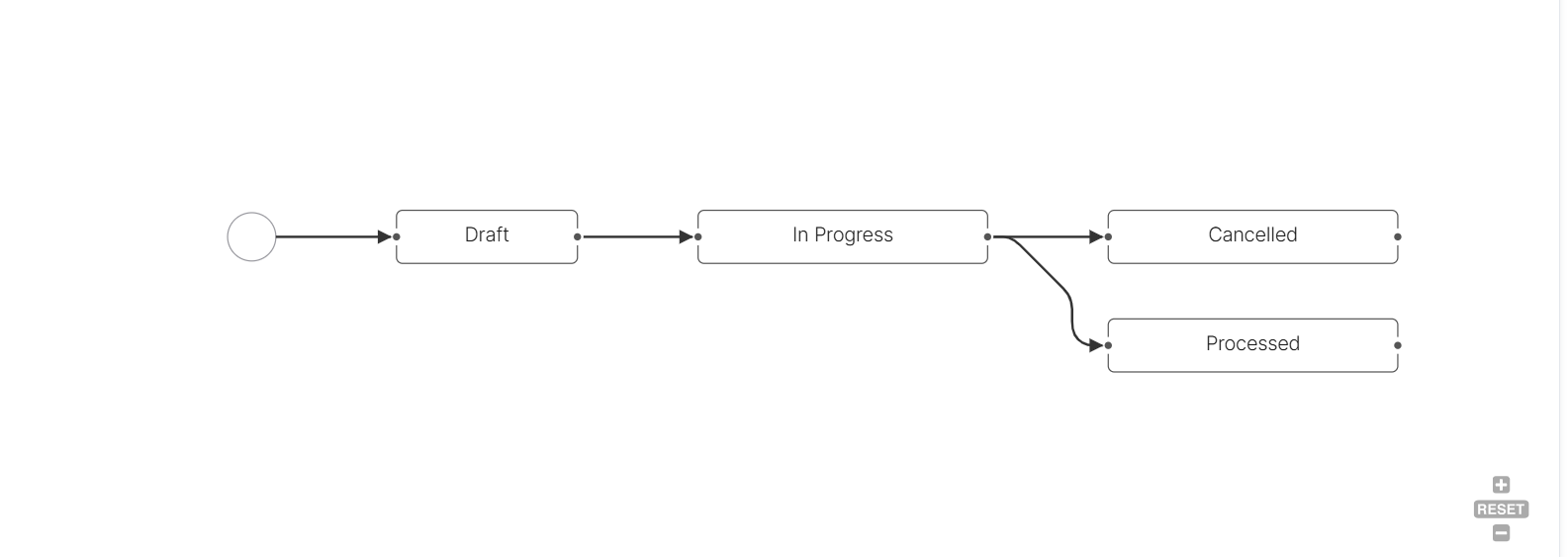
Process Multiple Policies
Follow the steps below to perform a bulk process:
-
In FintechOS Portal, navigate to the main menu > Bulk Process > Bulk Workflow.
-
Click Insert, the Import form opens.
-
From the Bulk Workflow Type drop down, pick a default type or custom one, as detailed in the Configure Bulk Workflow Types page.
-
Click the template to download the .xlsx file. Fill in the fields, depending on the workflow type you selected.
-
Import the file by clicking Add file or using drag and drop.
-
Tick the Partial Import Allowed option to allow for the process to complete even if not all rows in the template file have been processed, for example if a policy was not found.
-
Tick the Import option
-
Click Import Data to begin processing the file. This step includes validating the data, performing checks, and identifying dictionary elements.
-
Click Process Data to start processing the data in the file and making the alterations to the policies recorded in the system.
-
When completed, the form reloads and displays the policies and changes in a table.