Manage Policy Versioning
There are cases, like policy renewal when you need to create a new version of a specific policy. To accommodate the versioning functionality, from an insurance business perspective, the Policy Administration solution uses a combination of the FintechOS standard versioning process mechanism and custom development. Consequently, you use the FTOS_VersioningHelper client side library and follow the standard procedure when configuring version settings, version settings items and entity settings. However, for policy versioning, you use the FTOS_VersioningHelper_Edit client side library in order to keep some attributes Read Only, even when the policy is in Version Draft business status, with isEditable option enabled.
 Policy Versioning Process Description
The versioning functionality is available only for Issued, In Force or Approved policies.
-
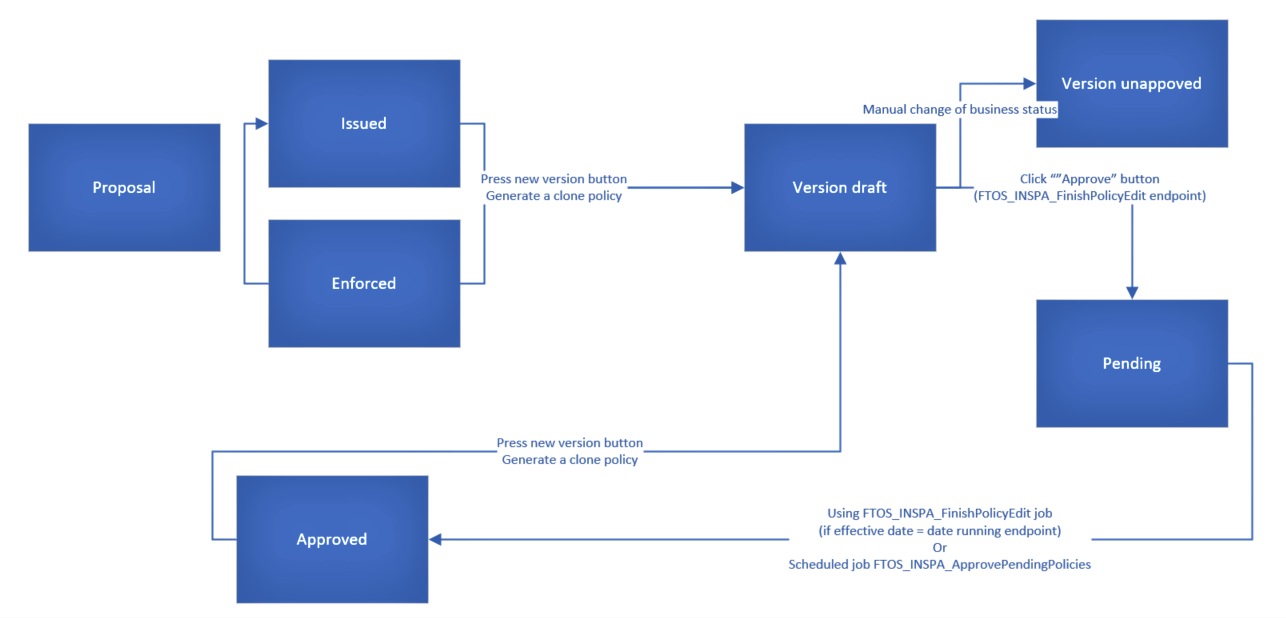
Click New Version on the initial policy, and a policy clone is registered, in Version Draft status.
-
You can change the status of the new policy to Version Unapproved by following the standard process (manually change the status of the record).

The standard approval process (changing the status from Version Draft to Approved) is an automated process, especially implemented for the policy.
-
Fill in the effective date for the change and click Approve. The version remains in Version Draft status until the effective date is reached and it isautomatically transitioned to Approved status, on that day.

If the effective date is also the date when you validate the changes by pressing Approve, then the request automatically transitions from Version Draft to Pending and also from Pending to Approved.
If the Policy Begin Date is greater than the current date, then the policy status is transitioned to the Issued status.
If the Policy End Date is lesser than the current date, then the policy status is transitioned to the Maturity status.
If the conditions above are not respected, then the policy is transitioned to the previous status of the policy.
The following processes automatically generate newly approved versions of the policies:
-
Cancellation (Ex-Surrender) - for the updates of end date and premium;
-
Lapsing - or the updates of end date and premium.
-
Cancellation without an update of the premium (eg. Cancellation with Claims), the schedule has to be updated with a schedule including just the paid installments in the paid status and the future unpaid installments in Canceled status (new status for PaymentScheduleDetail);
-
Lapsing - same as above;
-
Cancellation with premium returned the schedule has to be updated with a schedule including the paid installments, the future unpaid installments in Canceled status plus an additional installment which is equal with :minus: the value of the returned amount. The due date is equal to the approval date of the cancellation and the status of this payment schedule detail is On Time (TBD).
After the automatic version approval process, the status for policy must be changed according to the process which triggered the versionning:
-
If the version approval has been made after the Lapsing process - the policy status is transitioned from Approved to Lapsed.
-
If the version approval has been made after the Cancellation process - the policy status is transitioned from Approved to the specific status for Cancellation: Closed by claim, Decline by screening etc.
Business Workflow Configuration Actions
Pending - Approved - When you click Approve, the script checks the effective approval date. If it is less than or equal to the current date, it moves the policy version record into the Approved status. If not, the record remains in Pending status until the FTOS_INSPA_ApprovePendingPolicies job moves it to Approved, according to the effective chosen date.
Version Draft - Pending - If the necessary validations are met, clicking Approve changes the status of the cloned policy from Version Draft to Pending.
A new version of the policy can be made from the Issued and InForce statuses.
The Approved status is not visible in the interface, and the transition is automatically made to the business status of the policy.