Configure the Storage for Custom Files Folders
Custom files are used to customize portal profiles, allowing you to change the appearance of the FintechOS Portal instances. They contain resources such as stylesheets, JavaScript files, or images that determine the look-and-feel of the FintechOS Portal.
These resources are grouped into two main folders: custom and custom-on-demand (which is used mainly for the liveness component resources). They are hosted using Azure Blob storage containers. The name of these folders is comprised of custom- the-type-of-portal. There is a custom and custom-on-demand folder for each portal on your environment. The default is custom-portal, custom-studio, custom-b2cportal, and the equivalent for custom-on-demand folders. Here, you can have your own custom folders for your own custom portals.
These custom folders mainly contain files for customizing your portal, they could be images, .xml, .json, and other types of files. The folder structure is explained on the Digital Assets page.
A handy trick for troubleshooting allows you to open the files directly in your browser by navigating to a URL like this: https://[your-environment]/portal/platform/custom/your_file. Keep in mind, the exact URL may vary depending on how your custom folders are named:
-
https://[your-environment]/portal/platform/custom/img.jpg -
https://[your-environment]/portal/platform/custom-on-demand/abs.css
In the above examples, both img.jpg and abs.css are the names of custom files uploaded in Azure for that instance of Studio.
The following instructions describe how to configure Azure storage for custom and custom on‑demand files, as well as for the personal sandbox environment; note that access to Azure Blob Storage and connection strings requires appropriate RBAC roles and permissions, and if you do not have the necessary privileges you must contact your support team to request them.
Configure Storage in Azure
-
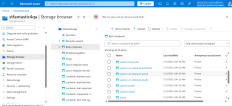
When the platform is deployed, the custom and custom-on-demand folders are created automatically in Azure. To access them, navigate to your storage account and then click Storage Browser in the left-side menu > Blob containers, and you'll find custom and custom-on-demand folders in a list.
-
There is a custom and custom-on-demand folder for each portal on your environment.
- In the Configuration Manager, you need to add the connection string which tells FintechOS which Azure Blob Storage account and container to use for custom files (custom and custom-on-demand folders). It contains the account name and key, which are necessary for the platform to securely authenticate and connect to Azure Blob Storage.
Key Path Key Name Key Value kv/<environment>/<application>/app-settings CustomFilesStorageSettings Copy{
"ConnectionString": "DefaultEndpointsProtocol=https;AccountName=myAccountName;AccountKey=myAccountKey==;EndpointSuffix=core.windows.net",
"RootContainerName": "custom"
}CustomOnDemandFilesStorageSettings Copy{
"ConnectionString": "DefaultEndpointsProtocol=https;AccountName=myAccountName;AccountKey=myAccountKey==;EndpointSuffix=core.windows.net",
"RootContainerName": "custom-on-demand"
}where:
- kv/<environment>/<application>/app-settings can be, for example: kv/qa/portal/app-settings;
- rootContainer is the root container name where the custom files will be stored (by default custom).
- connectionString is the connection string the platform is using to connect to an Azure Blob container. To find the connection string in Azure, navigate to your storage account > Access keys.
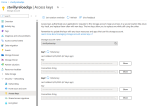
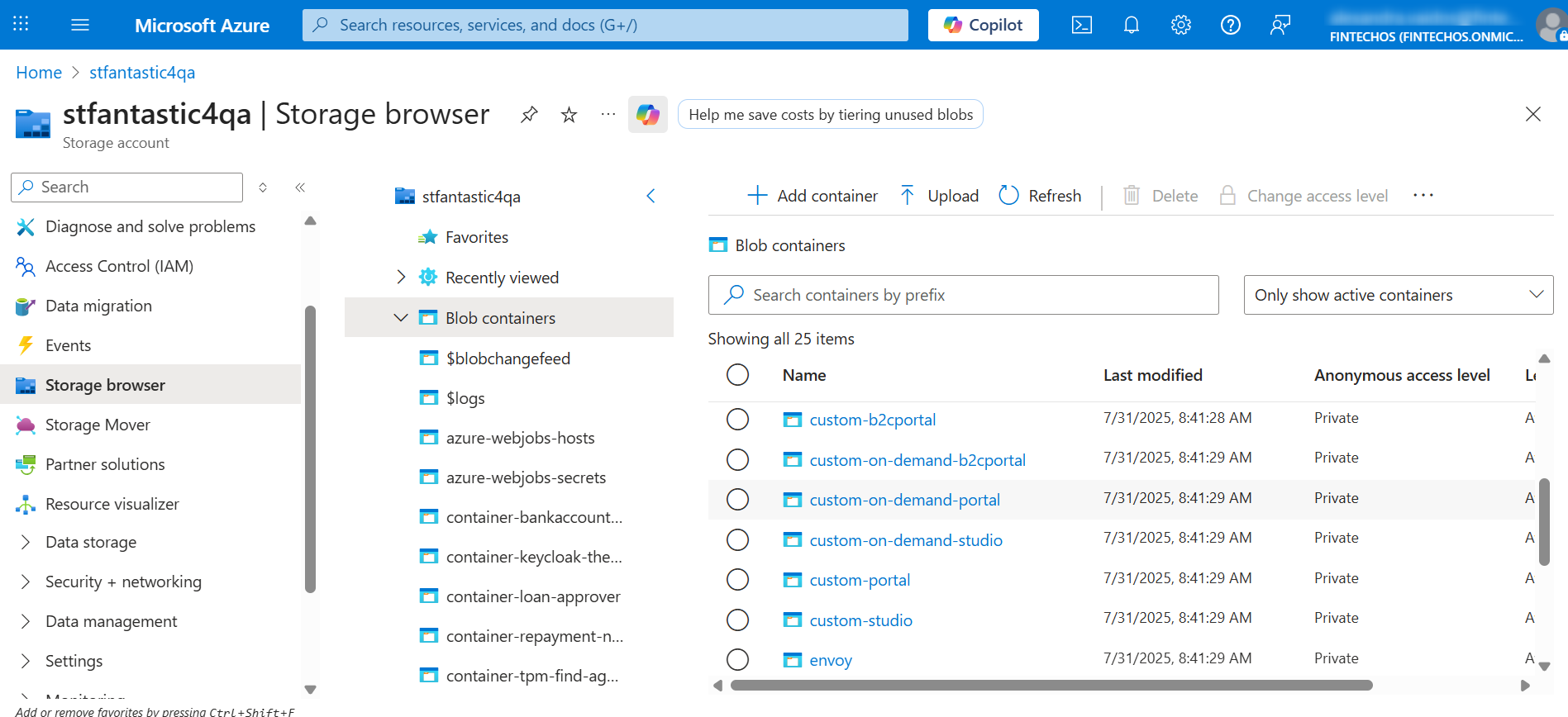
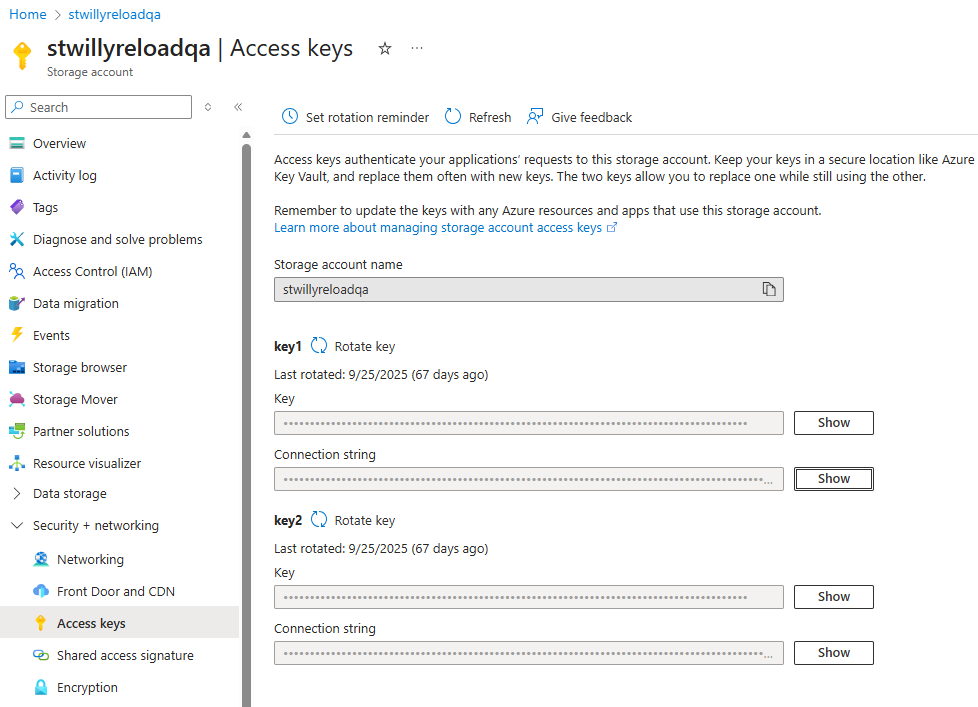
Edit the key in both FintechOS Studio and Portal Configuration Manager environments. If the key is not found, the Platform falls back to a storage rooted in <applicationRoot>\custom folder.
Configure for Local Developer Sandbox
When working with the local developer sandbox, the storage locations are:
-
UploadEBS
-
CustomFiles
-
CustomOnDemand
-
ReportFontFiles
These can be accessed through a built-in file browser interface available at https://fintechos.local/filebrowser. The file browser allows you to upload and download files from the above mentioned storage locations.