Email/SMS/IVR Multi-Factor Authentication
Email/SMS/IVR Multi-Factor Authentication (MFA) adds an extra layer of security on top of the basic authentication methods. When users access the FintechOS Portal or FintechOS Studio, they will be prompted to provide the login credentials associated with their FintechOS Platform account. To make sure account access is protected, after the login credentials are provided, users are redirected to a secondary login page where they have to enter a one-time security pass code received via email, SMS or IVR (the phone number set in the user account profile). Once a user enters the code received via the Email/SMS/IVR option, access to the system is granted.
Follow the instructions below to set up Email/SMS/IVR(Call Me) multi-factor authentication.
1 Provision the Service Pipes App Service in the Designated Resource Group
Make sure the service pipes app service is properly deployed on that Azure RG.
2 Create a Service Pipes Image with Notification Service Dependency
-
Create a new repo from the
service-pipes-template. -
Add the notification service dependency.
-
Build and deploy the docker image: use
service-pipes-[projectname]:latest, test, then create a release.
3 Configure the Configuration Manager with the Notification Providers Values
-
Access the Configuration Manager where the notification service credentials will be stored.
-
Add the
notification.configkey having the following structure:
{
                "notificationConfigurations": [
                {
                "realmId": "fintechOSrealm",
                "provider-configurations": [
                {
                "url": "https://api.emailprovider.com",
                "provider": "emailprovider",
                "payload-template": "{\"sender\":{\"name\":\"SENDER_PLACEHOLDER\",\"email\":\"SENDER_PLACEHOLDER\"},\"to\":[  {  \"email\":\"RECEIVER_PLACEHOLDER\",\"name\":\"RECEIVER_PLACEHOLDER\"}],\"subject\":\"SUBJECT_PLACEHOLDER\",\"htmlContent\":\"MESSAGE_PLACEHOLDER\"}",
                "default-sender": "noreply@yourdomain.com",
                "communication-channel": "email",
                "authentication": {
                "key": "your-email-api-key"
                }
                },
                {
                "provider": "smsprovider",
                "url": "https://api.smsprovider.com/",
                "authentication": {
                "username": "yourAccountSid",
                "password": "yourAccountPassword"
                },
                "communication-channel": "sms",
                "payload-template": "From=SENDER_PLACEHOLDER&To=RECEIVER_PLACEHOLDER&Body=MESSAGE_PLACEHOLDER",
                "default-sender": "+1234567890",
                "phone-number-prefix-to-add": "",
                "phone-number-prefix-to-remove": ""
                }
                ]
                }
                ]
                }
| Property | Description |
|---|---|
| url | The service provider's URL that will receive the service request. |
| payload-template | The template for the request body. It can contain placeholders that will be later replaced with predefined information. |
| default-sender | If the sender is not provided as an input parameter, this field will be used as the sender of the message. Use only if the service provider supports specifying a sender. |
| communication-channel | Specifies the communication channel as either Email, SMS, or Call Me. |
| phoneNumberPrefixToAdd | A string to be prepended to the client phone number before sending the request to the service provider. E.g.: In the FintechOS Identity Provider, the user’s phone number is stored in the following format: 40XXXXXXXXX, but the SMS service provider needs the phone number in the following format: +40XXXXXXXXX. To fix this, set the phoneNumberPrefixToAdd to +. |
| phoneNumberPrefixToRemove | A string to be removed from the beginning of the phone number before sending the request to the service provider. E.g.: In the FintechOS Identity Provider, the user’s phone number is stored in the following format: +40XXXXXXXXX, but the SMS service provider needs the phone number in the following format: 40XXXXXXXXX. To fix this, set the phoneNumberPrefixToAdd to +. |
4 Test the Notification Service
Use curl requests to send test notifications via email and SMS. These requests need to be authenticated first.
-
Authentication
Copycurl --location 'https://your-app-service-url.net/auth/realms/fintechosrealm/protocol/openid-connect/token' \
--header 'Content-Type: application/x-www-form-urlencoded' \
--data-urlencode 'username=yourUsername' \
--data-urlencode 'password=yourPassword' \
--data-urlencode 'grant_type=client_credentials' \
--data-urlencode 'client_id=service-pipes-client-id' \
--data-urlencode 'client_secret=service-pipes-client-secret' -
Email
Copycurl --location 'https://your-app-service-url.net/services/api/internal/notification' \
--header 'X-Sender-Id: fintechOSrealm' \
--header 'X-Communication-Channel: 2' \
--header 'Content-Type: application/json' \
--data-raw '{
"sender": "info@donotreply.com",
"receiver": "receiver@example.com",
"message": "hello",
"subject": "test"
}' -
SMS
Copycurl --location 'https://your-app-service-url.net/services/api/internal/notification' \
--header 'X-Sender-Id: fintechOSrealm' \
--header 'X-Communication-Channel: 1' \
--header 'Content-Type: application/json' \
--data-raw '{
"message": "[message]",
"receiver": "[RecipientPhoneNumber]",
"sender": "[SenderPhoneNumber]"
}'
5 Create an Authentication Flow
Make sure that the FintechOS Identity Provider has the MFA plugin installed and uses a theme that includes the MFA login screen.
- Log in to the FintechOS Identity Provider admin console.
- Select your FintechOS Platform realm.
- Select the Authentication blade.
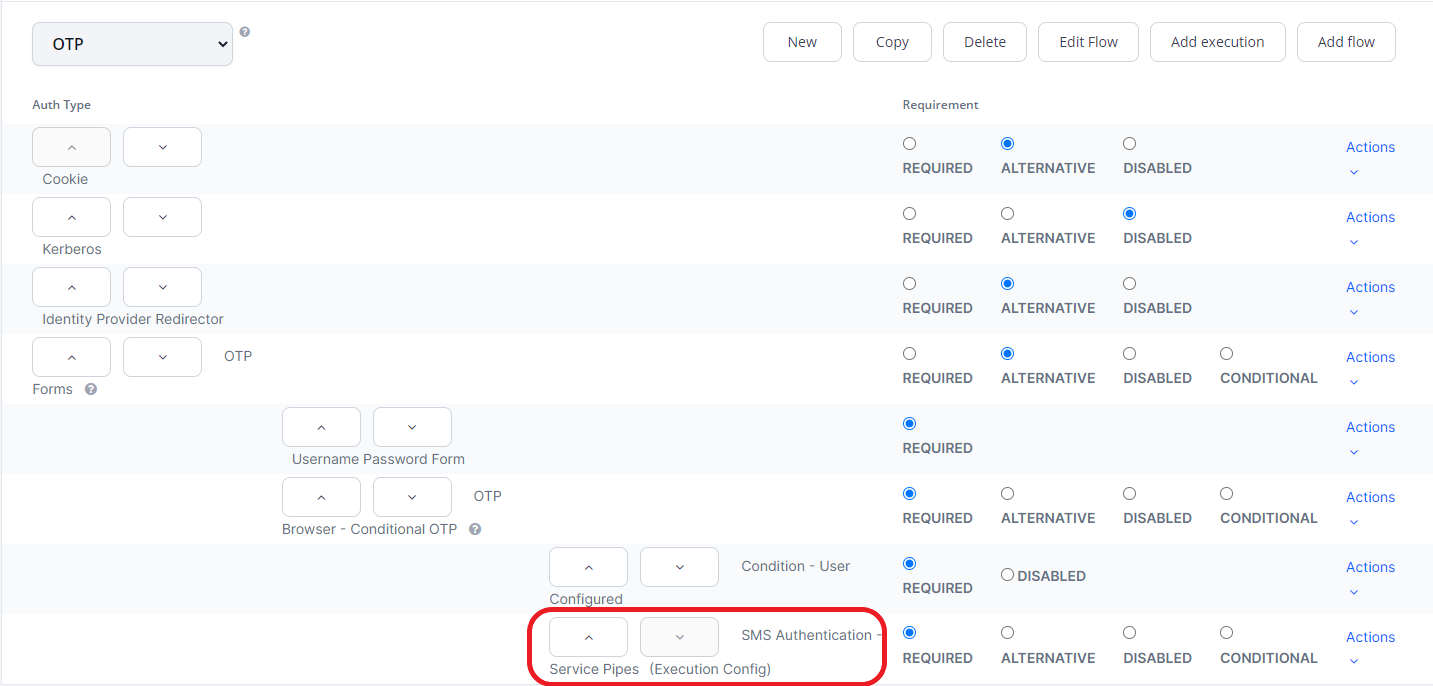
- In the Flows tab, create a new authentication flow based on your preferences.
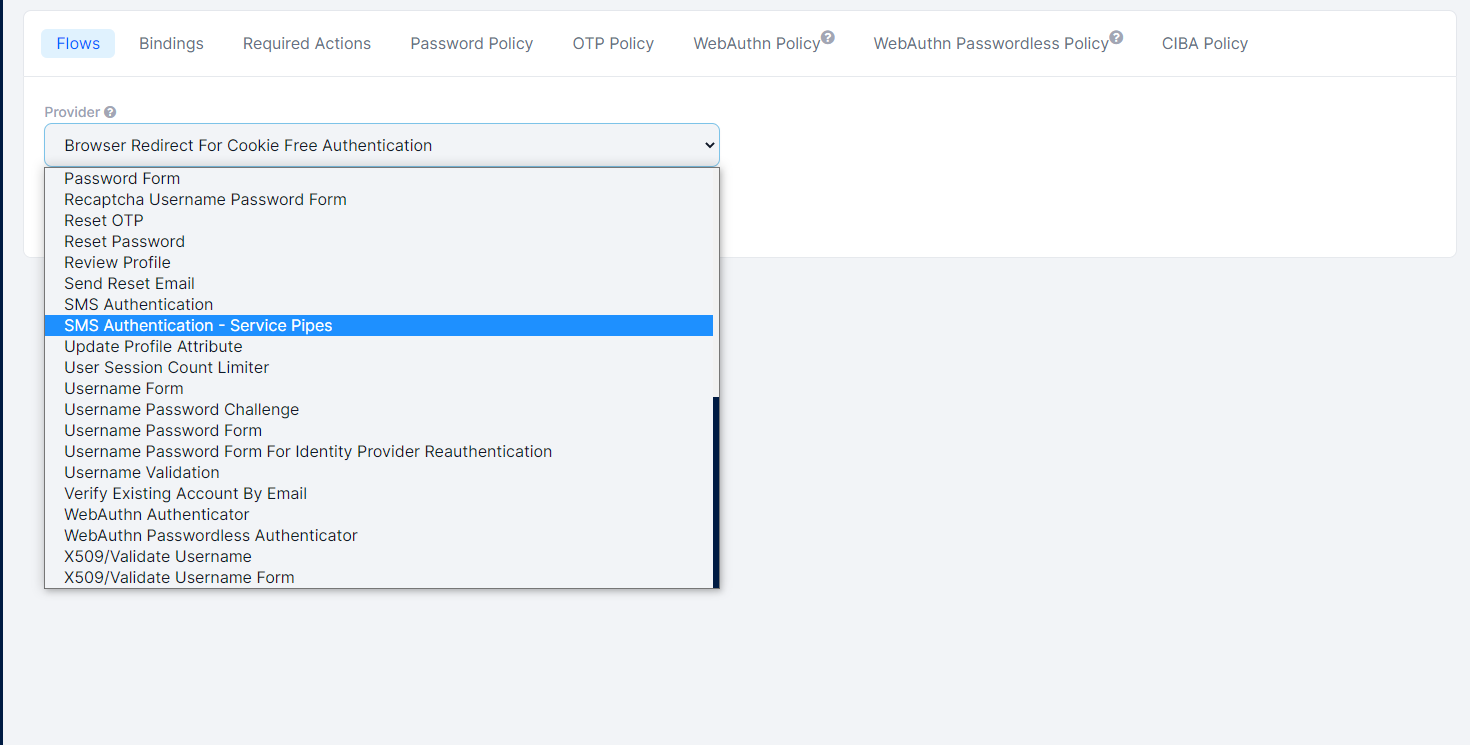
- In the Forms authentication type, set the flow's last execution step to use the SMS Authentication - Service Pipes provider.
6 Configure the Flow's MFA Execution Step
- Open your authentication flow and navigate to the SMS Authentication - Service Pipes execution step.
- Click the Actions drop-down and select Config.
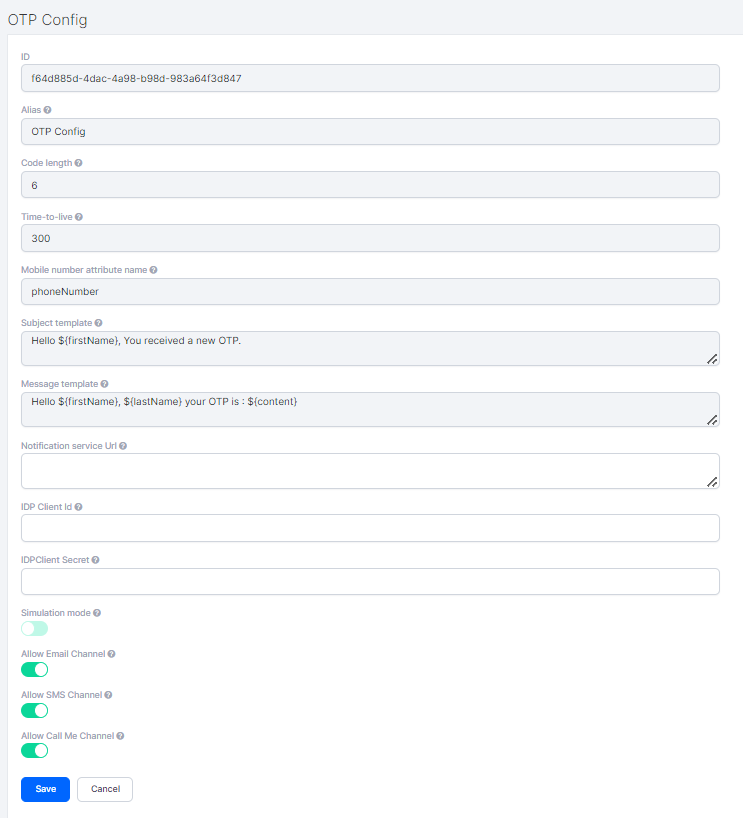
- Set up the following parameters:
- Code length: The length of the one-time password that is going to be sent to the user.
- Time-to-live: The duration in seconds the one-time password is valid.
- Mobile number attribute name: The attribute name that is going to be used to retrieve the user’s phone number.
- Subject template: The message subject template that is going to be sent to the user when using the email communication channel. You can use the following placeholders: ${firstName}, ${lastName}, ${content}.
- Message template: The message content template that is going to be sent to the user via SMS or email. You can use the following placeholders: ${firstName}, ${lastName}, ${content}.
- Notification Service Url: URL to the service pipes web app which receives the request and forwards it to the chosen service provider. It is in the following form:
https://your-app-service-url.net/services/api/internal/notification - Client Id: The client ID used to authenticate the request to the service pipes web app.IMPORTANT!
This client must have the service-pipes-user service account role assigned in the FintechOS Identity Provider. - Client Secret: The client secret used to authenticate the request to the service pipes web app.
- Simulation mode: When set to True, the actual one-time password will not be sent to the user. Instead, the one-time password will be logged on the FintechOS Identity Provider server.
Allow Email channel: If set to true, the user will be able to select Email as communication channel for receiving the OTP.
- Allow SMS channel: If set to true, the user will be able to select SMS as communication channel for receiving the OTP.
- Allow Call Me channel: If set to true, the user will be able to select Call Me as communication channel for receiving the OTP.
- Skip OTP selection screen: if only one channel is configured, then only that option is displayed to the end user
Allow OTP resend mechanism: allows the user to request another OTP code. The number of retries is configured in the below box Number of maximum OTP resend retries.
- Click Save.
If the user adds the wrong OTP code for 8-10 times, their FintechOS IDP user is disabled and can be enabled by an admin user.
To modify the text in the UI in the OTP validation screen, including the text above the radio buttons for picking the validation option (email, SMS, call), go to the FintechOS IDP, choose your UI theme, and inside the UI theme folder navigate to baseStudio > login > messages > messages_en.properties, and change the key values. For example, to display "Send SMS" in screen UI, modify the following key to show: otpSelectionFormSms=Send SMS.
7 Activate the Authentication Flow
Once the authentication flow is configured, in the FintechOS Identity Provider, navigate to Authentication > Bindings and replace the Browser flow with the newly created flow. This will the set authentication flow globally. However, if you want to enable the flow only for one client, you can navigate to the client page, go to Settings > Authetication Flow Overrides, and change the Browser Flow there.
A user who logs in to FintechOS Portal or FintechOS Studio, will be directed to the one-time password form and will receive the required password via Email, SMS or IVR (Call Me).