Installing SME Digital Lending and Underwriting
Follow the guidelines below to install and configure SME Digital Lending and Underwriting 1.0.0.
Digital assets are exported as sealed, with dependency on the 22.1.4 version of FintechOS Platform, for compatibility reasons. This means that you cannot make any changes to assets on the environment in which they are deployed.
Prerequisites
-
Install and configure:
-
SySDigitalSolutionPackages v22.1.4001.zip
-
FTOS Platform v22.1.4 (with B2CPortal, B2CProxy, JobServer, OpenAPI v3)
-
Banking Product Factory 4.0
-
dotnet-scvutil on FintechOS Studio and on the Portal where the solution is deployed.
-
-
Import the packages for the following integrations: Company House, Ideal Postcodes and Experian (you can find these connectors in the Connectors 22.1.4.zip archive file available on Release Hub).
-
Install the Codat Connector.
-
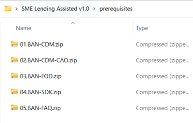
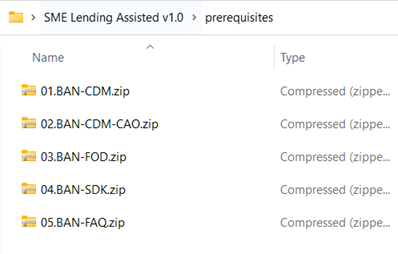
Unzip the SME Lending Assisted v1.0.zip archive file and import the BAN-CDM, BAN-CDM-CAO, BAN-FOD, BAN-SDK, and BAN-FAQ packages available in the prerequisites folder.
-
Check that the items contained in the FTOS_DBK_Common asset are not linked to any other digital asset:
-
Attribute companyStatus on the Corporate Applicant Data entity.
-
Workflow Library FTOS_BAN_GeneralHelper
-
Install the Solution
Add the latest syspackdeployer in the solution folder, edit the installer and run it in admin mode.
The packages available in the solution folder contain the following assets:
| Package | Assets |
|---|---|
| 01.FTOS_DBK_SQLBefore | FTOS_DBK_SQLBefore |
| 02.FTOS_DBK_DataModel | FTOS_DBK_DataModel |
| 03.FTOS_DBK_Resources |
|
| 04.Lexis Nexis | LexisNexis |
| 05.FTOS_DBK_Data | FTOS_DBK_Data |
| 06.FTOS_DBK_Data_BankingProduct | FTOS_DBK_BP |
| 07.FTOS_DBK_SQLAfter | FTOS_DBK_SQLAfter |
Post-Installation Setup
-
Go to Vault – platform system parameters and update as follows:
-
sys-compatibility-url-params-router -
sys-single-page-app-routerBoth parameters must contain the following JSONs:
Copy{"portal":"Digital Banking RM","value":"0"},{"portal":"BAN-B2C","value":"0"}
-
sys-hide-app-dashboardSet to
1on portal Digital Banking RM.
-
-
In Vault, add the following settings for Portal:
-
Add the following app settings in the b2cportal section in Vault.
Key Name
Value
feature-b2c-userjourneys
1
feature-b2c-userjourneys-api-key
API_KEY mentioned in step 5.
feature-b2c-userjourneys-impersonated-user
b2c.guest
-
Navigate to FintechOS Studio and create a user with the above mentioned data in the OpenAPI_User and OpenAPI_Password fields and assign them the FTOS_DBK_ApiCaller role.
-
Configure the B2C Proxy as follows:
-
Add the following in the b2cproxy app service > proxy > proxy.config.js:
Copyif (output.path === "/Agreements") {
output.path = "/Main";
output.query += "#/customform/FTOS_BASME_ConfirmAgreements";
return output.redirect();
}-
Navigate to Anonymous Frontends and make sure there is a record with the same name and api key as mentioned in the proxy.config.js file, on the line where request headers are set. E.g.: output.requestHeaders.set("NAME", "API_KEY");
-
Open this record and make sure the custom flow FTOS_BASME_ConfirmAgreements is published.
-
-
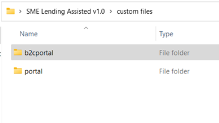
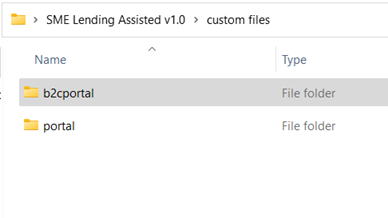
Import the custom files into their respective app service and folder, as described in the custom files folder structure.
-
Navigate to portal profile > Digital Banking RM and add the company logo: ftos_logo_light.png. The logo is available in the uploadEBS folder.
-
Navigate to FintechOS Studio/Main#/entity/FTOS_BP_Agreement/list and insert the following data:
Code
Name
Display Name
200
gdpr
GDPR Agreement
201
marketing
Marketing Agreement
202
relative
Relative with Bank Employee
203
information
Information Agreement
204
affiliates
Affiliates Agreement
205
business
General Business Agreement
-
After creating each agreement, insert a record in the Banking Products view, having the same code as the agreement and the Banking Product CL. Attach them to the CL banking product.
-
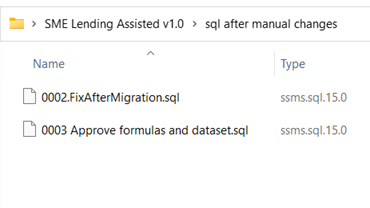
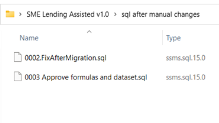
Run the sql files from the sql after manual changes folder.
-
Navigate to FintechOS Studio> Banking Factory > Banking products, select the CL code and enter the following records in the Formula Engine > Banking Product Formulas section:
Name Formula Type Formula Data Mapping FTOS_DBK_CheckAgreementsAnswers Agreements FTOS_DBK_AgreementsAnswers FTOS_DBK_AgreementsAnswers% FTOS_DBK_CheckEligibility Eligibility FTOS_DBK_CheckEligibilityQuestions FTOS_DBK_CheckEligibilityQuestions%