Configure Card Items
In order to combine the Quote&Bind process with the coverages of the product, you need to configure the card items, that are then linked with the product item. Then, the offer types are created. You can choose the offers to display to a specific type of person and the number of cards.
Different versions can be created for the cards, by clicking Insert in the Card Item Versions section, and inputting the needed details.
-
Log in to Innovation Studio.
-
Navigate to Q&B Configurator > Card Items.
-
Click the Insert (+) button on the top right to insert a new card.
-
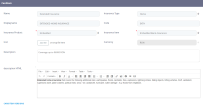
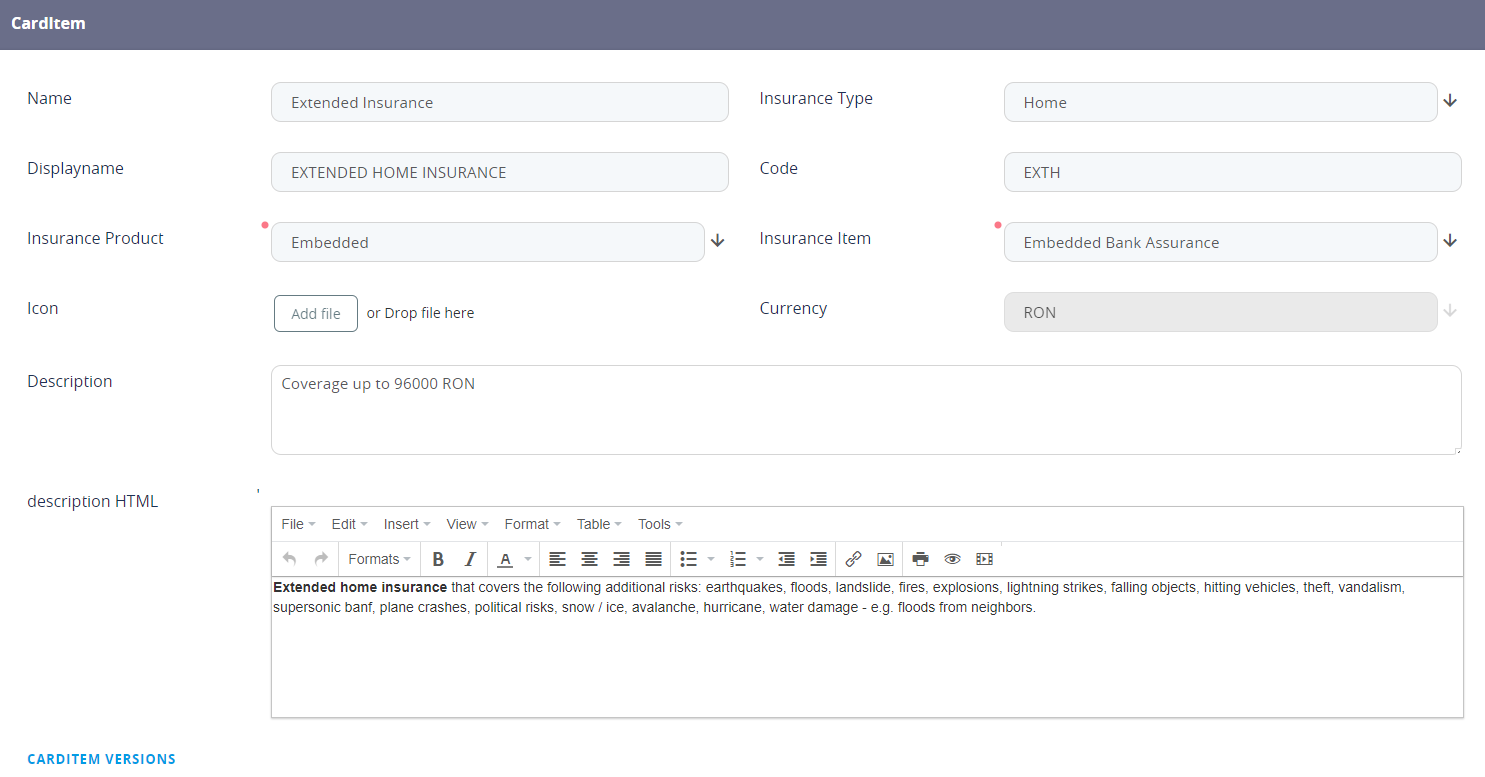
The following screen is displayed.
-
Fill out the displayed fields:
Field Description Name The name set of the card item. Insurance Type Choose the type of insurance from the option set. The insurance type needs to be pre-configured as per the steps detailed here. Display Name Input the name of the card item to be displayed in the user interface, in the Quote&Bind offer cards. Code Assign a code for the card item in order to make it easily recognizable. Insurance Product The correlated insurance product. Insurance Item The correlated insurance item. Icon Upload an icon which will appear in the offer card near its item, in the Quote&Bind application. Currency The currency set for the insurance item according to which the premium amount is calculated taking into account the exchange rate in case of other currencies in the Quote&Bind bidding process. Description Free text field to describe the configuring card item. Description HTML Specific area for describing the card item, description which is displayed in the Quote&Bind application when clicking on the desired Offer Card. When selecting the desired card, the user is able to read the description for all the included card items. -
Click the Save and Reload button on the top right corner.
-
The Card Item Version grid is unfolded. Each card item can have multiple versions. These can be added by clicking the Insert button.
-
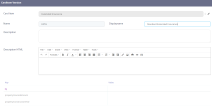
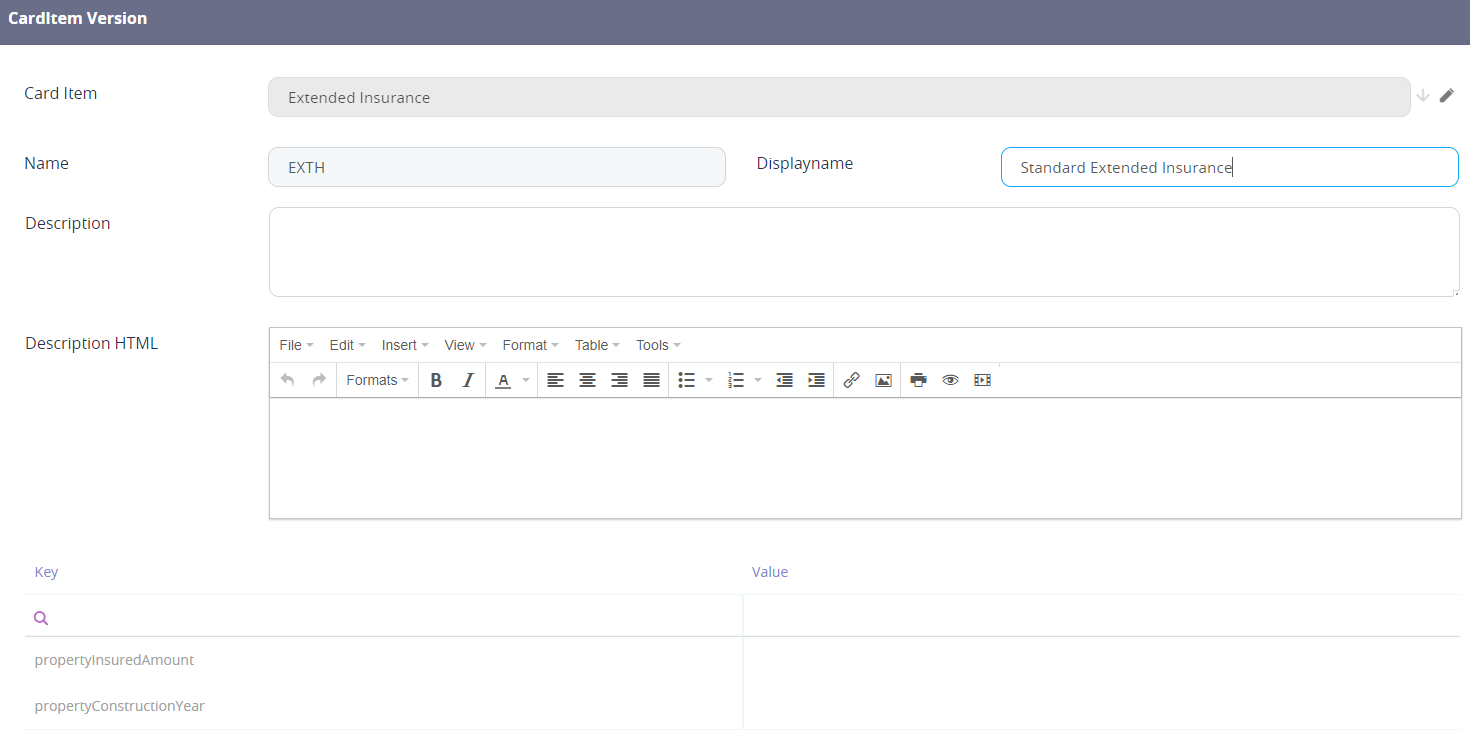
The Card Item Version screen is displayed.
-
Fill out the displayed fields:
Field Description Card Item The card item for which the version is created. Name The name of the version. Display Name The name to be displayed in the user interface. Description Free text field to describe the version. Description HTML Specific area to describe the version to be displayed in the Quote&Bind application. - Click Save and Reload.
-
A grid is displayed, presenting the Key and Value. The keys are automatically retrieved from the Formula Engine, as every item has its own calculation formula.
-
Click Save and Close.
-
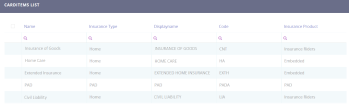
The card item is now displayed in the Card Items List grid.
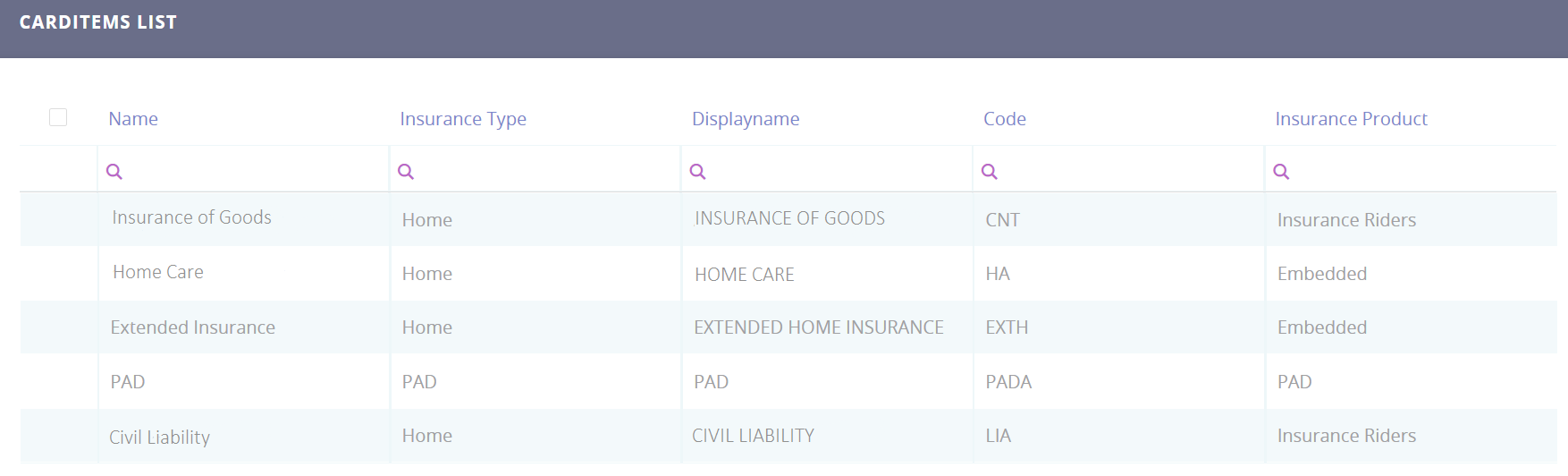
You can delete any of the card items by selecting one or more records and clicking the Delete button on the top right corner. In addition, the card items data can be exported into an .xsls file by selecting one or more records, and clicking the Export button on the top right corner.