Digital Documents Processor
This FintechOS automation block enables insurers to automatically generate dynamic, personalized business documents – including customized contracts and agreements, by merging real-time data. The Pet Insurance Quote & Buy solution uses this processor to generate the Pet Insurance Certificate that can be downloaded by the customer, during the journey. This document is based on a generic template and the details inserted by the pet owner (more below).
You might want to change this template, for example in order to add your own logo.
Pet Insurance Certificate
To inspect your Pet Insurance Quote & Buy Digital Document, take the following steps:
-
In FintechOS Studio, navigate down the main menu to Automation Blocks.
-
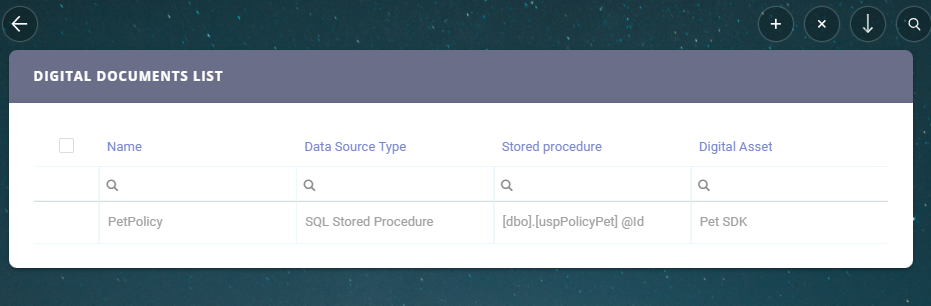
Click Digital Documents to open the Digital Documents List page.
-
From the list, select and double-click the PetPolicy record.
-
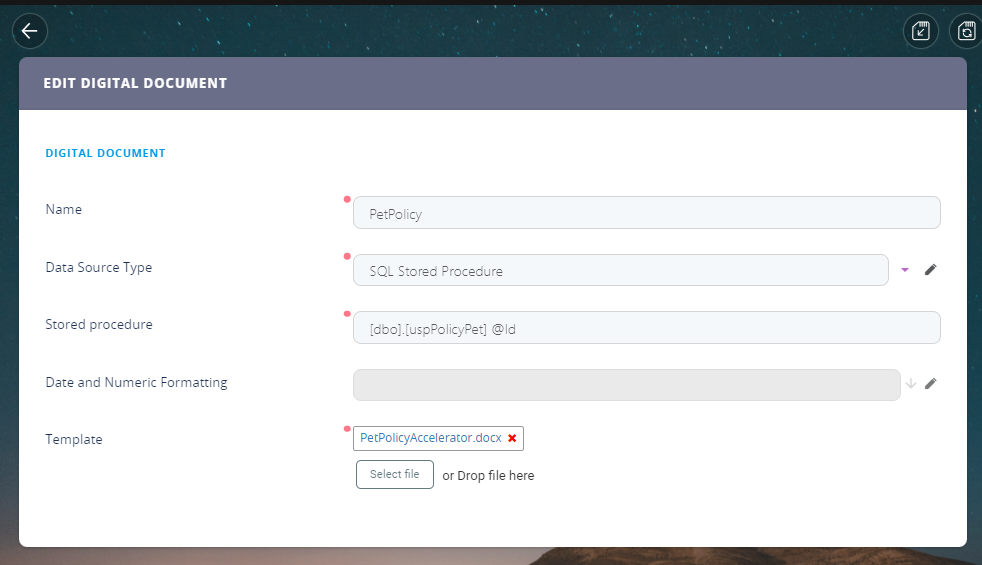
The Edit Digital Document page is displayed. Here you can add your own Pet Insurance Certificate template.
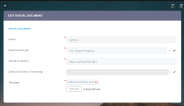
The Certificate configurations are as follows:
Field Example Name PetPolicy Data Source Type SQL Stored Procedure Stored procedure [dbo].[uspPolicyPet] @Id Date and Numeric Formatting N/A Template PetPolicyAccelerator.docx Below is an example of the generic Pet Insurance Certificate template document that you have in FintechOS Studio:
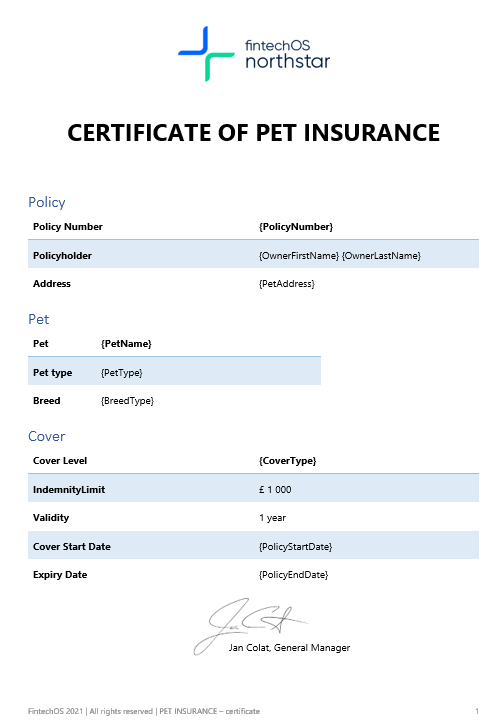
For details about how adjust or add a new Digital Documents, see the Digital Documents Processor page.
Pet Insurance Certificate Report
Every digital document must be connected to a report (at least) since every Report is attached to the Entity relevant for the document. This is part of the FintechOS way of organizing data and keeping track of details, for you. In this case, the Pet Insurance Certificate Report is attached to the Policy entity, in order to keep track of the binding agreements made with your customers.
In order to access the Report appended to the generic Pet Insurance Certificate, take the following steps:
-
In FintechOS Studio, navigate down the main menu to Analytics.
-
Click Reports to open the Reports List page.
-
Click the PetPolicy list entry. The record opens and you can inspect your report.
The Report configurations are as follows:
Field Example Name PetPolicy DisplayName PetPolicy Scope Entity Type Document Entity FTOS_INSPA_Policy Output Method Attach to entity Destination Field policyDocument Destination File Name certificate Report Render Format PDF
For details about how to attach a document Report to an Entity, see Digital Documents Processor.