Read and Send Messages
The Online and Mobile Banking application comes with the option to communicate with your bank through in-app messaging. The main advantage of this is that you can contact your bank and send a message without having to place a call.
Types of Messages
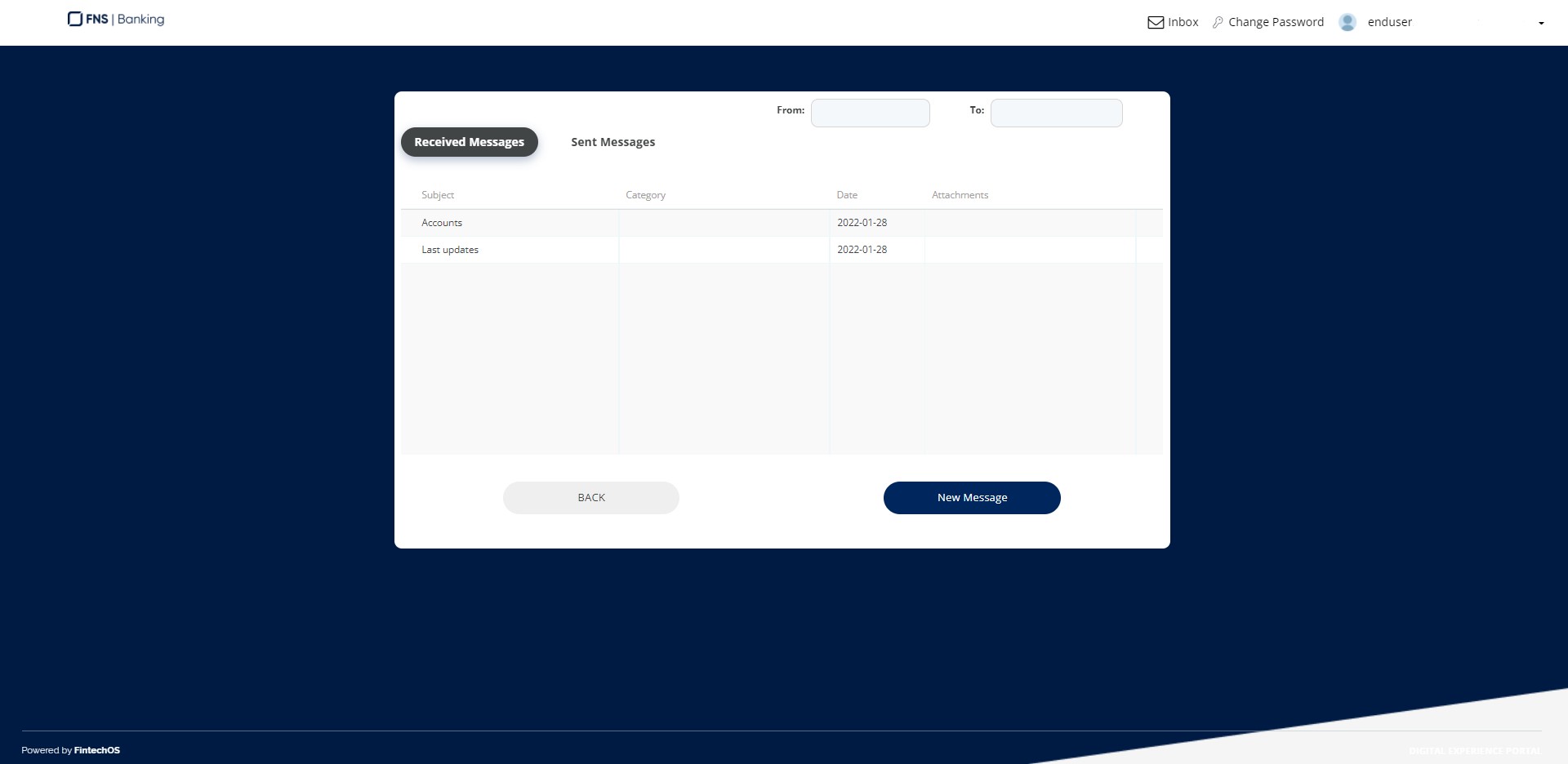
In the application, you can access the Inbox at the top corner of the interface. It displays the following types of messages:
-
the messages sent and received to and from the bank;
-
pop-up messages from the bank;
-
chats between you and the bank.
There's another type of message that you can receive from the bank, pop-up messages displayed after login, that you must read and dismiss in order to access the application.
Create and Send Messages
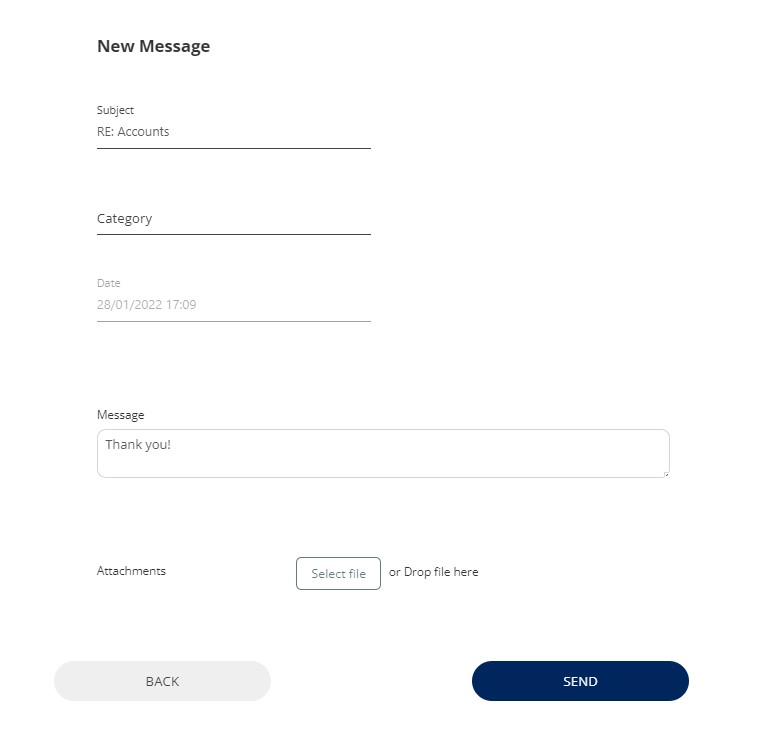
To contact your bank, you can create and send a message directly from the Online and Mobile Banking. Follow the steps below to do so:
-
From the Online and Mobile Banking home screen, click Inbox and scroll to the bottom to click New message. The screen for the new message opens.
-
Fill in the required information, such as the message subject, category, date, and body. You can also add attachments. Click the Send button and a PIN number is sent to your phone number.
-
Add the six-digit code to authorize the message and click Check.
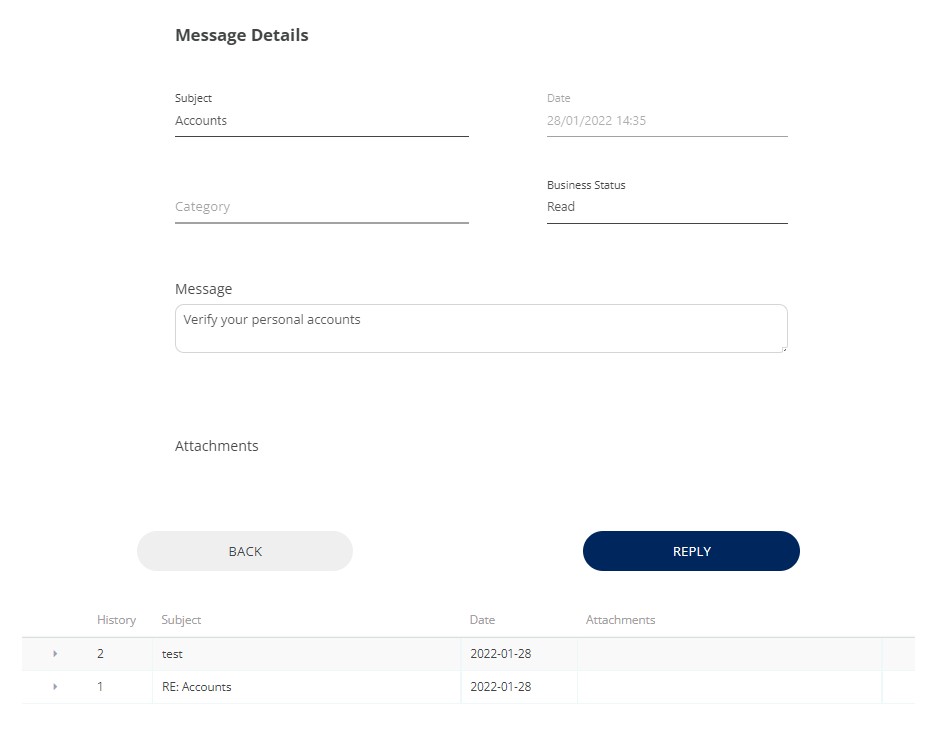
To reply to any of the messages in your Inbox, click a message to open it and then click Reply. Add your reply, and the click Send.