Pay a Utility Bill
Another type of payment that ca be done from the Online and Mobile Banking solution is the utility bill. First, you need to create a new utility payment template with your contract details and then you can make the payment. Use the template every month to pay your new bills. The bill amount and due date are automatically updated.
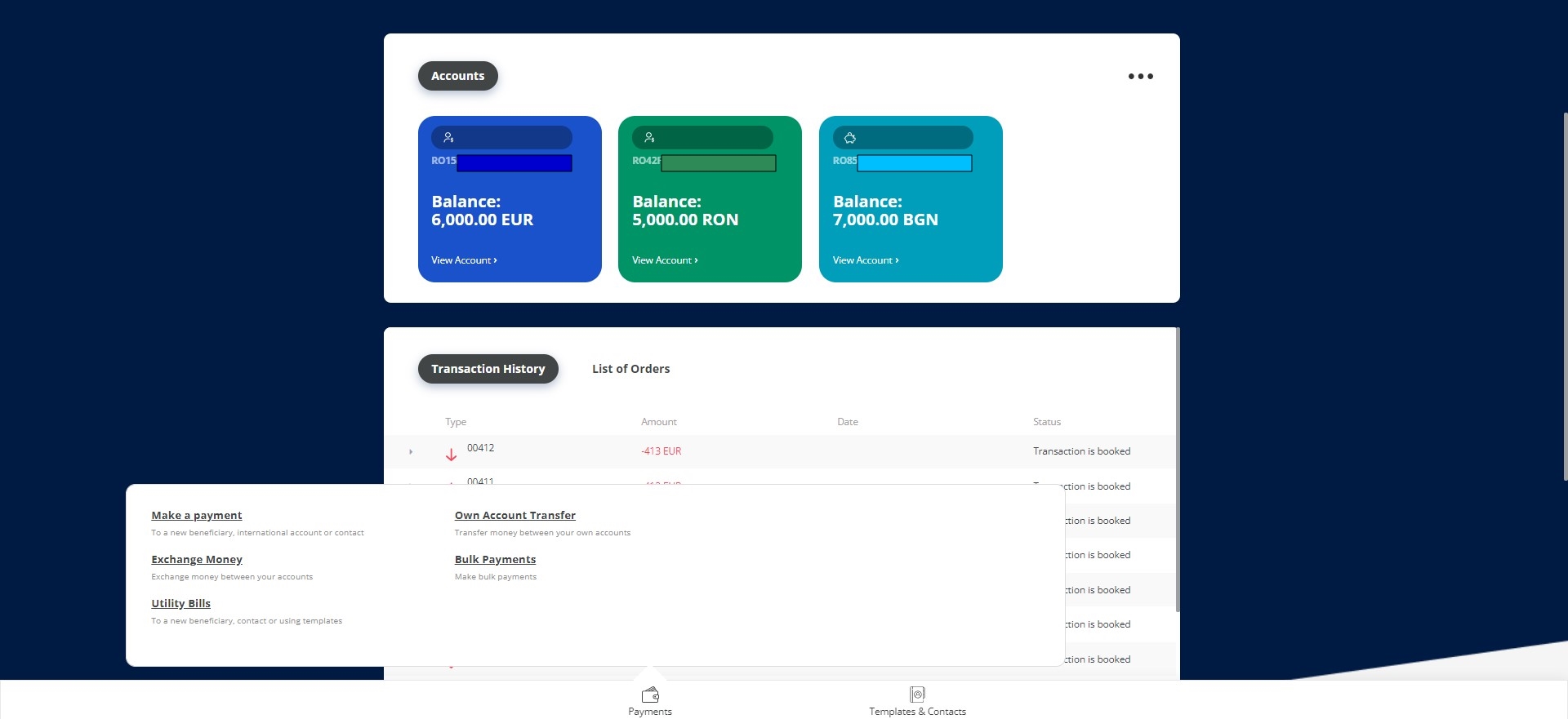
- From the homepage, click Payments.
- From the module, select Utility Payments. The Utility Payments Contracts List page is displayed.
- To create a new utility payment contract, click New.
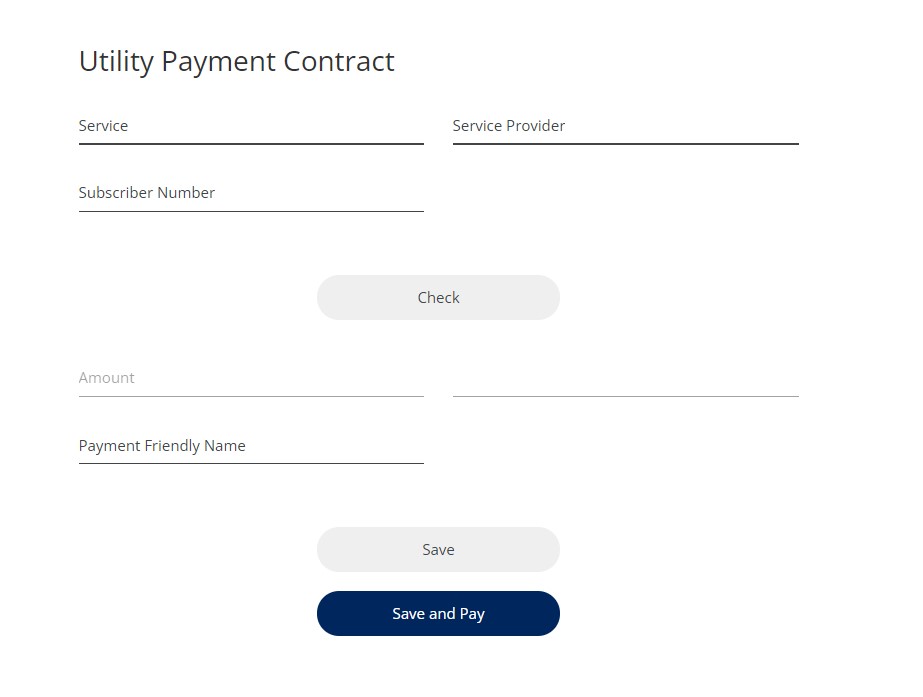
- Input the utility contract details: service, provider, and subscriber number.
-
Click Check. This button checks if the invoice was paid through another channel, and updates the amount and due date values. It uses the subscriber number to make the checks.
-
Insert a name for the entry.
-
Click Save to save the modifications made in the contract screen, and then return to the list of contracts.
-
Click Save and Pay to save the modifications and go to the utility payment flow. You are directed to the page Terms & Conditions and an SMS is sent with an OTP.
- Click Send to receive the code.
- Insert the code and click Accept. If the code is inserted correctly, then the page loads informing you that the utility contract was successfully saved. Click Home to access the homepage.