Initiating and Authorizing a Utility Payment
To pay a utility bill, you need to first create the contract, save it and pay it. Follow these steps to create it:
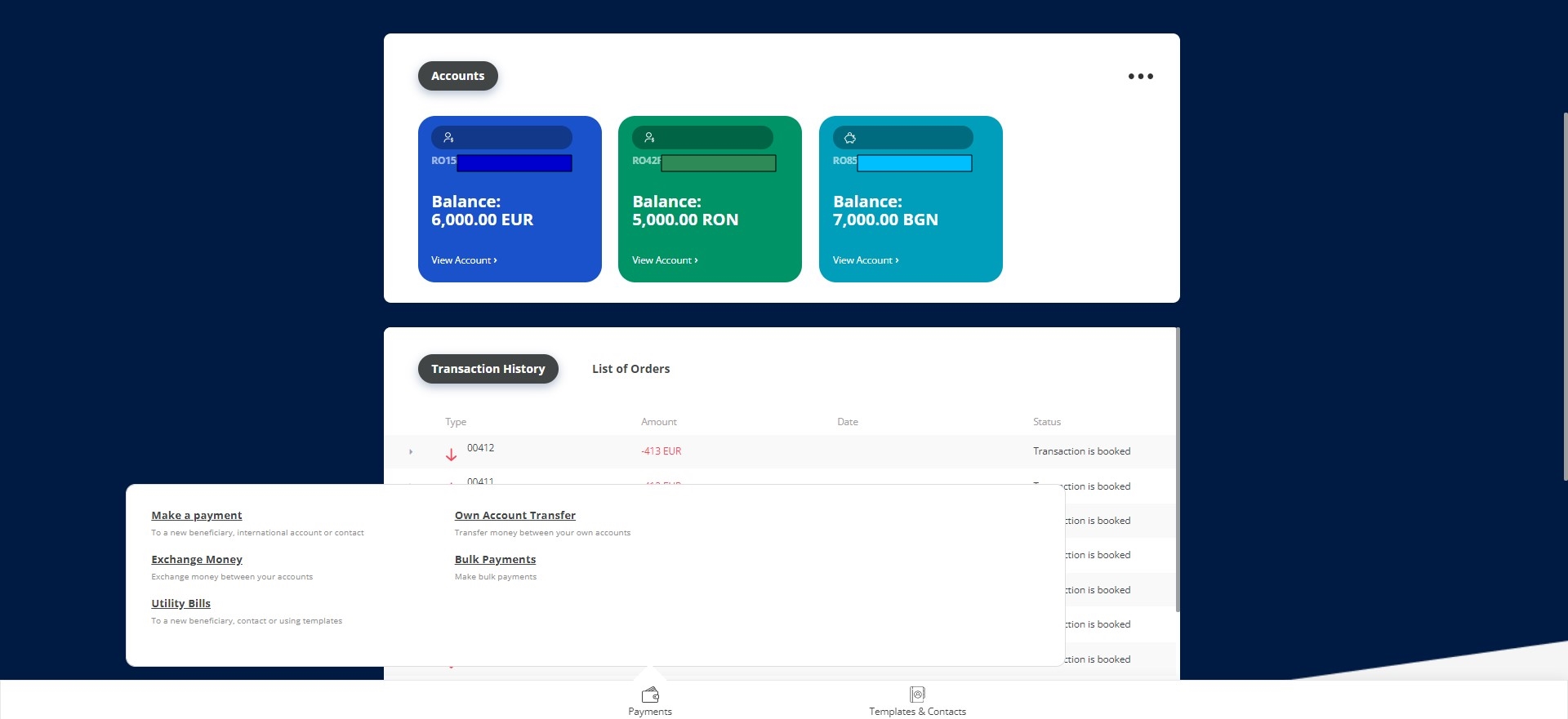
- From the homepage, click Payments from the bottom panel of the screen.
- From the module, select Utility Payments. The Utility Payments Contracts List is displayed.
- To create a new utility payment contract, click New on the top right-corner of the grid.
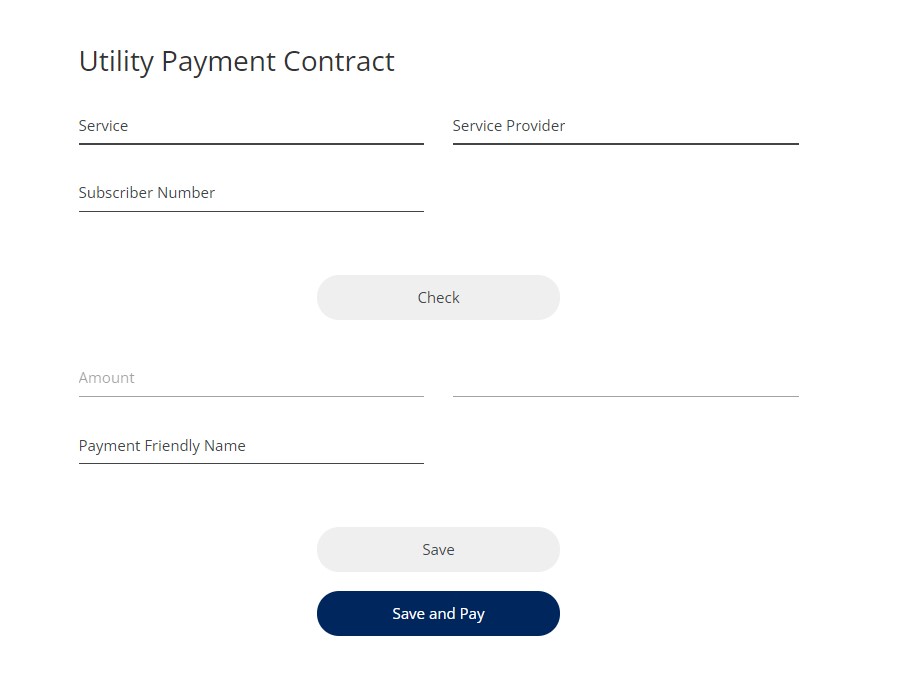
- Input the utility contract details:

Field Data type Mandatory Description Service Text Yes Select from the drop-down by searching a specific service, the available service types are:
- internet,
- electricity.
If you select the provider, and then returned to this field, the drop-down list displays only the services in relation with the selected provider.
Provider Text Yes Select from the drop-down, the providers in the relations (filtered) with the selected services are displayed. Otherwise, if no services have been previously selected, all the providers are displayed in the drop-down list.
You can search for a specific provider.
Subscriber Number Text Yes Insert the subscriber number, based on which the invoice details (e.g. amount and due date) values are retrieved from the payment provider. -
Click Check. This button checks that the invoice was not paid through another channel. It updates the amount and due date values:
- if the contract does not exist in the system, a toast message is displayed informing you that the contract was checked
or
- if the contract already exists in the system (the same subscriber number), the toast message is displayed informing you that it already exists.
The fields below refresh with the new values:
Field Data Type Required Description Amount Numeric No Leave this field empty. It is a read-only field. Initially, if you only save the contract, no value is displayed.
Subsequently, the amount is updated:
- automatically every day at the beginning of the day
- manually when you click the button labeled Check.
IMPORTANT!
A user is not able to pay an amount that exceeds their authorization limit.Due Date Date No Leave this field empty. It is a read-only field. Initially, if you only save the contract, no value is written here. Subsequently, the amount is updated:
- automatically every day at the beginning of the day
- manually when you click the button labeled Check.
Payment friendly Text No Insert a template alias for the utility payment contract. - if the contract does not exist in the system, a toast message is displayed informing you that the contract was checked
-
Click one of the two buttons:
- Save
This button only saves the modifications you have just done in the contract screen for your desired utility contract, and then returns you to the list of contracts.
or
- Save and Pay
This button saves the modifications you have just done in the contract screen for your desired contract. Then it redirects you to the utility payment flow. A toast message is displayed:
Dear customer, please be informed that the invoice is now blocked to prevent the double payment.
You are directed to the page Terms & Conditions. To verify the payment, insert the OTP from the SMS into the system.
IMPORTANT!
The utility payment requires single signature, i.e., only one user has to sign the payment to authorize it. - Save
- Click Send to receive the SMS with the code.
- A pop-up is displayed asking you to insert the code. There are six boxes where to insert each number or the six-digit code sent via email address. Insert the code.
- Click Accept.
- If the code is inserted correctly, then the page loads the message Your utility contract was successfully saved. Click Home to access the homepage.
Authorized.or
- If the code is inserted wrongly, the page Terms&Conditions reloads. Click Send to reinitiate the process.
- If the code is inserted correctly, then the page loads the message Your utility contract was successfully saved. Click Home to access the homepage.
Initiating Utility Payment from a Saved Contract
From the page named Utility Payments Contracts List where all the contracts are displayed, on each row there are the icons symbolizing actions possible to each contract.
To pay a saved contract:
- Click the Pay symbol. The system displays the message: Dear customer, please be informed that the invoice is now blocked.
- It opens the page named Utility Payment with the fields:
Field Description From account Select from a list of accounts, the source from where the amount is wired.
Validations:
- only accounts of type Current Account and Savings Account in local currency are displayed in the list
- only accounts that the user has rights to initiate payments.
Available balance It is read-only. Depending on the account the balance is displayed.
Amount
It is read-only. It is the value from the bill.
Payment Details It is read-only. The system automatically completes the field and concatenate the following information:
- Text AG.N. meaning customer number
- Subscriber number
- Execution date
- Utility vendor name.
- Click Review payment or click Cancel to abandon the flow.
- Afterwords, the review page is displayed with the values for the fields:
- service
- service provider
- amount
- due date
- from account
- available balance
- payment details.
Click Confirm to continue.
- A toast message is displayed informing you that the payment was executed. The, the system refreshes the page to the Utility Contract list.