Accessing Online and Mobile Banking (Authentication Method)
To have access to Online and Mobile Banking, a user has a set of credentials: username and password. For example, an individual has a current account opened, they request Online and Mobile Banking for that account.
The current standard authentication method respects the Multifactor Authentication Strong customer authentication (SCA) is a requirement of EU Revised Directive on Payment Services (PSD2) on payment service providers within European Economic Area. The requirement ensures that electronic payments are performed with multi-factor authentication, to increase the security of electronic payments.[1] Physical card transactions already commonly have what could be termed strong customer authentication in EU (Chip and PIN), but this has not generally been true for Internet transactions across EU prior to the implementation of the requirement,[1] and many contactless card payments do not use a second authentication factor. (MFA) and consists of:
- What I know (the previously created password)
- What I have (the One-Time-Password over SMS to the mobile phone possessed by the user).
The set-up of your credentials (the username and the password as explained in Online User Enrolment Request) can be done during other online journeys (embedded in an account opening journey or a loan origination or stand-alone).
Password policy is managed by the administrator of the financial institution and consists of the requirements:
- Not recently used: previous passwords not allowed up to 12
- Password blacklist: a set of passwords that are to generic and the financial institution might one to prevent the users from defining them (sequence, letters and name of financial institution, password, etc.)
- Minimum length of the password 8 characters
- Not username: the password should not be the same with the username
- Not email: the password should not be the same with the email address
- Special characters required
- Uppercase characters required
- Lowercase characters required
- Digits required.
The user is forced to change the password each three months.
You are permanently blocked at the 11th attempt to login with a wrong password.
For the username the financial institution has the possibility to use one for the following:
- the email address
- the username in parallel with the username
- just the username.
Usernames are unique!
The user can opt for:
- a single set of username and password for both customers (the individual's account and the company's account)
- separate sets of usernames and passwords for each of the two customers.
Log in the Online and Mobile Banking application:
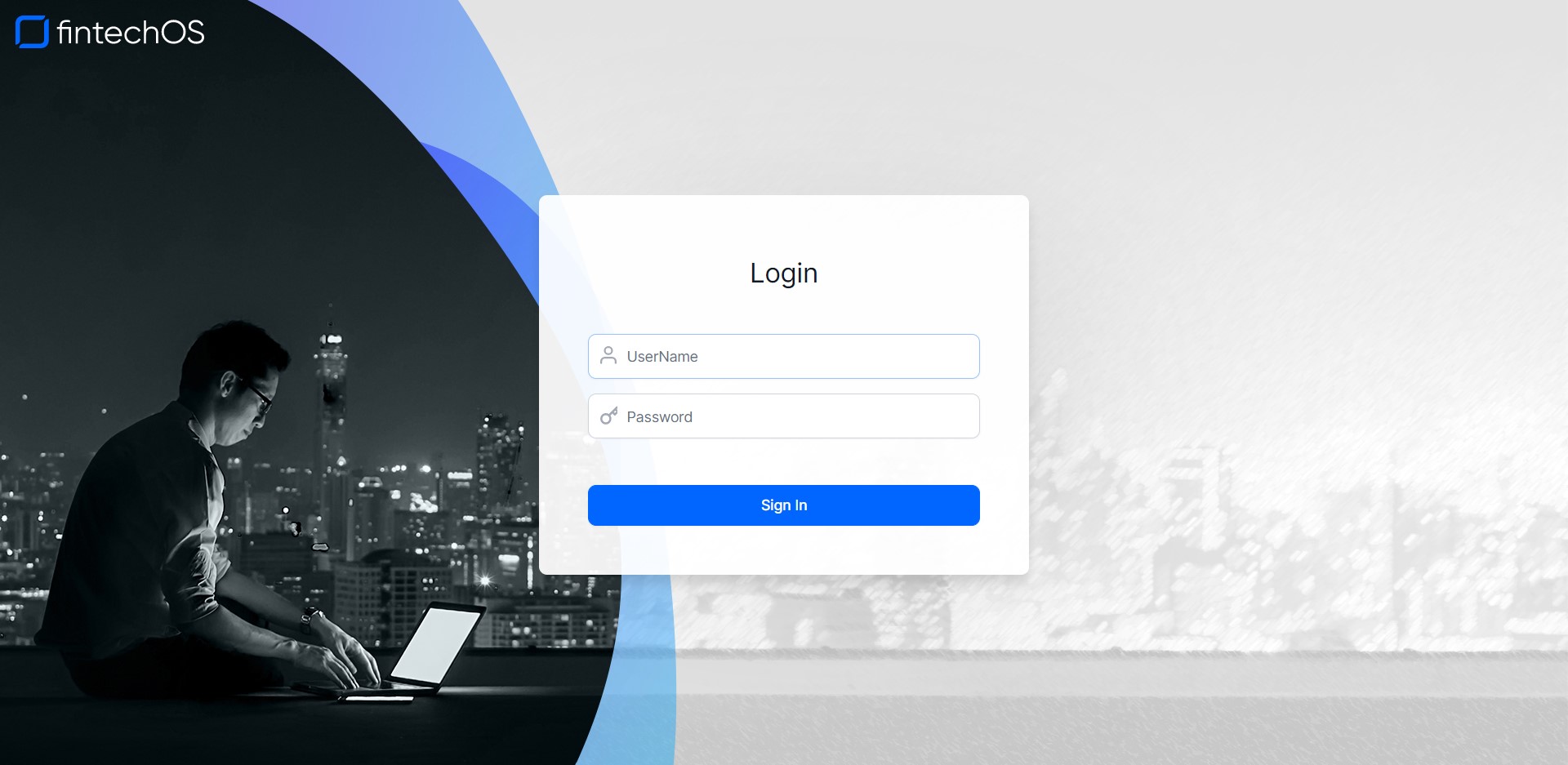
- Access the link to the FintechOS Portal.
- New customers must register first by clicking Register. The Online User Enrolment Request page opens. Follow the process described there.
or
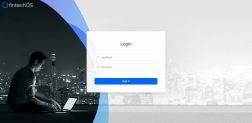
- For registered users, insert the username and password. HINT The username is not the email. They are different.
Click Sign in.
- The pop-up window's title changes to SMS with the message A text message containing a 6 digits validation code has just been sent to ********123. Insert the code received by SMS. The code is valid for 15 minutes.
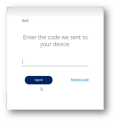
- Click Next.
-
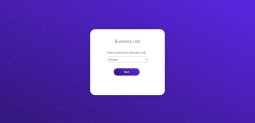
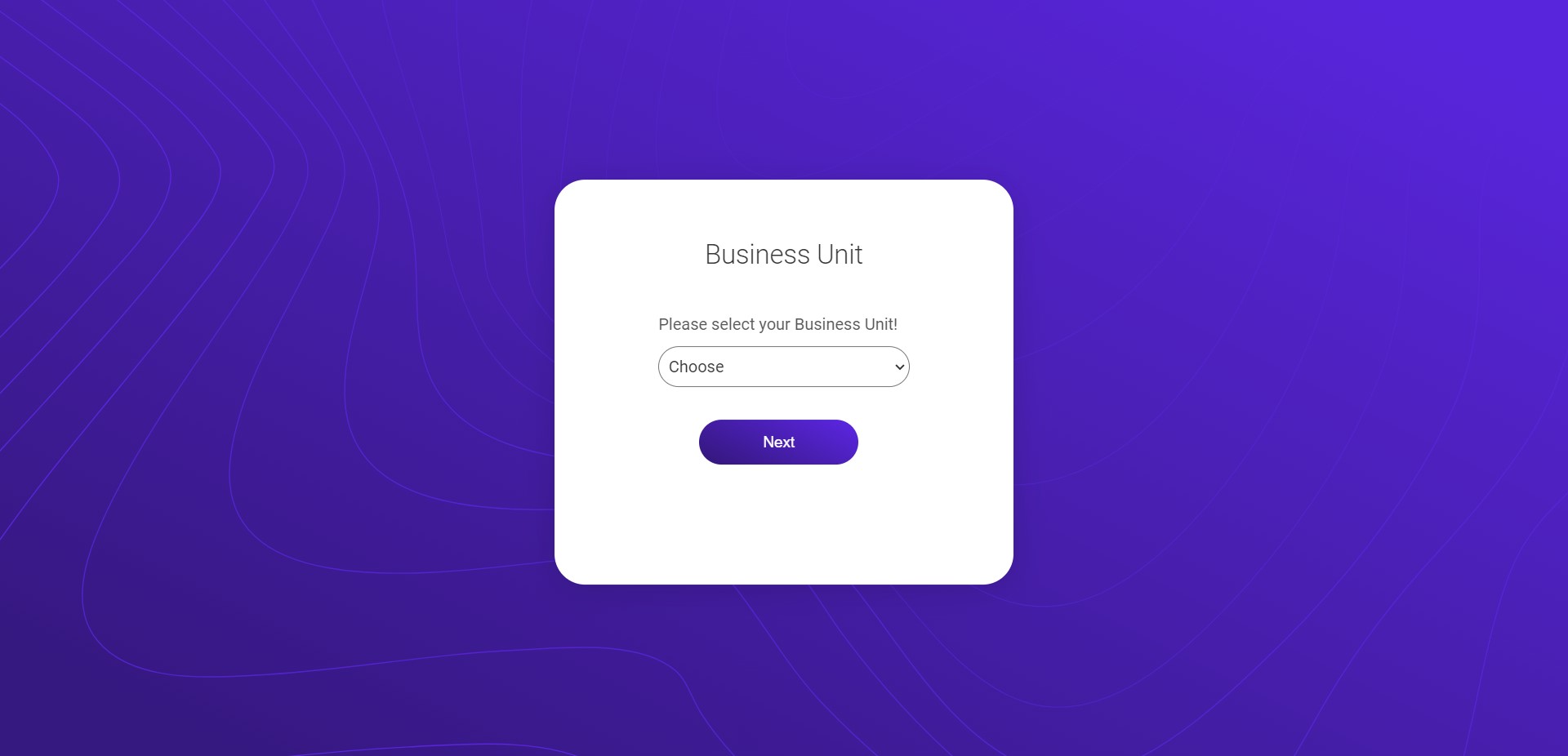
Choose the Business Unit from the drop-down field, i.e., the customer for whom the transaction is made. It displays the full name of the customer and the Core Banking ID. This screen is available for users with access to multiple customers with only one set of credentials. Selecting a business unit is essential for security reasons.
 IMPORTANT!
It applies only to the users who belong to multiple business units. A user can have access to multiple customers, therefore, there are multiple business units to which they are allocated. - Click Next.
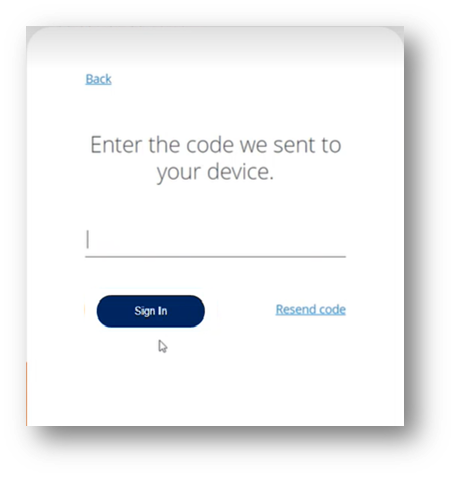
The OTP cannot be resent. You must return to the first step of the process to reinitiate it.
The Homepage is displayed. Depending on the campaign the bank is organizing, after the login, the bank can send a message to the user via a pop-up. The pop-ups are displayed chronologically. For example, it can have a header, a date, the body of the message and two buttons: Message read or Log out. Click the Message read button to access the homepage.
For the bank to send a pop-up message to its clients, they can use the exposed API with the endpoint FTOS_IB_InsertInMailbox_IN_Messages. You can call it using Postman.