Summary of the Insurance Quotation
The summary of the quotation is presented in this screen, where the user can check the details before applying for the cover process.
The Back button is present which takes the user to the context screen from which the journey began, and the quotation history list with the updated record. When clicking the button, the user is asked if they want to "Save changes".
The following sections are displayed in the Summary screen.
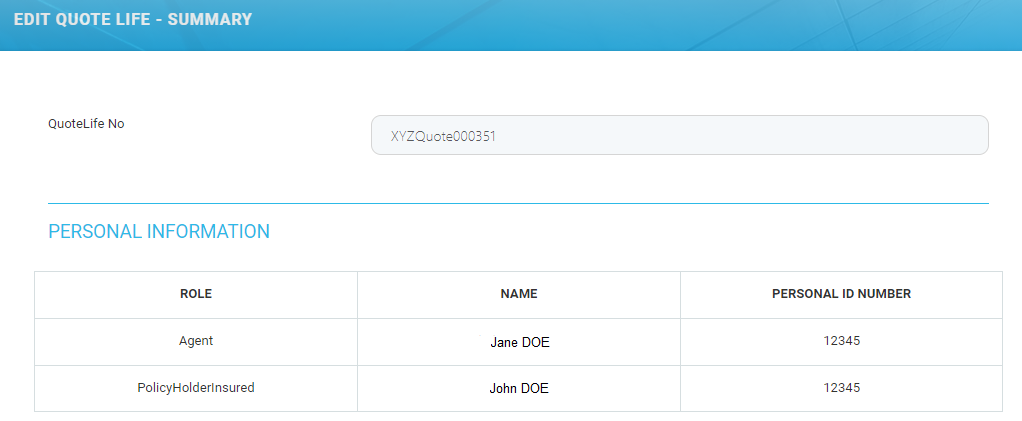
 Personal Information
The Personal Information grid presents the following read-only fields.
|
Field |
Description |
|---|---|
| Role | The possible values of this field are: Agent, Policyholder, Policyholder / Insured, Insured. |
| Name | This field holds the full name for the above role, the last name being capitalized. This data is taken from the previous steps where the user inputs their personal information. |
| Personal ID Number | This field holds the personal identification number for the above roles, which is taken from the data that has been input in the previous steps. |
Policy Quotation Details
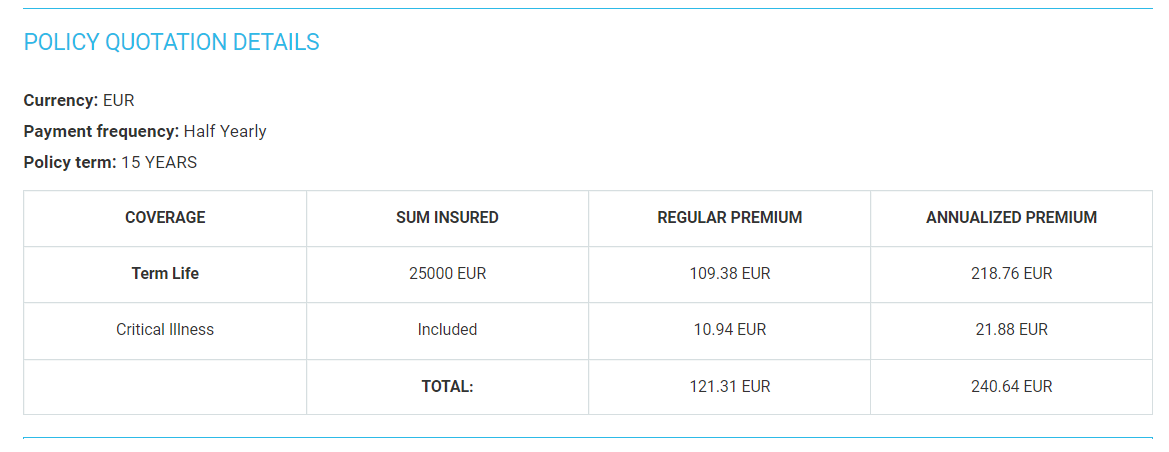
The top of this section displays the Currency, Payment Frequency and Policy Term read-only fields. The values are taken according to the chosen quotation from the previous Quotation step.
Below these fields, a grid similar to the one in the Quotation step is displayed, containing the following columns: Coverage, Sum Insured, Regular Premium, Annualized Premium. In the last column, the annual premium amount is calculated and displayed for each coverage. The values in this grid are not editable.
Important Notes Concerning This Quotation
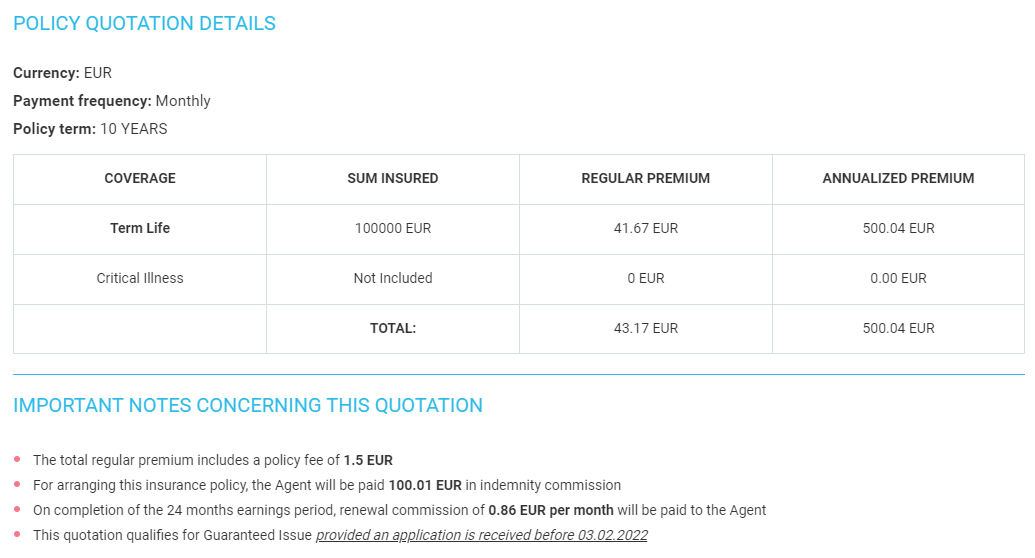
This section includes mentions regarding the policy fee, agent indemnity commission and the quotation expiry date. These fields are read-only.

Regarding the policy fee, the following message is displayed: "The total premium includes a policy fee of X EURO".
If the payment frequency is annually, this message is not displayed.
If the payment frequency is other than annual:
-
the total annualized premium in the ‘'Policy quotation details’' should also include the policy fee in the calculation (not only the total regular premium)
-
The values of the policy fee that are added to the total regular premium are, depending on the frequency: Half-yearly - €1.00, Quarterly - €1.25 and Monthly - €1.50
-
The values of the policy fee that are added to the total annualized premium must be, depending on the frequency:
-
Half-yearly - €2.00 (1X2)
-
Quarterly - €5.00 (1,25X4)
-
Monthly - €18.00 (1.50X12)
-
-
-
in the ‘'Important notes concerning this quotation’', the mention regarding the policy fee will be modified as follows: ‘'The total premiums include a policy fee of X EUR payable [Monthly/Quarterly/Half-Yearly]’', when X = the policy fee added to the total regular premium and ‘'[Monthly/Quarterly/Half-Yearly]’' = the payment frequency (dynamic text).
-
the value for the total regular premium, the value for the total annualized premium and the mention regarding the fee will have a ‘'*’' displayed next to them.
-
Regarding the renewal commission, the following message is displayed: "On completion of the 24 months earnings period, renewal commission of Y per Z is paid to the Agent.", where Y is dynamic and represents the renewal commission and the quotation currency. It represents a renewal commission of 2% of each premium paid after the two years earnings period is completed. This commission is paid according to the frequency.
Y corresponds to the renewalCommission attribute of the Agent entity.
Once the 24 months earnings period expires, the commission resorts to “renewal” commission, which is paid as and when each premium is paid.
Example:
premium = 100 euro / month
Y = 2% of 100 euro = 2 euro
Z = dynamic, the frequency of the chosen quotation
Regarding the Expiry date, the following message is displayed: "This quotation is valid until W", where W is the expiry date of the quotation, representing the date when the user clicks the Save Quote button for the first time, plus 30 days. For example, if the user clicks Save Quote on 02.07.2021, the expiry date is 01.08.2021.
W corresponds to the expireDate attribute of the FTOS_INSQB_QuoteLife / FTOS_INSQB_QuoteVersion entities.
Guaranteed/Jet Issue
In the Summary section, it is also mentioned if the quotation qualifies for a guaranteed/jet issue. In order for the quotation to be qualified as such, the following conditions must be simultaneously met:
-
The BMI of the proposed life insured must not be below 18.5 or greater than 24.9.
-
The insured answered no to the tobacco use question, in the Personal Data step.
-
The insured has an occupation with no additional requirements by reference to the Occupation table, that they are an “A” for acceptable occupation, both for life cover and for the riders.
-
The insured has applied for a term of 10 years.
-
The insured's age next birthday is 31 or less.
-
The insured has applied for a cover equal or less than 100.000 Euro or equivalent.
If all the above conditions are met, the mention regarding the expiry date of the quotation is no longer displayed, and it is replaced with the following: "This quotation qualifies for Guaranteed Issue, provided an application is received before X.", where X is the expiry date of the quotation, as shown below.
If the user clicks Save Quote for several times in different days, in all cases W is calculated in regards to the first time the user clicks Save Quote in the Quotation step + 30 days.
If the Term Life quotation qualifies for the guaranteed/jet issue, the Apply for Cover button becomes available at the bottom of the page. Upon clicking this button, the system directs the user to the next page, called Application and Payment.
The page contains the following sections:
-
The number of the quotation;
-
The Back button. When clicked, the user is asked if they want to save any changes made, and is directed to the context screen from which the journey began. The quotation record is updated in the quotation history list.
-
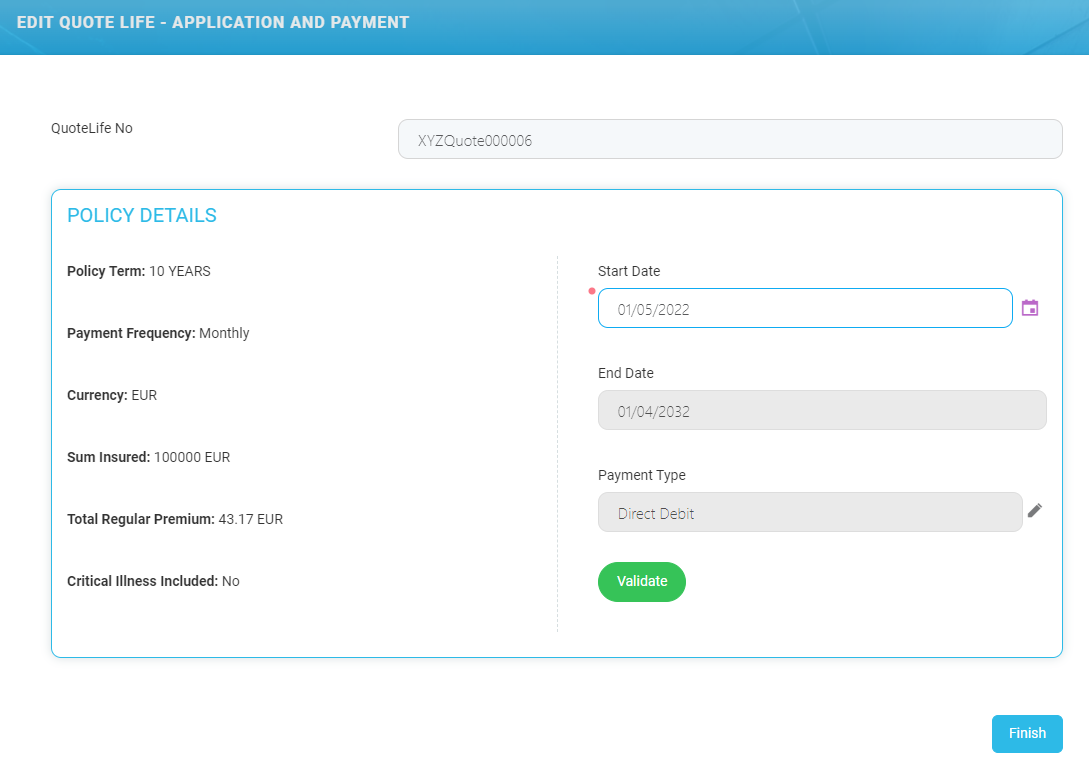
The Policy Details section, which includes the following:
Field
Description
Start Date
A calendar from where the user can select any date between the current date +1 day, and which date comes first between the current date +31 days, or the insured person's next birthday -1 day.
End Date
As an example, according to the term, if the start date is 06.12.2021, the end date is 05.12.2031.
Term
10 years.
Currency
The currency for the cover sum.
Payment Frequency
The payment frequency for the cover.
Payment Type
The user can choose from the following payment types: OP, PayU, PayU-on time, brokerCollection and Direct Debit. The field is prepopulated with the Direct Debit option.
Sum Insured
Critical Illness Included
Yes or No value field.
Total Regular Premium
The calculated value of the total regular premium.

All these fields are read only, except the Start Date. All the fields excepting the Start Date and the End Date are taken from the previous step.
At the end of this section, the Validate button is found:
-
When clicked before choosing the Start Date, the following message is displayed: "Please choose a start date";
-
When successfully clicked:
-
The Generate Policy endpoint is called;
-
A policy with the Proposal status is generated in Policy Admin for this quotation;
-
The policy number is displayed in the Application and Payment page, next to the quotation number. It is a sequencer, type "TLF000001";
-
The following message is displayed: "For this quotation, a policy was generated in status Proposal!";
-
The status of the quotation changes from Generated Quotation into Accepted Quotation.
-
-
The following sections are displayed when the user successfully clicks the Validate button:
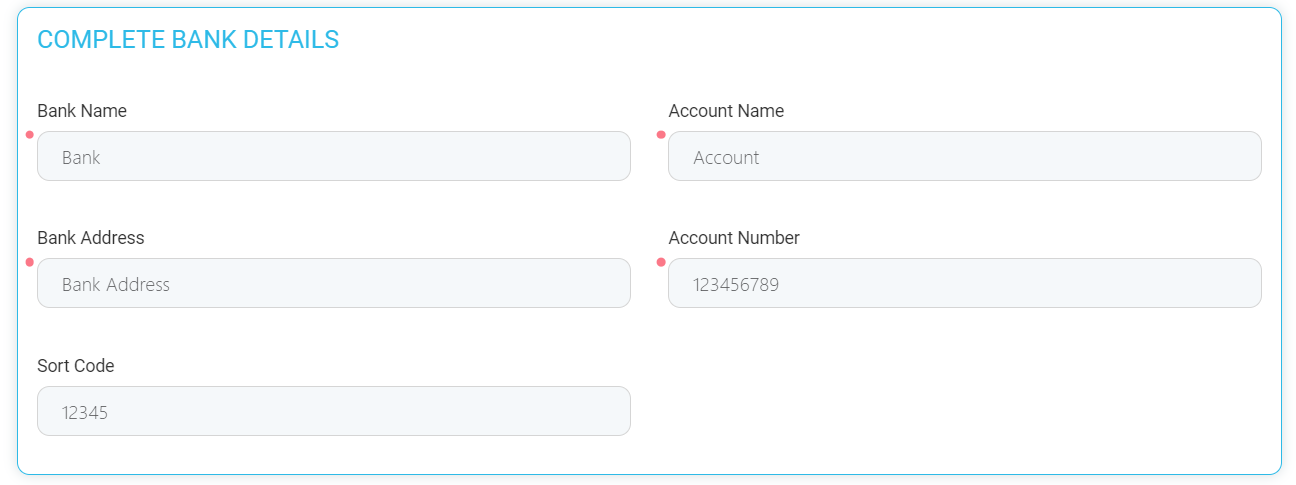
Complete Bank Details
This section includes several mandatory fields, except Sort Code, to be filled by the agent in order to move on. These are text type attributes. The fields are listed below:
-
Bank Name;
-
Bank Address;
-
Sort Code;
-
Account Name;
-
Account Number.
Generate, Sign & Issue
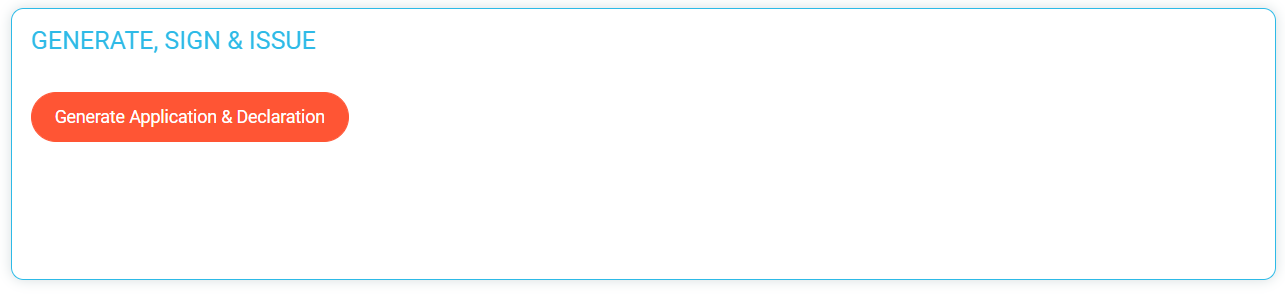
This sections displays the Generate Application & Declaration button:
-
When clicked filling in all the mandatory attributes from the above section, the following message is displayed: ‘'Please fill in the bank details’';
-
When successfully pressed, a .pdf document is generated.
When the document is generated, the user is able to open, download and print it. The document is called Application & Declaration, and it includes information from the fields that are already filled in the previous step.
The quotation changes its status from Accepted Quotation into Generated Application.
After the above document is successfully generated, the Sign Application & Declaration button is displayed.
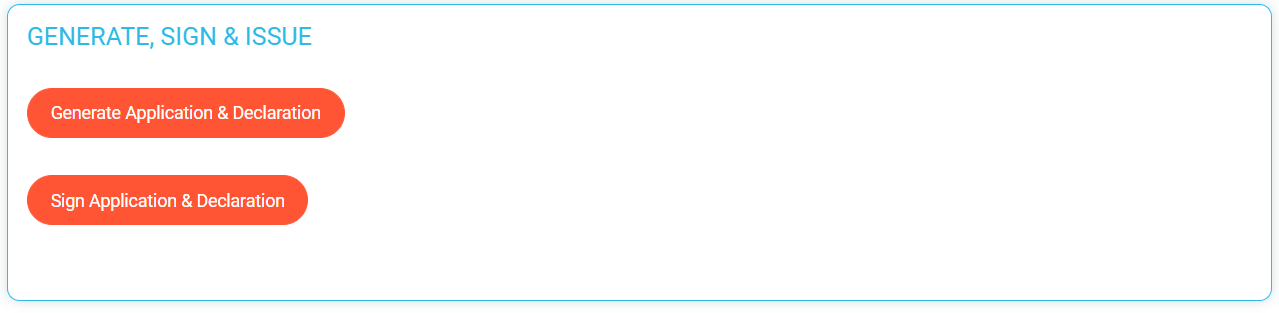
When the user successfully clicks the button:
-
The quotation changes its status from Generated Quotation to Signed Application;
-
A .pdf document called Application & Declaration Signed is generated, and the user is able to open, download and print it.
After the above document is generated, the Issue Policy button is displayed.
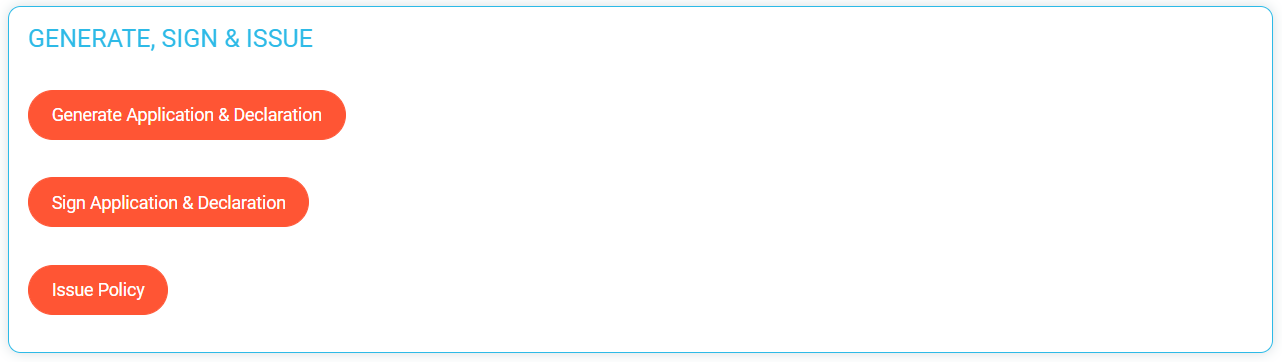
When the user successfully clicks the button:
-
The Policy Status Change API is called;
-
The quotation changes its status from Signed Application to Policy Issued;
-
Three separate .pdf documents are generated. The user is able to open, download and print the documents. They include the information from the already filled in fields in the previous step. These are called:
-
Term Life Policy Schedule Template;
-
Term Life Regulatory Disclosure Document;
-
Welcome Letter.
-
The Previous and Finish buttons are displayed from the beginning, when the user accesses the Application and Payment page.
The Previous button takes the user to the previous step, the Summary step, and a pop-up is displayed asking the user if they want to save the made changes.
The Finish button takes the user to the context screen from which the journey began, and the quotation history list with the record is updated. The quotation is in the Policy Issued status.
-
When clicked before choosing a Start Date, the following message is displayed: "Please choose a start date";
-
When clicked before clicking the Validate button above, the following message is displayed: "Please validate the quotation!";
-
When clicked before filling in the mandatory bank details, the following message is displayed: "Please fill in the bank details";
-
When clicked before clicking the Generate Application & Declaration button, the following message is displayed: "Please generate the Application & declaration document";
-
When clicked before clicking the Sign Application & Declaration button, the following message is displayed: ‘'Please sign the Application & declaration document’';
-
When clicked before clicking the Issue Policy button, the following message is displayed: ‘'Please generate the Policy documents’'.
Generate Quotation
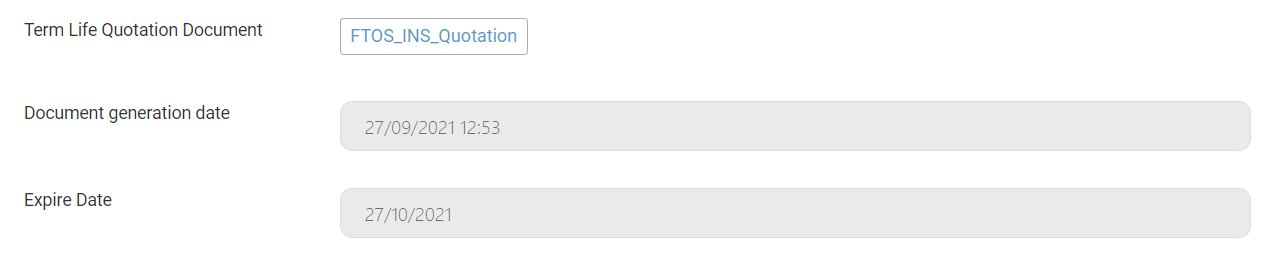
When clicking the Generate Quotation button, a .pdf quotation document is generated, named "TermLifeInsuranceQuotation".
The user can open, download and print this document, containing the date when the quotation was generated, corresponding to the quotationDocumentDate attribute, and the date when the quotation expires, corresponding to the expireDate attribute, W.
Quit
In this section, the user can choose to quit and close the quotation. The following fields are displayed.
|
Field |
Description |
|---|---|
|
Close Reason |
Mandatory option set field, displaying the following values:
|
|
Details |
Optional free text field, where the user can input any details regarding the decision to quit the quotation. |

After filling out the fields, the user needs to click the Quit button, and a confirmation pop-up is displayed, with the following message: "Are you sure you want to quit?". If the user chooses "Yes", the quotation history list is displayed, and the status of the quotation is changed to Closed.
If the user clicks Quit without choosing the Close Reason, the following blocking message is displayed: "Close reason required".
The Previous and Apply for cover buttons are present at the bottom of the page.
When the user clicks the Previous button, they are taken to the previous Quotation step, and a pop-up is displayed, asking the user if they want to save the changes.
When the user clicks the Apply for cover button, the application takes the user to the next flow, the Application Form. If the button is clicked before the quotation was generated in the Generate Quotation section, the following blocking message is displayed: "Generate quotation required".