Existing Life Quotes
Each time a quotation is being made, a record is created and saved, and the user has the possibility to view the records of each of the created quotations.
In order to view the quotation history list, the user must navigate to the following menu: Quote and Apply > Existing Life Quotes.
The Existing Life Quotes grid will be displayed, and lists all the records of the quotations made up to that point. These are sorted by the date and time of creation, in reverse chronological order.
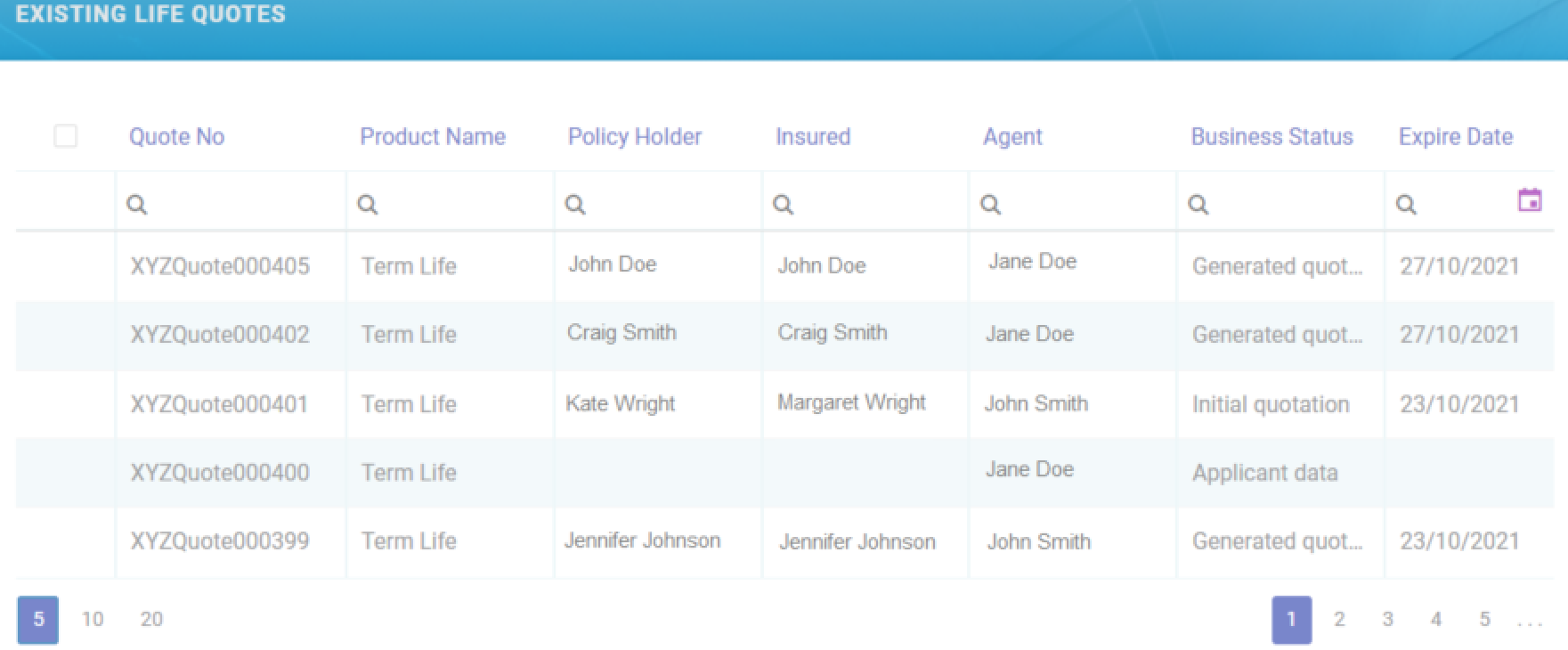
The grid contains the following columns:
-
Created On: The date and time at which the record was created.
-
QuoteLife No: The unique record number.
-
Policyholder: The full name of the policyholder.
-
Insured: The full name of the insured.
-
Agent: The full name of the agent.
-
Business Status: Taken from the
businessStatusattribute of theFTOS_INSQB_QuoteLifeentity. -
Expire Date: Taken from the
expireDateattribute of theFTOS_INSQB_QuoteLife / FTOS_INSQB_QuoteVersionentity.
In order to edit the responses in the Client Consent step, the user needs to follow the below steps:
-
In the Existing Life Quotes grid, double click the specific quotation record.
-
Click the Next button in the Agent Details step. The fields of the Agent Details step are not editable.
-
Modify the answers in the Client Consent step. Make sure the mandatory consents are ticked, otherwise one or both of the following error messages is displayed: "Data processing agreement is required" or "Financial advice agreement is required".
-
Click the Next button, and the following message is displayed: "Record Updated."
-
If the user clicks the Previous button in the Personal Data step, the consents will no longer be editable.
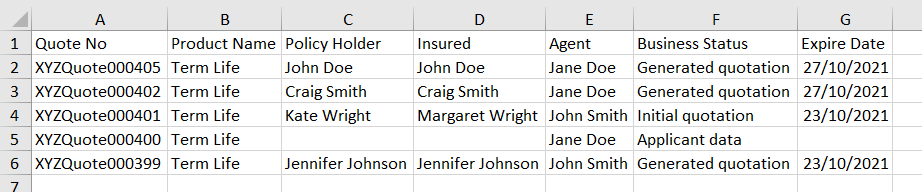
The grid can be exported into an .xlsx file, by clicking the Export button, located on the top right corner.
The output is given in the image below.
The user can delete any of the records in the Existing Life Quotes grid, by ticking one or multiple records, and clicking the Delete (x) button on the top right corner.
The user can also start a new quotation by clicking the Insert (+) button on the top right corner of the screen. The same journey as in the New Life Quote section from the Quote and Apply menu starts. The only difference is that when starting a new journey from the Existing Life Quotes screen, and then clicking the Go Back button on the top left corner in the process, the user is taken back to the Existing Life Quotes screen, and does not remain in the first step of the journey.