Cancel a Master Policy
The Masterpolicy cancellation works in a similar way as the masterpolicy’s MTA. This means that cancelling a Masterpolicy inherently cancels all the policies with status In Force MTA that are linked to it.
 Register a Master Policy Cancellation
In order to open a cancellation on a Masterpolicy, you must first search for a specific one. After finding the right masterpolicy, you can request a cancellation.
-
In the main menu, navigate to Policy Admin > Cancellations.
-
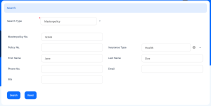
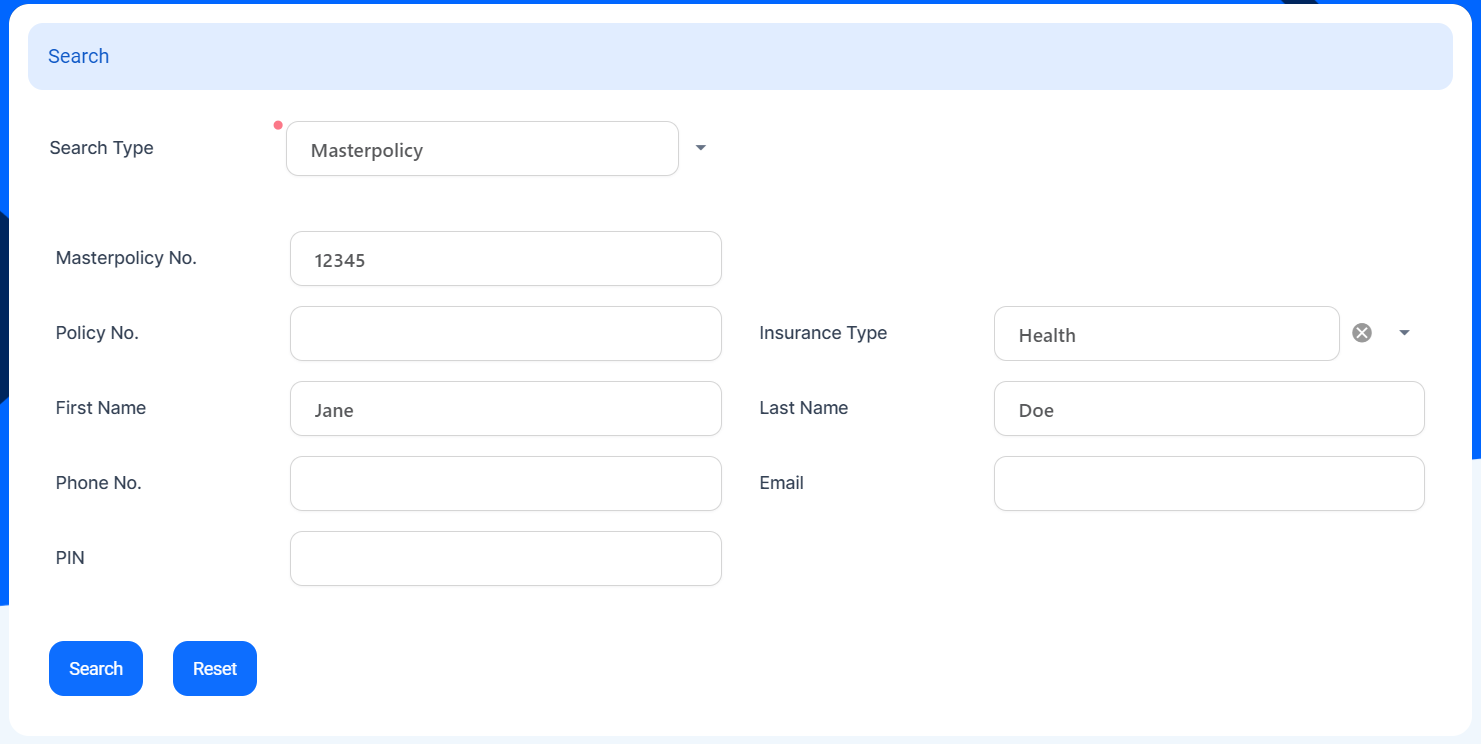
Click the Insert button. The Masterpolicy Search form is displayed. Select the Masterpolicy option from the drop down. You can further refine the search by filling at least one of the fields in the grid.
-
Click the Search button. A grid is displayed, showing the Masterpolicies with the matching details inserted in the previous form.
In this grid, only Masterpolicies having the specific statuses configured in the correlated processor appear. The statuses available for the Masterpolicy cancellation are either in the Inforce or Issued status.
-
When you've found the right policy, click the Choose Option button.
-
The main Cancellation form is displayed in order to register a request.
If you choose a policy which already has a Cancellation request in the InProgress status, the process is not available, and a warning message is displayed.
-
When starting the registration, two tabs are displayed in the interface: Change Request and Masterpolicy Details.
-
The Change Request tab presents the following 3 sections:
-
The Change Request Summary section, with the following fields to be filled in: Cancellation Notification Date, Reason Type, Requested End Date, Final End Date.
The algorithm for the Final End Date and Requested End Date fields according to the selected Reason Type is the following, taking into consideration the validations stated above:
Reason Type Requested End Date Final End Date Withdrawal Automatically completed with the Masterpolicy Start Date. Automatically completed with the Masterpolicy Start Date. Property sold The Requested End Date can be set to any day before or including the day of the request for cancellation. The Final End Date is filled with the value from the Requested End Date but with the possibility to edit. Cancelled by Client You can manually fill the field with any date.
If the Notification Date - Policy (Issued) Date <= X days (free withdrawal limit date), then this field is automatically completed with the Policy Begin Date with the possibility to be adjusted.
Otherwise, this is automatically completed with the Notification Date + 21days to go.NOTEIf the Final End Date is in the X days (from the free qithdrawal limit date), then the policy is transitioned to Withdrawal on client request, and if it is after those X days, then the policy is transitioned to the Cancelled status.
Decline by screening You can manually fill the field with any date. It can be filled with the value from the Requested End Date, but with the possibility to edit. Cancelled You can manually fill the field with any date. It is automatically completed with the Notification Date + 21 days to go. Closed by Claim It is pre-filled with the Notification Date + 21 days from the present on. It is filled with the value from the Requested End Date, but with the possibility to edit. Insured Death You can manually fill the field with any date. It is filled with the value from the Requested End Date, but with the possibility to edit. -
The Masterpolicy section, with containing read-only fields in regards to the Masterpolicy details. A specific grid with all the policies included in that Masterpolicy is displayed below the mentioned fields. Double-click a record to be redirected to that policy form.
-
The Payment Beneficiary section, where you need to fill in the fields in regards to the payment beneficiary.
-
-
The Masterpolicy Details tab displays a grid with all the Masterpolicy Installments and a grid with all the Masterpolicy Claims. The records cannot be adjusted.
-
-
After completing all the information, click the Register request button, to transition the status for the request to the In Progress status.
-
The Premium Returned tab is displayed, containing more information about the reimbursement.
-
Alternatively, click the Cancel button to close the current request. You have to complete the Resolution Reason attribute in order to explain the reason of cancelling the current request.
-
The request status is transitioned to the Cancelled status.
 Propose a Masterpolicy Cancellation Request
If in the Masterpolicy searching grid you choose a policy which already has a Cancellation request in InApproval status, the process is not available and the following warning message is displayed: ”This Masterpolicy already has a Cancellation request opened on it!”.
After registering a Masterpolicy cancellation, the Premium Returned tab is displayed and you either have the possibility to Propose the request further to be approved, or to Cancel it.
The Premium Returned tab contains some static information regarding the premium to be returned. The Returned Premium Amount section contains the premium returning details for the Masterpolicy and a specific policy grid with all these details but for each policy.
The following fields are displayed in read-only mode for this section: Masterpolicy Start Date, Masterpolicy End Date, Premium Amount, Premium Currency, Paid Amount, Paid Currency, Returned Premium Amount, Returned Premium Currency.
After checking the information, you are able to perform the following actions:
-
Further propose the request by clicking the Propose Change Request button which changes the status to InApproval and triggers the displaying of the Request Approval tab.
-
Cancel the request, and you have to fill the Resolution Reason attribute in order to explain the reason of cancelling the current request. Also, the request status is transitioned to Cancelled.
By clicking one of the existing buttons, the first tab becomes read-only with no other possibilities for adjustments. The buttons disappear after clicking them.