Master Policies
This functionality enables insurers to create their bundled policy offerings, covering General Insurance, Life & Health protection, but underlining the fact that the Mastepolicy has the distinct characteristic for being the way through which multi-object, multi-location is managed for Property & Casualty business or for example multi-person (group) contracts for Life & Health.
The Masterpolicy and it’s linked Policies will have some common details. For example they will share the same:
-
Contractor;
-
Intermediary;
-
Currency;
-
Policy End date;
-
Number of installments;
-
Installments due dates;
-
Payment types.
 Master Policy Generation
A Masterpolicy is issued by using the GenerateMasterpolicyAPI:
-
When generating a Masterpolicy with no policy attached, it is automatically set in the Draft status, with several editable fields described further;
-
When generating a Masterpolicy with its attached policy at the same time, it is automatically set in the Proposal status, and its fields are read-only.
To view the list with all the existing masterpolicies in FintechOS Portal,navigate the following menu: Policy Admin > Masterpolicies.
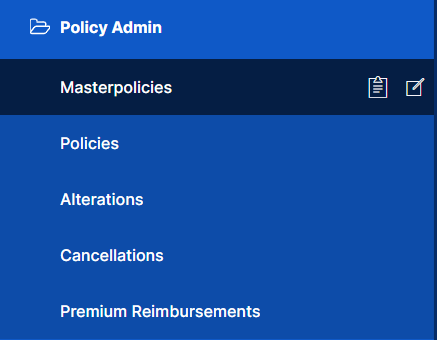
In the Masterpolicies subsection, the Master Policies List grid is displayed, which contains all the created master policies.

The grid contains the following columns:
| Name | Description |
|---|---|
| Master Policy No | The number of the Master Policy. |
| Contractor | The full name of the contractor. |
| Start Date | The start date of the Master Policy. |
| Premium Amount | The premium of the Master Policy. |
| Currency | The currency of the Master Policy. |
| Business Status | The business status of the Master Policy. |
Open a Masterpolicy and view the displayed tabs. In case of a Masterpolicy in Draft status, you can edit some of the fields, as presented below:
-
The Master Policy tab contains the following sections:
-
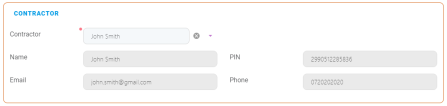
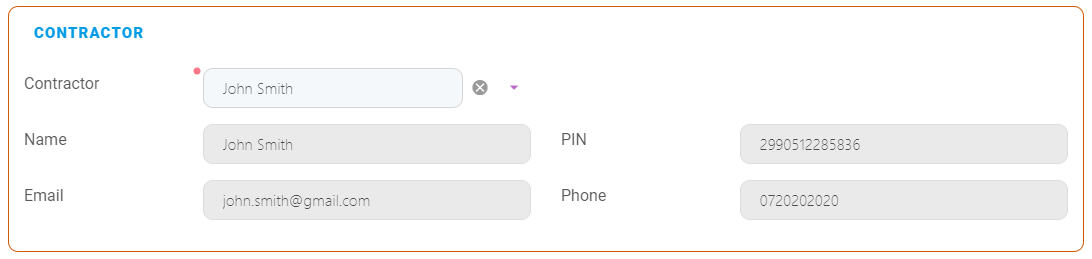
Contractor, containing the following fields:
Name Description Contractor
Drop down list where you can choose the contractor for the Masterpolicy.
Name The full name of the contractor, concatenated. PIN Personal Identification Number. Email The email of the contractor. Phone The phone number of the contractor. Choose a Contractor from the drop-down to automatically fill in the fields with their details.
-
Intermediary, containing the following fields:
Name Description Agent Drop down list where you can choose the agent for the Masterpolicy. Broker Drop down list where you can choose the broker for the Masterpolicy. Agent Name The full name of the agent. Broker Name The full name of the broker. Only one of the Agent or Broker name fields can be filled. If you try to fill both, the following message is displayed: "A Master Policy can have either an Agent or a Broker".

-
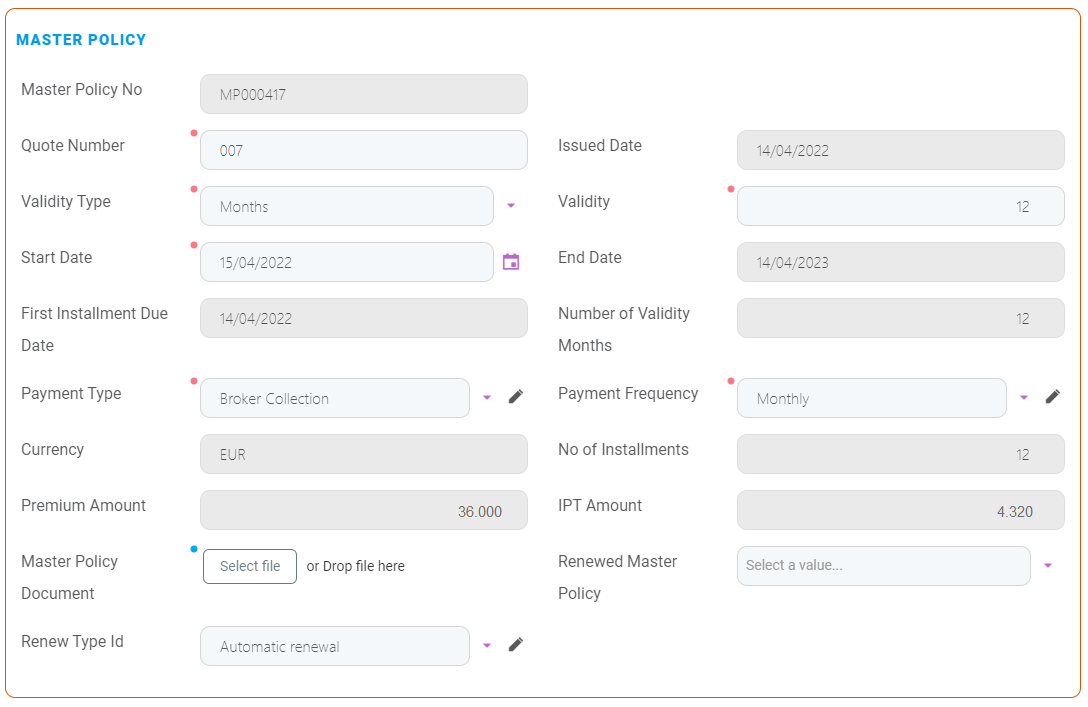
Master Policy, containing the following fields:
Name Description Master Policy No The unique number of the master policy. Quote Number The unique number of the quote. The field is editable in the Draft status. Validity Type Drop-down field with the following possible values: Days, Months, or Years. The field is editable in the Draft status. Validity The validity of the master policy expressed in the number of days, months, or years. The field is editable in the Draft status. Start Date The start date of the policy. The field is editable in the Draft status. End Date The end date of the policy. Payment Type Drop-down field, with the following possible values: Bank Transfer or PayU. The field is editable in the Draft status. Payment Frequency Drop-down field with the following possible values: annually, semiannually, quarterly, monthly. The field is editable in the Draft status. Currency The currency used for the policy. No of Installments The number of installments for the policy. Premium Amount The amount of the premium. IPT Amount The amount of the insurance premium tax. Master Policy Document The master policy file to be uploaded. Renewed Master Policy Option set to choose the master policy to be renewed. The field is editable in the Draft status. Renew Type Id
Drop down field to choose the renew type ID, the possible values being None, No, Automatic Renewal and Renewal Offers. The field is editable in the Draft status.
-
Mentions, where the user can add some free text, with mentions regarding the Master Policy.

-


-
Fill in the mandatory details and save the record. Two more tabs are displayed in the form:
-
Tab 1, first called Master Policy and now called Master Policy Summary, containing the above fields, plus, below them, 2 new sections called Premium Payments Schedule and Invoices.
-
These sections are empty at first, and populated with values after the associated policies are generated:
-
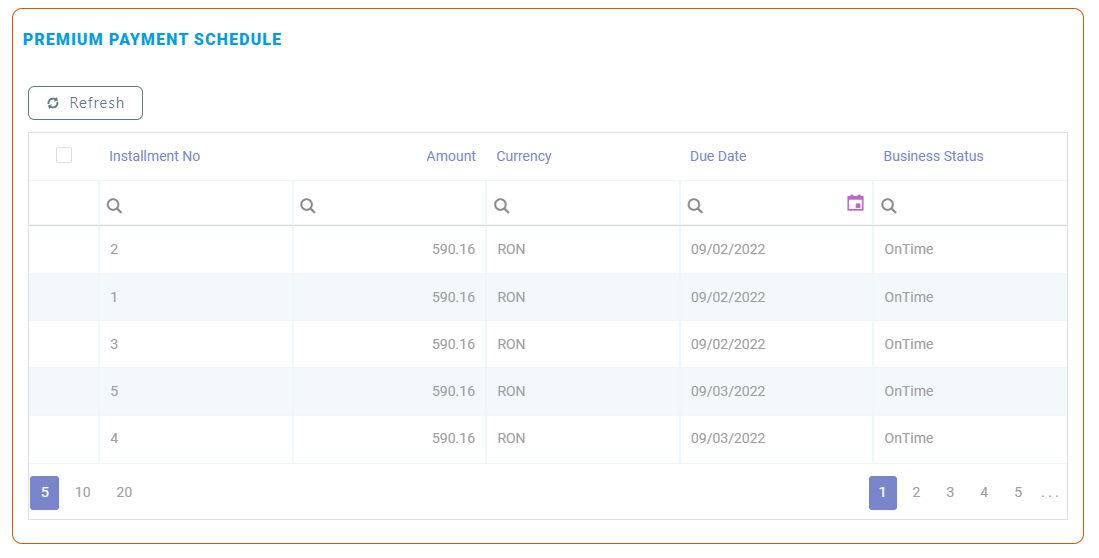
The Premium Payments Schedule section, the list with the installments, contains:
Name Description Installment No The number of the installment. Amount The premium amount for that record, for that installment. Due Date The due date for that installment. Business Status The status of the installment. 
-
The Invoices section, the list with the statements, contains the following columns:
Name Description Statement No The number of the statement. Amount The premium amount for that record, for that statement. Due Date The due date of that statement. Status The status of the statement.
-
-
-
Tab 2, called Policies List, is empty at first, and is populated with values after the associated policies are generated through the PolicyGenerationAPI endpoint.
-
The grid contains the following columns:
Name Description Insured Name The full name of the insured person. PolicyNo The number of the policy. Insurance Product The product type. Policy Start Date The start date of the policy. Policy End Date The end date of the policy. Premium Amount The amount of the premium. Currency The currency used for the policy. Business Status The status of the policy.
-
-
All the above fields are mandatory, except Renewed Master Policy and the Mentions section.
Master Policies Versioning History
A History tab is available for each Master Policy with all the versions related to it, in order to keep track of the version number, starting from 1.
-
The History tab is displayed for the first time when the Master Policy is in the Proposal status, and the first version status of the Master Policy displayed in the History tab is Proposal.
-
After the Master Policy is issued, the version displayed in the History tab is Issued. The previous version is not displayed anymore.
-
When the Master Policy is in Inforce status, this is the version displayed in the History tab. The previous versions are not displayed.
-
When a version is approved, the previous version is closed , having the Version Closed status. This automatically starts with the effective date of the approved version. Unapproved versions are also displayed in the History tab.
-
There cannot be 2 or more Draft or Pending versions at the same time. Also, there cannot be a Pending and a Draft version at the same time.
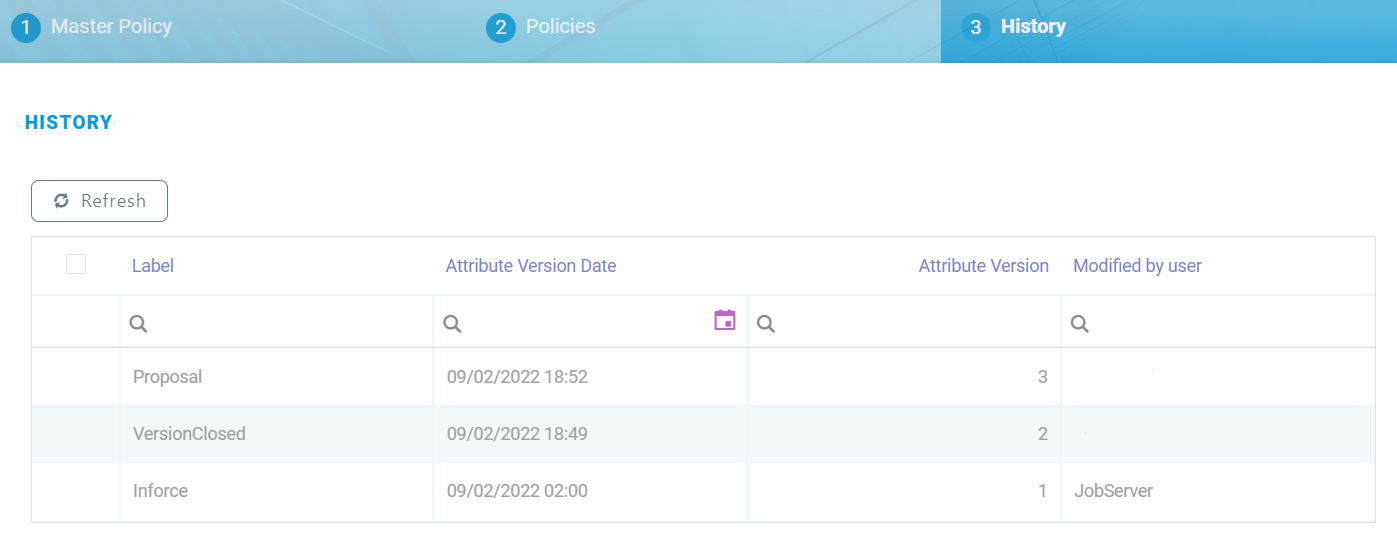
The History tab contains a grid with the following columns:
| Column Name | Description |
|---|---|
| Label | Contains the name (status) of the versions. |
| Attribute Version Date | Contains the date and hour when the version is created in Draft status. |
| Attribute Version | Contains the number of the version. The versions are displayed in reverse chronological order. |
| Modified by User | Displays the name of the user editing the policy. |
generateMasterPolicy Endpoint
The generateMasterPolicy endpoint is used to provide another way of adding a Master Policy into the system.
Request:
-
Contractor (ID);
-
Name;
-
Personal Identification Number;
-
Email;
-
Phone;
-
Agent (ID);
-
Agent Name;
-
Broker (ID);
-
Broker Name;
-
Currency;
-
Renewed Master Policy;
-
Quote Number;
-
Start Date;
-
Validity Type;
-
Validity;
-
Payment Frequency;
-
Payment Type.
Response:
-
Master Policy ID;
-
Master Policy No.
The only validation for the endpoint is that a Master Policy cannot have both an agent and a broker, but only one of the two.
The End Date of the Master Policy is calculated based on the Start Date and Validity.