Policy Cancellation
When a termination of an insurance policy is initiated either by insured or by the insurer, the latter checks in what way the cancellation request falls under the policy scope, and fulfills the request under the agreed terms of the policy. Once approved, the insurer issues some payment, if the case, to the insured, or to an approved third party on behalf of the insured. FintechOS clients use the Core Policy Admin module to organize and automate routines of this typical scenario, in order to increase the efficiency and accuracy of their operations.
 Manage Policy Cancellation Requests
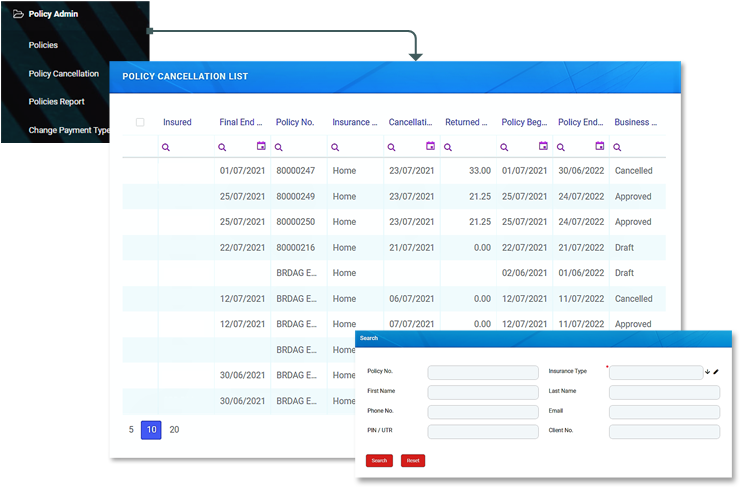
In order to process a policy cancellation request, you must access the Policy Cancellation List that displays all the available Policy Cancellation records from the database.
In order to do so, follow the instructions from below:
- In the Fintech OS Portal, at the top left corner, click the main menu icon to open the dropdown. From the dropdown, choose Policy Admin and click it. The Core Policy Admin sub-menu opens.
- From the sub-menu, choose Policy Cancellation and click it. The Policy Cancellation List is displayed.
- In the Policy Cancellation List page:
- To Add a new Policy Cancellation record, click Insert, at the top right corner of the page.
- To Edit a Policy Cancellation record from the grid, double click it. When opening an existing Cancellation request, the Edit form becomes available, with the information previously introduced. Use the form to update the desired fields. Click Save and Close, at the top right corner of the page.
- To Delete a Policy Cancellation record from the grid, select it and click Delete, at the top right corner of the page.
 Policy Search
Sometimes, the Policy Cancellation record you need to access is not listed on the first page view inside the Policy Cancellation List page. Consequently, to find a Policy Cancellation record, you must search for it. In order to do so, click Insert at the top right corner of the page. The Policy Search form is displayed. Use it to input data about the policy you need to cancel and hit the Search button to find it.
The same Search form is used for both type of customers: individuals and companies. Only the policies that are in the status of InForce are displayed in the list of policies.
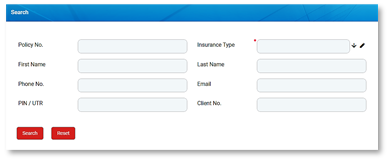
Here are the search keys:
| Field | Description |
|---|---|
| PIN/ UTR | Brings the PIN/ UTR of the Contractor. |
| Name | Either the first name or the last name of the client. You can use any of these keywords. The search looks into the Account entity and brings the following: Insured, Contractor or the Beneficiary. |
| Phone No. | Brings the phone number of the Contractor. |
| Brings the email of the Contractor. | |
| Policy No. | Number of the policy. |
| Client No. | Number of the client. |
After filling in the search parameters, click Search. A new list of policies is displayed. Choose the policy to be closed. The Refresh button reloads the existing search results. If needed, reset the search process by clicking Reset. All the information displayed in the previous search is erased.
To do so, click Choose option near the policy record. A new form related to the cancellation process is displayed. At this stage, a new cancellation record is registered by default with Draft status. This record is later transitioned to other statuses according to the Policy Cancellation process steps. A request can’t be saved if there is no owner or no policy. Proceed forward with the change request form.
Change Request and Policy Details
This is where the registration of the request for the policy's cancellation begins. The Edit form of a new Policy Cancellation record initially opens with only 2 tabs: Change Request and Policy Details. The other tabs are displayed after completing the minimum information required. Consequently, completing the Change Request Summary fields subsequently triggers the actual calculations for the payment amounts to be returned to the client - if the case and the calculations are displayed inside the Policy section specific fields.
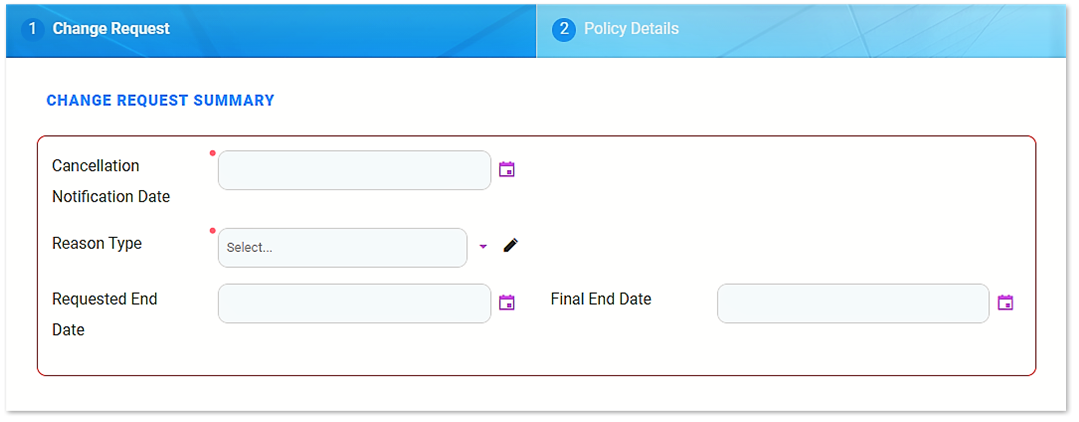
The following fields must be completed first:
| Field | Description |
|---|---|
| Cancellation Notification Date | The date when the notification for the policy cancellation is made. This is a mandatory field for the process. |
| Reason Type | From the option set, choose a reason regarding the decision for policy termination. This is a mandatory field for the process. The values of the Reason Type option set are: Withdrawal, Property sold, Cancelled by Client, Decline by screening, Cancelled, Closed by Claim. |
| Requested End Date | The date from which the closing is expected to take effect. This is a mandatory field for the process. |
| Final End Date | The date when the change takes effect - when policy is closed. This is a mandatory field for the process. |
Choosing a Reason Type triggers the calculation for Requested End Date and Final End Date fields as in the table below:

| Reason Type | Requested End Date | Final End Date |
|---|---|---|
| Withdrawal | In this case, it is automatically completed with the Policy Begin Date. | In this case, it is automatically completed with the Policy Begin Date. |
| Property sold | In this case, the Requested End Date is set to any day before or including the day of the request for cancellation. | Final End Date is filled with the value from Requested End Date but with the possibility to edit. |
| Cancelled by Client | Here it can be manually completed with any date. |
If Notification Date -Policy (Issued) Date <= 15 then this field will be automatically completed with the Policy Begin Date with the possibility to be adjusted. Otherwise thiswill be automatically completed with the Notification Date + 21days to go |
| Decline by screening | In this case, it can be manually completed with any date. | It can be filled with the value from Requested End Date but with the possibility to edit. |
| Cancelled | Here it can be manually completed with any date, by the following rule: If the Notification Date - Policy (Issued) Date <= 15 days, then the Requested End Date is filled with the Policy Begin Date. |
Here it is automatically completed with the Notification Date + 21 days to go. If the Requested End Date meets the rule explained above, the Final End Date is filled with the Policy Begin Date. |
| Closed by Claim | It is pre-filled with Notification Date + 21 days from the present on. | It is filled with the value from the Requested End Date but with the possibility to edit. |
Following the input of the above data, on the next section with details regarding the chosen policy, the fields are automatically filled. The pre-filled details are extracted from Policy basic information section and from the results of the calculation made by selecting the information in the Change Request Summary section.
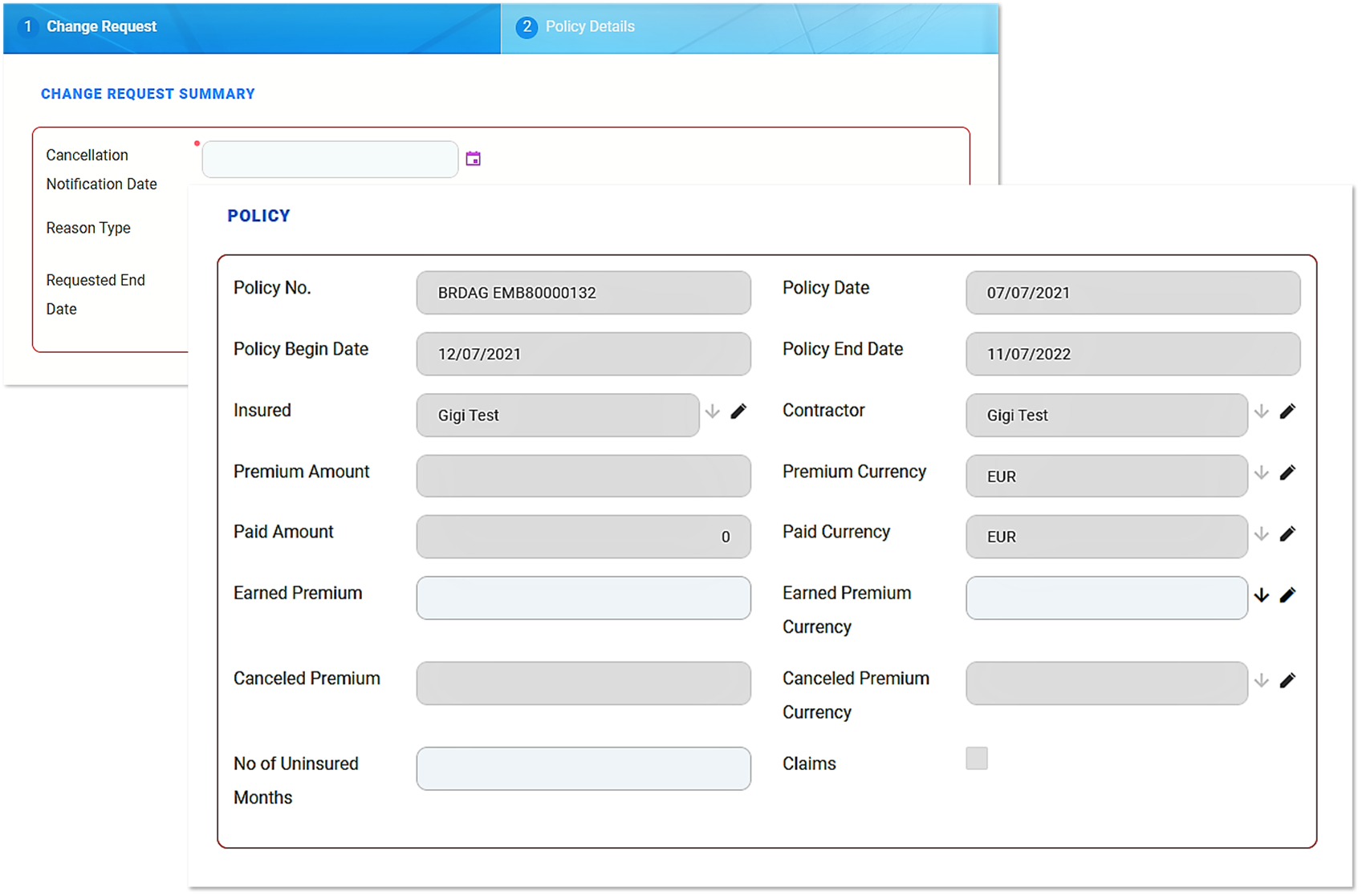
| Field | Description |
|---|---|
| Policy No. | The number of the policy when issued. |
| Policy Date | The date when the policy was issued. |
| Policy Begin Date | The day when the policy becomes enforced. |
| Policy End Date | The day when the policy is no longer be available, according to the contract. |
| Insured | First and last name of the insured person on the policy. |
| Contractor | First and last name of the contractor on the policy. |
| Premium Amount |
The premium amount of the policy. |
| Premium Currency | The currency of the policy. |
| Paid Amount | The total amount of the payments made by the customer on a contract. |
| Paid Currency | The currency in which the amount has been paid. |
| Earned Premium | The earned premium on the Cancellation process: The amount is calculated after the following formula:
2. If [Cancellation Date – (Policy Begin Date+1)] > 15, then the amount is filled in with the following: Premium Amount/ 12 * (12 – No. of uninsured months);
|
| Earned Premium Currency | The specific currency of the earned premium is, by default, the premium currency. |
|
Canceled Premium |
The cancelled premium. |
|
Canceled Premium Currency |
The currency of the cancelled premium. |
| Uninsured Period Type | The values on a monthly or daily basis according to the Prorata type configured in the system. |
| Uninsured Period | Calculated as the number of months or number of days from the Policy Begin Date to the Policy End Date according to the uninsured period type set. |
|
Claims |
Check the box for existing claims - it should be checked if there are any claims on the policy. |
The process continues with filling in the information regarding the customer to whom the payment must be made. In order for the payment to take effect, information must be provided for all the fields in this section. However, this section is left blank when there is no amount to be returned to the customer.
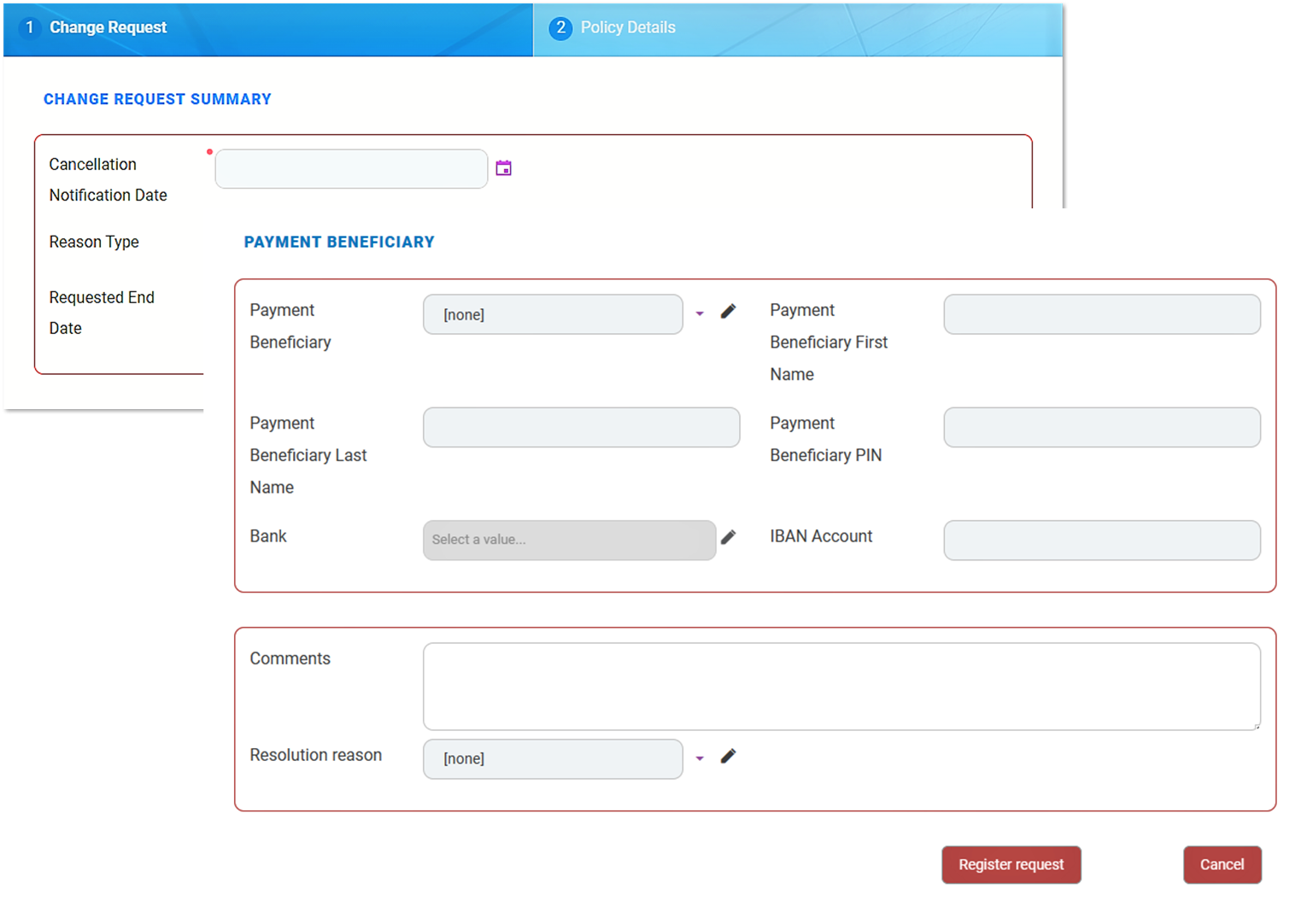
| Field | Description |
|---|---|
| Payment Beneficiary |
The Policy Admin user can choose from the list who is the beneficiary of the payment: the Policy Beneficiary, the Insured person or someone else. For the options Policy Beneficiary and Insured, the First, Last Name and PIN are automatically pre-filled. |
| Payment Beneficiary First Name |
The first name of the payment beneficiary. |
| Payment Beneficiary Last Name |
The last name of the beneficiary. |
| Payment Beneficiary PIN | The PIN of the payment beneficiary. |
| Bank | The name of the bank towards which the payment for the beneficiary is made. |
| IBAN Account | The IBAN Account of the payment beneficiary . |
After the payment information requested above is introduced, the application is registered in the system in order to go for approval. Canceling the request is also possible, provided you offer a cancellation reason. If you continue with the current cancellation request, clicking the Register Request button automatically opens a tab with a new In Progress status, while the system calculates the amount to be returned to the beneficiary. Also, the Comments field becomes available if there is any observation regarding the request.
| Field | Description |
|---|---|
| Comments | Complete this field with relevant information regarding the cancellation process. This field is optional. |
| Resolution Reason | When choosing to cancel the registration of the policy termination request, provide relevant information about doing so. This field is mandatory. The values of the option set are: Product reasons, Other reasons, Company reason, Withdraw. |
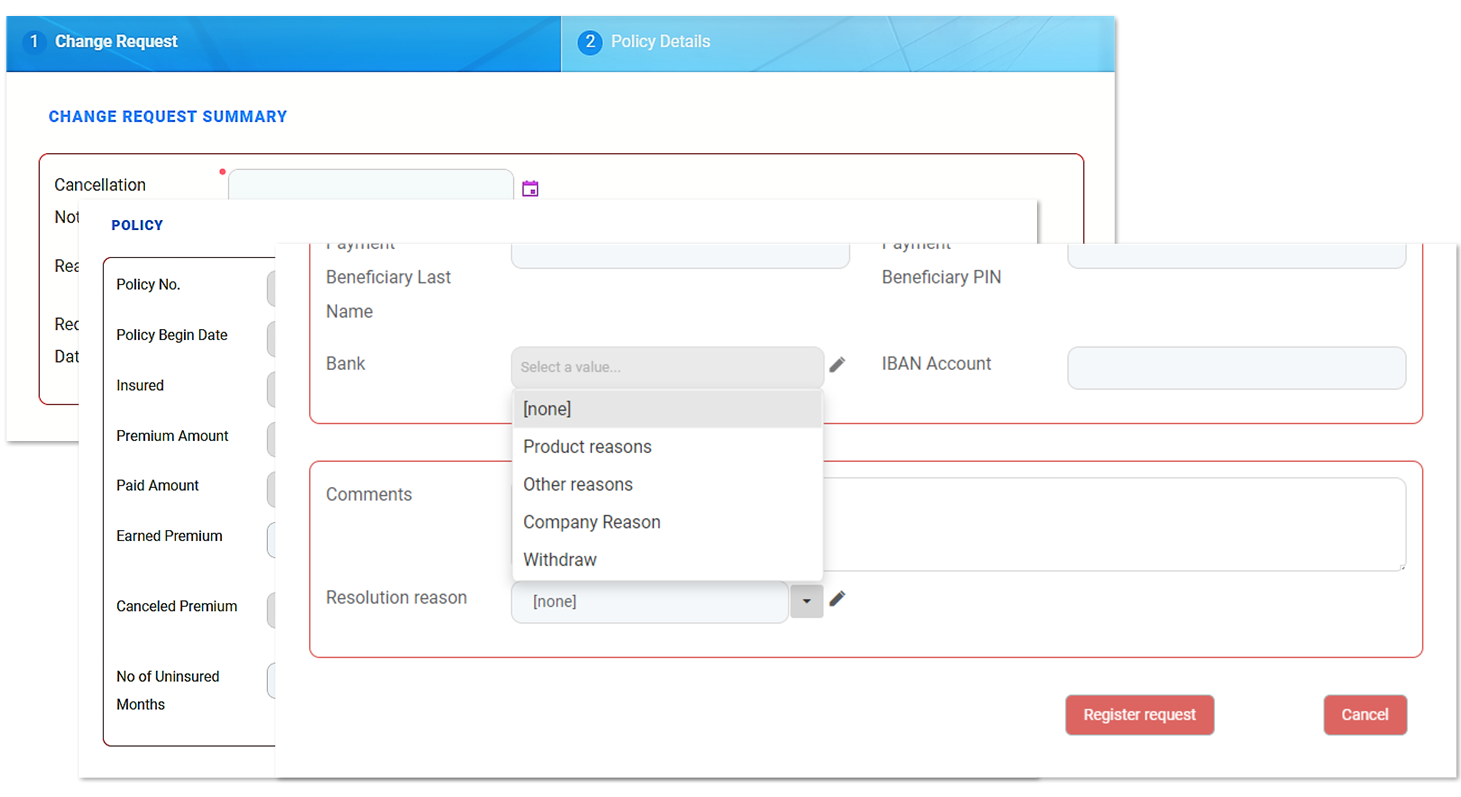
When clicking Register request, you are automatically switched to the next tab, which represents the third step of the process.
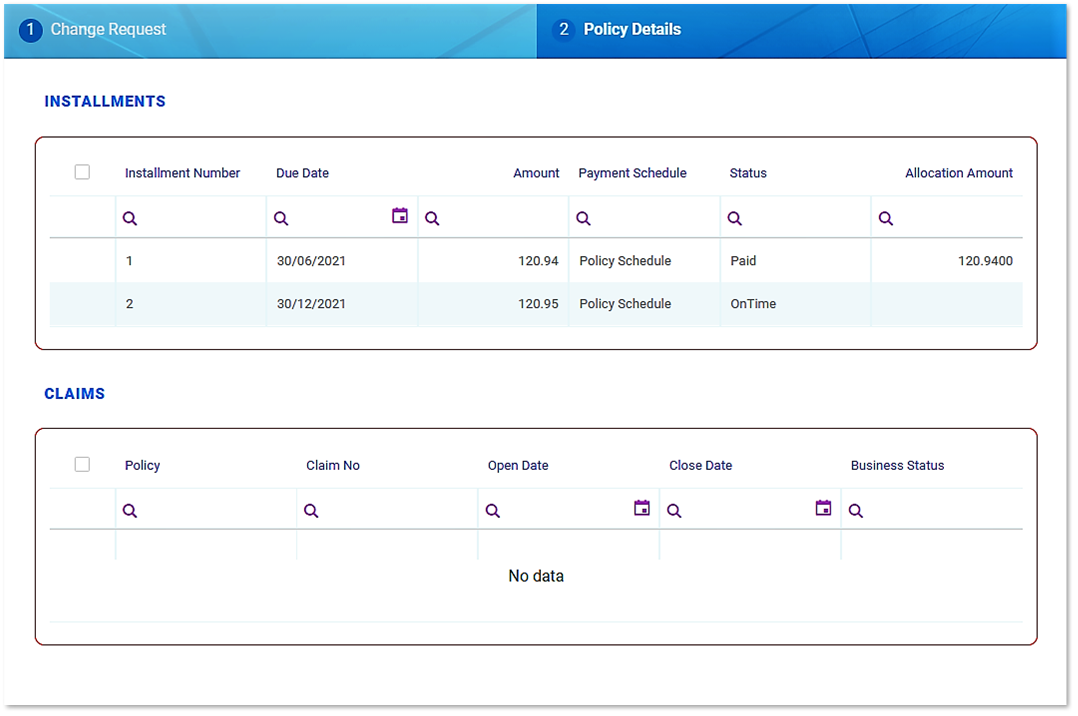
This is where you find two predefined lists that contain the valid installments and the claims that have been opened on the current policy. On this tab there is no possibility to insert or delete records. You can only edit a specific record by double-clicking the desired row, which redirects you to the specific Edit form of the installment or claim.
Premium Returned
This is a step where all details are automatically filled in as follows:
| Field | Description |
|---|---|
| Policy Start Date | The day when the policy becomes enforced. |
| Policy End Date | The day when the policy is no longer be available according to the contract. |
| Last Payment Date |
The date when the last installment payment was made. |
| Interval Until Due Date | The remaining days until the next installment payment. |
| Interval Type | The type of the interval between the installment payments. |
| Premium Amount | The premium amount of the insurance policy. |
| Premium Currency | The currency of the insurance policy. |
| Paid Amount | The total amount of the payments made by the client on a contract. |
| Paid Currency | The currency of the paid amount. |
| Returned Premium Amount |
The amount to be returned to the customer. Is equal to the Unearned Premium Amount result, but with the possibility for the user to edit the amount with a desired value if necessary. |
| Returned Premium Currency | The currency of the returned premium amount. |

When the information regarding the value to be returned to the customer is displayed, decide whether the process continues towards the approval phase or towards closing the request. Click Propose change request to continue with the cancellation process and send the request to approval or click Cancel and complete the Resolution Reason field. This field is mandatory.
Requesting approval opens a new tab, while automatically triggering the transitioning from In Progress status to In Approval status. Also, you can use the Comments field to transmit any observations regarding the current request.
Request Approval
Approving the request for policy cancellation requires the intervention of a Policy Admin Super User who holds the necessary security rights to approve or reject such cases.
| Field | Description |
|---|---|
| Proposal Date |
The date when the cancellation request was scheduled for approval. It is completed with the current date. |
| Approval Date |
The date when the request was approved. It is completed with the date the cancellation application is approved. |
| User | It is automatically completed with the name of the Policy Admin Super User who is logged in at the approval moment. |
| Comments | It can be filled with relevant information regarding the approval process or the cancellation flow. |
| Resolution Reason | In case of declining, the Policy Admin Super User must offer information on why the cancellation application was not approved. |
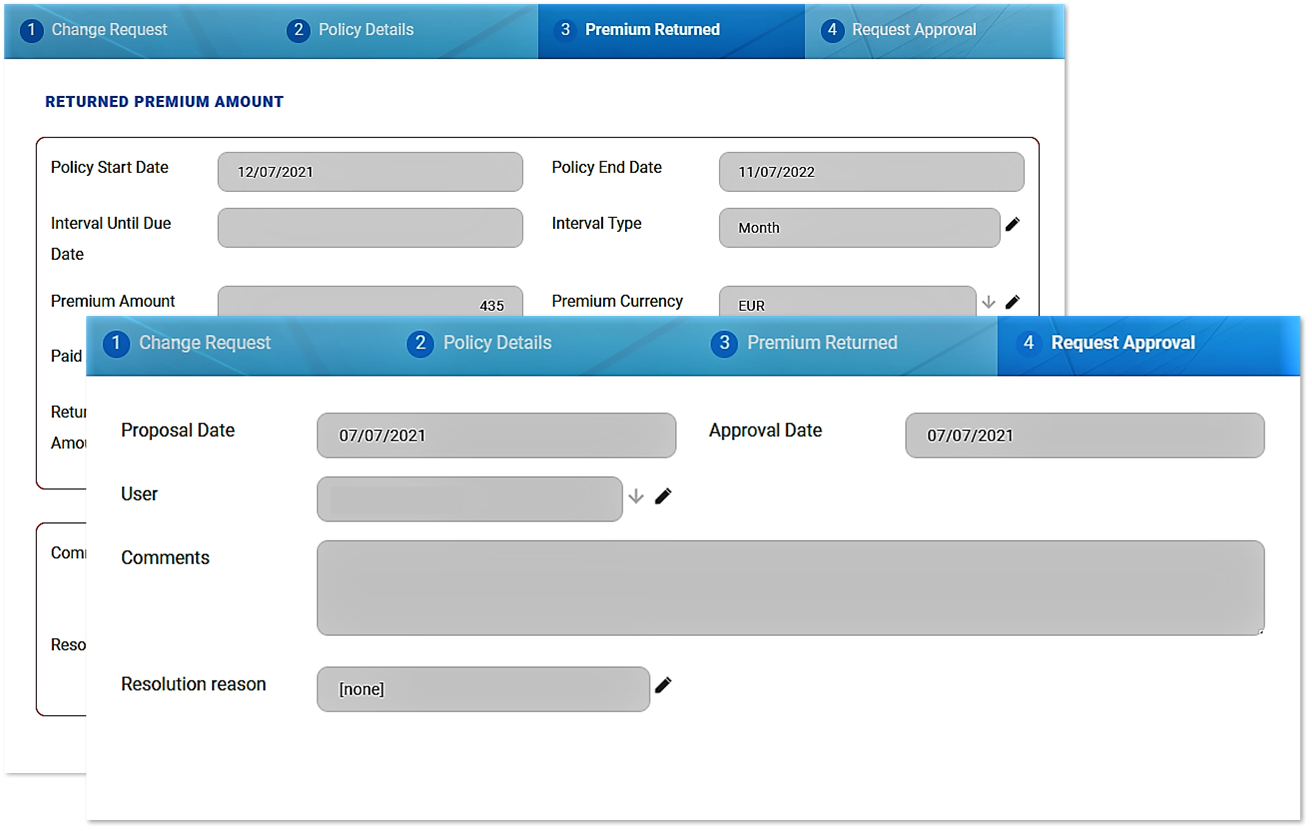
When the case is Approved, the flow continues on the approved branch as follows:
1. If the Returned Premium Amount is equal to 0 then the process ends and the status changes from In Approval to Approved.
2. If the Returned Premium Amount is not equal to 0 then the process continues with the Payment Return flow, explained in the Billing and Collection user guide. In addition, the status changes from In Approval to Approved. The system redirects the user to the tab where the date of the scheduled payment is displayed.
When the case is Declined, the status changes from In Approval to Declined. The process reaches the end without the possibility of starting again.
Policy Cancellation Status Transitions
The Policy Cancellation statuses are as follows:
| Status name | Description |
|---|---|
| Draft | When you open the policy, the Cancellation record is by default in the draft status. |
| In Progress | When you input the notification date. You can move forward by pressing Register request. |
| In Approval | Following the registration of the request, for approval use Propose change request button. |
| Approved | The cancellation request is approved by the Policy Admin super user. |
| Declined | The cancellation request is declined by the Policy Admin super user. |
| Cancelled | The cancellation request is cancelled. |
Conditions for Policy Cancellation
A policy is terminated and is not considered active if:
-
The first installment wasn’t paid. If so, after the prescribing period, the policy becomes Withdraw.
-
The customer wants to terminate the policy before 14 days from issuance. If so, the policy becomes Withdraw on Client Request.
-
The policy reached Maturity.
-
The customer didn’t pay the installment. If so, after the grace period, the policy becomes Lapsed.
-
The customer wants to terminate the policy even the payments are up to date. If so, the policy becomes Cancelled.
-
The customer’s risk class was changed into unacceptable risk. If so, all the customer’s active polices are terminated with Decline by Screening status.
-
The insurer reserves the freedom to decline the policy for any Other reason.
The above conditions currently shape the policy termination flows but Core Policy Admin is a highly customizable solution and you are able to change it according to your needs. For doing so read the Policy Configurations page.
Policy Cancellation Notification
The system automatically informs the client of the Policy Cancellation process for their insurance contract through a specific notification sent to them.
The policies which are included in the notification are those which have the Policy Status = Decline by screening/ Closed by Claim/ Withdraw on client’s request/ Cancelled, transitioned due to a Cancellation process.
The notification is sent when the policy status is changed to a specific cancellation status, on the effective date.
The following are the tokens used in the notification:
-
Contractor name
-
Policy number
-
Insurance type
-
Policy End Date (new End Date) - the Effective date from the Cancellation process which will be updated on the last active version of the policy
-
Email template name : HomeInsurance_ClientPolicyCancelledNotification.
Lapsed Policy Notification
Similarly to the cancellation process, the system informs the client of the Policy Lapsing process for their insurance contract through a specific notification sent to them.
The Policies which included in the notification are those which have the Policy Status = Lapsed.
The following are the tokens used in the notification:
-
Contractor name
-
Policy number
-
Insurance type
-
Email template: homeInsurance_ClientPolicyStatusLapsed