Homepage
Log in to the FintechOS Portal using the given credentials. Select the widget assigned to the Value-Added Marketplace Powered Lending.
1 Accounts & Cards
The top part of the homepage allows a user to navigate between the owned accounts and the cards. In the Accounts section, there are available:
- main account
- savings account
- current accounts
- credit card.
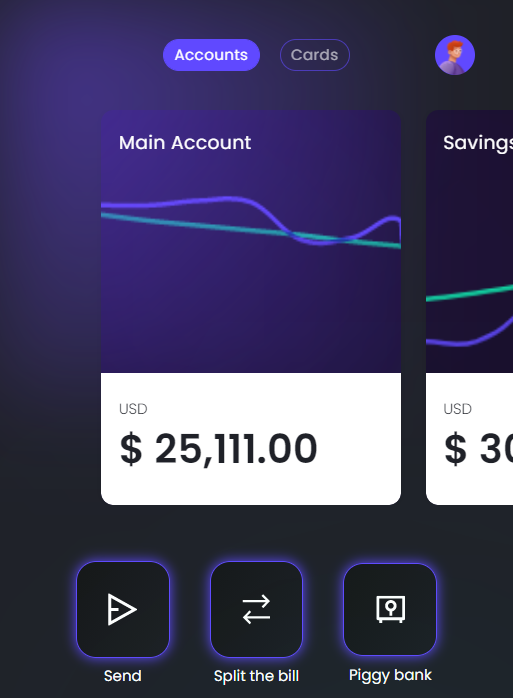
Each account has a chart displaying the fluctuation of the balance and the current value of the balance alongside the currency. To navigate between accounts, swipe left and right. The values are updated when the account is in the forefront of the screen. For each account there are three buttons available:
| Button Label | Action on click |
|---|---|
| Send | From the account selected, the user can transfer funds. |
| Split the bill | The user can transfer money to another user to pay for a bill. |
| Piggy Bank |
The user can create a deposit or a savings account. NOTE
For this solution, the saving journey was not developed. Use the extensibility of Innovation Studio to create it. |
Send money
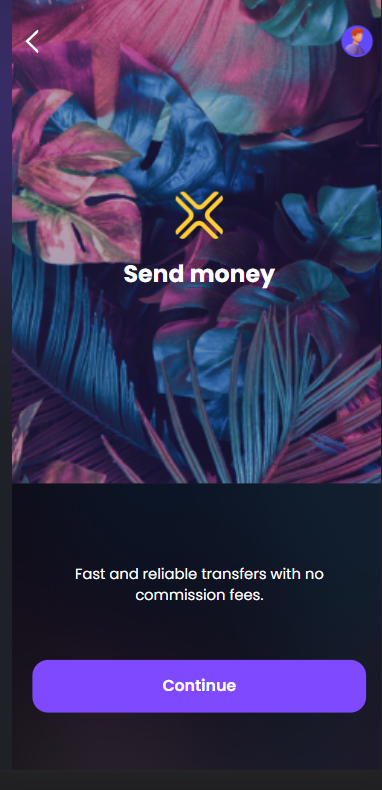
Click Continue to choose a contact to whom to send the money.
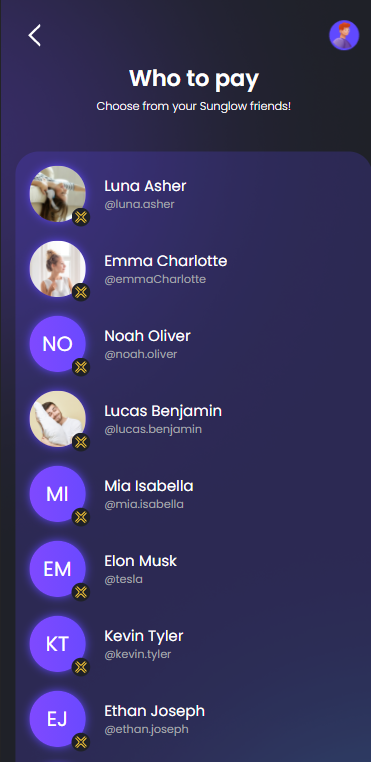
On the page Who to pay, click on one name to select to whom to transfer.
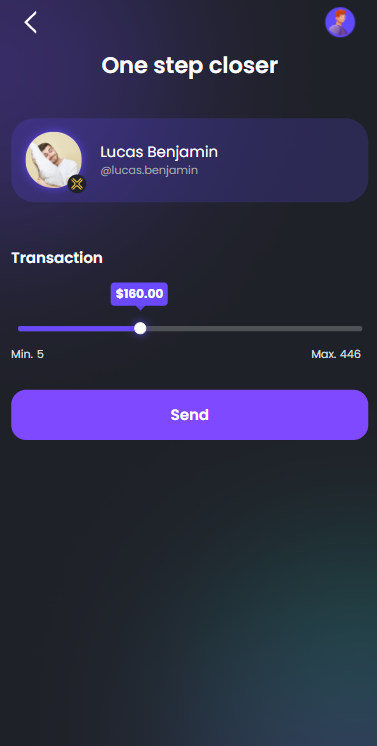
On the page One step closer, drag the slider left to right to select the amount, then click Send. If the transfer was successful, a toast message, i.e. a pop-up, is displayed to confirm the transfer.
When switching to cards, the following options are available:
| Button Label | Action on click |
|---|---|
| Block the card | The user can block the card in case it has been stolen or lost. |
| Set limit | The user can set an amount as limit for spending |
| Get info | The user can view the information about the card. |
For this solution, the buttons are not accessible, they do not trigger the actions.
Analytics
By clicking on one of the accounts, the Analytics page is displayed with details about that account in particular: spending, transactions and a daily budget tracker. The customer is able to select another account to view details for that particular account be it the main account or credit card or a savings account.
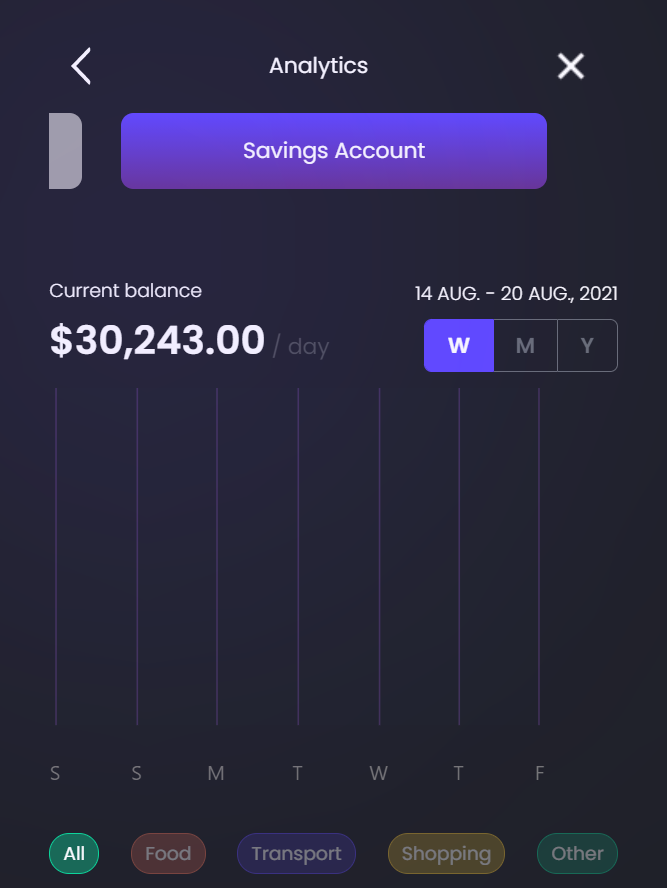
The top section contains a chart with the week/ month/ year view of the account. By clicking on the caption letters W/M/Y on the right-hand corner of the chart, the chart displays the selected view.
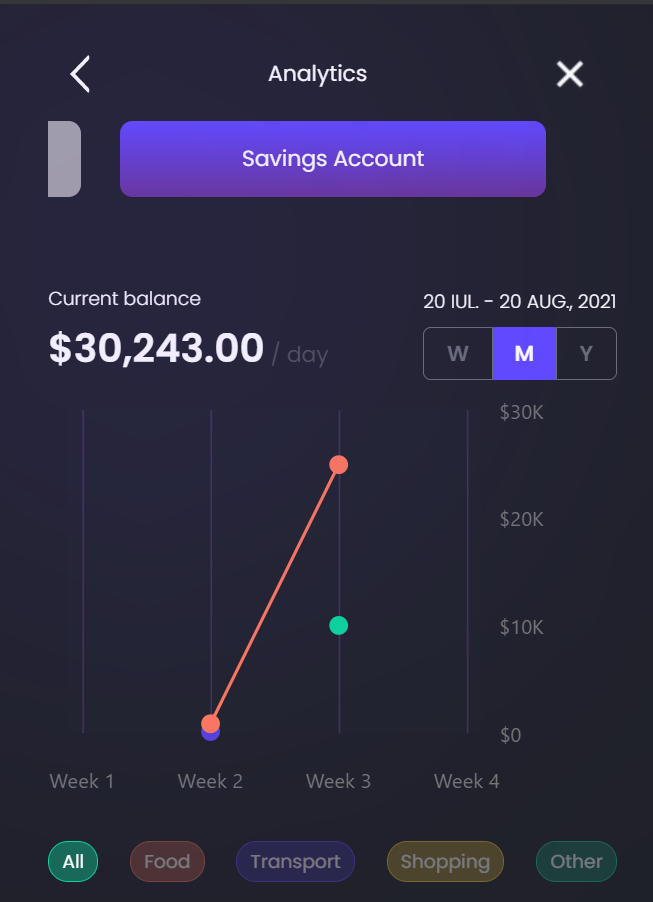
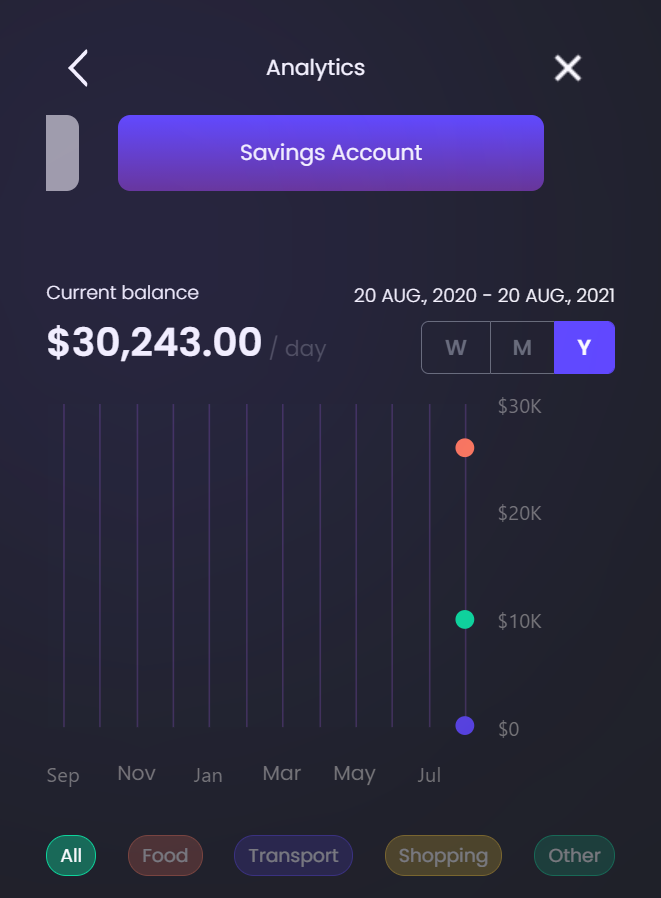
At the bottom of the chart, there are the tabs:
- All: represents the amount spent in the given time interval.
- Food: represents the amount spent on groceries.
- Transport: represents the amount spent on transportation such as taxi, gas, etc.
- Shopping: represents the amount spent on shopping.
- Other: represents miscellaneous spending.
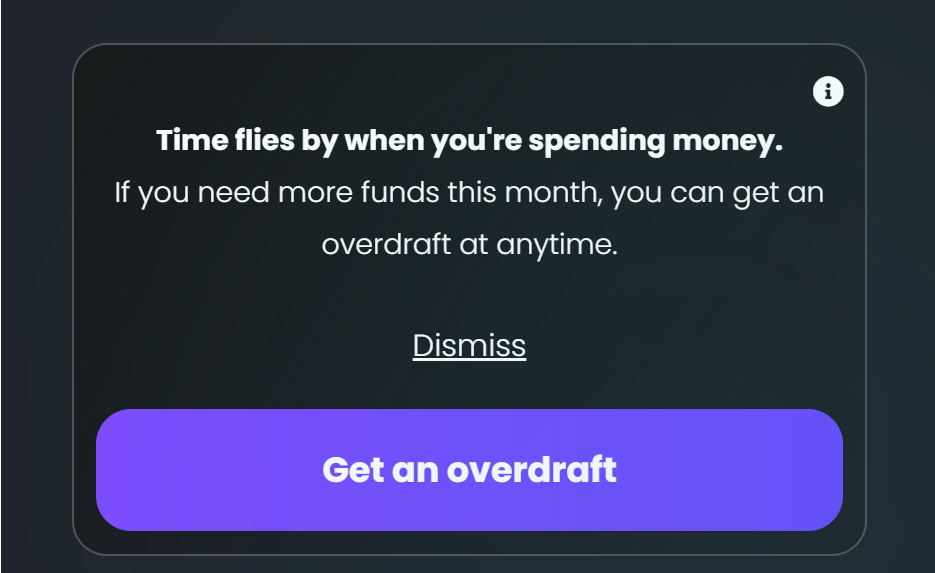
This section contains the overdraft suggestion to the user. It calculates the expenses of the customer and if the customer is likely to empty the account until the following payday, a product proposal for an overdraft is given to the customer. By clicking Dismiss, the message is deleted from the page. By clicking Get an overdraft, the overdraft flow is initiated.
Transaction History
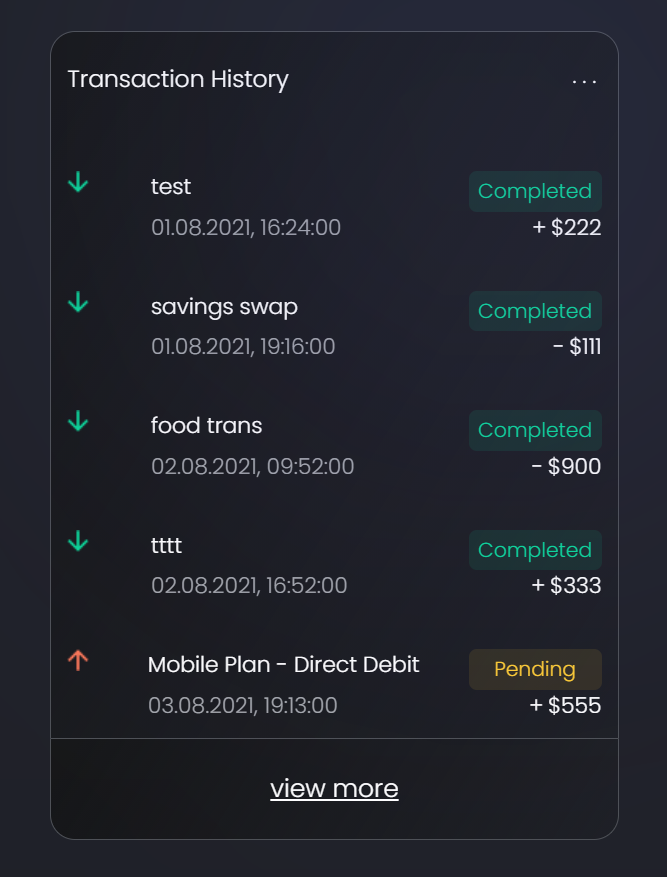
This widget presents the last five transactions done using the account selected:
- credit
- debit transactions.
The list displays the arrow for the type of transaction, the amount, the date and the status (Pending, Completed). The arrow and status are colour-coordinated: green for successfully sending/receiving money and yellow for pending transactions.
Under the transaction list, click View more to expand the list and display another five more transactions. To view all the transactions, scroll down the list.
Daily Budget
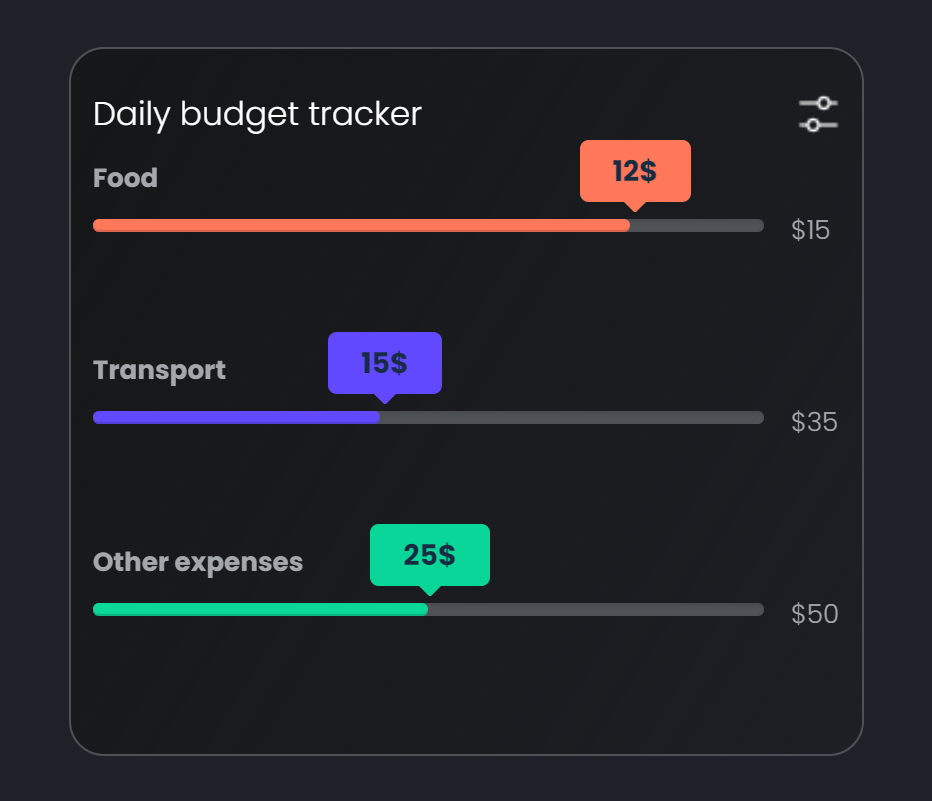
The daily budget widget displays how much they spend that day vs the daily budget set. The categories in place are Food, Transportation, and Other expenses. To edit the daily budget, click the Settings icon.
To exit the Analytics page, click the x symbol on the top-right-hand corner of the screen.
2 Loan
The following section on the homepage contains the start of the loan application. It displays the message:
Got a dream in mind? Make it happen in minutes.
Click the button Get a personalized loan to initiate the loan journey and arrive at the step Simulation.
3 Smart App
The following section contains a smart app section for the user to order food or hail a car ride and also use the time of day and GPS location to provide some highly tailored actions for their needs. Considering the geographical location and time of day, there are dynamic suggestions such as a ride home.
This section displays two icons that launch a third-party application:
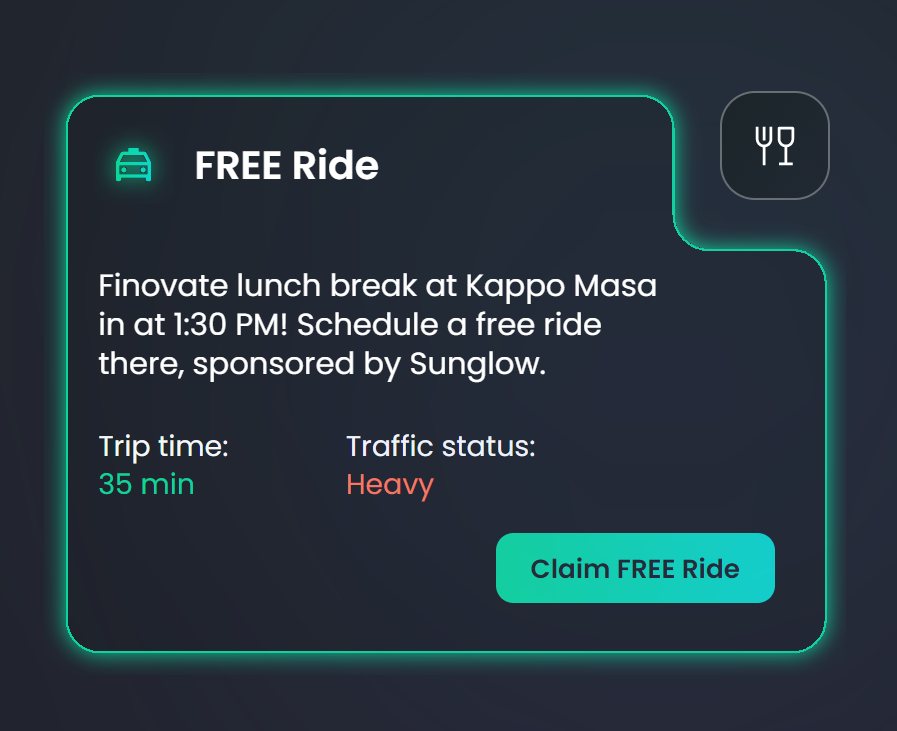
 Uber for car rides
For the time interval 1PM to 4 PM, the following text is displayed:
Finovate Conference is over in 1 hour! Schedule an UBER. Since you are at Finovate, the trip back to hotel is complementary, sponsored by Sunglow.
For the time interval 9 AM to 1 PM, the following text is displayed:
Finovate lunch break at Kappo Masa in at 1:30 PM! Schedule an UBER. Since you are at Finovate, the trip back to restaurant is complementary, sponsored by Sunglow.
When the user clicks Schedule free trip, the information on the card displays the details about the car ride:
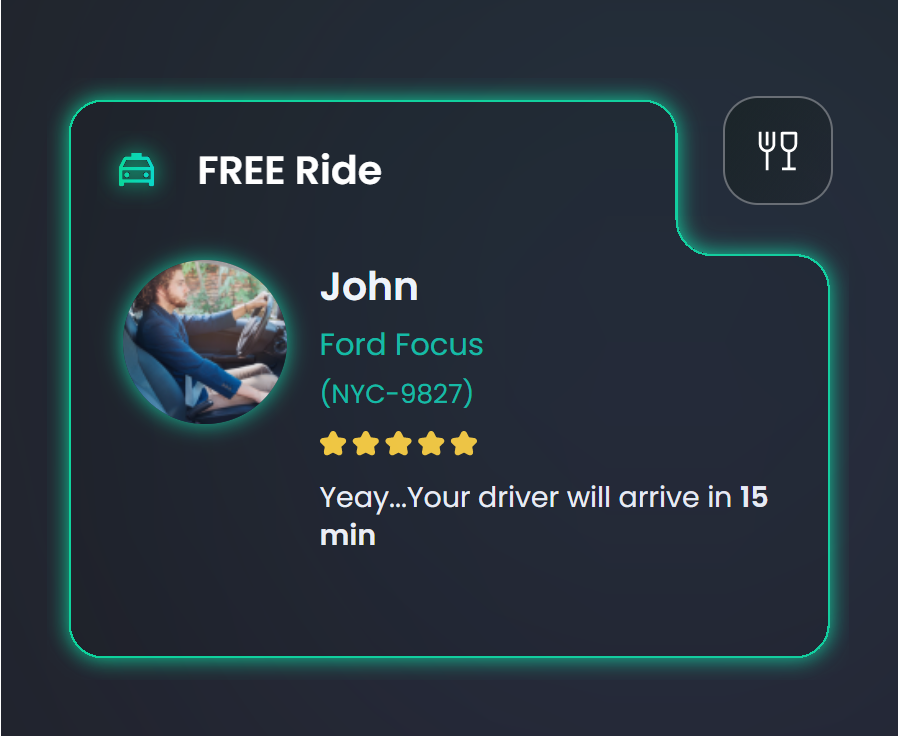
- a picture of the driver
- estimation of time
- car type
- license plate
- driver’s rating .
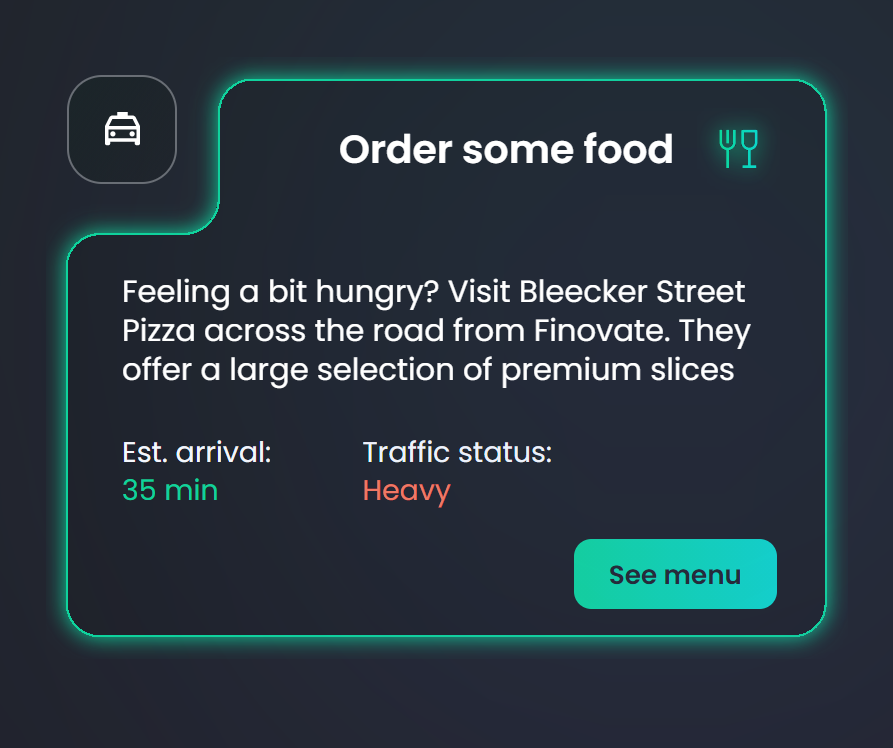
GrubHub for food ordering.
For the time interval 1PM to 4 PM, the following text is displayed:
Finovate Conference is over soon! Order some takeaway on your way back to the hotel so you don’t waste time later. Denino's Pizzeria has a limited offer for Finovate participants, 20% discount for every purchase.
Click Order takeaway to order food from Denino's Pizza.
For the time interval 9 AM to 1 PM, the following text is displayed:
Feeling a bit hungry? Visit Bleecker Street Pizza across the road from Finovate. They offer a large selection of premium slices with an extra touch of New York classics.
Click See menu to access the details about Bleecker Street Pizza.
4 Premium Membership
This section displays upgrade plans for the user. The user is already a premium member by default. There is a thank you message displayed to the user: Thank you for your premium membership, enjoy your benefits.
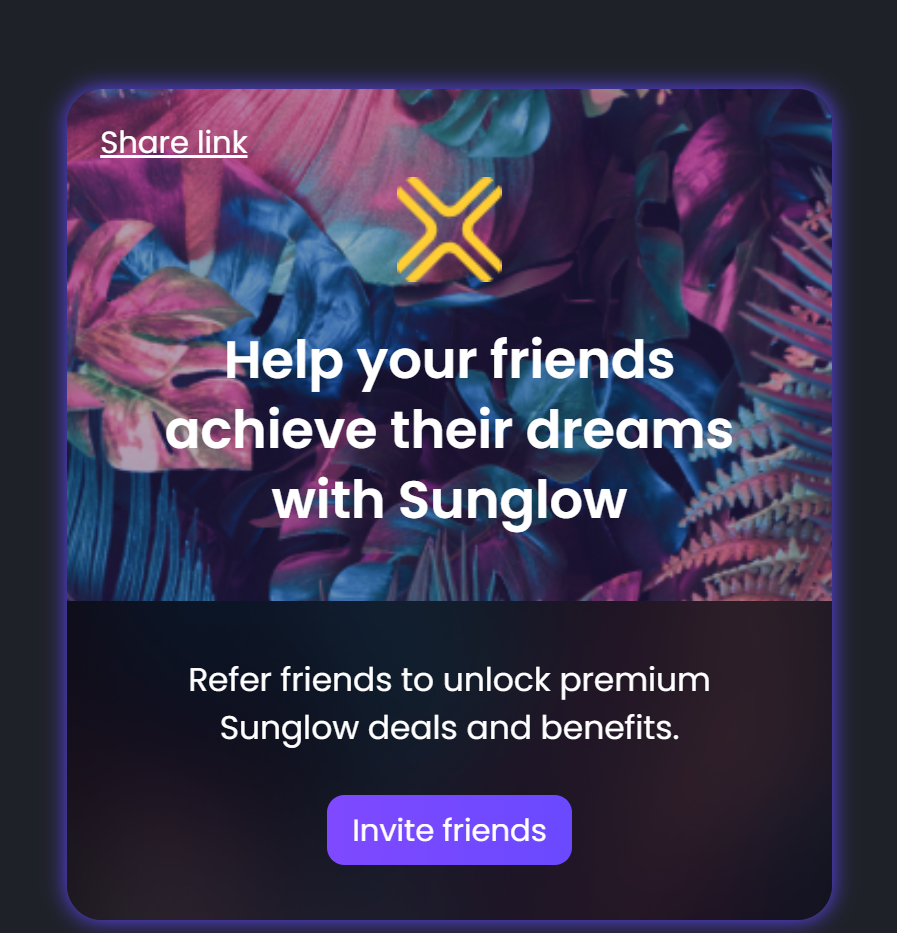
The user is configured to be a premium user, but the solution can be configured to display multiple membership levels.
5 Cashback Deals
This section contains app pockets. Applications are placed into categories. They offer discounts on prices and benefits for purchasing goods and services by clicking on the logo of each brand.
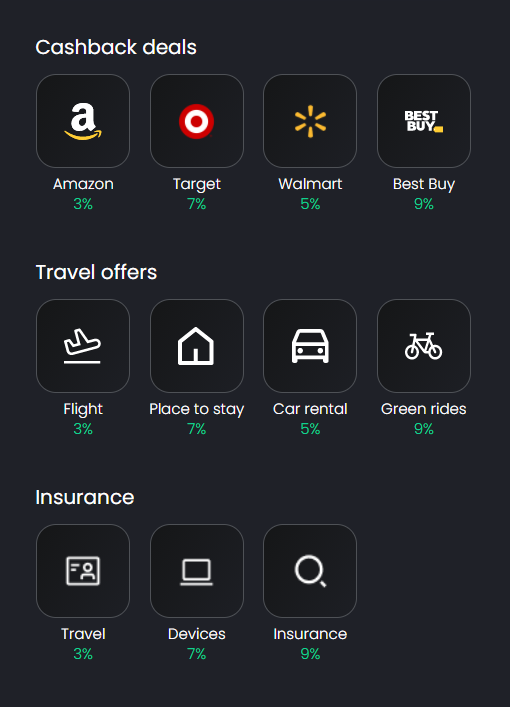
Cash-back offer for goods:
- Amazon.com – 3% cashback
- Target – 7% cashback
- Walmart – 5% cashback
- Best Buy – 9% cashback
Travel Deals:
- Flights – 3%
- Accommodations – 7%
- Car rental – 4%
- Carbon free rides – 8%
Insurance:
- Flight Insurance
- Phone Insurance
- Insure anything
It allows you to take a photo of a good and send it to the insurer company for analysis, and get a quotation back.